
IPTV on iPhone and iPad: Compatibility and Setup Checks
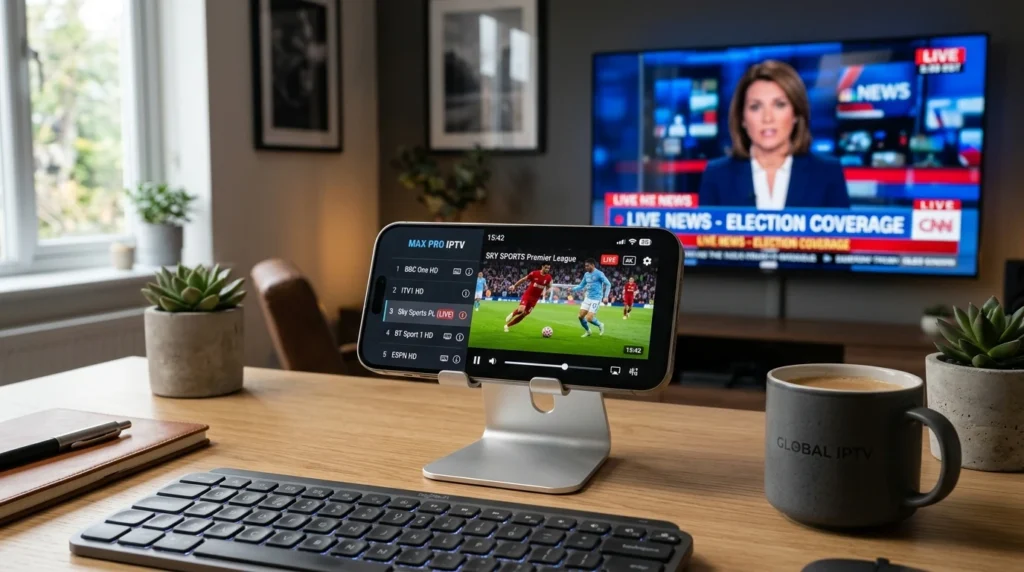
IPTV works on iPhone and iPad, giving you access to thousands of live TV channels on the go. This guide explains which IPTV apps work on iOS, the complete setup process, compatibility requirements, why some apps aren’t in the App Store, and troubleshooting tips for common iPhone IPTV issues. Article Update History October 2024: Initial publication covering iOS IPTV app compatibility, App Store vs sideloading, complete setup steps, AirPlay casting, cellular data usage, and troubleshooting guide for iPhone and iPad. Can You Watch IPTV on iPhone and iPad? Yes. IPTV works on all iPhones and iPads running iOS 13 or later using dedicated IPTV apps from the App Store. What you need: ✅ iPhone or iPad (iOS 13+) ✅ IPTV subscription (like Echo Best IPTV) ✅ IPTV app from App Store (IPTV Smarters Pro, GSE Smart IPTV, or similar) ✅ Wi-Fi or cellular data (10+ Mbps for HD) Best IPTV Apps for iPhone and iPad IPTV App App Store? Key Features IPTV Smarters Pro ✅ Yes (free) EPG, VOD, catch-up, Chromecast, AirPlay GSE Smart IPTV ✅ Yes (free) EPG, recording, Chromecast, parental control VLC for Mobile ✅ Yes (free) Plays M3U playlists, basic but reliable iPlayTV ✅ Yes ($2.99) Native iOS design, EPG, AirPlay TiviMate ❌ No Android TV only — not available on iOS Recommendation: IPTV Smarters Pro (easiest setup, most features, free). Complete iPhone/iPad IPTV Setup (IPTV Smarters Pro) Step 1: Install IPTV Smarters Pro Open App Store on your iPhone/iPad Search for “IPTV Smarters Pro” Tap “Get” → Install Open the app Step 2: Add Your IPTV Subscription You’ll need your IPTV provider’s credentials. Echo Best IPTV sends these in your welcome email: M3U URL (playlist link), OR Xtream Codes login: Server URL, username, password If you have M3U URL: In Smarters Pro, tap “Add User” (or “+” icon) Select “Load Your Playlist or File/URL” Select “M3U URL” or “File” Paste your M3U URL Give it a name (e.g., “Echo IPTV”) Tap “Add User” If you have Xtream Codes login: Tap “Add User” Select “Login with Xtream Codes API” Enter Server URL, username, and password Tap “Add User” Step 3: Start Watching Wait 10-30 seconds for channels to load Tap “Live TV” to see channel list Select any channel to start watching Use EPG (TV Guide) to browse programs iOS Compatibility Requirements iOS Version Minimum: iOS 13 (most IPTV apps) Recommended: iOS 15+ (better performance) To check iOS version: Settings → General → About → Software Version Device Compatibility IPTV apps work on: ✅ iPhone 6S and newer (2015+) ✅ iPad 5th generation and newer (2017+) ✅ iPad Pro (all models) ✅ iPad Air 2 and newer ✅ iPad Mini 4 and newer Older devices (iPhone 6, iPad Air 1): May struggle with HD streams due to weak processors. Internet Speed Requirements Stream Quality Minimum Speed Recommended SD (480p) 3 Mbps 10+ Mbps HD (720p) 5 Mbps 15+ Mbps Full HD (1080p) 8 Mbps 25+ Mbps Test speed on iPhone: Download “Speedtest by Ookla” app → Run test on Wi-Fi and cellular. Watching IPTV on Cellular Data IPTV works on iPhone cellular data (4G/5G), but be aware of data usage: Stream Quality Data Usage per Hour 10GB Plan Lasts SD (480p) ~1.5 GB/hour ~6.5 hours HD (720p) ~3 GB/hour ~3 hours Full HD (1080p) ~5 GB/hour ~2 hours Tips to reduce cellular data usage: ✅ Watch SD quality instead of HD (reduces data by 60%) ✅ Download shows on Wi-Fi for offline viewing (if app supports it) ✅ Use Wi-Fi whenever available ✅ Check cellular data limits before long sessions To check data usage: Settings → Cellular → scroll down to see app-by-app usage. AirPlay: Watching IPTV on TV from iPhone You can stream IPTV from iPhone/iPad to your TV using AirPlay: Requirements Apple TV (HD or 4K), OR AirPlay 2-compatible smart TV (Samsung, LG, Sony, Vizio) iPhone/iPad and TV on same Wi-Fi network How to AirPlay IPTV Open IPTV app on iPhone/iPad Start playing a channel Tap the AirPlay icon (screen with triangle) Select your Apple TV or AirPlay TV Stream plays on TV, use iPhone as remote To stop: Tap AirPlay icon → “iPhone” (or swipe down Control Center → AirPlay → disconnect). Why Some IPTV Apps Aren’t in App Store TiviMate, Perfect Player, and some other popular IPTV apps don’t have iOS versions because: TiviMate: Android TV only (designed for TV remotes, not touchscreens) Apple App Store restrictions: Apple rejects apps that “facilitate piracy” even if the app itself is legal Developer choice: Some developers focus only on Android Never sideload IPTV apps on iPhone unless you’re comfortable with jailbreaking and security risks. Stick with App Store apps (IPTV Smarters Pro, GSE) — they work great. iPhone/iPad vs Android for IPTV Feature iPhone/iPad Android Phone/Tablet App Selection ⚠️ Limited (Smarters, GSE, VLC, iPlayTV) ✅ More apps (includes TiviMate, Perfect Player) Setup Ease ✅ Very easy (App Store install) ✅ Very easy (Google Play install) Streaming Quality ✅ Excellent (powerful hardware) ✅ Excellent (varies by device) Casting to TV ✅ AirPlay (Apple TV, AirPlay 2 TVs) ✅ Chromecast (more TVs support this) Recording ⚠️ Limited (GSE supports it, space limited) ✅ Better (more storage options) Best For Users with Apple TV or AirPlay TVs Users who want maximum app choice Bottom line: Both work great for IPTV. iPhone/iPad is simpler if you’re already in Apple ecosystem. Android offers slightly more app choice. Troubleshooting iPhone/iPad IPTV Issues Channels Won’t Load Possible causes: Wrong M3U URL: Double-check URL in app settings (no extra spaces) Expired subscription: Verify account is active Internet down: Test by opening Safari or another app App outdated: Update from App Store Buffering or Freezing Diagnostics: Wi-Fi too slow: Run Speedtest app (need 10+ Mbps for SD, 25+ for HD) Too far from router: Move closer or switch to cellular VPN interference: Disconnect VPN temporarily to test Server overload: Try different channel or wait 10 minutes App Crashes on Launch Solutions: Force close app: swipe up from bottom → swipe app away →
IPTV Casting: Chromecast Support and Network Checks
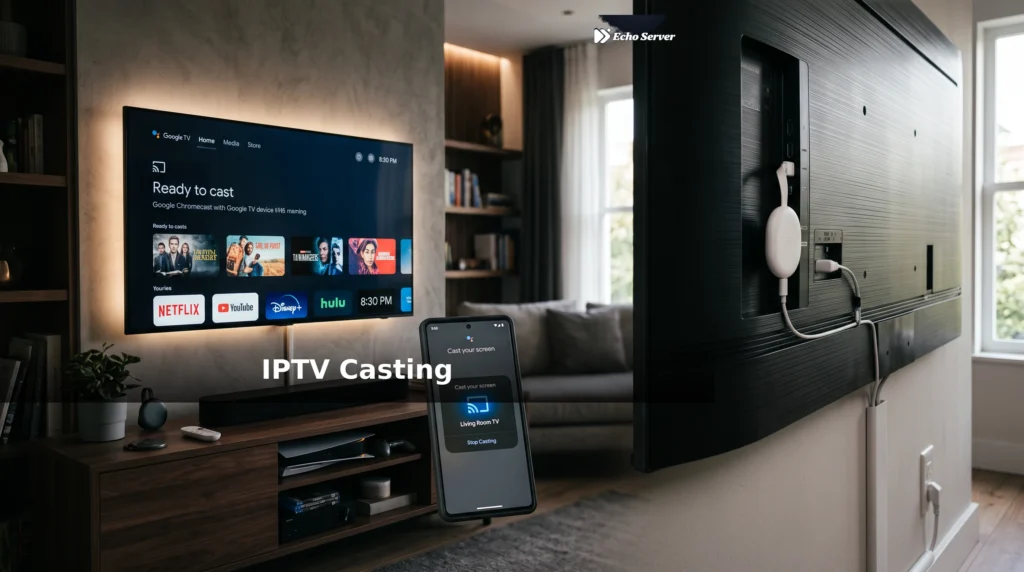
Casting IPTV to your TV via Chromecast lets you watch on the big screen without a dedicated IPTV box. This guide explains which IPTV apps support Chromecast, the complete setup process, why some apps can’t cast, network requirements, and troubleshooting tips for common casting failures. Article Update History October 2024: Initial publication covering Chromecast IPTV support, app compatibility, casting setup, network requirements, audio/video sync issues, and Chromecast vs Android TV comparison. Can You Cast IPTV to Chromecast? Yes, but it depends on your IPTV app. Some apps have built-in Chromecast support, some require screen mirroring, and some don’t work at all. IPTV App Chromecast Support How It Works IPTV Smarters Pro ✅ Built-in Tap cast icon → select Chromecast → plays on TV GSE Smart IPTV ✅ Built-in Cast icon in player, direct stream to Chromecast VLC (Android/iOS) ✅ Built-in Playback controls → Renderer → Chromecast TiviMate ❌ No Android TV app only — use screen mirroring instead Perfect Player ⚠️ Limited Experimental, unreliable — use screen mirror Best apps for Chromecast IPTV: IPTV Smarters Pro (easiest) or GSE Smart IPTV. How to Cast IPTV Using IPTV Smarters Pro Prerequisites ✅ Chromecast device connected to your TV ✅ Phone/tablet on the same Wi-Fi network as Chromecast ✅ IPTV Smarters Pro installed on your phone/tablet ✅ IPTV subscription configured in Smarters Pro Casting Steps Open IPTV Smarters Pro on your phone Navigate to the channel you want to watch Start playback Tap the cast icon (top-right corner of player) Select your Chromecast from the device list Stream starts playing on TV Use your phone as a remote (change channels, pause, adjust volume) To stop casting: Tap cast icon again → “Disconnect”. Screen Mirroring vs Chromecast Casting There are two ways to get IPTV on your TV via Chromecast: 1. Chromecast Casting (App Built-In Support) How it works: App sends stream URL directly to Chromecast Chromecast downloads and plays the stream itself Your phone is just a remote control Pros: ✅ Better quality (Chromecast plays stream directly) ✅ Phone battery not drained (phone not streaming) ✅ Can use phone for other tasks while watching ✅ Lower latency Cons: ❌ Only works if app supports it 2. Screen Mirroring (Cast Entire Phone Screen) How it works: Phone mirrors its screen to Chromecast Everything on your phone appears on TV Works with any app Pros: ✅ Works with apps that don’t support Chromecast natively (TiviMate, etc.) ✅ No special app support needed Cons: ❌ Lower quality (compressed twice) ❌ Higher latency (noticeable delay) ❌ Drains phone battery quickly ❌ Can’t use phone for anything else while watching ❌ Phone notifications appear on TV When to use each: Built-in casting: Use this whenever your app supports it (better in every way) Screen mirroring: Only when app doesn’t support Chromecast (TiviMate, older apps) How to Screen Mirror IPTV to Chromecast Android Screen Mirroring Ensure phone and Chromecast are on the same Wi-Fi Swipe down from top → tap Cast (or Screen Cast) Select your Chromecast from the list Your phone screen now appears on TV Open your IPTV app (TiviMate, etc.) and play a channel To stop: Swipe down → tap Cast → Disconnect. iPhone/iPad Screen Mirroring iPhone doesn’t natively support Chromecast screen mirroring. You need: Download Replica app (free) from App Store Open Replica → tap your Chromecast Follow on-screen instructions to start mirroring Open IPTV app and play content Alternative: Use an IPTV app with built-in Chromecast support (IPTV Smarters Pro, GSE Smart IPTV) instead of screen mirroring. Network Requirements for Chromecast IPTV Wi-Fi Speed Stream Quality Minimum Speed Recommended SD (480p) 3 Mbps 10+ Mbps HD (720p) 5 Mbps 15+ Mbps Full HD (1080p) 8 Mbps 25+ Mbps 4K (2160p) 25 Mbps 50+ Mbps Screen mirroring requires 2x the bandwidth (phone downloads stream, then uploads to Chromecast). For reliable HD screen mirroring, you need 25+ Mbps. Same Network Requirement Critical: Your phone and Chromecast MUST be on the same Wi-Fi network. Common mistakes: ❌ Phone on cellular data, Chromecast on Wi-Fi ❌ Phone on 2.4 GHz Wi-Fi, Chromecast on 5 GHz (different networks with same name) ❌ Phone on guest network, Chromecast on main network Solution: Check both devices are connected to the same Wi-Fi SSID. Router Settings Some routers block Chromecast communication by default: AP Isolation: Disabled (or Chromecast won’t appear in device list) mDNS/Bonjour: Enabled (required for device discovery) UPnP: Enabled (helps with streaming) If you can’t see Chromecast in your app, check router settings or try restarting the router. Troubleshooting Chromecast IPTV Issues Chromecast Not Appearing in App Diagnostics: Verify phone and Chromecast are on same Wi-Fi (Settings → Wi-Fi on both) Restart Chromecast (unplug power, wait 10 seconds, plug back in) Restart phone Check router AP Isolation setting (must be disabled) Try casting from another app (YouTube) to verify Chromecast works Stream Buffers or Stutters Possible causes: Wi-Fi too slow: Run speed test (need 25+ Mbps for HD) Wi-Fi congestion: Too many devices on network, or neighbor’s Wi-Fi interference Chromecast too far from router: Move router closer or use Wi-Fi extender ISP throttling: Try VPN to verify IPTV provider overload: Try different channel or wait 10 minutes Audio and Video Out of Sync Common with screen mirroring. Solutions: Use app with built-in Chromecast support instead of screen mirror Close background apps on phone (frees resources) Restart both phone and Chromecast If persistent, screen mirroring may not be viable — consider buying a Chromecast with Google TV and installing IPTV app directly Casting Disconnects Randomly Causes: Phone goes to sleep: Disable battery optimization for IPTV app Wi-Fi drops: Check router logs, consider wired Ethernet for Chromecast (needs adapter) Chromecast overheating: Ensure ventilation, don’t stack devices on top of it Chromecast vs Chromecast with Google TV Feature Chromecast (basic) Chromecast with Google TV IPTV Method Must cast from phone Install IPTV app directly on device Phone Needed? Yes (acts as remote) No (has its own remote) IPTV Apps Available Only apps that support casting All Android TV IPTV apps (TiviMate,
Kodi and IPTV: How the Player and Service Work Together
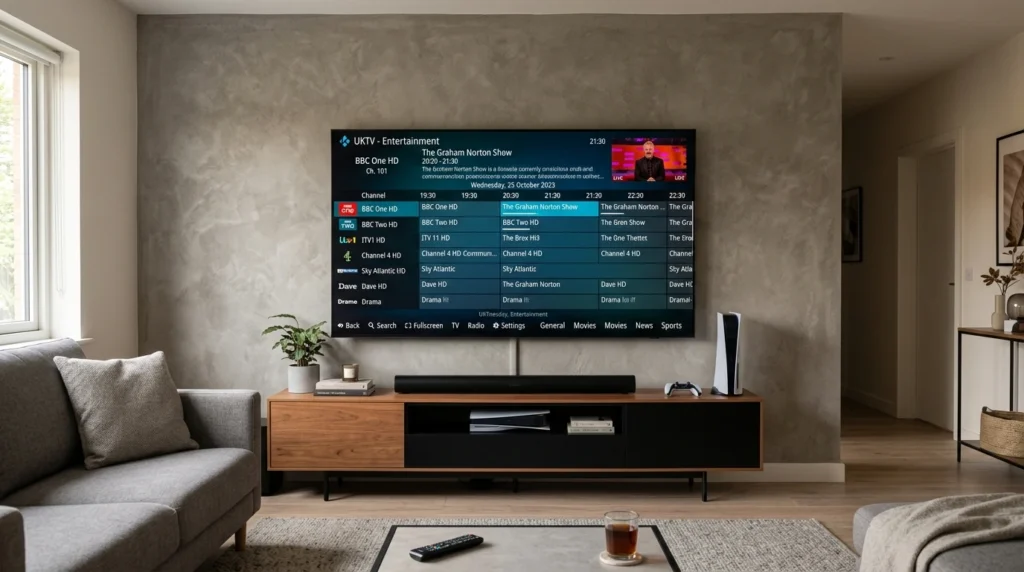
Kodi is a free media player that can stream IPTV content when configured with the right addons. This guide explains how Kodi and IPTV work together, which PVR addon to use, the complete setup process, and why Kodi’s interface appeals to users who want a traditional DVR-style TV experience. Article Update History October 2024: Initial publication covering Kodi basics, PVR IPTV Simple Client setup, M3U and EPG configuration, recording setup, and Kodi vs dedicated IPTV apps comparison. What Is Kodi? Kodi is a free, open-source media player originally designed for home theater PCs. It organizes and plays local media files (movies, music, photos) and can stream content from the internet when you install addons. Key facts: ✅ 100% free (no subscription, no premium version) ✅ Open source (code is publicly available) ✅ Runs on Windows, Mac, Linux, Android, iOS, Fire TV, Raspberry Pi ✅ Addon system extends functionality (IPTV support requires an addon) ❌ Kodi itself is NOT an IPTV provider — it’s just the player Important: Kodi does not include any content. You must provide your own IPTV subscription (like Echo Best IPTV) and configure Kodi to play it. How Kodi and IPTV Work Together Kodi doesn’t natively support IPTV. You need to install a PVR (Personal Video Recorder) addon that: Reads your IPTV provider’s M3U playlist (list of channels) Downloads EPG (electronic program guide) data Displays channels in Kodi’s TV interface Handles playback when you select a channel The flow: Your IPTV Provider (Echo Best IPTV) ↓ M3U Playlist URL + EPG URL ↓ Kodi PVR IPTV Simple Client addon ↓ Kodi TV Interface ↓ You watch channels Which Kodi PVR Addon for IPTV? The addon you need is PVR IPTV Simple Client. Addon Purpose Recommended? PVR IPTV Simple Client Official addon for M3U playlists and EPG ✅ Yes (use this) Xtream Codes PVR Client For Xtream Codes API (some providers) ⚠️ Only if provider requires it Other “IPTV” addons Third-party content addons ❌ Not needed for legitimate IPTV For Echo Best IPTV: Use PVR IPTV Simple Client. Echo provides M3U playlist URLs that work perfectly with this official addon. Complete Kodi IPTV Setup (Step-by-Step) Step 1: Install Kodi Download: https://kodi.tv/download Available for: Windows 10/11 macOS Android TV / Fire TV (install from Google Play or Amazon Appstore) Linux iOS (requires jailbreak or side-loading) Installation: Standard installer — no tricks, no bloatware. Step 2: Enable PVR Support in Kodi Open Kodi Go to Settings (gear icon) → Add-ons Click My add-ons Navigate to PVR clients Select PVR IPTV Simple Client Click Enable If you don’t see PVR IPTV Simple Client, it’s included with Kodi by default but may need to be installed: Settings → Add-ons → Install from repository → Kodi Add-on repository → PVR clients → PVR IPTV Simple Client → Install Step 3: Configure PVR IPTV Simple Client After enabling the addon: Click Configure (opens addon settings) Go to General tab Set Location to “Remote Path (Internet address)” Paste your IPTV provider’s M3U URL into M3U Play List URL Go to EPG Settings tab Set XMLTV Location to “Remote Path (Internet address)” Paste your provider’s EPG URL into XMLTV Path Click OK Where to get M3U and EPG URLs: Check your IPTV provider’s email (sent when you subscribe) Log into your provider’s customer portal Contact support if you can’t find them Echo Best IPTV users: URLs are in your welcome email and account dashboard. Step 4: Restart Kodi Close and reopen Kodi to load the channels. First load may take 1-2 minutes as Kodi downloads the playlist and EPG. Step 5: Access TV Channels From Kodi home screen, select TV (left menu) Go to Channels Your IPTV channels should appear in a list Select any channel to start watching If channels don’t appear, check Step 3 configuration and verify your M3U URL is correct. Kodi IPTV Interface Features TV Guide (EPG) Kodi’s TV Guide shows what’s currently playing and upcoming programs for all channels: Navigate to TV → Guide Browse by time or channel Click any program to start watching Right-click (or long-press) → Record to schedule recording EPG not showing? Check that your EPG URL is configured correctly in PVR IPTV Simple Client settings. Recording Channels Kodi supports IPTV recording if you configure it: Settings → PVR & Live TV → Recording Enable recording Set recording path (where recordings are saved) Set recording margins (start early/end late to catch schedule changes) Once configured, you can schedule recordings from the TV Guide: Find show in guide → Right-click → Record Choose “Record once” or “Record series” (all episodes) Storage needed: 1-2 GB per hour of SD, 4-6 GB per hour of HD. See our complete IPTV recording guide for details. Channel Groups and Favorites Organize channels by creating groups: Channel Groups: Settings → PVR & Live TV → Guide → Show channel groups Favorites: Right-click any channel → Add to favorites Groups help manage hundreds of channels (Echo Best IPTV includes 20,000+ channels across all plans). Kodi vs Dedicated IPTV Apps Feature Kodi TiviMate / Smarters Pro Price Free TiviMate $6/year, Smarters free Setup Complexity Medium (addon + configuration) Easy (paste URL, done) Interface Style Traditional DVR/cable box Modern streaming app Recording ✅ Scheduled, series, manual TiviMate: ✅ Full. Smarters: ⚠️ Manual only Catch-Up TV ⚠️ Limited (depends on addon) ✅ Excellent VOD Integration ⚠️ Separate section ✅ Integrated in main UI Other Media ✅ Music, photos, local files ❌ IPTV only Best For Users who want full media center + traditional TV UI Users who want simple, modern IPTV-only experience When to Choose Kodi for IPTV Choose Kodi if: ✅ You want a free, open-source solution ✅ You prefer a traditional DVR-style interface (familiar to cable/satellite TV users) ✅ You want to manage IPTV + local media in one app ✅ You need full recording features (scheduled, series recording) ✅ You’re technically comfortable (setup is more involved than dedicated IPTV apps) Choose TiviMate or IPTV Smarters Pro if: ✅ You want the easiest setup
IPTV Recording: Storage, App Support and Connection Limits
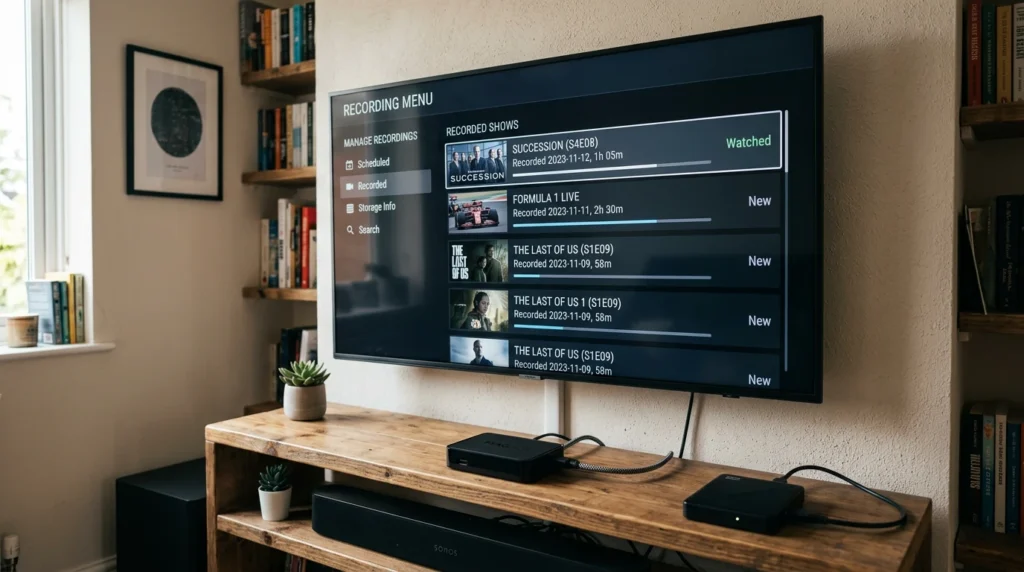
Recording IPTV streams saves your favorite shows, sports events, and movies for later viewing. This guide explains which IPTV apps support recording, how much storage you actually need, whether recording counts against connection limits, and the legal considerations you must understand before enabling this feature. Article Update History October 2024: Initial publication covering IPTV recording app support, storage requirements, connection-limit behavior, legal framework, and configuration examples for TiviMate, IPTV Smarters Pro, and Kodi. Can You Record IPTV? Yes, but only if three conditions are met: Your IPTV app supports recording (not all do) You have local storage (internal storage, USB drive, or NAS) Your provider allows recording (some explicitly prohibit it in terms of service) Recording IPTV is NOT the same as recording cable/satellite TV with a DVR — it’s more like screen recording, and each app handles it differently. IPTV Apps That Support Recording IPTV App Supports Recording? Notes TiviMate Premium ✅ Yes Best recording interface, scheduled recording, series recording Kodi (PVR addon) ✅ Yes Requires PVR IPTV Simple Client addon configuration IPTV Smarters Pro ⚠️ Limited Can record live streams but no scheduled recording GSE Smart IPTV ✅ Yes Basic recording, iOS/Android VLC Media Player ✅ Yes Manual recording only (no schedule), computer required Perfect Player ❌ No Playback-only app Best choice for recording: TiviMate Premium ($6/year) on Android TV box or Fire Stick. Storage Requirements How Much Storage Does IPTV Recording Use? Recording size depends on stream quality: Stream Quality Size per Hour 1-Hour Movie 2-Hour Sports Game SD (480p) 1-1.5 GB/hour ~1.2 GB ~2.5 GB HD (720p) 2-3 GB/hour ~2.5 GB ~5 GB Full HD (1080p) 4-6 GB/hour ~5 GB ~10 GB 4K (2160p) 15-25 GB/hour ~20 GB ~40 GB Recommended Storage by Use Case Casual recording (5-10 hours/week HD): 128 GB USB drive Regular recording (20-30 hours/week HD): 500 GB external drive or NAS Sports fan (multiple games, keep for weeks): 1-2 TB external drive 4K recording: 2+ TB, preferably NAS or high-speed external SSD Storage Location Options Internal device storage: Convenient but limited (most boxes have 8-16 GB) USB flash drive: Cheap, portable, adequate for light recording External USB hard drive: Best value for capacity (1-2 TB common) Network Attached Storage (NAS): Best for multiple devices, automated backup Fire Stick limitation: Fire TV devices have very limited internal storage and slow USB 2.0 ports — use an Android TV box if serious recording is important. Does Recording Count Against Connection Limits? Yes, recording uses one active stream from your connection limit while the recording is in progress. How it works: ✅ Watching a live stream = 1 connection ✅ Recording a live stream = 1 connection ✅ Watching one stream while recording another = 2 connections ✅ Playing back a previously-recorded show = 0 connections (plays from local storage) Example with 2-connection plan: ✅ Record ESPN while watching Netflix → works (1 IPTV connection used) ✅ Record ESPN in living room, watch CNN in bedroom → works (2 IPTV connections) ❌ Record ESPN + CNN while watching Fox News → fails (3 connections needed, plan allows 2) Important: If you exceed your connection limit while recording is active, the recording will fail or stop. Scheduled Recording vs Manual Recording Scheduled Recording (TiviMate, Kodi) How it works: Set recording start time, duration, and recurrence Device must be powered on and connected at scheduled time Recording starts automatically even if you’re not watching Pros: ✅ Never miss shows ✅ Series recording (record every episode) ✅ Set once, records automatically Cons: ❌ Requires device to stay on ❌ Uses connection slot even when you’re not home ❌ Can fill storage if you forget to delete old recordings Manual Recording (IPTV Smarters, VLC) How it works: Press record button while watching Recording starts immediately Press stop when done Pros: ✅ Simple — no scheduling ✅ Record exactly what you want ✅ Doesn’t use connections when you’re not recording Cons: ❌ Must remember to start recording ❌ Must be actively watching to record ❌ Can’t record while you’re away Legal Considerations Recording IPTV streams raises legal questions that vary by country and service: Recording for Personal Use In most countries, recording TV for personal time-shifted viewing (watch later) is legal under “fair use” or similar doctrines. However: IPTV is different from cable/satellite: Some IPTV services explicitly prohibit recording in their terms of service Provider terms matter: Violating terms can result in account suspension Content source matters: Recording pirated content is illegal regardless of personal use What Echo Best IPTV’s Terms Say Echo Best IPTV allows personal recording for time-shifted viewing on plans that support it. Our terms: ✅ Record for personal viewing later (time-shifting) ❌ Do not distribute recordings to others ❌ Do not sell or share recordings publicly ✅ Recordings stored on your own devices (we don’t provide cloud DVR) Connection limits still apply during recording — a 2-connection plan allows 2 simultaneous streams whether watching or recording. What You Should NOT Do ❌ Record and share/sell recordings ❌ Record content to avoid subscribing to legitimate services ❌ Archive recordings for commercial purposes ❌ Upload recordings to YouTube, social media, or file-sharing sites Setting Up Recording in Popular Apps TiviMate Premium Recording Setup One-time setup: Open TiviMate → Settings → Recording Set recording path (internal storage, USB drive, or network share) Set default recording quality (match stream quality for best results) Enable “Wake device for recording” if scheduling recordings To schedule a recording: Navigate to the show/event in EPG guide Long-press → “Record” Choose “This episode” or “Series” (all episodes) Confirm schedule To manually record: Play the channel you want to record Press the record button (circle icon) Recording starts immediately Press stop when done, or it stops automatically when you change channels Kodi PVR Recording Setup Prerequisites: Kodi installed PVR IPTV Simple Client addon installed and configured with your M3U playlist Enable recording: Settings → PVR & Live TV → Recording → “Enabled” Set recording path (local folder or network share) Set default recording margin (start
Choosing an IPTV Box: Compatibility, Updates and Total Cost
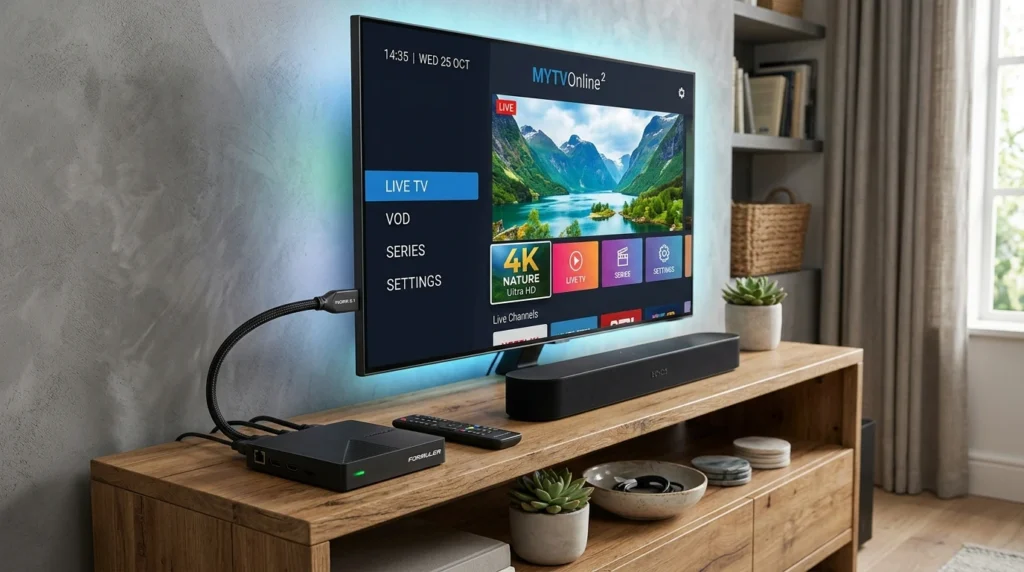
Choosing the right IPTV box can save you hundreds of dollars and countless hours of frustration. This guide explains what to look for in an IPTV box, which devices actually work well, and the true total cost including hidden expenses most buyers overlook. Article Update History October 2024: Initial publication covering IPTV box selection criteria, device compatibility, Android vs proprietary boxes, total cost analysis, and current recommendations for 2024-2025. Do You Actually Need a Dedicated IPTV Box? Before buying an IPTV box, understand that you probably already own a device that can run IPTV: Device You Already Own Works for IPTV? IPTV Apps Available Fire TV Stick ✅ Yes (excellent) TiviMate, IPTV Smarters Pro, Kodi Android TV / Google TV ✅ Yes (excellent) All Android IPTV apps Smart TV (Samsung/LG) ⚠️ Limited Very few (IPTV Smarters on some models) Windows/Mac Computer ✅ Yes (excellent) VLC, Kodi, IPTV Smarters Pro iPhone/iPad/Android Phone ✅ Yes IPTV Smarters, GSE Smart IPTV Bottom line: If you already have a Fire Stick, Android TV, or computer, you don’t need to buy a dedicated IPTV box. Use what you have. When to Buy a Dedicated IPTV Box Buy a dedicated IPTV box only if: ✅ You don’t own any of the devices above ✅ Your current device is too slow (old Fire Stick struggling with HD) ✅ You want a dedicated TV device (don’t want to tie up your computer) ✅ You need 4K HDR support and your current device doesn’t have it IPTV Box Types: Android vs Proprietary IPTV boxes fall into two categories: Android TV Boxes (Recommended) Examples: NVIDIA Shield TV, Chromecast with Google TV, Formuler Z series, BuzzTV boxes Pros: ✅ Runs all IPTV apps (TiviMate, IPTV Smarters Pro, Kodi, VLC) ✅ Google Play Store access ✅ Regular Android updates ✅ Works for IPTV + Netflix/YouTube/everything else Cons: ❌ Slightly more complex setup than Fire Stick ❌ Higher price ($50-$200) Proprietary IPTV Boxes Examples: MAG boxes, Formuler boxes (MyTVOnline app), dedicated branded IPTV boxes from providers Pros: ✅ Simple setup (often pre-configured by provider) ✅ Optimized interface for IPTV only Cons: ❌ Limited to specific IPTV apps ❌ Cannot run Netflix/YouTube/other streaming apps ❌ Updates depend on manufacturer (often slow or discontinued) ❌ If IPTV provider changes format, box may become useless Recommendation: Choose Android TV boxes over proprietary. They’re more versatile and future-proof. Critical Compatibility Factors 1. IPTV App Support Verify the box supports your preferred IPTV app BEFORE buying: TiviMate: Requires Android TV (not just any Android box) IPTV Smarters Pro: Requires Android 5.0+ Kodi: Runs on almost anything VLC: Runs on almost anything Check the box’s app store listings before purchase. Don’t assume. 2. Video Codec Support Your box must decode the video formats your IPTV uses: H.264: Universal (all boxes support this) H.265/HEVC: Required for 4K streams (most modern boxes support it) Hardware decoding: Essential for smooth 4K playback without lag Verify box specifications list “H.265/HEVC hardware decoding” if you want 4K. 3. RAM and Storage Minimum RAM: 2GB (adequate for HD) Recommended RAM: 4GB (smooth 4K) Storage: 8GB minimum (16GB+ better for app updates) Boxes with 1GB RAM will struggle with HD streams and lag frequently. 4. Wi-Fi vs Ethernet Wi-Fi: Convenient but can cause buffering on HD/4K streams Ethernet: More reliable, no buffering (if box has gigabit port, even better) Best choice: Box with both (use Ethernet, Wi-Fi as backup) Recommended IPTV Boxes (2024-2025) Best Overall: NVIDIA Shield TV ($150-200) Most powerful Android TV box 4K HDR, Dolby Vision, Dolby Atmos support Runs TiviMate, all IPTV apps, and all streaming apps Regular updates for years Gigabit Ethernet + Wi-Fi 6 Best for: Users who want the best performance and plan to keep the box for 5+ years. Best Value: Chromecast with Google TV 4K ($50) Official Google device 4K HDR support Runs all Android IPTV apps Compact design Regular Google updates Best for: Budget-conscious buyers who want full Android TV functionality. Already Own Fire Stick? Keep It ($0 additional cost) Fire TV Stick 4K works great for IPTV TiviMate, IPTV Smarters Pro, Kodi all available No need to buy separate box Total Cost Calculator IPTV box ownership costs MORE than just the purchase price: Cost Component One-Time Annual IPTV Box (mid-range) $100 — IPTV Subscription (Echo Best Ultra) — €49.90 (~$55) TiviMate Premium (optional) — $6 Internet (portion for IPTV) — $0* (already paying) HDMI cable (if needed) $10 — Year 1 Total $110 $61 Year 1 TOTAL COST $171 Compare to cable TV: $1,500-$2,000/year Savings year 1: $1,329-$1,829 Avoid These Common Mistakes ❌ Buying the Cheapest Box on Amazon $30-$40 “Android TV boxes” from unknown brands often: Run outdated Android versions (no app updates) Have fake specs (claim 4GB RAM, actually 1GB) Lack Google Play certification (can’t run official apps) Stop getting updates after 6 months ❌ Buying Provider-Branded Boxes IPTV providers selling their own branded boxes often charge $100-$150 for: A $40 generic Android box with their logo Pre-installed app you could install yourself for free Lock-in to that specific provider ❌ Ignoring Future App Support Apps like TiviMate update regularly and may drop support for old Android versions. Buy a box that will receive Android updates for at least 3-4 years. Setup Considerations How Long Does Setup Take? Fire Stick with IPTV: 15-30 minutes (sideload app, add playlist) Android TV box: 20-40 minutes (initial setup, app install, configuration) Kodi on any device: 30-60 minutes (install, configure PVR addon, add playlist) Do You Need Technical Knowledge? Basic IPTV setup requires: ✅ Can copy/paste URL (for M3U playlist) ✅ Can install apps from app store ✅ Can follow step-by-step instructions ❌ No coding or networking knowledge needed If you’ve ever installed Netflix, you can set up IPTV. Maintenance and Updates Android TV boxes: Automatic app updates via Google Play Fire Stick: Automatic app and system updates Proprietary boxes: Manual firmware updates (often require USB stick) Time investment: 5-10 minutes every few months for most boxes. Why Echo Best IPTV Works on All Devices Quality IPTV
IPTV Audio Problems: No Sound and Lip-Sync Checks
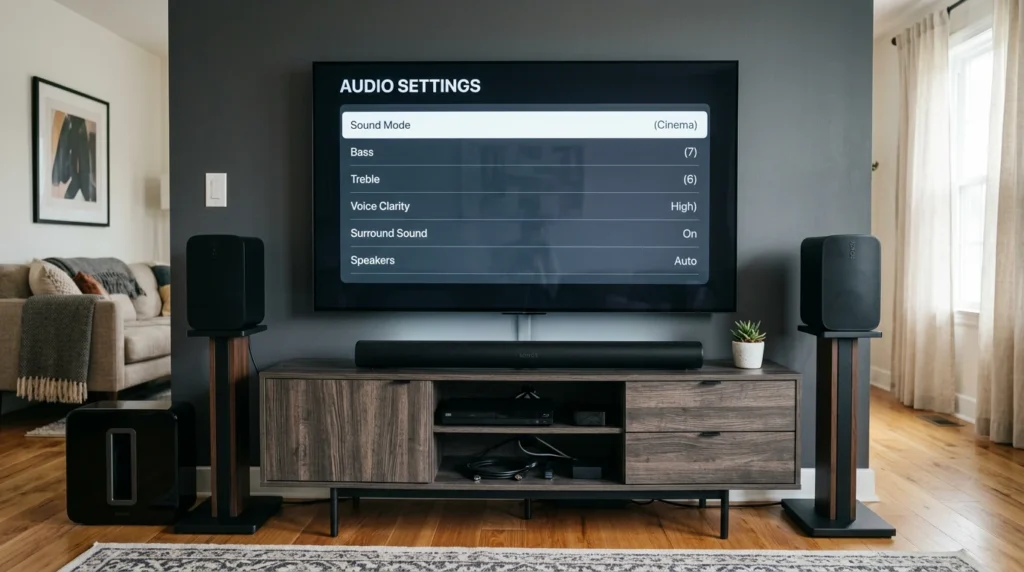
When your IPTV video plays perfectly but you can’t hear any sound — or the audio is out of sync with the picture — it’s incredibly frustrating. This comprehensive troubleshooting guide walks you through diagnosing and fixing IPTV audio problems across all players, from missing sound to lip-sync delays to wrong audio track selection. Article Update History October 2024: Initial publication covering IPTV audio troubleshooting including no sound diagnosis, audio track selection, decoder configuration, output device settings, and lip-sync fixes for TiviMate, IPTV Smarters Pro, Kodi, and VLC. Why we update: IPTV players and audio standards evolve. We refresh troubleshooting steps every 3-6 months to match current app versions and codec support. Quick Diagnosis: What Type of Audio Problem Do You Have? IPTV audio problems fall into three main categories. Identify yours first: Symptom Problem Type Most Likely Cause No sound at all (video plays fine) Complete audio loss Wrong audio track, muted app/device, incompatible codec Audio delayed (lips don’t match words) Lip-sync issue Buffering mismatch, processing delay, wrong sync offset Wrong language audio Audio track selection Multi-audio stream, wrong track selected Crackling, distorted, or robotic sound Audio quality issue Buffer underrun, decoder problem, bitrate mismatch Fix 1: Check Device Volume and Mute Settings Start with the basics — you’d be surprised how often the solution is simple: Check Your TV/Monitor Volume Press Volume Up on your TV remote Ensure TV is not muted (look for mute icon on screen) Verify correct audio output is selected (TV speakers vs external soundbar) Check IPTV App Volume Some IPTV apps have independent volume controls: TiviMate: During playback, press Volume Up/Down on remote VLC: Click speaker icon in player controls, ensure it’s not at 0% Kodi: Check volume slider in bottom-right during playback Check Device System Volume Fire Stick, Android TV, and other devices have master volume: Fire Stick: Hold Home button → Settings → Check volume isn’t at 0 Android TV: Quick settings → Volume slider Windows/Mac: System tray/menu bar volume control Fix 2: Select the Correct Audio Track Many IPTV streams include multiple audio tracks (English, Spanish, commentary, original language). If you selected the wrong track, you might hear nothing or the wrong language. Change Audio Track in TiviMate During playback, press Menu button Select Audio icon Choose different audio track from list Try each track until you hear correct audio Change Audio Track in IPTV Smarters Pro Tap screen during playback to show controls Tap Audio or Settings icon Select Audio Track Try different tracks Change Audio Track in VLC Right-click video during playback Audio → Audio Track Select different track from menu Change Audio Track in Kodi During playback, press Options button (or Back button on some remotes) Audio Settings Audio Stream → Select different track Fix 3: Test Audio Output Device Your device might be sending audio to the wrong output (e.g., HDMI instead of TV speakers, or Bluetooth headphones that aren’t connected). Fire Stick Audio Output Settings → Display & Sounds → Audio Check Audio Output setting Try switching between Auto, Stereo, Dolby Digital If using soundbar: ensure it’s powered on and correct HDMI input selected Android TV Audio Output Settings → Display & Sound → Audio Output Select correct output device If using external speakers: verify they’re connected and powered Windows/Mac Audio Output Windows: Right-click speaker icon → Open Sound Settings → Select correct output device Mac: System Preferences → Sound → Output tab → Select correct device Fix 4: Check Audio Codec Compatibility If your device doesn’t support the audio codec used in the IPTV stream, you’ll get no sound even though video plays. Common IPTV Audio Codecs AAC: Most compatible, works on all devices MP3: Universal compatibility AC3 (Dolby Digital): Common for HD streams, requires decoder support E-AC3 (Dolby Digital Plus): Newer, not all devices support it DTS: Rare in IPTV, limited device support Enable Audio Passthrough (Advanced) If your TV/soundbar supports Dolby Digital but your player doesn’t decode it: TiviMate: Settings → Playback Audio section Enable Audio Passthrough Your TV/soundbar will handle audio decoding Kodi: Settings → System → Audio Enable Allow passthrough Select which formats to pass through (AC3, DTS, etc.) Fix 5: Solve Lip-Sync Problems When audio is delayed behind the video (or ahead of it), you need to adjust audio sync offset. Adjust Audio Sync in TiviMate During playback, press Menu Select Audio Delay Use + and – buttons to adjust (in milliseconds) Positive number = audio plays later (fixes audio ahead of video) Negative number = audio plays earlier (fixes audio behind video) TiviMate saves your audio delay setting per channel, so you only adjust once. Adjust Audio Sync in VLC Tools → Track Synchronization Adjust Audio track synchronization slider Or use keyboard shortcuts: K = Increase audio delay (+50ms) J = Decrease audio delay (-50ms) Adjust Audio Sync in Kodi During playback, press Options button Audio Settings Audio Offset → Adjust with arrow keys What Causes Lip-Sync Issues? Buffering mismatch: Video buffers faster than audio (or vice versa) Processing delay: Your TV’s video processing (motion smoothing, upscaling) delays video while audio plays in real-time Soundbar delay: External soundbar processes audio slower than TV displays video Stream encoding: IPTV provider’s stream has inherent sync issues Solution for TV processing delay: Disable motion smoothing, game mode, or other video processing features in TV settings. Fix 6: Restart Your IPTV App and Device Sometimes audio drivers or decoders get into a bad state. A restart often fixes it. Restart IPTV App Only Force close the IPTV app (don’t just exit to home screen) Fire Stick: Settings → Applications → Manage Installed Applications → Select app → Force Stop Android TV: Settings → Apps → Select app → Force Stop Reopen app and test audio Restart Entire Device Fire Stick: Settings → My Fire TV → Restart Android TV: Settings → Device Preferences → Restart Windows/Mac: Full system restart Fix 7: Update Your IPTV App Outdated apps may have audio bugs that newer versions fixed. Update TiviMate Open TiviMate Settings →
IPTV Playlist Guide: M3U Format, How to Load & Troubleshooting 2026
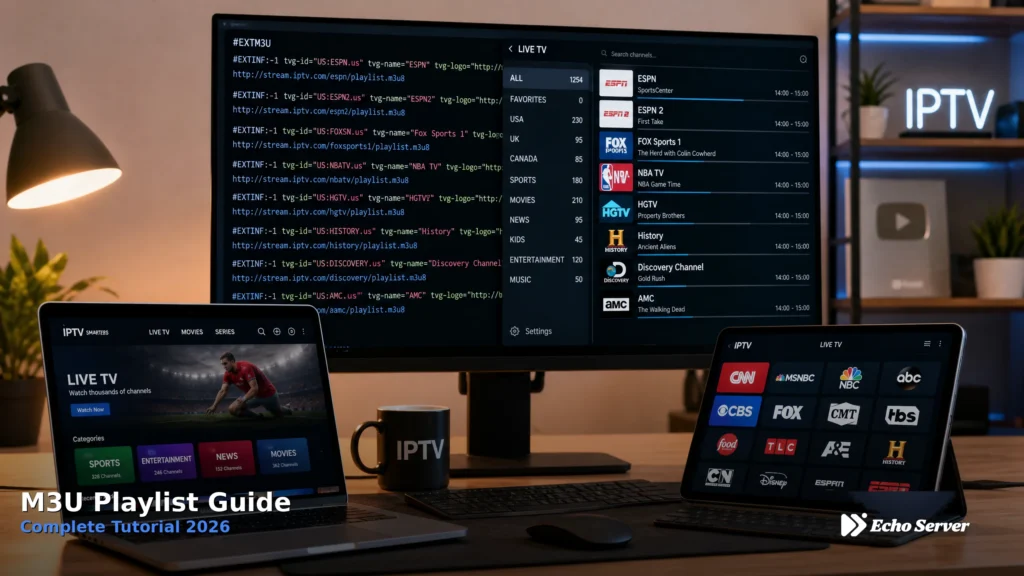
Complete guide to M3U playlists for IPTV. Learn M3U vs M3U8 differences, playlist structure, how to load in VLC/Smarters/TiViMate/Kodi, editing tips, and troubleshooting common issues.
IPTV on Roku: Supported Options and Limitations
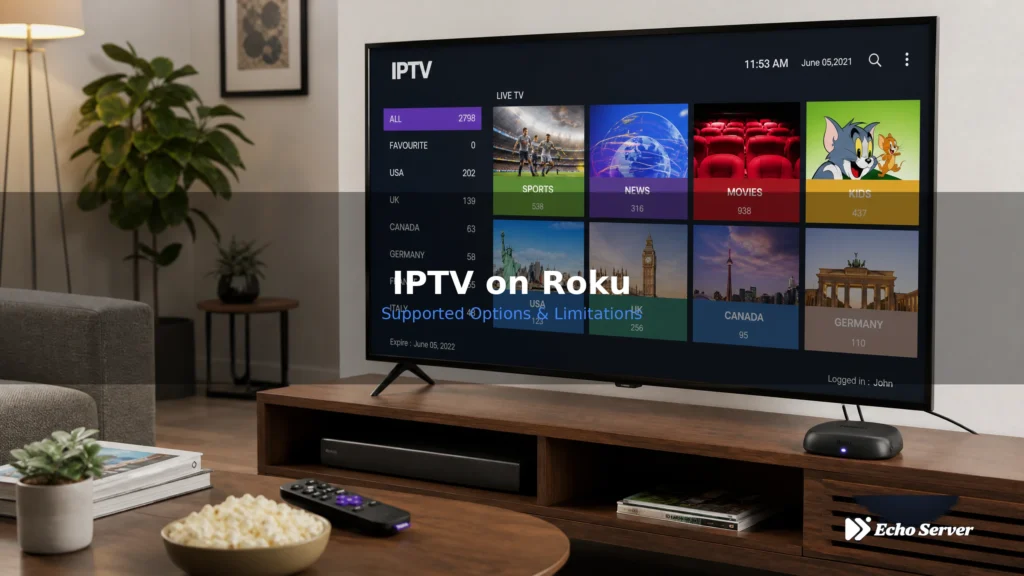
Want to watch IPTV on your Roku device? Roku’s closed ecosystem makes IPTV setup different from Fire Stick or Android TV. This comprehensive guide explains what IPTV options actually work on Roku, which apps are available in the official Roku Channel Store, and the limitations you need to know before purchasing an IPTV subscription for Roku. Article Update History October 2024: Initial publication covering Roku IPTV compatibility, available apps in Roku Channel Store, platform limitations, alternative streaming options, and setup instructions for supported IPTV services. Why we update: Roku’s app policies change. We refresh compatibility information every 3-6 months to reflect current Channel Store offerings. Can You Watch IPTV on Roku? Yes, but with significant limitations. Roku supports IPTV through specific apps available in the Roku Channel Store, but you cannot install custom IPTV apps like TiviMate or IPTV Smarters Pro that work on Fire Stick and Android devices. Key limitation: Roku’s closed platform only allows apps approved by Roku and published in their official Channel Store. You cannot sideload apps or install APK files like you can on Android devices. Understanding Roku’s Closed Ecosystem Roku operates differently from Android-based devices: Platform App Installation IPTV App Options Fire Stick / Android TV Amazon App Store + Sideloading TiviMate, IPTV Smarters Pro, Kodi, VLC, many others Roku Roku Channel Store ONLY Limited: IPTV Smarters (official), few others Why this matters: Most popular IPTV apps are NOT available in the Roku Channel Store. If your IPTV provider recommends a specific app that’s not on Roku, you won’t be able to use it. IPTV Apps Available on Roku These are the legitimate IPTV-capable apps you can install from the Roku Channel Store: 1. IPTV Smarters (Official Roku App) Availability: ✅ Available in Roku Channel Store What it does: Plays M3U playlists and Xtream Codes API subscriptions Features: Live TV channel playback VOD (movies and series) EPG (Electronic Program Guide) support Favorites and channel groups Parental controls How to install: Roku Home → Streaming Channels Search for “IPTV Smarters“ Select Add Channel Wait for installation to complete Launch app and add your IPTV subscription Compatibility: Works with most IPTV services that provide M3U URLs or Xtream Codes login credentials. 2. Xtream IPTV Player Availability: ✅ Available in Roku Channel Store What it does: Plays Xtream Codes API subscriptions only (no M3U support) Features: Live TV and VOD playback EPG support Multiple playlists Catch-up TV (if provider supports it) Limitation: Only works with Xtream Codes API. If your IPTV provider only gives you an M3U URL, this app won’t work. 3. MyIPTV Player Availability: ⚠️ Varies by region (check your Roku Channel Store) What it does: M3U playlist playback with basic EPG Note: Not officially listed in US Roku Channel Store as of October 2024. May be available in other regions. Apps NOT Available on Roku Popular IPTV apps that do NOT work on Roku: ❌ TiviMate (Android only) ❌ IPTV Smarters Pro (different from “IPTV Smarters” – Pro version not on Roku) ❌ Perfect Player ❌ GSE Smart IPTV ❌ Kodi ❌ VLC Media Player Important: If your IPTV provider’s setup guide mentions any of these apps, you’ll need a different device (Fire Stick, Android TV box, or smartphone/tablet). How to Set Up IPTV on Roku Follow these steps to get IPTV working on your Roku device: Step 1: Verify Your IPTV Service Provides Compatible Credentials Before purchasing a Roku or IPTV subscription, confirm your IPTV service provides ONE of these: M3U playlist URL: Works with IPTV Smarters app on Roku Xtream Codes API login: Works with both IPTV Smarters and Xtream IPTV Player Example credentials format: M3U URL: http://provider.com/get.php?username=USER&password=PASS&type=m3u_plus Xtream Codes API: Server: http://provider.com:8000 Username: your_username Password: your_password Step 2: Install IPTV Smarters from Roku Channel Store Press Home button on Roku remote Navigate to Streaming Channels Select Search Channels Type IPTV Smarters Select the app from results Click Add Channel Wait for installation (usually 10-30 seconds) App appears on Roku home screen Step 3: Configure IPTV Smarters with Your Subscription For M3U Playlist: Launch IPTV Smarters app Select Load Your Playlist or File/URL Choose Add Playlist Enter Playlist Name (any name you want) Paste your M3U URL Click Add Wait for playlist to load (can take 1-5 minutes for large playlists) For Xtream Codes API: Launch IPTV Smarters app Select Login with Xtream Codes API Enter Server URL (provided by your IPTV service) Enter Username Enter Password Click Add User App connects and loads your channels Step 4: Navigate and Watch Once your playlist loads: Browse Live TV channels Access Movies and Series (VOD) Use EPG to see program guide Add channels to Favorites Set up Parental Controls if needed Roku IPTV Limitations You Should Know Before committing to Roku for IPTV, understand these platform restrictions: 1. No Custom App Installation You cannot install apps from outside the Roku Channel Store. This means: No sideloading APK files No developer mode for custom apps No Kodi installation Limited to Roku-approved apps only 2. Fewer IPTV App Choices Roku has 2-3 IPTV apps vs 20+ on Android platforms. If one doesn’t work with your service, you have very limited alternatives. 3. No Advanced IPTV Features Features available on TiviMate (Android) but NOT on Roku IPTV apps: Picture-in-picture (PIP) Multi-view (watch 4 channels simultaneously) Advanced EPG customization Catch-up TV timeline scrubbing External player integration 4. Roku Remote Control Limitations Roku’s simple remote (directional pad + OK button) makes navigating large IPTV channel lists slower than Fire Stick’s more feature-rich remote. 5. App Updates Controlled by Roku IPTV app developers must submit updates to Roku for approval. This means bug fixes and new features arrive slower than on Android platforms. Alternative: Screen Mirroring to Roku If the Roku Channel Store doesn’t have a compatible IPTV app, you can use screen mirroring: From Android Phone/Tablet Install your preferred IPTV app on Android device (TiviMate, IPTV Smarters Pro, etc.) On Roku: Settings → System → Screen Mirroring → Screen Mirroring Mode → Always Allow On Android: Swipe
IPTV EPG Not Working: Check Source, Mapping and Refresh
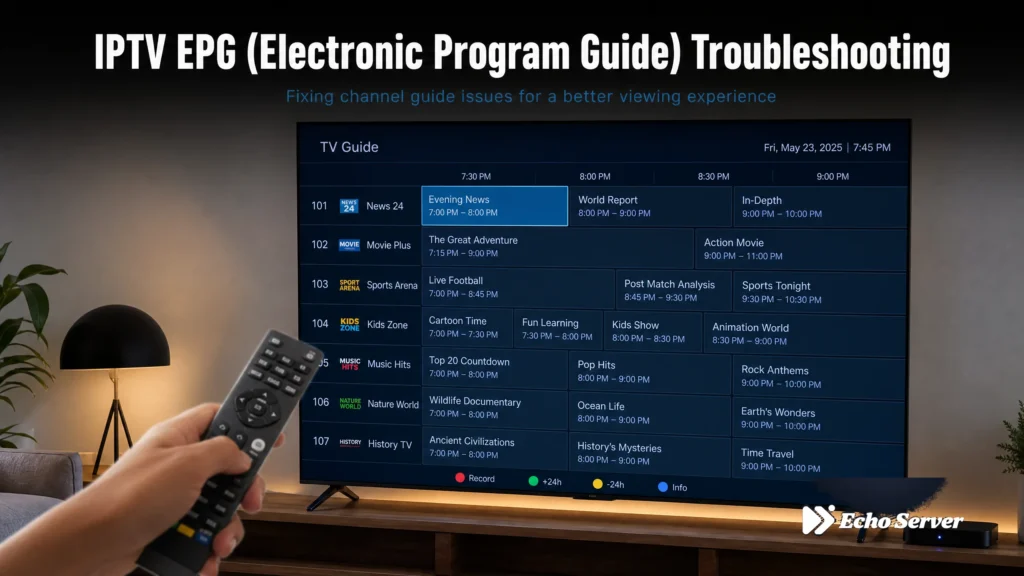
When your IPTV EPG (Electronic Program Guide) stops working, you lose the ability to browse channels, see what’s playing now, and schedule recordings. This comprehensive troubleshooting guide walks you through the most common EPG problems across all IPTV players and how to fix them — from missing EPG data to incorrect time zones to channel mapping errors. Article Update History October 2024: Initial publication covering EPG source verification, channel mapping, refresh intervals, time zone configuration, and cross-app troubleshooting for TiviMate, IPTV Smarters Pro, Kodi, VLC, and other popular IPTV players. Why we update: IPTV apps update frequently. We refresh troubleshooting steps every 3-6 months to match current app versions. Understanding How IPTV EPG Works Before troubleshooting, it helps to understand what an EPG is and how your IPTV player displays it: EPG (Electronic Program Guide) is the TV guide that shows: What’s currently playing on each channel Upcoming shows and their start times Program descriptions and episode details Recording schedules (if your player supports DVR) How it works: Your IPTV service provides an EPG source URL (usually an XMLTV file) Your IPTV player downloads this EPG data The player maps EPG data to your channel list The player refreshes EPG data periodically (usually every 12-24 hours) When any of these steps fails, your EPG stops working. Let’s diagnose which step is broken. Step 1: Verify Your EPG Source URL The most common reason EPG fails is an incorrect or missing EPG source URL. Where to Find Your EPG URL Your IPTV service should provide an EPG URL along with your M3U playlist URL. It usually looks like: http://provider.com/xmltv.php?username=XXX&password=YYY http://provider.com/epg.xml.gz http://provider.com/epg/channels.xml Check your service’s welcome email, dashboard, or member area for the EPG URL. Test Your EPG URL Before blaming your IPTV player, verify the EPG URL actually works: Copy your EPG URL Paste it into a web browser You should see either: Raw XML data (text starting with <?xml version=”1.0″?>amp;lt;?xml version=”1.0″?<?xml version=”1.0″?>amp;gt;) A file download prompt (for .xml.gz files) If the URL doesn’t load: ❌ 404 error: EPG URL is wrong — contact your IPTV provider for the correct URL ❌ 401/403 error: Authentication failed — check username/password in URL ❌ Timeout: Server is down — wait 30 minutes and try again, or contact provider If the URL loads correctly: ✅ Your EPG source is working. Problem is in your IPTV player configuration (continue to Step 2). Step 2: Configure EPG in Your IPTV Player Each IPTV app handles EPG configuration differently. Here’s how to set it up correctly in the most popular players: TiviMate EPG Configuration Open TiviMate → Settings → EPG Find your playlist entry Tap EPG source Select External EPG Paste your EPG URL Tap Update to force immediate EPG download Wait 2-5 minutes for EPG to populate IPTV Smarters Pro EPG Configuration Open IPTV Smarters Pro Tap Settings (gear icon) Find EPG section Enter your EPG URL in EPG URL field Enable Auto update EPG Tap Save Force update: Settings → Update EPG Now Kodi IPTV Simple Client EPG Configuration Open Kodi → Add-ons → My add-ons → PVR clients Select PVR IPTV Simple Client Click Configure Go to EPG Settings tab Set XMLTV location to Remote path (Internet address) Enter your EPG URL in M3U Play List URL field Click OK to save Restart Kodi to apply changes VLC Media Player EPG Configuration Important: VLC does NOT support EPG data natively. VLC only plays streams from M3U playlists but cannot display program guide information. If you need EPG, use TiviMate, IPTV Smarters Pro, or Kodi instead. Step 3: Force EPG Refresh If you’ve confirmed your EPG URL works and configured it correctly, but still see no guide data, force a manual EPG refresh: TiviMate Settings → EPG → Find your playlist → Update IPTV Smarters Pro Settings → Update EPG Now Kodi IPTV Simple Client Add-ons → PVR IPTV Simple Client → Configure → Trigger EPG update Wait time: EPG files can be large (10-50 MB). Allow 2-10 minutes for download and processing, especially on slower connections. Step 4: Fix Channel Mapping Issues Sometimes your EPG downloads successfully, but the data doesn’t appear on the correct channels. This is a channel mapping problem. What Causes Mapping Problems EPG data uses channel IDs to match programs to channels. If your M3U playlist’s channel IDs don’t match the EPG file’s channel IDs, the guide won’t display. Example: M3U playlist calls the channel: tvg-id=”BBCOne” EPG file has data for: channel id=”bbc-one-hd” ❌ IDs don’t match → EPG won’t appear for that channel How to Fix Mapping in TiviMate TiviMate has built-in automatic EPG mapping that usually works well: Settings → EPG → Enable automatic EPG assignment Settings → EPG → Prefer EPG channel names (ON) Force EPG update If automatic mapping fails, manually assign EPG to channels: Long-press a channel in your channel list Select Edit Scroll to EPG ID Choose the correct EPG channel from the dropdown Save How to Fix Mapping in IPTV Smarters Pro IPTV Smarters Pro relies on your IPTV provider’s M3U file having correct tvg-id values. If mapping is wrong, contact your provider for a corrected M3U file. How to Fix Mapping in Kodi Kodi IPTV Simple Client uses channel numbers for mapping: Add-ons → PVR IPTV Simple Client → Configure General tab → Channel logos from XMLTV (enable) EPG Settings tab → Apply XMLTV channel numbers (enable) Restart Kodi Step 5: Fix Time Zone Issues If your EPG shows programs, but the times are wrong (e.g., shows “8 PM” program at “2 PM”), you have a time zone mismatch. Understanding EPG Time Zones EPG files can store times in: UTC (Universal Time): No time zone, needs conversion to local time Local time: Already in your time zone Provider’s time zone: Needs offset to match your location Fix Time Zone in TiviMate Settings → EPG → Shift time Adjust hours offset until times match reality Example: If shows appear 6 hours early, set offset to +6 hours Fix Time Zone in IPTV
Jellyfin IPTV Setup: Installation, Channels & Configuration Guide 2026
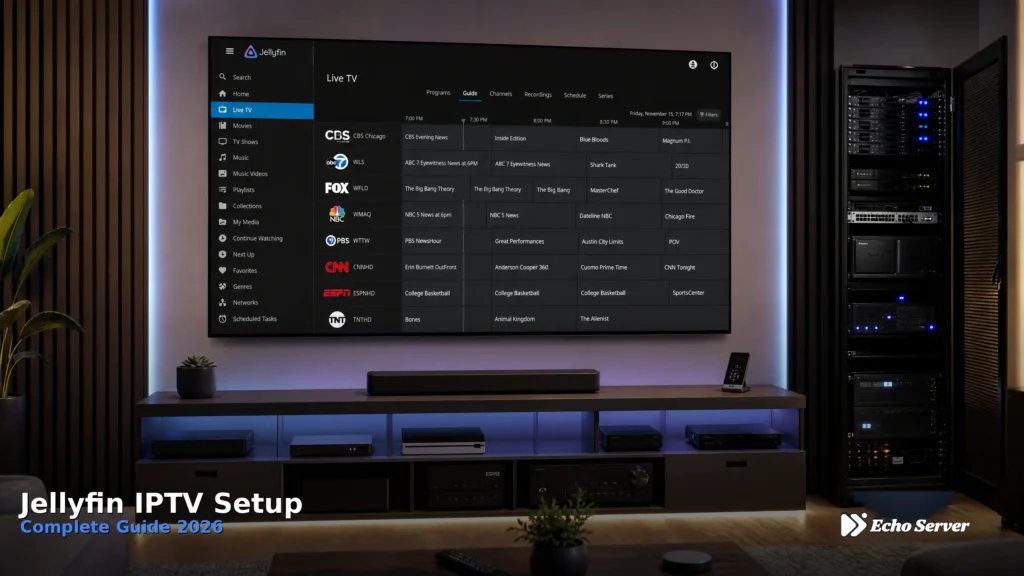
Complete guide to setting up IPTV on Jellyfin. Learn server installation, M3U Tuner plugin configuration, EPG setup, Live TV usage, DVR recording, and how to stream Echo Best IPTV through Jellyfin.