
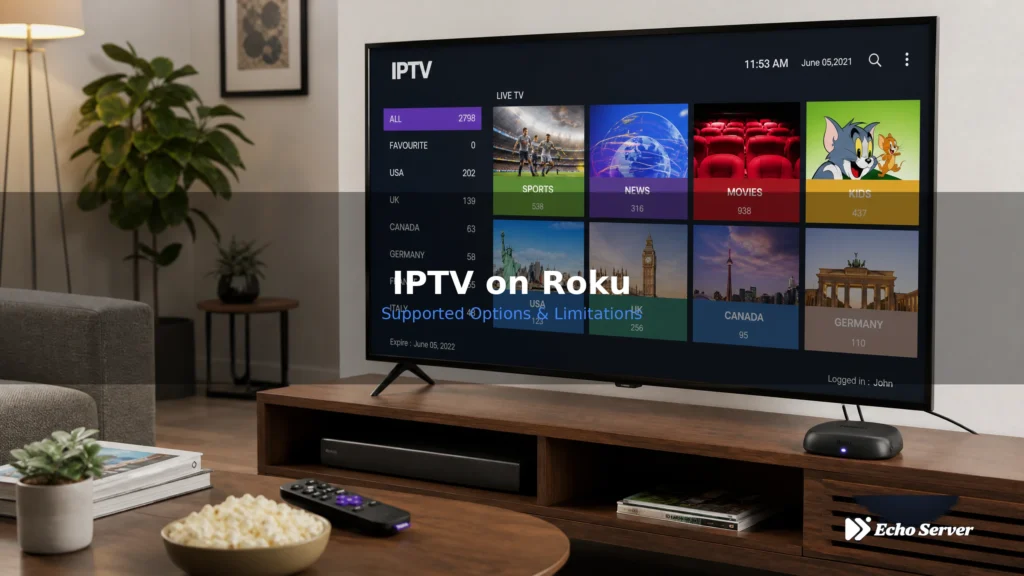
Want to watch IPTV on your Roku device? Roku’s closed ecosystem makes IPTV setup different from Fire Stick or Android TV. This comprehensive guide explains what IPTV options actually work on Roku, which apps are available in the official Roku Channel Store, and the limitations you need to know before purchasing an IPTV subscription for Roku.
Article Update History
October 2024: Initial publication covering Roku IPTV compatibility, available apps in Roku Channel Store, platform limitations, alternative streaming options, and setup instructions for supported IPTV services.
Why we update: Roku’s app policies change. We refresh compatibility information every 3-6 months to reflect current Channel Store offerings.
Can You Watch IPTV on Roku?
Yes, but with significant limitations. Roku supports IPTV through specific apps available in the Roku Channel Store, but you cannot install custom IPTV apps like TiviMate or IPTV Smarters Pro that work on Fire Stick and Android devices.
Key limitation: Roku’s closed platform only allows apps approved by Roku and published in their official Channel Store. You cannot sideload apps or install APK files like you can on Android devices.
Understanding Roku’s Closed Ecosystem
Roku operates differently from Android-based devices:
| Platform | App Installation | IPTV App Options |
|---|---|---|
| Fire Stick / Android TV | Amazon App Store + Sideloading | TiviMate, IPTV Smarters Pro, Kodi, VLC, many others |
| Roku | Roku Channel Store ONLY | Limited: IPTV Smarters (official), few others |
Why this matters: Most popular IPTV apps are NOT available in the Roku Channel Store. If your IPTV provider recommends a specific app that’s not on Roku, you won’t be able to use it.
IPTV Apps Available on Roku
These are the legitimate IPTV-capable apps you can install from the Roku Channel Store:
1. IPTV Smarters (Official Roku App)
Availability: ✅ Available in Roku Channel Store
What it does: Plays M3U playlists and Xtream Codes API subscriptions
Features:
- Live TV channel playback
- VOD (movies and series)
- EPG (Electronic Program Guide) support
- Favorites and channel groups
- Parental controls
How to install:
- Roku Home → Streaming Channels
- Search for “IPTV Smarters“
- Select Add Channel
- Wait for installation to complete
- Launch app and add your IPTV subscription
Compatibility: Works with most IPTV services that provide M3U URLs or Xtream Codes login credentials.
2. Xtream IPTV Player
Availability: ✅ Available in Roku Channel Store
What it does: Plays Xtream Codes API subscriptions only (no M3U support)
Features:
- Live TV and VOD playback
- EPG support
- Multiple playlists
- Catch-up TV (if provider supports it)
Limitation: Only works with Xtream Codes API. If your IPTV provider only gives you an M3U URL, this app won’t work.
3. MyIPTV Player
Availability: ⚠️ Varies by region (check your Roku Channel Store)
What it does: M3U playlist playback with basic EPG
Note: Not officially listed in US Roku Channel Store as of October 2024. May be available in other regions.
Apps NOT Available on Roku
Popular IPTV apps that do NOT work on Roku:
- ❌ TiviMate (Android only)
- ❌ IPTV Smarters Pro (different from “IPTV Smarters” – Pro version not on Roku)
- ❌ Perfect Player
- ❌ GSE Smart IPTV
- ❌ Kodi
- ❌ VLC Media Player
Important: If your IPTV provider’s setup guide mentions any of these apps, you’ll need a different device (Fire Stick, Android TV box, or smartphone/tablet).
How to Set Up IPTV on Roku
Follow these steps to get IPTV working on your Roku device:
Step 1: Verify Your IPTV Service Provides Compatible Credentials
Before purchasing a Roku or IPTV subscription, confirm your IPTV service provides ONE of these:
- M3U playlist URL: Works with IPTV Smarters app on Roku
- Xtream Codes API login: Works with both IPTV Smarters and Xtream IPTV Player
Example credentials format:
M3U URL:
http://provider.com/get.php?username=USER&password=PASS&type=m3u_plus
Xtream Codes API:
Server: http://provider.com:8000
Username: your_username
Password: your_password
Step 2: Install IPTV Smarters from Roku Channel Store
- Press Home button on Roku remote
- Navigate to Streaming Channels
- Select Search Channels
- Type IPTV Smarters
- Select the app from results
- Click Add Channel
- Wait for installation (usually 10-30 seconds)
- App appears on Roku home screen
Step 3: Configure IPTV Smarters with Your Subscription
For M3U Playlist:
- Launch IPTV Smarters app
- Select Load Your Playlist or File/URL
- Choose Add Playlist
- Enter Playlist Name (any name you want)
- Paste your M3U URL
- Click Add
- Wait for playlist to load (can take 1-5 minutes for large playlists)
For Xtream Codes API:
- Launch IPTV Smarters app
- Select Login with Xtream Codes API
- Enter Server URL (provided by your IPTV service)
- Enter Username
- Enter Password
- Click Add User
- App connects and loads your channels
Step 4: Navigate and Watch
Once your playlist loads:
- Browse Live TV channels
- Access Movies and Series (VOD)
- Use EPG to see program guide
- Add channels to Favorites
- Set up Parental Controls if needed
Roku IPTV Limitations You Should Know
Before committing to Roku for IPTV, understand these platform restrictions:
1. No Custom App Installation
You cannot install apps from outside the Roku Channel Store. This means:
- No sideloading APK files
- No developer mode for custom apps
- No Kodi installation
- Limited to Roku-approved apps only
2. Fewer IPTV App Choices
Roku has 2-3 IPTV apps vs 20+ on Android platforms. If one doesn’t work with your service, you have very limited alternatives.
3. No Advanced IPTV Features
Features available on TiviMate (Android) but NOT on Roku IPTV apps:
- Picture-in-picture (PIP)
- Multi-view (watch 4 channels simultaneously)
- Advanced EPG customization
- Catch-up TV timeline scrubbing
- External player integration
4. Roku Remote Control Limitations
Roku’s simple remote (directional pad + OK button) makes navigating large IPTV channel lists slower than Fire Stick’s more feature-rich remote.
5. App Updates Controlled by Roku
IPTV app developers must submit updates to Roku for approval. This means bug fixes and new features arrive slower than on Android platforms.
Alternative: Screen Mirroring to Roku
If the Roku Channel Store doesn’t have a compatible IPTV app, you can use screen mirroring:
From Android Phone/Tablet
- Install your preferred IPTV app on Android device (TiviMate, IPTV Smarters Pro, etc.)
- On Roku: Settings → System → Screen Mirroring → Screen Mirroring Mode → Always Allow
- On Android: Swipe down from top → Cast or Screen Mirroring
- Select your Roku device
- Android screen appears on TV
- Open IPTV app on Android and watch on TV
Limitations of screen mirroring:
- Uses phone/tablet battery
- Phone screen must stay on
- Cannot use phone for other tasks while mirroring
- Quality depends on WiFi strength
- Notifications appear on TV
From Windows PC
- Install VLC or another IPTV player on Windows
- Enable screen mirroring on Roku (same as above)
- On Windows: Settings → Devices → Add Bluetooth or other device → Wireless display or dock
- Select your Roku
- PC screen mirrors to Roku
Better alternative for Windows: Use a long HDMI cable to connect PC directly to TV instead of mirroring (better quality, no lag).
Is Roku the Right Choice for IPTV?
Roku works for IPTV, but it’s not the best platform choice. Here’s when to choose Roku vs alternatives:
Choose Roku for IPTV If:
- ✅ You already own a Roku device and want to try IPTV
- ✅ Your IPTV service explicitly supports Roku (provides Roku setup instructions)
- ✅ You only need basic live TV and VOD playback
- ✅ You prefer Roku’s interface for other streaming (Netflix, Hulu, etc.)
Choose Fire Stick or Android TV Instead If:
- ✅ You want the best IPTV experience (TiviMate is widely considered the best IPTV player)
- ✅ You need advanced features (PIP, multi-view, catch-up TV timeline)
- ✅ You want more app choices and flexibility
- ✅ Your IPTV provider recommends Fire Stick or Android
Best Devices for IPTV (Roku Alternatives)
If you’re buying a new device specifically for IPTV:
| Device | Price | IPTV Experience | Best For |
|---|---|---|---|
| Fire TV Stick 4K | $50 | Excellent (TiviMate, IPTV Smarters Pro) | Best value for IPTV |
| NVIDIA Shield TV | $150-200 | Excellent (most powerful) | Premium IPTV + gaming |
| Chromecast with Google TV | $50 | Excellent (Android TV) | Google ecosystem users |
| Roku Streaming Stick 4K | $50 | Limited (IPTV Smarters only) | General streaming + basic IPTV |
Recommendation: If you don’t already own a Roku and are specifically buying for IPTV, choose Fire TV Stick 4K instead. Same price, much better IPTV experience.
Echo Best IPTV Works on Roku (and Better on Fire Stick)
Echo Best IPTV provides both M3U playlists and Xtream Codes API, making it compatible with Roku’s IPTV Smarters app:
On Roku:
- Install IPTV Smarters from Channel Store
- Use Xtream Codes login provided with subscription
- Access 10,000-20,000+ channels (depending on plan)
- Browse 50,000+ movies and up to 70,000+ series
- View EPG for easier channel navigation
On Fire Stick (recommended for best experience):
- Install TiviMate, IPTV Smarters Pro, or Kodi
- Enjoy advanced features (PIP, multi-view, catch-up TV timeline)
- Same subscription works on both devices
- 24/7 support helps with setup on any device
Annual plans: Economy (€29.90), VIP (€39.90), Ultra (€49.90), Ultimate (€69.90) — all include Roku and Fire Stick compatibility.
Works on Roku AND Fire Stick
Try Echo Best IPTV risk-free with a 24-hour trial. Test on your Roku or Fire Stick before you commit.
Start Your 24-Hour Free Trial →
Works on Roku, Fire Stick, Android, iOS • €29.90-€69.90/year
Frequently Asked Questions
Can I install TiviMate on Roku?
No. TiviMate is an Android app and is not available in the Roku Channel Store. Roku’s closed platform only allows apps published in their official store. To use TiviMate, you need a Fire Stick, Android TV box, or Android phone/tablet.
Does Kodi work on Roku?
No. Kodi is not available on Roku and cannot be sideloaded. Roku does not support custom app installation. If you want Kodi for IPTV, use a Fire Stick, Android TV box, or computer instead.
What’s the best IPTV app for Roku?
IPTV Smarters is the most popular and reliable IPTV app available in the Roku Channel Store. It supports both M3U playlists and Xtream Codes API, has EPG support, and includes parental controls.
Can I use a free IPTV service on Roku?
Yes, if the free service provides an M3U playlist URL or Xtream Codes credentials, you can use it with IPTV Smarters on Roku. However, free IPTV services are often unreliable (frequent buffering, dead links, no support). Paid services like Echo Best IPTV (€29.90-€69.90/year) provide better quality and 24/7 support.
Is Roku better than Fire Stick for IPTV?
No. Fire Stick is significantly better for IPTV because it supports more apps (TiviMate, IPTV Smarters Pro, Kodi, Perfect Player) and offers advanced features like picture-in-picture and multi-view. Roku works for basic IPTV but has fewer app choices and limited features.
Can I screen mirror IPTV from my phone to Roku?
Yes. Android phones can screen mirror to Roku (Settings → System → Screen Mirroring → Always Allow). Install your IPTV app on the phone, enable mirroring, and the phone’s screen appears on your TV. However, this drains phone battery and prevents using the phone for other tasks while mirroring.
Does Echo Best IPTV work on Roku?
Yes. Echo Best IPTV provides Xtream Codes API login credentials that work with IPTV Smarters on Roku. All plans (Economy €29.90, VIP €39.90, Ultra €49.90, Ultimate €69.90) include Roku support, plus 24/7 customer assistance with setup.
Should I buy a Roku specifically for IPTV?
No. If you’re buying a new device specifically for IPTV, choose Fire TV Stick 4K instead (same $50 price point). Fire Stick offers a much better IPTV experience with more app choices and advanced features. Only use Roku for IPTV if you already own the device.

