
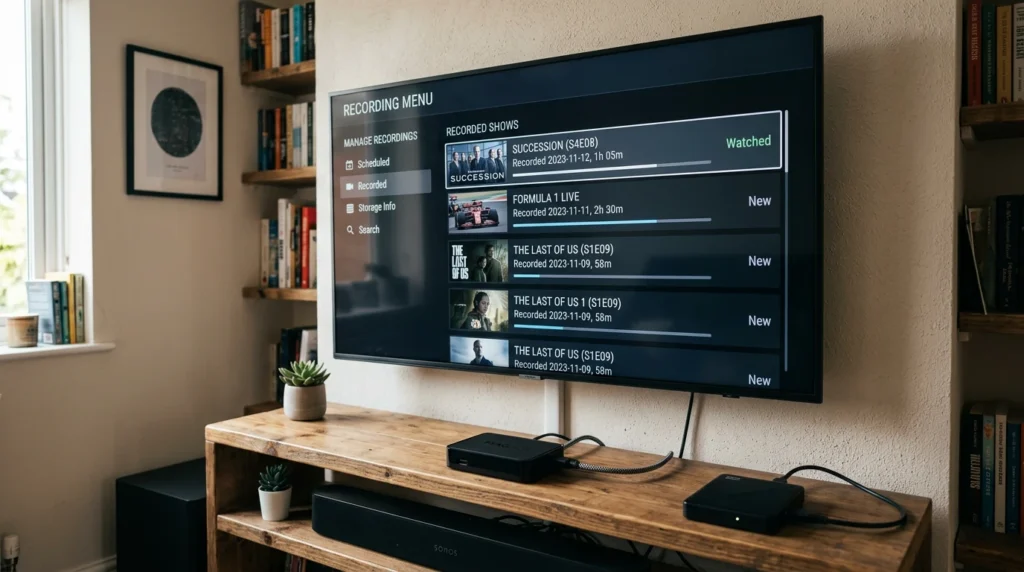
Recording IPTV streams saves your favorite shows, sports events, and movies for later viewing. This guide explains which IPTV apps support recording, how much storage you actually need, whether recording counts against connection limits, and the legal considerations you must understand before enabling this feature.
Article Update History
October 2024: Initial publication covering IPTV recording app support, storage requirements, connection-limit behavior, legal framework, and configuration examples for TiviMate, IPTV Smarters Pro, and Kodi.
Can You Record IPTV?
Yes, but only if three conditions are met:
- Your IPTV app supports recording (not all do)
- You have local storage (internal storage, USB drive, or NAS)
- Your provider allows recording (some explicitly prohibit it in terms of service)
Recording IPTV is NOT the same as recording cable/satellite TV with a DVR — it’s more like screen recording, and each app handles it differently.
IPTV Apps That Support Recording
| IPTV App | Supports Recording? | Notes |
|---|---|---|
| TiviMate Premium | ✅ Yes | Best recording interface, scheduled recording, series recording |
| Kodi (PVR addon) | ✅ Yes | Requires PVR IPTV Simple Client addon configuration |
| IPTV Smarters Pro | ⚠️ Limited | Can record live streams but no scheduled recording |
| GSE Smart IPTV | ✅ Yes | Basic recording, iOS/Android |
| VLC Media Player | ✅ Yes | Manual recording only (no schedule), computer required |
| Perfect Player | ❌ No | Playback-only app |
Best choice for recording: TiviMate Premium ($6/year) on Android TV box or Fire Stick.
Storage Requirements
How Much Storage Does IPTV Recording Use?
Recording size depends on stream quality:
| Stream Quality | Size per Hour | 1-Hour Movie | 2-Hour Sports Game |
|---|---|---|---|
| SD (480p) | 1-1.5 GB/hour | ~1.2 GB | ~2.5 GB |
| HD (720p) | 2-3 GB/hour | ~2.5 GB | ~5 GB |
| Full HD (1080p) | 4-6 GB/hour | ~5 GB | ~10 GB |
| 4K (2160p) | 15-25 GB/hour | ~20 GB | ~40 GB |
Recommended Storage by Use Case
- Casual recording (5-10 hours/week HD): 128 GB USB drive
- Regular recording (20-30 hours/week HD): 500 GB external drive or NAS
- Sports fan (multiple games, keep for weeks): 1-2 TB external drive
- 4K recording: 2+ TB, preferably NAS or high-speed external SSD
Storage Location Options
- Internal device storage: Convenient but limited (most boxes have 8-16 GB)
- USB flash drive: Cheap, portable, adequate for light recording
- External USB hard drive: Best value for capacity (1-2 TB common)
- Network Attached Storage (NAS): Best for multiple devices, automated backup
Fire Stick limitation: Fire TV devices have very limited internal storage and slow USB 2.0 ports — use an Android TV box if serious recording is important.
Does Recording Count Against Connection Limits?
Yes, recording uses one active stream from your connection limit while the recording is in progress.
How it works:
- ✅ Watching a live stream = 1 connection
- ✅ Recording a live stream = 1 connection
- ✅ Watching one stream while recording another = 2 connections
- ✅ Playing back a previously-recorded show = 0 connections (plays from local storage)
Example with 2-connection plan:
- ✅ Record ESPN while watching Netflix → works (1 IPTV connection used)
- ✅ Record ESPN in living room, watch CNN in bedroom → works (2 IPTV connections)
- ❌ Record ESPN + CNN while watching Fox News → fails (3 connections needed, plan allows 2)
Important: If you exceed your connection limit while recording is active, the recording will fail or stop.
Scheduled Recording vs Manual Recording
Scheduled Recording (TiviMate, Kodi)
How it works:
- Set recording start time, duration, and recurrence
- Device must be powered on and connected at scheduled time
- Recording starts automatically even if you’re not watching
Pros:
- ✅ Never miss shows
- ✅ Series recording (record every episode)
- ✅ Set once, records automatically
Cons:
- ❌ Requires device to stay on
- ❌ Uses connection slot even when you’re not home
- ❌ Can fill storage if you forget to delete old recordings
Manual Recording (IPTV Smarters, VLC)
How it works:
- Press record button while watching
- Recording starts immediately
- Press stop when done
Pros:
- ✅ Simple — no scheduling
- ✅ Record exactly what you want
- ✅ Doesn’t use connections when you’re not recording
Cons:
- ❌ Must remember to start recording
- ❌ Must be actively watching to record
- ❌ Can’t record while you’re away
Legal Considerations
Recording IPTV streams raises legal questions that vary by country and service:
Recording for Personal Use
In most countries, recording TV for personal time-shifted viewing (watch later) is legal under “fair use” or similar doctrines. However:
- IPTV is different from cable/satellite: Some IPTV services explicitly prohibit recording in their terms of service
- Provider terms matter: Violating terms can result in account suspension
- Content source matters: Recording pirated content is illegal regardless of personal use
What Echo Best IPTV’s Terms Say
Echo Best IPTV allows personal recording for time-shifted viewing on plans that support it. Our terms:
- ✅ Record for personal viewing later (time-shifting)
- ❌ Do not distribute recordings to others
- ❌ Do not sell or share recordings publicly
- ✅ Recordings stored on your own devices (we don’t provide cloud DVR)
Connection limits still apply during recording — a 2-connection plan allows 2 simultaneous streams whether watching or recording.
What You Should NOT Do
- ❌ Record and share/sell recordings
- ❌ Record content to avoid subscribing to legitimate services
- ❌ Archive recordings for commercial purposes
- ❌ Upload recordings to YouTube, social media, or file-sharing sites
Setting Up Recording in Popular Apps
TiviMate Premium Recording Setup
One-time setup:
- Open TiviMate → Settings → Recording
- Set recording path (internal storage, USB drive, or network share)
- Set default recording quality (match stream quality for best results)
- Enable “Wake device for recording” if scheduling recordings
To schedule a recording:
- Navigate to the show/event in EPG guide
- Long-press → “Record”
- Choose “This episode” or “Series” (all episodes)
- Confirm schedule
To manually record:
- Play the channel you want to record
- Press the record button (circle icon)
- Recording starts immediately
- Press stop when done, or it stops automatically when you change channels
Kodi PVR Recording Setup
Prerequisites:
- Kodi installed
- PVR IPTV Simple Client addon installed and configured with your M3U playlist
Enable recording:
- Settings → PVR & Live TV → Recording → “Enabled”
- Set recording path (local folder or network share)
- Set default recording margin (start 2 min early, end 5 min late — catches delays)
To schedule:
- Go to TV Guide (EPG)
- Select show → Context menu → “Record”
- Choose episode or series
IPTV Smarters Pro Recording
IPTV Smarters Pro supports manual recording only (no scheduling):
- Play the channel
- Tap the record icon (bottom toolbar)
- Recording starts
- Tap stop icon when done
Recordings save to: Device’s default video folder (varies by device)
Troubleshooting Recording Issues
Recording Fails or Stops Unexpectedly
Possible causes:
- Storage full: Check available space before starting
- Connection limit exceeded: Too many simultaneous streams
- Device went to sleep: Disable sleep mode or enable “wake for recording”
- Network interruption: Wi-Fi dropout or internet outage stops recording
- Provider stream dropped: If the live stream goes down, recording stops
Recorded File Won’t Play
Solutions:
- Incomplete recording: File may be corrupted if recording was interrupted
- Codec issue: Try playing in VLC (it plays almost everything)
- File format: Some apps record in TS format — use VLC or re-encode with Handbrake
Scheduled Recording Didn’t Start
Check:
- Device was powered on at scheduled time?
- Internet connection was active?
- Connection limit wasn’t already maxed out?
- EPG data was up-to-date? (outdated EPG = wrong schedule)
Recording vs Catch-Up and VOD
Some IPTV providers offer alternatives to recording:
| Feature | How It Works | Pros vs Recording |
|---|---|---|
| Catch-Up TV | Watch recently-aired shows (last 1-7 days) on-demand | No storage needed, no recording setup, just watch |
| VOD (Video on Demand) | Library of movies and shows available anytime | No storage, huge library, better quality |
| Local Recording | You record and store on your device | Keep forever, works offline, no expiration |
When to use each:
- Catch-Up: Missed last night’s news or game (if your provider offers it)
- VOD: Want to watch a specific movie/series from the library
- Recording: Want to keep content long-term, or provider doesn’t offer catch-up/VOD
Why Echo Best IPTV Users Don’t Need Heavy Recording
While Echo Best IPTV allows recording, most subscribers find they rarely need it because of our included features:
- Built-in VOD library: 100,000+ movies and series on-demand (all plans)
- Catch-up on most channels: Watch recently-aired content without recording
- 24/7 stability: Reliable streams mean you can watch live when it airs
- Multiple connections: VIP (2), Ultra (3), Ultimate (5) — record on one device while watching on another
Recording is there when you need it (sports events you can’t watch live, specific shows not in VOD), but our VOD and catch-up features handle 90% of what people used to record.
100,000+ VOD Titles — No Recording Needed
Try Echo Best IPTV with built-in VOD library, catch-up TV, and optional local recording support — 24-hour free trial.
Start Your 24-Hour Free Trial →
€29.90-€69.90/year • VOD + Catch-Up + Recording Support
Frequently Asked Questions
Can I record IPTV on a Fire Stick?
Yes, using TiviMate Premium or IPTV Smarters Pro. However, Fire Sticks have very limited internal storage (4-8 GB) and slow USB 2.0 ports, making them poor for serious recording. For regular recording, use an Android TV box with USB 3.0 and connect a large external drive.
Does recording IPTV use my internet connection while recording?
Yes. Recording captures the live stream as it downloads, so you use the same bandwidth during recording as you would watching live (3-5 Mbps for SD, 8-12 Mbps for HD, 25+ Mbps for 4K). The recording uses one connection slot from your plan’s limit.
Can I record 4K IPTV streams?
Yes, if your app and device support it. Requirements: TiviMate Premium or Kodi, a powerful device (NVIDIA Shield TV recommended), fast storage (SSD or NAS, not USB 2.0 flash drive), and 20-25 GB per hour of free space. Most users record in 1080p instead for better compatibility and smaller files.
How long can I keep IPTV recordings?
Forever, as long as you have storage space. Unlike cloud DVRs that expire recordings after 30-90 days, IPTV recordings you make locally are yours to keep indefinitely. However, check your provider’s terms — some prohibit long-term archiving.
Can I record multiple channels simultaneously?
Yes, but each simultaneous recording uses one connection from your plan’s limit. Example: 3-connection plan allows you to record 3 channels at once, or record 2 while watching a third live. Apps like TiviMate and Kodi support multi-channel scheduled recording.
Is recording IPTV legal?
Recording for personal time-shifted viewing is legal in most countries under fair use/time-shifting doctrines. However, IPTV provider terms vary — some allow it, some prohibit it. Echo Best IPTV allows personal recording on all plans. Never distribute or sell recordings, as that violates copyright law everywhere.
What’s the best storage for IPTV recording?
For Android TV boxes: USB 3.0 external hard drive (1-2 TB). For Fire Stick: a small USB drive for light recording only. For serious recording: Network Attached Storage (NAS) — multiple devices can record to it, and you get automatic backup. Avoid cheap USB 2.0 flash drives for HD/4K — they’re too slow.
Does Echo Best IPTV have cloud DVR?
No. Echo Best IPTV allows local recording (you provide the storage), but we don’t offer cloud DVR storage. Instead, we provide 100,000+ VOD titles and catch-up TV on most channels, which eliminates the need to record for 90% of use cases. Local recording is available for sports events and content not in VOD.

