
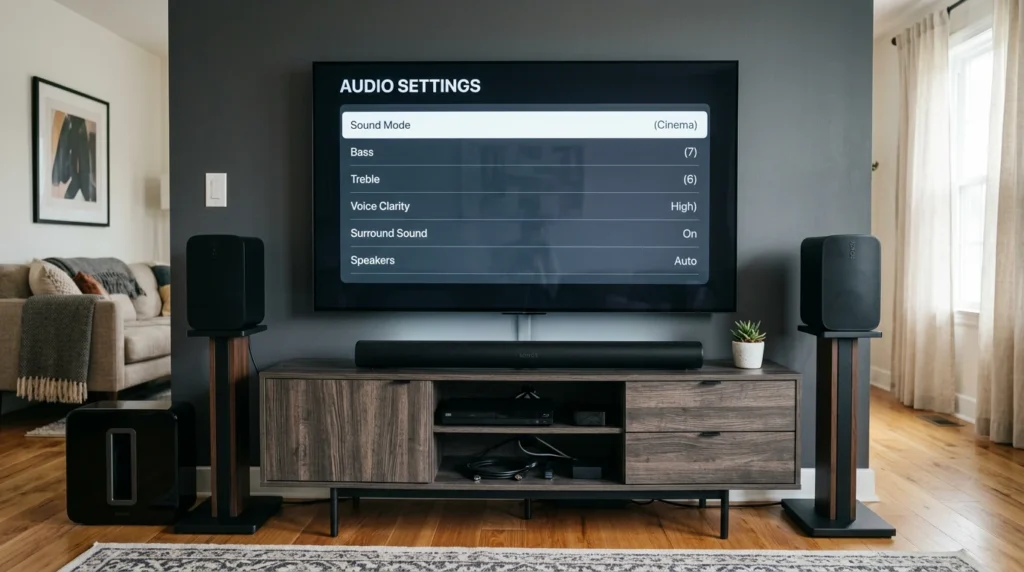
When your IPTV video plays perfectly but you can’t hear any sound — or the audio is out of sync with the picture — it’s incredibly frustrating. This comprehensive troubleshooting guide walks you through diagnosing and fixing IPTV audio problems across all players, from missing sound to lip-sync delays to wrong audio track selection.
Article Update History
October 2024: Initial publication covering IPTV audio troubleshooting including no sound diagnosis, audio track selection, decoder configuration, output device settings, and lip-sync fixes for TiviMate, IPTV Smarters Pro, Kodi, and VLC.
Why we update: IPTV players and audio standards evolve. We refresh troubleshooting steps every 3-6 months to match current app versions and codec support.
Quick Diagnosis: What Type of Audio Problem Do You Have?
IPTV audio problems fall into three main categories. Identify yours first:
| Symptom | Problem Type | Most Likely Cause |
|---|---|---|
| No sound at all (video plays fine) | Complete audio loss | Wrong audio track, muted app/device, incompatible codec |
| Audio delayed (lips don’t match words) | Lip-sync issue | Buffering mismatch, processing delay, wrong sync offset |
| Wrong language audio | Audio track selection | Multi-audio stream, wrong track selected |
| Crackling, distorted, or robotic sound | Audio quality issue | Buffer underrun, decoder problem, bitrate mismatch |
Fix 1: Check Device Volume and Mute Settings
Start with the basics — you’d be surprised how often the solution is simple:
Check Your TV/Monitor Volume
- Press Volume Up on your TV remote
- Ensure TV is not muted (look for mute icon on screen)
- Verify correct audio output is selected (TV speakers vs external soundbar)
Check IPTV App Volume
Some IPTV apps have independent volume controls:
- TiviMate: During playback, press Volume Up/Down on remote
- VLC: Click speaker icon in player controls, ensure it’s not at 0%
- Kodi: Check volume slider in bottom-right during playback
Check Device System Volume
Fire Stick, Android TV, and other devices have master volume:
- Fire Stick: Hold Home button → Settings → Check volume isn’t at 0
- Android TV: Quick settings → Volume slider
- Windows/Mac: System tray/menu bar volume control
Fix 2: Select the Correct Audio Track
Many IPTV streams include multiple audio tracks (English, Spanish, commentary, original language). If you selected the wrong track, you might hear nothing or the wrong language.
Change Audio Track in TiviMate
- During playback, press Menu button
- Select Audio icon
- Choose different audio track from list
- Try each track until you hear correct audio
Change Audio Track in IPTV Smarters Pro
- Tap screen during playback to show controls
- Tap Audio or Settings icon
- Select Audio Track
- Try different tracks
Change Audio Track in VLC
- Right-click video during playback
- Audio → Audio Track
- Select different track from menu
Change Audio Track in Kodi
- During playback, press Options button (or Back button on some remotes)
- Audio Settings
- Audio Stream → Select different track
Fix 3: Test Audio Output Device
Your device might be sending audio to the wrong output (e.g., HDMI instead of TV speakers, or Bluetooth headphones that aren’t connected).
Fire Stick Audio Output
- Settings → Display & Sounds → Audio
- Check Audio Output setting
- Try switching between Auto, Stereo, Dolby Digital
- If using soundbar: ensure it’s powered on and correct HDMI input selected
Android TV Audio Output
- Settings → Display & Sound → Audio Output
- Select correct output device
- If using external speakers: verify they’re connected and powered
Windows/Mac Audio Output
- Windows: Right-click speaker icon → Open Sound Settings → Select correct output device
- Mac: System Preferences → Sound → Output tab → Select correct device
Fix 4: Check Audio Codec Compatibility
If your device doesn’t support the audio codec used in the IPTV stream, you’ll get no sound even though video plays.
Common IPTV Audio Codecs
- AAC: Most compatible, works on all devices
- MP3: Universal compatibility
- AC3 (Dolby Digital): Common for HD streams, requires decoder support
- E-AC3 (Dolby Digital Plus): Newer, not all devices support it
- DTS: Rare in IPTV, limited device support
Enable Audio Passthrough (Advanced)
If your TV/soundbar supports Dolby Digital but your player doesn’t decode it:
TiviMate:
- Settings → Playback
- Audio section
- Enable Audio Passthrough
- Your TV/soundbar will handle audio decoding
Kodi:
- Settings → System → Audio
- Enable Allow passthrough
- Select which formats to pass through (AC3, DTS, etc.)
Fix 5: Solve Lip-Sync Problems
When audio is delayed behind the video (or ahead of it), you need to adjust audio sync offset.
Adjust Audio Sync in TiviMate
- During playback, press Menu
- Select Audio Delay
- Use + and – buttons to adjust (in milliseconds)
- Positive number = audio plays later (fixes audio ahead of video)
- Negative number = audio plays earlier (fixes audio behind video)
TiviMate saves your audio delay setting per channel, so you only adjust once.
Adjust Audio Sync in VLC
- Tools → Track Synchronization
- Adjust Audio track synchronization slider
- Or use keyboard shortcuts:
- K = Increase audio delay (+50ms)
- J = Decrease audio delay (-50ms)
Adjust Audio Sync in Kodi
- During playback, press Options button
- Audio Settings
- Audio Offset → Adjust with arrow keys
What Causes Lip-Sync Issues?
- Buffering mismatch: Video buffers faster than audio (or vice versa)
- Processing delay: Your TV’s video processing (motion smoothing, upscaling) delays video while audio plays in real-time
- Soundbar delay: External soundbar processes audio slower than TV displays video
- Stream encoding: IPTV provider’s stream has inherent sync issues
Solution for TV processing delay: Disable motion smoothing, game mode, or other video processing features in TV settings.
Fix 6: Restart Your IPTV App and Device
Sometimes audio drivers or decoders get into a bad state. A restart often fixes it.
Restart IPTV App Only
- Force close the IPTV app (don’t just exit to home screen)
- Fire Stick: Settings → Applications → Manage Installed Applications → Select app → Force Stop
- Android TV: Settings → Apps → Select app → Force Stop
- Reopen app and test audio
Restart Entire Device
- Fire Stick: Settings → My Fire TV → Restart
- Android TV: Settings → Device Preferences → Restart
- Windows/Mac: Full system restart
Fix 7: Update Your IPTV App
Outdated apps may have audio bugs that newer versions fixed.
Update TiviMate
- Open TiviMate
- Settings → About
- If update available, Download and install
Update Apps on Fire Stick
- Settings → Applications → Appstore
- Automatic Updates (enable)
- Or manually: Manage Installed Applications → Select app → Update if available
Update Kodi
- Download latest Kodi version from kodi.tv
- Install over existing installation (settings preserved)
Fix 8: Test Audio with Different Channels/Streams
If audio works on some channels but not others, the problem is stream-specific, not your setup.
Test Multiple Channels
- Try 3-5 different channels
- If all channels have no audio: Problem is your device/app settings (fixes 1-6)
- If some channels have audio: Problem is specific streams (contact provider)
Test Different Content Types
- Try Live TV, Movies (VOD), and Series
- Different content types may use different audio codecs
- If only VOD has no audio: VOD streams may use codec your device doesn’t support
Fix 9: Check HDMI Cable and Connections
Bad HDMI cables or loose connections can cause audio dropouts.
HDMI Troubleshooting
- Unplug HDMI cable from both ends, reconnect firmly
- Try different HDMI port on your TV
- Test with different HDMI cable (cheap cables can fail)
- If using HDMI through soundbar/AV receiver: try connecting device directly to TV to isolate problem
HDMI-CEC Conflicts
HDMI-CEC (device control over HDMI) can sometimes cause audio routing issues:
- Temporarily disable HDMI-CEC on TV (called “Anynet+” on Samsung, “Bravia Sync” on Sony, etc.)
- Test if audio works
- If fixed, re-enable CEC and configure audio routing in TV settings
Fix 10: Clear App Cache and Data
Corrupted app cache can cause persistent audio problems.
Clear TiviMate Cache (Android/Fire Stick)
- Settings → Applications → Manage Installed Applications
- Select TiviMate
- Clear Cache (safe, doesn’t delete playlists)
- If that doesn’t work: Clear Data (removes playlists — back them up first)
Clear Kodi Cache
- Install Maintenance Tool addon
- Tools → Clear Cache
- Restart Kodi
Platform-Specific Audio Fixes
Fire Stick Audio Issues
Problem: Audio cuts out randomly or stutters
Fix: Dolby Digital processing overload
- Settings → Display & Sounds → Audio
- Change Dolby Digital Output to Dolby Digital Plus or Stereo
Android TV Audio Issues
Problem: Audio works on some apps but not IPTV
Fix: Reset audio settings
- Settings → Display & Sound → Advanced Settings
- Toggle Surround Sound off and on
- Restart device
Kodi Audio Issues
Problem: No audio on any IPTV streams in Kodi
Fix: Audio output configuration
- Settings → System → Audio
- Audio Output Device → Try different options (HDMI, Analog, etc.)
- Number of Channels → Set to 2.0 (stereo) for maximum compatibility
When to Contact Your IPTV Provider
Contact your IPTV provider if:
- ✅ You’ve tried all fixes above
- ✅ Audio works on other apps (Netflix, YouTube) but not IPTV
- ✅ Multiple channels have the same audio problem
- ✅ Other IPTV users report same channels have no audio
- ✅ Audio worked before but stopped after provider update
Provider-side audio issues include:
- Stream encoding problems
- Server audio codec configuration errors
- Incorrect audio track mapping in M3U playlist
- Bandwidth/quality issues causing audio dropout
Why Echo Best IPTV Has Reliable Audio
Quality IPTV providers ensure audio “just works”:
Echo Best IPTV includes:
- ✅ Multi-codec support: Streams use AAC/MP3 (universal compatibility) and AC3 (HD audio)
- ✅ Proper audio sync: Streams pre-synced at encoding (no lip-sync delays)
- ✅ Multiple audio tracks: English, original language, and commentary where available
- ✅ Quality control: Streams tested across devices before deployment
- ✅ 24/7 support: If audio issues occur, support team investigates immediately
- ✅ 25+ servers: If one server has audio issues, support can switch you to alternative server
- ✅ Works on all major players: TiviMate, IPTV Smarters Pro, Kodi, VLC — audio compatibility guaranteed
Annual plans: Economy (€29.90), VIP (€39.90), Ultra (€49.90), Ultimate (€69.90) — all include reliable audio across 10,000-20,000+ channels.
Tired of IPTV Audio Problems?
Try Echo Best IPTV’s reliable streams with a 24-hour trial. Audio that works, from day one.
Start Your 24-Hour Free Trial →
Tested audio quality • 24/7 support • €29.90-€69.90/year
Frequently Asked Questions
Why does IPTV video play but there’s no sound?
The most common reasons are: (1) wrong audio track selected in your player, (2) your device doesn’t support the audio codec used in the stream, or (3) audio is being sent to wrong output device (e.g., disconnected Bluetooth headphones). Check audio track selection first, then verify your TV/device volume and audio output settings.
How do I fix IPTV lip-sync issues where audio is delayed?
Use your IPTV player’s audio delay/offset setting. In TiviMate: Menu → Audio Delay. In VLC: Tools → Track Synchronization. Adjust by +/- milliseconds until lips match words. The issue is often caused by your TV’s video processing (motion smoothing) delaying video — try disabling those features in TV settings.
Why does IPTV audio keep cutting out or stuttering?
Audio dropouts are usually caused by: (1) insufficient internet speed (test at fast.com — need 10+ Mbps for SD, 25+ for HD), (2) Dolby Digital processing overload on Fire Stick (switch to Stereo in audio settings), or (3) bad HDMI cable connection. Test with a different HDMI cable and port.
Does VLC support all IPTV audio codecs?
Yes. VLC supports virtually all audio codecs (AAC, MP3, AC3, E-AC3, DTS). If you have no audio in VLC, the problem is usually wrong audio track selection or your system’s audio output settings — not codec support.
How do I change the audio language on IPTV streams?
During playback, access your player’s audio settings: TiviMate (Menu → Audio icon), IPTV Smarters Pro (tap screen → Audio Track), VLC (right-click → Audio → Audio Track), Kodi (Options → Audio Settings → Audio Stream). Try each available track until you find the correct language.
Why does IPTV audio work on some channels but not others?
Different channels may use different audio codecs. If only specific channels have no audio, those streams likely use an audio codec your device doesn’t support (often E-AC3 or DTS). Try enabling audio passthrough in your player settings so your TV/soundbar handles audio decoding instead.
Can poor internet speed cause IPTV audio problems?
Yes. Insufficient bandwidth causes buffer underruns that manifest as stuttering, crackling, or robotic-sounding audio. Test your speed at fast.com. You need: 10+ Mbps for SD quality, 25+ Mbps for HD, 50+ Mbps for 4K. If speed is insufficient, lower your player’s stream quality setting or upgrade your internet plan.
Does Echo Best IPTV have audio sync issues?
No. Echo Best IPTV streams are pre-synced during encoding to eliminate lip-sync delays. All plans (Economy €29.90, VIP €39.90, Ultra €49.90, Ultimate €69.90) include properly synced audio across 10,000-20,000+ channels. If you encounter any audio issues, 24/7 support team investigates immediately.

