
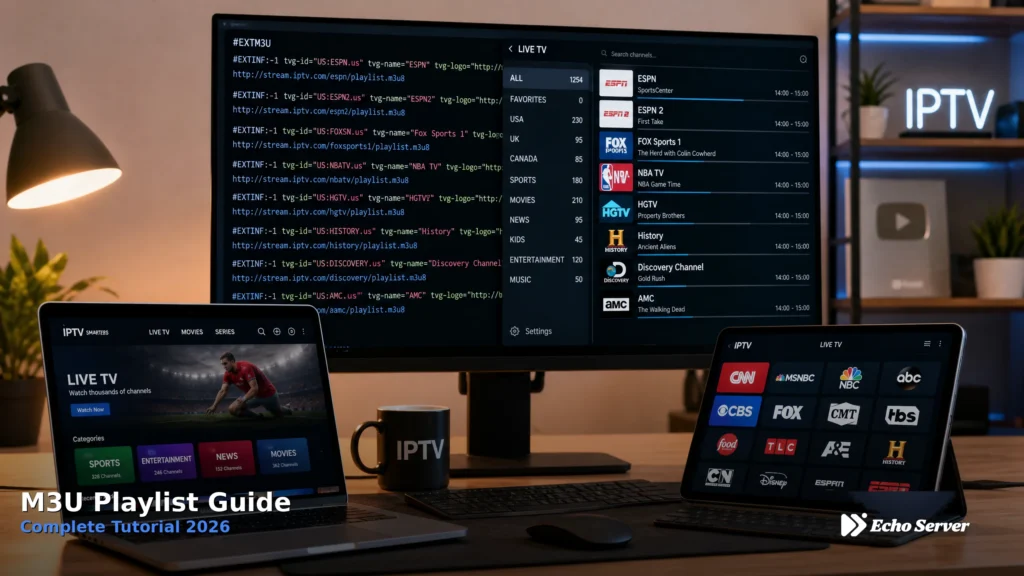
M3U playlists are the universal standard for IPTV channel lists—simple text files containing stream URLs, channel names, logos, and metadata that IPTV apps read to display available channels. Whether you use VLC, IPTV Smarters, TiViMate, Kodi, or any IPTV player, understanding M3U format enables you to load channel lists, troubleshoot playback issues, and organize content effectively.
This comprehensive guide covers M3U playlist fundamentals, the difference between M3U and M3U8 formats, how to obtain and load playlists from Echo Best IPTV (25+ servers, 50,000+ customers served over 8 years), playlist structure and syntax, loading methods across popular IPTV apps, advanced playlist management, and troubleshooting common issues.
Article Update History
October 19, 2026
– Initial publication
– Verified M3U playlist delivery with all Echo Best IPTV plans (Economy through Ultimate)
– Confirmed M3U/M3U8 format compatibility across major IPTV apps (VLC, Smarters, TiViMate, Kodi, Jellyfin)
– Reviewed current M3U Extended format syntax and metadata tags
– Validated 24/7 support availability for playlist troubleshooting assistance
What is an M3U Playlist?
M3U (MPEG Version 3.0 URL) is a plain-text file format that contains multimedia playlists. Originally designed for audio files, M3U is now the universal standard for IPTV channel lists, storing stream URLs along with channel metadata like names, logos, and categories.
How M3U Playlists Work
Basic concept:
- Plain text file: M3U playlists are readable text files (not encrypted or compiled)
- List of URLs: Each line contains either a stream URL or metadata about the stream
- Sequential format: IPTV apps read the file line-by-line to build channel lists
- Extended metadata support: M3U Extended format (#EXTM3U) includes channel names, logos, group categories, and EPG IDs
What M3U playlists contain:
- Stream URLs (HTTP, HTTPS, RTMP, or HLS links to video streams)
- Channel names and numbers
- Channel logos (URLs to logo images)
- Channel group categories (Entertainment, News, International, etc.)
- EPG IDs (Electronic Program Guide identifiers for matching schedule data)
- Optional: Video codec info, aspect ratio, country codes
M3U vs M3U8: What’s the Difference?
File extension differences:
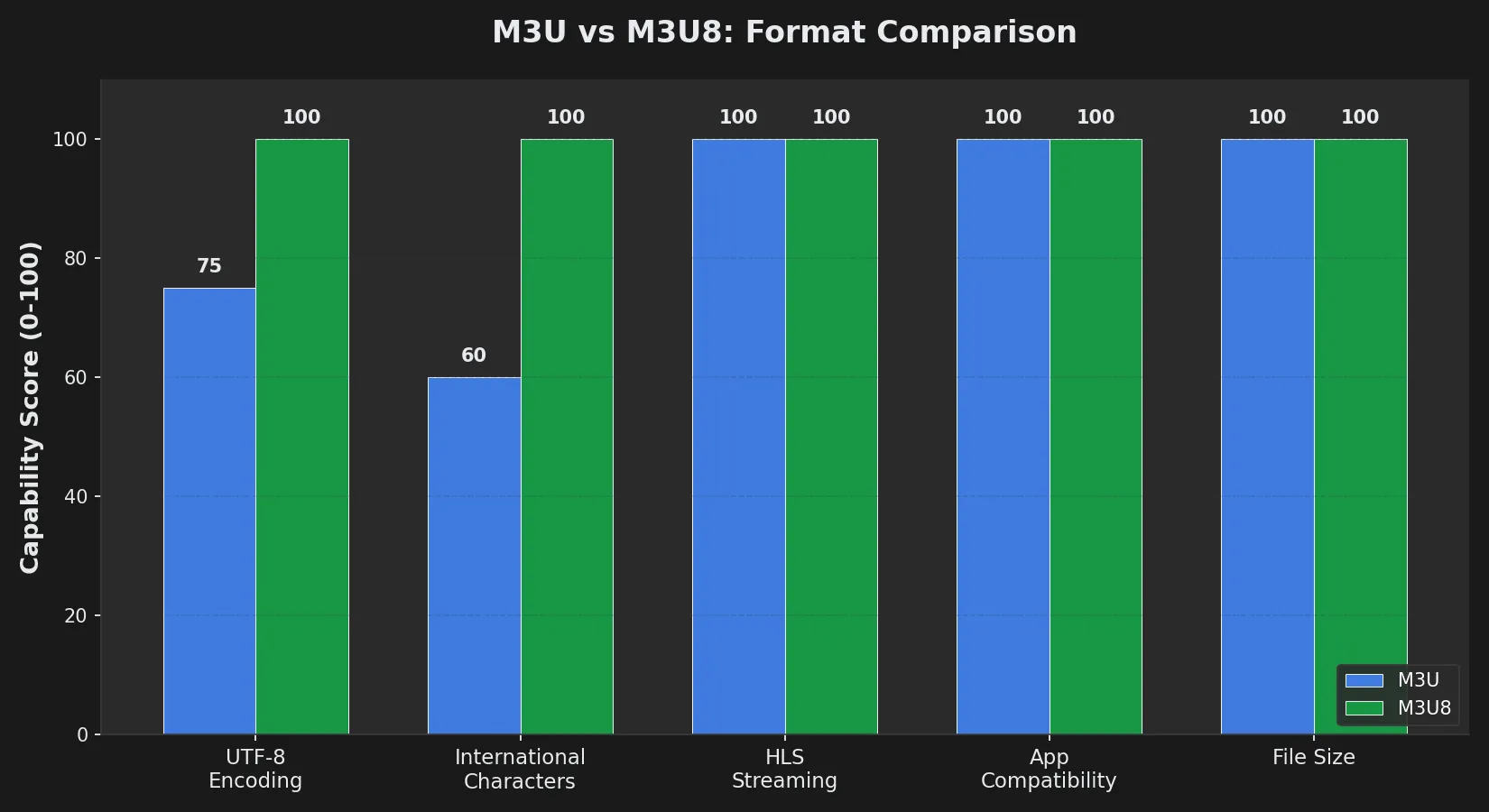
| Feature | M3U (.m3u) | M3U8 (.m3u8) |
|---|---|---|
| Text Encoding | UTF-8 or system default | UTF-8 mandated |
| International Characters | May have encoding issues | Full Unicode support |
| HLS Streaming | Supported | Apple HLS standard |
| Compatibility | Universal (all apps) | Universal (all apps) |
| Best For | General IPTV playlists | International content, HLS streams |
Practical difference: M3U8 guarantees UTF-8 encoding, ensuring channel names with international characters (Arabic, Chinese, Cyrillic, etc.) display correctly. For most IPTV use, both formats work identically—modern apps accept both.
Echo Best IPTV playlists: Available in both M3U and M3U8 formats. Use M3U8 if your channel list includes international content with non-Latin characters.
Understanding M3U Playlist Structure
Basic M3U Format
Simple M3U example (basic format):
http://example.com/stream1.m3u8
http://example.com/stream2.m3u8
http://example.com/stream3.m3u8
This minimal format contains only stream URLs—no channel names, logos, or metadata. Most IPTV providers use the Extended format instead.
M3U Extended Format (#EXTM3U)
Extended M3U example (standard IPTV format):
#EXTM3U
#EXTINF:-1 tvg-id="channel1" tvg-name="News Channel" tvg-logo="http://example.com/logos/news.png" group-title="News",News Channel HD
http://example.com/news-hd.m3u8
#EXTINF:-1 tvg-id="channel2" tvg-name="Entertainment" tvg-logo="http://example.com/logos/ent.png" group-title="Entertainment",Entertainment Plus
http://example.com/entertainment.m3u8
Line-by-line breakdown:
- #EXTM3U: Header declaring Extended M3U format (must be first line)
- #EXTINF: Channel information line (precedes each stream URL)
- -1: Duration in seconds (-1 = live stream, no fixed duration)
- tvg-id: EPG identifier (matches channel to program guide data)
- tvg-name: Channel name for EPG matching
- tvg-logo: URL to channel logo image
- group-title: Category for channel organization (News, Entertainment, etc.)
- Channel Name HD: Display name shown in app channel list
- http://example.com/stream.m3u8: Actual stream URL (follows #EXTINF line)
Additional M3U Extended Tags
Optional metadata tags IPTV providers may include:
- tvg-country: Country code (e.g., “US”, “UK”, “DE”)
- tvg-language: Audio language (e.g., “English”, “Spanish”)
- tvg-shift: EPG time shift in hours (for timezone adjustment)
- aspect-ratio: Video aspect ratio (16:9, 4:3)
- censored: Content rating or censorship indicator
How to Get Your M3U Playlist from Echo Best IPTV
After subscribing to Echo Best IPTV, you receive a unique M3U playlist URL containing your channel list. This URL remains constant throughout your subscription.
Where to Find Your M3U URL
Method 1: Welcome Email
- Check email inbox for Echo Best IPTV welcome message (sent after subscription activation)
- Email contains:
- M3U playlist URL (main channel list)
- M3U8 playlist URL (UTF-8 encoded version)
- EPG (Electronic Program Guide) URL
- Your credentials (if URL includes username/password parameters)
Method 2: Customer Dashboard
- Log into Echo Best IPTV customer portal/dashboard
- Navigate to Account Settings or Activation Details
- M3U URL and EPG URL displayed in account information section
- Copy full URL (including any authentication parameters)
Important notes:
- URL format:
http://example.com/get.php?username=XXXXX&password=XXXXX&type=m3u_plus(example format—yours will differ) - Keep URL private: Anyone with your M3U URL can access your subscription
- URL doesn’t expire: Same URL works throughout subscription period
- Plan-specific content: URL serves channels based on your plan (Economy, VIP, Ultra, Ultimate)
Get Your M3U Playlist from Echo Best IPTV
Echo Best IPTV provides M3U playlists and EPG data with all subscription plans (Economy €29.90/year through Ultimate €69.90/year). Your unique M3U URL is delivered immediately after activation.
How to Load M3U Playlists in Popular IPTV Apps
VLC Media Player (Windows, Mac, Linux, Android, iOS)
Loading via URL (recommended for remote playlists):
- Open VLC
- Click Media → Open Network Stream (or Ctrl+N)
- Paste your M3U URL in the network URL field
- Click Play
- Channel list appears in Playlist window (View → Playlist or Ctrl+L)
Loading via file (for downloaded M3U files):
- Download M3U file to computer
- VLC → Media → Open File
- Select downloaded .m3u or .m3u8 file
- VLC loads playlist and shows channels
IPTV Smarters Pro (Android, iOS, Fire TV)
Setup steps:
- Open IPTV Smarters Pro
- Click Add User (+ icon)
- Select Login with Xtream Codes API OR Load Your Playlist or File/URL
- If using Xtream API: Enter server URL, username, password (provided by Echo Best IPTV if Xtream codes supported)
- If using M3U: Select “M3U URL” tab, paste M3U URL, enter name for playlist
- Click Add User
- App loads playlist—channels appear in Live TV section
TiViMate (Android TV, Fire TV)
Adding M3U playlist:
- Open TiViMate
- Navigate to Settings (gear icon)
- Select Playlists
- Click Add Playlist
- Choose URL (for remote M3U URL) or File (for local file)
- Enter playlist details:
- Playlist Name: “Echo Best IPTV” (or custom name)
- Playlist URL: Paste your M3U URL
- EPG URL: Paste EPG URL (optional but recommended for program guide)
- Click Next → TiViMate downloads and processes playlist
- Channels appear in main interface
Kodi (IPTV Simple Client)
Configuration (after installing IPTV Simple Client):
- Kodi → Add-ons → My add-ons → PVR clients → PVR IPTV Simple Client
- Click Configure
- General tab:
- Location: Remote Path (Internet address)
- M3U Play List URL: Paste your M3U URL
- Enable Cache m3u at local storage
- EPG Settings tab:
- XMLTV location: Remote Path
- XMLTV URL: Paste EPG URL
- Click OK → Kodi loads channels into Live TV section
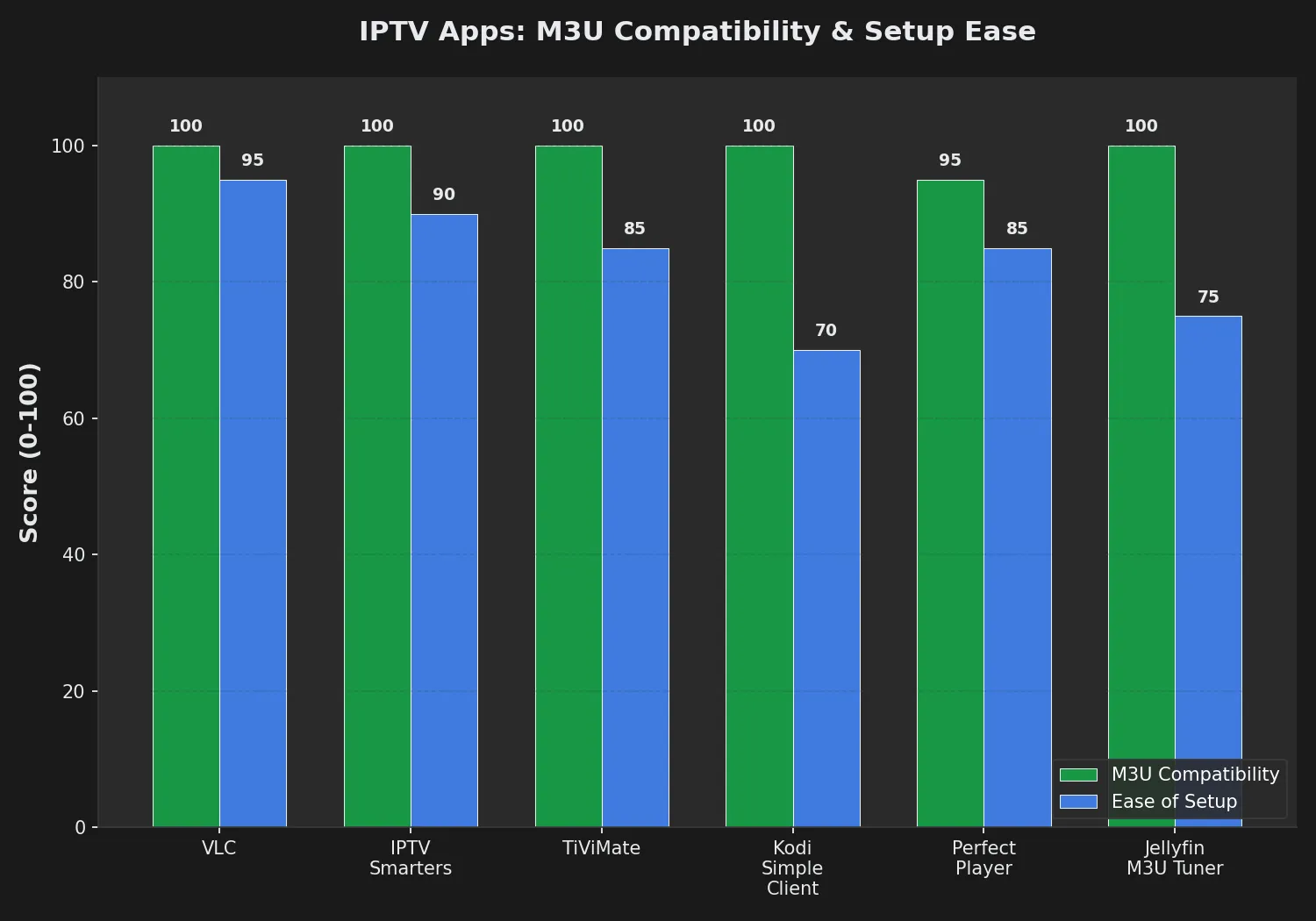
Perfect Player (Android, Fire TV)
Adding playlist:
- Open Perfect Player
- Click Settings (gear icon in top-right)
- Select General → Playlists
- Click (+) Add
- Enter playlist details:
- Name: Echo Best IPTV
- URL: Paste M3U URL
- Back → Settings → EPG → Add EPG URL
- Restart app → channels load
Downloading and Editing M3U Playlists
Downloading an M3U File from URL
Why download: Local M3U files load faster than remote URLs, work offline (for testing), and can be edited to customize channel order/names.
How to download M3U from URL:
Method 1: Web browser
- Paste M3U URL into browser address bar
- Browser displays M3U text content
- Right-click page → Save As
- Save as
playlist.m3uorplaylist.m3u8
Method 2: Command line (Linux/Mac)
curl -o playlist.m3u "http://your-m3u-url-here"Method 3: Windows PowerShell
Invoke-WebRequest -Uri "http://your-m3u-url-here" -OutFile playlist.m3uEditing M3U Playlists
What you can edit:
- Channel display names
- Channel order (reorder lines)
- Group categories (change group-title values)
- Remove unwanted channels (delete channel’s #EXTINF and URL lines)
- Add custom channels (insert new #EXTINF + URL pairs)
Editing tools:
- Text editors: Notepad++ (Windows), TextEdit (Mac), nano/vim (Linux)
- M3U editors: M3U Editor apps (Android Play Store), M3U Playlist Editor (Windows software)
- Important: Save as UTF-8 encoding (not ANSI) to preserve international characters
Example edit—changing channel name:
Before:
#EXTINF:-1 tvg-id="abc" tvg-name="ABC News" group-title="News",ABC News International
http://stream.example.com/abc
After (renamed to "ABC News HD"):
#EXTINF:-1 tvg-id="abc" tvg-name="ABC News" group-title="News",ABC News HD
http://stream.example.com/abc
Warning: Editing Echo Best IPTV’s remote M3U URL requires downloading it first, editing locally, then loading the edited file. The remote URL regenerates automatically and overwrites edits. For permanent custom playlists, maintain a local edited copy.
Troubleshooting M3U Playlist Issues
Issue 1: Playlist Won’t Load / Shows Zero Channels
Symptoms: IPTV app says “Loading playlist…” indefinitely, or loads zero channels.
Causes and fixes:
- Incorrect M3U URL: Missing characters in URL break the link.
- Fix: Re-copy M3U URL from Echo Best IPTV email/dashboard. Ensure complete URL copied (including “http://” prefix and all parameters after “?”)
- URL contains spaces or line breaks: Pasting URL can introduce hidden characters.
- Fix: Type URL manually or paste into text editor first, remove spaces/breaks, then copy to app
- Firewall/antivirus blocking download: Security software may block M3U download.
- Fix: Temporarily disable firewall/antivirus, load playlist, then re-enable security
- IPTV service credentials expired: If URL includes username/password, subscription may have lapsed.
- Fix: Verify subscription is active via Echo Best IPTV customer dashboard. Renew if expired
- M3U file corrupted: Downloaded file may be incomplete.
- Fix: Re-download M3U from original URL. Check file size > 0 bytes and opens in text editor showing channel listings
Issue 2: Channels Load But Won’t Play / Buffering Constantly
Symptoms: Channel list appears in app, but clicking channels shows “Playback failed” or constant buffering.
Causes and fixes:
- Slow internet connection: IPTV requires consistent bandwidth.
- Fix: Test speed (speedtest.net). Need minimum 10 Mbps for HD, 25 Mbps for 4K. Close other downloads/streams. Use wired ethernet instead of WiFi
- Dead stream URLs: Some channels may have outdated URLs in playlist.
- Fix: Contact Echo Best IPTV 24/7 support to verify channel availability. Provider updates playlists server-side—re-load M3U URL (don’t use old cached version)
- App codec incompatibility: Some streams use codecs the app can’t decode.
- Fix: Try different IPTV app. VLC supports most codecs. Or enable hardware acceleration in app settings (reduces codec issues)
- ISP throttling IPTV traffic: Internet provider may slow streaming.
- Fix: Use VPN to bypass ISP throttling. Or try different server (contact Echo Best IPTV support—25+ servers available)
Issue 3: Channel Names or Logos Missing / Display as “Unknown”
Symptoms: Channels work but show no name/logo, or generic “Channel 1”, “Channel 2” labels.
Causes and fixes:
- Basic M3U format (not Extended): Playlist contains only URLs, no metadata.
- Fix: Use Echo Best IPTV’s Extended M3U URL (check email for “M3U Plus” or “Extended” URL variant). Or use M3U8 version which always includes metadata
- Logo URLs broken:
tvg-logolinks in playlist may be dead.- Fix: Logos are cosmetic—channels still work. Contact provider support to report missing logos. Or manually edit M3U file to add custom logo URLs
- App doesn’t support Extended M3U: Rare, but some very old apps ignore metadata.
- Fix: Update app to latest version. Or switch to modern IPTV app (IPTV Smarters, TiViMate, VLC)
Issue 4: Playlist Has Duplicate Channels or Wrong Categories
Symptoms: Same channel appears multiple times, or channels in wrong category (news channel in “Entertainment” group).
Causes and fixes:
- Provider playlist organization: Echo Best IPTV may include regional variants of same channel.
- Fix: Download M3U locally, edit to remove duplicates or reassign categories. Save edited version and load in app
- App auto-categorization bug: Some apps re-categorize channels incorrectly.
- Fix: Disable auto-categorization in app settings. Or create custom groups/favorites to organize channels manually
Issue 5: EPG (Program Guide) Not Showing
Symptoms: Channels load and play, but no program schedule information appears.
Causes and fixes:
- EPG URL not configured: M3U provides channels, separate EPG URL provides guide data.
- Fix: Add EPG URL from Echo Best IPTV email/dashboard to app’s EPG settings. EPG URL is separate from M3U URL
- EPG channel IDs mismatch:
tvg-idin M3U doesn’t match EPG channel IDs.- Fix: Most apps auto-match by channel name. If still missing, manually map channels to EPG data in app settings
- EPG data not downloaded yet: First EPG load takes several minutes.
- Fix: Wait 10 minutes after configuring EPG URL. Or manually trigger EPG refresh in app settings
Best Practices for M3U Playlist Management
1. Keep a Backup Copy of Your M3U URL
Store your Echo Best IPTV M3U URL in a password manager or secure note—email can get deleted, and recovering URLs requires contacting support.
2. Use M3U8 for International Content
If your channel list includes Arabic, Chinese, Cyrillic, or other non-Latin characters, always use the M3U8 version (UTF-8 encoded) to avoid display issues.
3. Refresh Remote Playlists Periodically
Most IPTV apps cache M3U playlists locally. When Echo Best IPTV updates channels server-side (adds/removes channels), force refresh in your app to get the latest list.
How to refresh:
- TiViMate: Settings → Playlists → Select playlist → Update
- IPTV Smarters: Settings → Delete local cache → Restart app
- VLC: Re-load M3U URL (File → Open Network Stream)
- Kodi: IPTV Simple Client settings → Trigger refresh
4. Don’t Share Your M3U URL Publicly
Your M3U URL contains authentication—anyone with it can access your subscription. Never post it on forums, social media, or share with untrusted people.
5. Test Playlists in VLC First
Before configuring complex apps like TiViMate or Kodi, test M3U URL in VLC (simplest player). If channels load in VLC, URL is valid. If VLC fails, URL is broken—fix before troubleshooting apps.
Why Choose Echo Best IPTV for M3U Playlists
1. Clean, Well-Organized M3U Playlists
Echo Best IPTV delivers Extended M3U playlists with complete metadata: channel names, logos, categories, and EPG IDs. No manual editing required—channels appear organized by category in all IPTV apps.
2. Both M3U and M3U8 Formats Available
Choose M3U (standard encoding) or M3U8 (UTF-8 for international characters) based on your content needs. Both formats work identically in all major IPTV apps.
3. Universal Compatibility
Echo Best IPTV playlists work with VLC, IPTV Smarters, TiViMate, Kodi, Jellyfin, Perfect Player, GSE Smart IPTV, and every major IPTV app. No app-specific playlist variants needed—one URL works everywhere.
4. Automatic Playlist Updates
Your M3U URL stays constant, but channel content updates server-side. When Echo Best IPTV adds new channels or updates streams, simply refresh your app—no new URL required.
5. EPG Data Included
Separate XMLTV EPG URL provided with all subscriptions (Economy through Ultimate). Get complete program schedules, show descriptions, and air times for all channels.
6. 24/7 Playlist Support
Echo Best IPTV’s support team (available 24/7 throughout subscription) assists with M3U loading, app configuration, playlist troubleshooting, and format questions. After 8 years serving 50,000+ customers, we’ve resolved every M3U configuration scenario.
7. Reliable Stream URLs (25+ Servers)
With 25+ IPTV servers maintained by Echo Best IPTV, stream URLs in playlists remain stable and operational. If a server experiences issues, support migrates your account—M3U URL updates automatically to new server.
Get Professional M3U Playlists with Echo Best IPTV
Clean M3U/M3U8 playlists, EPG data, universal app compatibility, and 24/7 support
- ✓ Extended M3U playlists with complete metadata (names, logos, categories)
- ✓ Both M3U and M3U8 formats for universal compatibility
- ✓ 10,000-20,000+ channels depending on plan
- ✓ XMLTV EPG data included on all plans
- ✓ Works with all IPTV apps (VLC, Smarters, TiViMate, Kodi, Jellyfin)
- ✓ 24/7 playlist support for configuration assistance
Get Started with Echo Best IPTV →
Annual plans from €29.90/year | 24-hour trial available
Frequently Asked Questions
What is the difference between M3U and M3U8 playlists?
M3U and M3U8 are the same playlist format with one key difference: M3U8 mandates UTF-8 text encoding, ensuring channel names with international characters (Arabic, Chinese, Cyrillic, etc.) display correctly, while M3U uses system default encoding which may cause character display issues. For most IPTV use, both work identically—modern apps accept both formats. Use M3U8 if your channel list includes non-Latin characters. Echo Best IPTV provides both M3U and M3U8 versions of playlists—choose based on content language needs.
How do I load an M3U playlist URL into IPTV Smarters?
Open IPTV Smarters Pro, tap “Add User” (+), select “Load Your Playlist or File/URL,” choose the “M3U URL” tab, paste your Echo Best IPTV M3U URL into the URL field, enter a name for the playlist (e.g., “Echo IPTV”), then tap “Add User.” The app downloads and processes the playlist—channels appear in the Live TV section within 30-60 seconds. If using EPG, go to Settings → EPG → Add EPG URL and paste your XMLTV EPG URL from Echo Best IPTV. Re-launch app to load program guide data.
Can I edit M3U playlists to remove unwanted channels?
Yes, M3U playlists are plain text files you can edit. Download the M3U file from your IPTV provider’s URL (paste URL in browser, right-click → Save As), open in any text editor (Notepad++, TextEdit, nano), locate unwanted channels (each channel has two lines: #EXTINF metadata line + stream URL line), delete both lines for channels you want to remove, save as UTF-8 encoding, then load the edited local file in your IPTV app. Important: editing Echo Best IPTV’s remote M3U URL requires maintaining a local edited copy—the remote URL regenerates and overwrites edits.
Why won’t my M3U playlist load any channels?
M3U playlists fail to load due to: (1) incorrect URL—missing characters break the link; re-copy complete URL from Echo Best IPTV email/dashboard including “http://” and all parameters, (2) URL contains spaces/line breaks from pasting—paste into text editor first to remove hidden characters, (3) firewall/antivirus blocking download—temporarily disable security software and retry, (4) expired IPTV subscription—verify account is active via customer dashboard, or (5) corrupted M3U file—re-download from original URL and confirm file size > 0 bytes. Test URL in VLC first (simplest player)—if VLC loads channels, URL is valid.
Do I need to download M3U files or can I use the URL directly?
Most IPTV apps support both methods: direct M3U URL (remote playlist) or local M3U file (downloaded copy). Direct URLs are recommended because Echo Best IPTV updates channel lists server-side—your app automatically gets updates when you refresh. Downloaded local files require manual re-download to get channel updates. Use local files only if: (1) you want to edit/customize the playlist, (2) your internet is unreliable and you need offline channel list access, or (3) the app doesn’t support remote URLs (rare). For Echo Best IPTV, use the direct URL for automatic updates.
How often should I refresh my M3U playlist?
Refresh M3U playlists weekly or when you notice missing channels, playback issues, or outdated channel names. IPTV providers like Echo Best IPTV update playlists server-side (add channels, fix broken streams, update logos) but apps cache local copies—refreshing syncs your app to the latest version. How to refresh: TiViMate (Settings → Playlists → Update), IPTV Smarters (Settings → Delete cache → Restart), VLC (re-load URL), Kodi IPTV Simple Client (settings → Trigger refresh). If using a downloaded local M3U file instead of URL, refresh means re-downloading from the original URL.
What does #EXTINF mean in M3U files?
#EXTINF is the Extended M3U metadata tag that precedes each channel’s stream URL. Format: #EXTINF:-1 [attributes],Channel Display Name. The “-1” means live stream (no fixed duration). Attributes include: tvg-id (EPG identifier), tvg-name (channel name for EPG matching), tvg-logo (channel logo URL), group-title (category like “News” or “Entertainment”). After #EXTINF line comes the actual stream URL. Example: #EXTINF:-1 tvg-id=”abc” tvg-logo=”http://logo.png” group-title=”News”,ABC News HD followed by http://stream.example.com/abc. Apps parse #EXTINF to display channel name, logo, and category organization.
Why do some channels in my M3U playlist play while others don’t?
Selective channel failures occur due to: (1) dead stream URLs—some channels may have outdated links; contact Echo Best IPTV 24/7 support to report non-working channels (provider updates URLs server-side), (2) codec incompatibility—your app/device can’t decode certain video formats; try VLC (supports most codecs) or enable hardware acceleration in app settings, (3) geo-blocking—some streams restrict access by region; use VPN to bypass, (4) ISP throttling specific streams—internet provider blocks certain content; VPN resolves this, or (5) server-side issues—temporary congestion on specific channels; Echo Best IPTV has 25+ servers and can migrate your account to a less-congested server upon request.

