
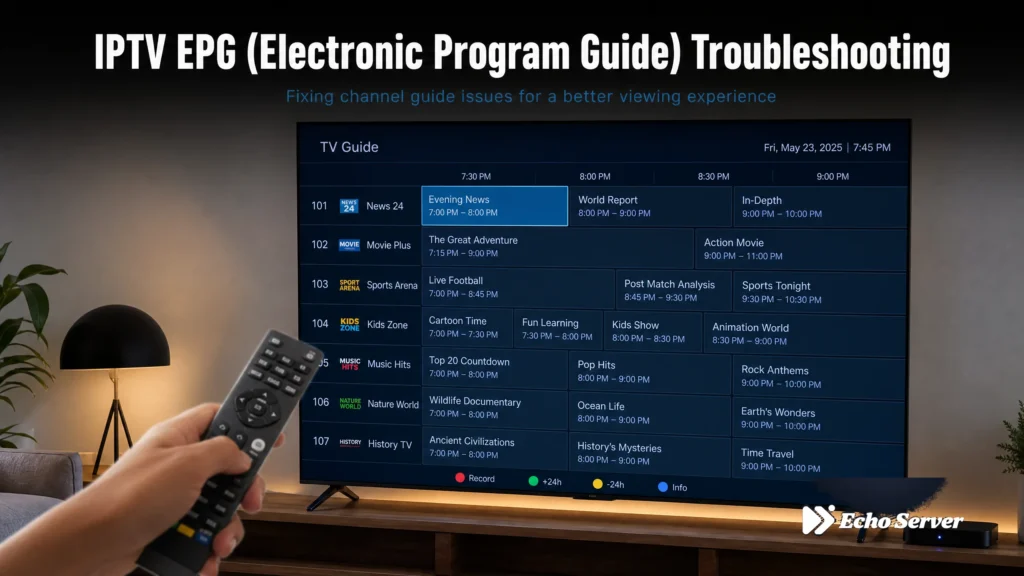
When your IPTV EPG (Electronic Program Guide) stops working, you lose the ability to browse channels, see what’s playing now, and schedule recordings. This comprehensive troubleshooting guide walks you through the most common EPG problems across all IPTV players and how to fix them — from missing EPG data to incorrect time zones to channel mapping errors.
Article Update History
October 2024: Initial publication covering EPG source verification, channel mapping, refresh intervals, time zone configuration, and cross-app troubleshooting for TiviMate, IPTV Smarters Pro, Kodi, VLC, and other popular IPTV players.
Why we update: IPTV apps update frequently. We refresh troubleshooting steps every 3-6 months to match current app versions.
Understanding How IPTV EPG Works
Before troubleshooting, it helps to understand what an EPG is and how your IPTV player displays it:
EPG (Electronic Program Guide) is the TV guide that shows:
- What’s currently playing on each channel
- Upcoming shows and their start times
- Program descriptions and episode details
- Recording schedules (if your player supports DVR)
How it works:
- Your IPTV service provides an EPG source URL (usually an XMLTV file)
- Your IPTV player downloads this EPG data
- The player maps EPG data to your channel list
- The player refreshes EPG data periodically (usually every 12-24 hours)
When any of these steps fails, your EPG stops working. Let’s diagnose which step is broken.
Step 1: Verify Your EPG Source URL
The most common reason EPG fails is an incorrect or missing EPG source URL.
Where to Find Your EPG URL
Your IPTV service should provide an EPG URL along with your M3U playlist URL. It usually looks like:
http://provider.com/xmltv.php?username=XXX&password=YYYhttp://provider.com/epg.xml.gzhttp://provider.com/epg/channels.xml
Check your service’s welcome email, dashboard, or member area for the EPG URL.
Test Your EPG URL
Before blaming your IPTV player, verify the EPG URL actually works:
- Copy your EPG URL
- Paste it into a web browser
- You should see either:
- Raw XML data (text starting with
<?xml version="1.0"?>amp;lt;?xml version="1.0"?<?xml version="1.0"?>amp;gt; - A file download prompt (for .xml.gz files)
- Raw XML data (text starting with
If the URL doesn’t load:
- ❌ 404 error: EPG URL is wrong — contact your IPTV provider for the correct URL
- ❌ 401/403 error: Authentication failed — check username/password in URL
- ❌ Timeout: Server is down — wait 30 minutes and try again, or contact provider
If the URL loads correctly: ✅ Your EPG source is working. Problem is in your IPTV player configuration (continue to Step 2).
Step 2: Configure EPG in Your IPTV Player
Each IPTV app handles EPG configuration differently. Here’s how to set it up correctly in the most popular players:
TiviMate EPG Configuration
- Open TiviMate → Settings → EPG
- Find your playlist entry
- Tap EPG source
- Select External EPG
- Paste your EPG URL
- Tap Update to force immediate EPG download
- Wait 2-5 minutes for EPG to populate
IPTV Smarters Pro EPG Configuration
- Open IPTV Smarters Pro
- Tap Settings (gear icon)
- Find EPG section
- Enter your EPG URL in EPG URL field
- Enable Auto update EPG
- Tap Save
- Force update: Settings → Update EPG Now
Kodi IPTV Simple Client EPG Configuration
- Open Kodi → Add-ons → My add-ons → PVR clients
- Select PVR IPTV Simple Client
- Click Configure
- Go to EPG Settings tab
- Set XMLTV location to Remote path (Internet address)
- Enter your EPG URL in M3U Play List URL field
- Click OK to save
- Restart Kodi to apply changes
VLC Media Player EPG Configuration
Important: VLC does NOT support EPG data natively. VLC only plays streams from M3U playlists but cannot display program guide information. If you need EPG, use TiviMate, IPTV Smarters Pro, or Kodi instead.
Step 3: Force EPG Refresh
If you’ve confirmed your EPG URL works and configured it correctly, but still see no guide data, force a manual EPG refresh:
TiviMate
Settings → EPG → Find your playlist → Update
IPTV Smarters Pro
Settings → Update EPG Now
Kodi IPTV Simple Client
Add-ons → PVR IPTV Simple Client → Configure → Trigger EPG update
Wait time: EPG files can be large (10-50 MB). Allow 2-10 minutes for download and processing, especially on slower connections.
Step 4: Fix Channel Mapping Issues
Sometimes your EPG downloads successfully, but the data doesn’t appear on the correct channels. This is a channel mapping problem.
What Causes Mapping Problems
EPG data uses channel IDs to match programs to channels. If your M3U playlist’s channel IDs don’t match the EPG file’s channel IDs, the guide won’t display.
Example:
- M3U playlist calls the channel:
tvg-id="BBCOne" - EPG file has data for:
channel id="bbc-one-hd" - ❌ IDs don’t match → EPG won’t appear for that channel
How to Fix Mapping in TiviMate
TiviMate has built-in automatic EPG mapping that usually works well:
- Settings → EPG → Enable automatic EPG assignment
- Settings → EPG → Prefer EPG channel names (ON)
- Force EPG update
If automatic mapping fails, manually assign EPG to channels:
- Long-press a channel in your channel list
- Select Edit
- Scroll to EPG ID
- Choose the correct EPG channel from the dropdown
- Save
How to Fix Mapping in IPTV Smarters Pro
IPTV Smarters Pro relies on your IPTV provider’s M3U file having correct tvg-id values. If mapping is wrong, contact your provider for a corrected M3U file.
How to Fix Mapping in Kodi
Kodi IPTV Simple Client uses channel numbers for mapping:
- Add-ons → PVR IPTV Simple Client → Configure
- General tab → Channel logos from XMLTV (enable)
- EPG Settings tab → Apply XMLTV channel numbers (enable)
- Restart Kodi
Step 5: Fix Time Zone Issues
If your EPG shows programs, but the times are wrong (e.g., shows “8 PM” program at “2 PM”), you have a time zone mismatch.
Understanding EPG Time Zones
EPG files can store times in:
- UTC (Universal Time): No time zone, needs conversion to local time
- Local time: Already in your time zone
- Provider’s time zone: Needs offset to match your location
Fix Time Zone in TiviMate
- Settings → EPG → Shift time
- Adjust hours offset until times match reality
- Example: If shows appear 6 hours early, set offset to +6 hours
Fix Time Zone in IPTV Smarters Pro
- Settings → Player Settings → EPG Time Shift
- Select your time zone from dropdown, or
- Manually set hours offset
Fix Time Zone in Kodi
- Add-ons → PVR IPTV Simple Client → Configure
- EPG Settings → EPG time shift (hours)
- Enter offset (e.g.,
-5for EST,+1for CET)
Step 6: Adjust EPG Refresh Interval
EPG data gets outdated. Your player needs to download fresh EPG data regularly.
Recommended Refresh Intervals
- TiviMate: Auto-refresh every 12 hours (default is good)
- IPTV Smarters Pro: Enable Auto update EPG (updates daily)
- Kodi: Update every 24 hours (adjust in EPG Settings)
Why EPG Gets Stale
IPTV providers update EPG files continuously as TV schedules change. If your player only downloads EPG once per week, you’ll see:
- Old program listings that have been replaced
- Missing data for new shows added after your last update
- Incorrect times for shows that were rescheduled
Solution: Set EPG to auto-refresh at least once per day.
Step 7: Check EPG File Size and Format
Some EPG problems are caused by oversized or malformed EPG files.
EPG File Too Large
If your EPG file is over 100 MB:
- Download takes forever (or times out)
- Player runs out of memory processing the file
- EPG appears partially loaded or crashes
Solutions:
- Ask your provider for a compressed EPG (`.xml.gz` instead of `.xml`)
- Request a filtered EPG with only your subscribed channels
- Use a player with better EPG handling (TiviMate handles large EPG files well)
EPG File Format Errors
If your provider’s EPG file has XML syntax errors, your player can’t parse it:
- Download the EPG file to your computer
- Open in a text editor (Notepad++, VS Code)
- Look for obvious errors:
- Missing
<?xml version="1.0"?>amp;lt;?xml version="1.0"?<?xml version="1.0"?>amp;gt; - Unclosed tags (
<programme>amp;lt;programme<programme>amp;gt;</programme>amp;lt;/programme</programme>amp;gt; - Special characters not properly escaped
- Missing
- If you find errors, report them to your provider
Step 8: Common Player-Specific Issues
TiviMate EPG Problems
Issue: EPG shows for some channels but not others
Fix: Settings → EPG → Enable automatic EPG assignment → Force update
Issue: EPG disappeared after app update
Fix: Re-enter EPG URL and force update (app updates sometimes reset settings)
Issue: EPG progress bar not moving during playback
Fix: Settings → Playback → Show EPG progress bar (enable)
IPTV Smarters Pro EPG Problems
Issue: “EPG not available” message
Fix: Verify EPG URL is entered correctly in Settings → EPG URL
Issue: EPG loads but times are wrong
Fix: Settings → EPG Time Shift → Select your time zone
Issue: EPG stops updating automatically
Fix: Settings → Auto update EPG (enable) → Update EPG Now
Kodi IPTV Simple Client EPG Problems
Issue: EPG shows as empty even with correct URL
Fix: PVR IPTV Simple Client → Configure → Clear EPG → OK → Restart Kodi
Issue: Channel numbers don’t match EPG
Fix: EPG Settings → Apply XMLTV channel numbers (enable)
Issue: EPG updates too slowly
Fix: Reduce EPG update frequency to 12 hours or less
Step 9: Test with Alternative EPG Sources
If your provider’s EPG still doesn’t work after all troubleshooting, test with a free alternative EPG to isolate the problem:
Free EPG Sources
IPTV-EPG Project (GitHub):
- URL:
https://iptv-org.github.io/epg/guides/ - Provides free EPG for many international channels
- Browse guides by country/language
Note: Free EPG sources may not cover all your channels and may not match your provider’s channel IDs perfectly. They’re useful for testing, not permanent solutions.
How to Test Alternative EPG
- Configure your player with the alternative EPG URL
- Force EPG refresh
- Check if any EPG data appears
If alternative EPG works: Your player is fine. Your provider’s EPG URL or file has issues. Contact provider.
If alternative EPG also fails: Your player’s EPG configuration has issues. Try reinstalling the app or using a different player.
Step 10: Contact Your IPTV Provider
If you’ve completed all troubleshooting steps and EPG still doesn’t work, contact your IPTV provider. Provide these specific details:
- IPTV player app and version (e.g., “TiviMate 4.6.1 on Fire Stick”)
- EPG URL you’re using
- Error messages (if any)
- What troubleshooting you’ve already tried
- Whether alternative EPG sources work in your player
Good IPTV providers (like Echo Best IPTV) provide:
- Working EPG URLs included with subscription
- EPG data that matches M3U channel IDs correctly
- Regular EPG updates (daily)
- Compressed EPG files for faster downloads
- 24/7 support to help troubleshoot EPG issues
EPG Troubleshooting Checklist
Work through this checklist in order. Most EPG problems are fixed by steps 1-3:
| Step | Check | How to Verify |
|---|---|---|
| 1 | EPG URL works | Load URL in browser → should show XML or download file |
| 2 | EPG configured in player | Settings → EPG → URL entered correctly |
| 3 | EPG manually refreshed | Force update → wait 5 minutes → check guide |
| 4 | Channel mapping correct | Check if any channels have EPG → fix mapping for others |
| 5 | Time zone configured | Compare EPG times to actual TV schedule |
| 6 | Auto-refresh enabled | Settings → EPG → Auto-update ON |
| 7 | EPG file size reasonable | Download EPG file → should be under 100 MB |
| 8 | Player-specific fixes tried | Follow player-specific solutions above |
| 9 | Alternative EPG tested | Try free EPG source → isolates player vs provider issue |
| 10 | Provider contacted | Provide detailed troubleshooting info |
Why Choose an IPTV Service with Reliable EPG
EPG problems waste your time. A quality IPTV service provides EPG that just works:
Echo Best IPTV includes:
- ✅ Full EPG coverage for all channels (10,000-20,000+ channels depending on plan)
- ✅ Daily EPG updates — always current program information
- ✅ Correct channel mapping — EPG data matches channels from day one
- ✅ Optimized EPG files — compressed for fast downloads
- ✅ 24/7 support — if EPG ever breaks, support team fixes it
- ✅ Works with all major IPTV players — TiviMate, IPTV Smarters Pro, Kodi, VLC, and more
- ✅ 8 years of reliable service — 50,000+ customers trust our EPG
Annual plans: Economy (€29.90), VIP (€39.90), Ultra (€49.90), Ultimate (€69.90) — all include full EPG coverage.
Tired of Fighting with Broken EPG?
Try Echo Best IPTV’s reliable EPG with a 24-hour trial. See the difference a quality service makes.
Start Your 24-Hour Free Trial →
EPG included • Daily updates • 24/7 support • €29.90-€69.90/year
Frequently Asked Questions
Why does my EPG work for some channels but not others?
This is a channel mapping problem. Your EPG file has data, but the channel IDs in your M3U playlist don’t match the channel IDs in the EPG file. Enable automatic EPG assignment in TiviMate, or manually map channels to EPG data. If the problem persists, contact your provider for a corrected M3U file.
How often should EPG refresh automatically?
EPG should auto-refresh at least once per day. TiviMate defaults to every 12 hours (recommended). IPTV Smarters Pro and Kodi update daily. More frequent updates (every 6 hours) are unnecessary and waste bandwidth.
Can I use a different EPG source than my provider’s?
Yes, but channel mapping may be wrong. Free EPG sources (like IPTV-EPG on GitHub) use different channel IDs than your provider’s M3U file, so EPG won’t match correctly for most channels. Use your provider’s EPG whenever possible.
Does VLC support EPG?
No. VLC Media Player cannot display EPG data. VLC only plays streams from M3U playlists. If you need EPG, use TiviMate, IPTV Smarters Pro, Kodi, or another IPTV player with EPG support.
Why are my EPG times 6 hours off?
Time zone mismatch. Your EPG file may be in UTC (Universal Time) while you’re in a different time zone (e.g., EST is UTC-5, CST is UTC-6). Adjust the time shift setting in your player to match your local time.
My EPG worked yesterday but is blank today. What happened?
Most likely your provider’s EPG server is temporarily down, or the EPG file has moved/changed URLs. Wait 30-60 minutes and force a manual EPG refresh. If it still fails, check your provider’s website for EPG URL updates or service status announcements.
Can I manually edit EPG data?
Technically yes (EPG files are just XML), but it’s not practical. EPG files are large (thousands of programs), and your manual edits will be overwritten the next time your player auto-refreshes the EPG. Instead, fix the root problem (wrong URL, bad mapping, time zone error).
Does Echo Best IPTV have EPG for all channels?
Yes. All Echo Best IPTV plans (Economy, VIP, Ultra, Ultimate) include full EPG coverage for all channels. EPG data is updated daily and correctly mapped to your channel list from day one. 24/7 support is available if you encounter any EPG issues.

