
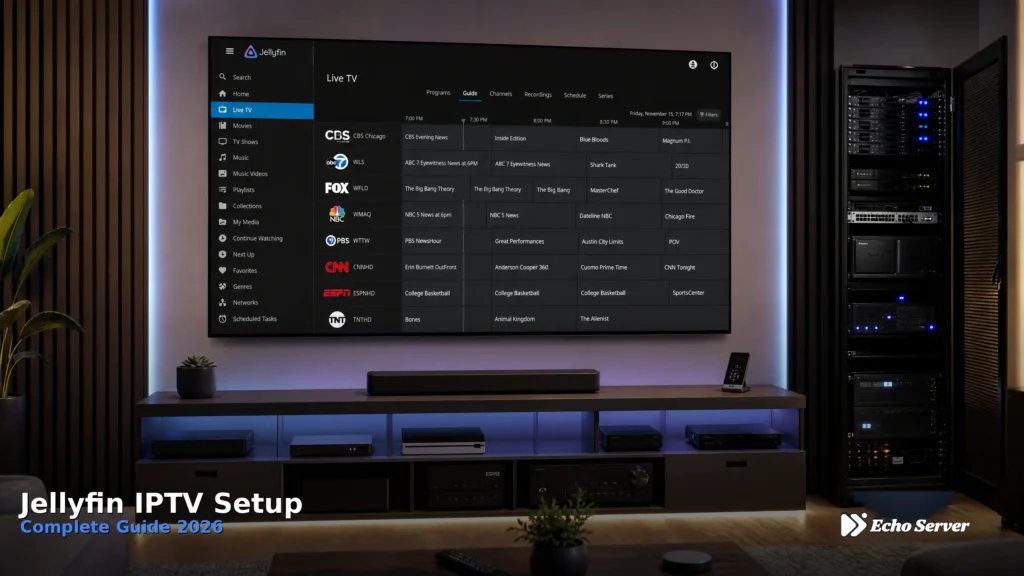
Jellyfin transforms into a complete IPTV streaming platform through built-in Live TV & DVR functionality—free, open-source media server software that integrates M3U playlists, EPG data, and DVR recording capabilities alongside your local media library. For users wanting an all-in-one media solution combining personal content and IPTV channels, Jellyfin delivers without subscription fees or cloud dependencies.
This guide covers complete Jellyfin IPTV installation and configuration, from server setup through M3U playlist integration, EPG configuration, Live TV interface usage, and DVR recording. You’ll learn how to configure Echo Best IPTV (25+ servers, 50,000+ customers served over 8 years) with Jellyfin’s Live TV features, optimize channel organization and streaming performance, and troubleshoot common setup issues.
Article Update History
October 18, 2026
– Initial publication
– Verified Echo Best IPTV compatibility with Jellyfin 10.8.x and 10.9.x via M3U tuner
– Confirmed M3U playlist delivery and EPG availability with all Echo Best plans
– Reviewed Jellyfin Live TV configuration steps against current Jellyfin 10.9 interface
– Validated 24/7 support availability for Jellyfin setup assistance
What is Jellyfin and How Does IPTV Work With It?
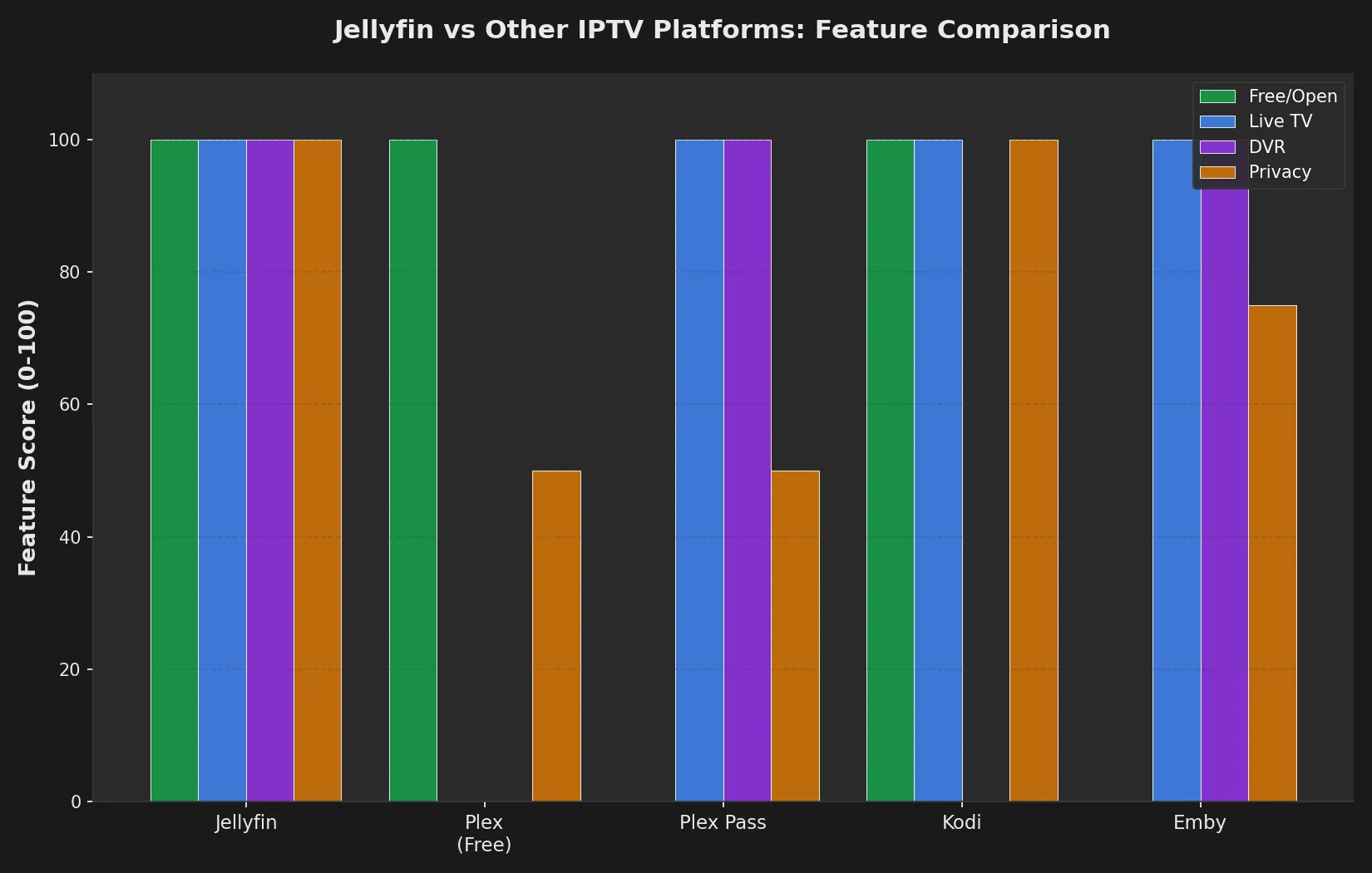
Jellyfin is a free, open-source media server similar to Plex or Emby, but with zero subscription fees, no tracking, and complete privacy. While Jellyfin excels at organizing personal video/music libraries, its Live TV & DVR functionality transforms it into a complete IPTV platform by integrating M3U playlists from IPTV providers into a unified media interface.
Jellyfin’s IPTV Capabilities
What Jellyfin does for IPTV:
- M3U Playlist Integration: Loads IPTV channel lists via M3U/M3U8 URLs or files through the “M3U Tuner” plugin
- EPG (Electronic Program Guide): Displays program schedules, descriptions, and air times using XMLTV EPG data
- Live TV Interface: Browse IPTV channels by category, view channel guides, and stream directly through Jellyfin apps
- DVR Recording: Record IPTV streams to local storage for playback anytime (storage permitting)
- Multi-Device Streaming: Watch IPTV on any device with a Jellyfin client (Android, iOS, Roku, Fire TV, web browser, etc.)
- Unified Library: IPTV channels appear alongside your personal media—one interface for everything
Jellyfin vs Plex vs Kodi for IPTV
Jellyfin advantages:
- Completely free: No Plex Pass required, no premium features locked behind subscriptions
- Open source: Community-driven development, privacy-focused (no telemetry, no cloud accounts)
- Server-based: Unlike Kodi (client-only), Jellyfin serves content to multiple devices from one central server
- DVR functionality: Record IPTV streams—Kodi’s IPTV Simple Client cannot record
- Remote access: Stream your IPTV anywhere via internet (with port forwarding or VPN)
When to choose Jellyfin for IPTV:
- You want server-based streaming serving multiple devices in your home
- You’re building a unified media library (personal videos + IPTV)
- You need DVR recording for IPTV channels
- You value privacy and dislike cloud-dependent solutions
- You want remote IPTV access when away from home
Echo Best IPTV provides M3U playlists and EPG data formatted for Jellyfin’s M3U Tuner plugin, offering seamless integration with all Jellyfin Live TV features across all subscription plans (Economy €29.90/year through Ultimate €69.90/year).
Prerequisites: What You Need Before Setup
1. Jellyfin Server Installation (Version 10.8 or Later)
Jellyfin compatibility: IPTV features work on Jellyfin 10.8.x and newer. Older versions have limited Live TV support—upgrade to 10.8+ for full IPTV functionality.
Supported Jellyfin server platforms:
- Windows: Download installer from jellyfin.org (runs as background service)
- Mac: Install via Homebrew or download .dmg from jellyfin.org
- Linux: Install via package manager (APT, YUM, etc.) or Docker container
- Docker: Run Jellyfin container on any Docker-capable system (NAS devices, Linux servers)
- NAS devices: Synology, QNAP, TrueNAS support Jellyfin via Docker or native packages
Hardware requirements for IPTV streaming:
- CPU: Intel Core i3 or equivalent (hardware transcoding requires Intel Quick Sync or NVIDIA GPU)
- RAM: 4GB minimum (8GB+ recommended for multiple streams)
- Storage: 500MB for Jellyfin software + storage for DVR recordings (optional)
- Network: Gigabit ethernet recommended (WiFi works but wired is more stable)
2. Active IPTV Subscription with M3U Playlist
Jellyfin’s M3U Tuner plugin requires an M3U playlist URL containing IPTV channel stream information. Your IPTV provider supplies this URL.
Echo Best IPTV playlist delivery:
- M3U URL provided: Unique M3U playlist URL sent after subscription activation
- Live playlist updates: Playlist URL remains constant, channel updates happen server-side (no manual re-import)
- EPG URL included: Separate XMLTV EPG URL for program guide data
- All plans supported: M3U and EPG available on Economy, VIP, Ultra, and Ultimate plans
After subscribing to Echo Best IPTV, check your welcome email or customer dashboard for M3U playlist URL and EPG URL—these are the two URLs you’ll configure in Jellyfin’s Live TV setup.
3. Client Devices for Playback
Jellyfin client apps available for:
- Android/Android TV: Google Play Store (official app)
- iOS/iPad/Apple TV: App Store (official Jellyfin app)
- Fire TV/Fire Stick: Amazon Appstore or sideload APK
- Roku: Roku Channel Store (official Jellyfin channel)
- Web browsers: Access via http://[server-ip]:8096 (no app install needed)
- Windows/Mac/Linux: Desktop apps or web browser
Step-by-Step: Installing Jellyfin Server
Windows Installation
Installation steps:
- Download Jellyfin installer from
jellyfin.org/downloads - Run the .exe installer (requires administrator privileges)
- Accept defaults (installs to
C:\Program Files\Jellyfin\and creates Windows service) - Complete installation—Jellyfin service starts automatically
- Open web browser to
http://localhost:8096
Linux Installation (Ubuntu/Debian)
Command-line installation:
sudo apt update
sudo apt install jellyfin
sudo systemctl start jellyfin
sudo systemctl enable jellyfin
After installation, access Jellyfin at http://[server-ip]:8096 from any device on your network.
Docker Installation (Universal Method)
Docker Compose file example:
version: '3'
services:
jellyfin:
image: jellyfin/jellyfin:latest
container_name: jellyfin
network_mode: host
volumes:
- /path/to/config:/config
- /path/to/cache:/cache
- /path/to/media:/media
restart: unless-stopped
Run: docker-compose up -d
Initial Jellyfin Setup Wizard
First-time access to http://[server-ip]:8096 launches the setup wizard:
- Language selection: Choose preferred interface language
- Create admin account: Username and strong password (this controls server access)
- Media library setup: Skip for now (we’re focusing on IPTV, not local media)
- Metadata settings: Accept defaults
- Remote access: Enable if you want IPTV access outside home network (requires port forwarding or VPN)
- Complete setup: Click “Finish”—Jellyfin dashboard opens
Configuring Jellyfin Live TV for IPTV
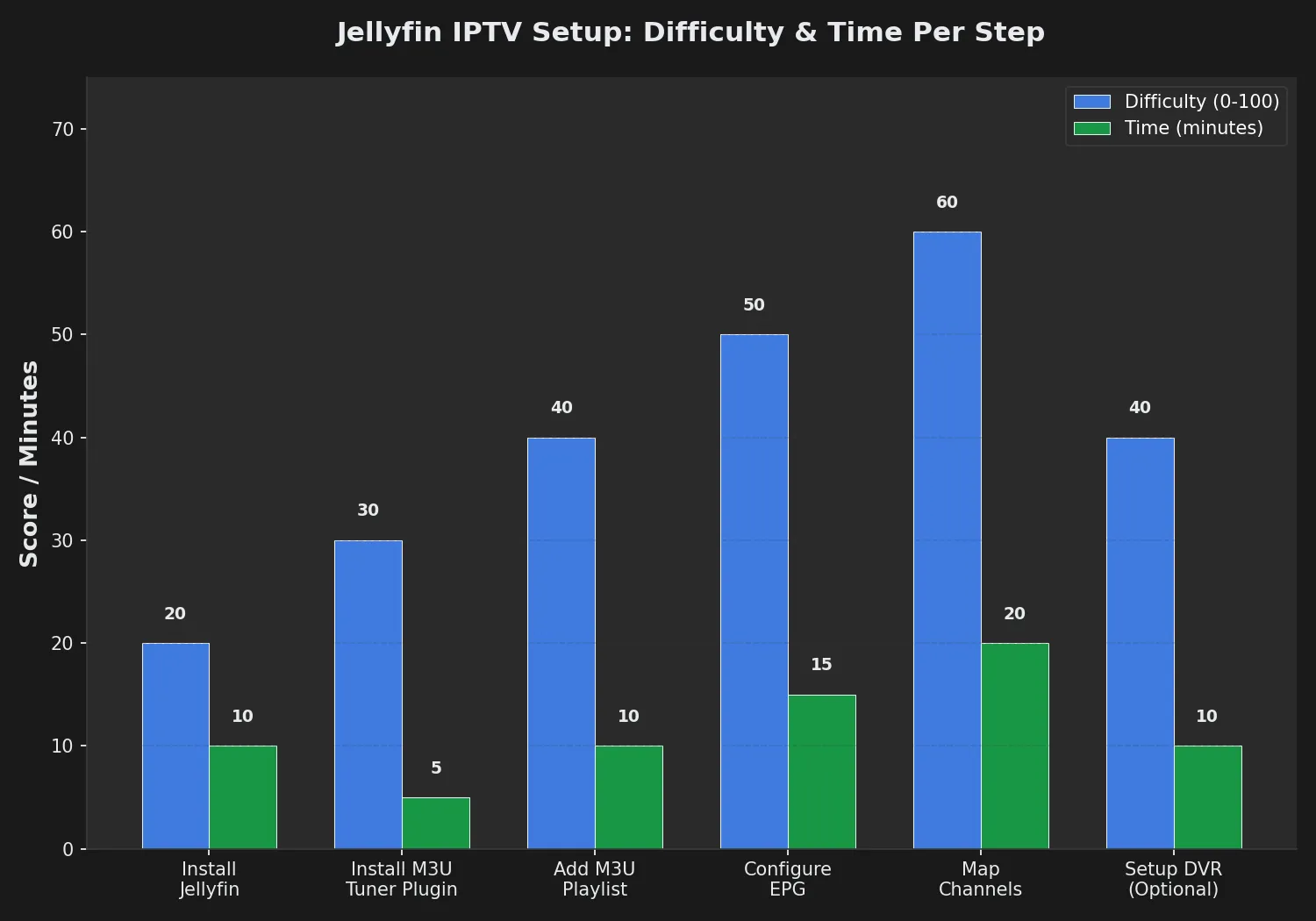
Step 1: Install M3U Tuner Plugin
Jellyfin’s M3U Tuner plugin loads IPTV playlists into Live TV. This is Jellyfin’s equivalent of Kodi’s IPTV Simple Client.
Installation steps:
- Open Jellyfin dashboard (click hamburger menu top-left → Dashboard)
- Navigate to Plugins (left sidebar)
- Click Catalog tab (top of Plugins page)
- Scroll to find M3U Tuner plugin
- Click Install button next to M3U Tuner
- Wait for “Plugin installed” notification
- Restart Jellyfin server (Dashboard → Restart—this activates the plugin)
Verification: After restart, M3U Tuner appears in Dashboard → Plugins → My Plugins with “Active” status.
Step 2: Add M3U Tuner as TV Source
Configure M3U Tuner to load your Echo Best IPTV playlist.
Configuration steps:
- Dashboard → Live TV (left sidebar)
- Click + button (Add Tuner)
- Select M3U Tuner from tuner type dropdown
- Tuner configuration screen appears—fill in these fields:
M3U Tuner settings:
- Tuner Name: “Echo Best IPTV” (or any descriptive name)
- M3U URL: Paste your Echo Best IPTV M3U playlist URL
- Example format:
http://example.com/get.php?username=XXXXX&password=XXXXX&type=m3u - Where to find: Welcome email or customer dashboard after subscription activation
- Example format:
- User-Agent: Leave blank (default works for most IPTV services)
- Simultaneous stream limit: Set to
1(Echo Best IPTV allows one stream per subscription) - Enable all tuner sources: Check this box (allows Jellyfin to use all channels from playlist)
Click Save—Jellyfin downloads and processes the M3U playlist (may take 30-60 seconds for large channel lists).
Step 3: Configure EPG (Electronic Program Guide)
EPG displays program schedules, show descriptions, and air times for each IPTV channel.
EPG setup steps:
- Stay in Live TV settings (Dashboard → Live TV)
- Click TV Guide Data Providers tab
- Click + button (Add provider)
- Select XMLTV from provider type dropdown
- XMLTV configuration screen appears—fill in:
XMLTV EPG settings:
- Provider Name: “Echo Best EPG” (or descriptive name)
- File or URL: Paste your Echo Best IPTV EPG URL
- Example format:
http://example.com/xmltv.php?username=XXXXX&password=XXXXX - Where to find: Same place as M3U URL (welcome email or dashboard)
- Example format:
- Days to import:
7(EPG data for next 7 days—balance between detail and storage) - Import guide data: Enable (check box)
Click Save—Jellyfin downloads EPG data (first import takes 2-5 minutes for full week’s guide).
Refresh EPG data: Jellyfin auto-refreshes EPG daily. For manual refresh: Live TV settings → TV Guide Data Providers → click provider name → Refresh Guide Data button.
Step 4: Map Channels to EPG Data
Jellyfin attempts automatic channel-to-EPG matching, but manual mapping improves accuracy.
Channel mapping:
- Dashboard → Live TV → Channels tab
- Browse loaded channels (from M3U playlist)
- Click any channel name to edit
- Under Guide Provider Channel, select matching EPG channel from dropdown
- Save channel settings
- Repeat for key channels (you don’t need to map all—only channels you watch regularly)
Note: If EPG and M3U channel names match exactly, Jellyfin auto-maps them. Manual mapping is only needed for mismatches.
Need Help with Jellyfin IPTV Setup?
Echo Best IPTV provides 24/7 customer support throughout your subscription. Our support team helps with Jellyfin configuration, M3U playlist issues, EPG troubleshooting, and server-specific questions.
Using Jellyfin Live TV to Watch IPTV
Accessing Live TV Interface
From Jellyfin web interface or apps:
- Open Jellyfin (web browser at
http://[server-ip]:8096or via Jellyfin app) - Click Live TV from home screen menu
- Live TV section shows:
- Channels: Grid view of all IPTV channels with logos and current programs
- Guide: EPG grid showing programs by time slot across all channels
- Recordings: DVR recordings (if enabled)
- Scheduled: Upcoming scheduled recordings
Watching a Channel
To start playback:
- Click Channels or Guide
- Select desired channel
- Click channel logo or program title
- Jellyfin video player starts streaming
Playback controls:
- Play/Pause: Space bar or on-screen button
- Volume: Up/Down arrows or volume slider
- Quality selection: Click settings gear → Select video quality (Auto, 1080p, 720p, etc.)
- Subtitles: If available on channel, click subtitle icon to enable
- Full screen: F key or full-screen button
Using the Guide (EPG)
EPG navigation:
- Time-based browsing: Scroll horizontally to see future programs
- Channel browsing: Scroll vertically through channel list
- Program details: Click any program to see full description, cast, episode info
- Quick navigation: Jump to specific date/time using timeline controls at top
- Category filters: Filter channels by category (Entertainment, News, etc.—if M3U playlist includes categories)
Setting Up DVR Recording (Optional)
Enable DVR Functionality
Jellyfin can record IPTV streams to local storage for later playback. DVR requires available disk space on your Jellyfin server.
DVR setup:
- Dashboard → Live TV → Recording Settings tab
- Configure DVR paths:
DVR settings:
- Recording path: Directory where recordings will be saved (e.g.,
/media/jellyfin-recordings/orC:\Recordings\) - Post-processing: Optional scripts to run after recording completes
- Simultaneous recording limit: How many streams can record simultaneously (depends on server resources)
- Days to keep recordings: Auto-delete old recordings after X days (or set to 0 for manual deletion only)
Schedule a Recording
To record a program:
- Open Live TV → Guide
- Find program you want to record (current or future)
- Click program
- Click Record button
- Recording options appear:
- Record this showing only: One-time recording
- Record series: Record all episodes (if EPG includes series info)
- Pre-padding: Start recording X minutes before program start
- Post-padding: Continue recording X minutes after program end
- Save recording schedule
Viewing recordings: Live TV → Recordings shows all completed recordings. Click any recording to play.
Optimizing Jellyfin IPTV Performance
1. Enable Hardware Transcoding (Recommended)
Hardware transcoding reduces CPU load when multiple clients stream different video qualities simultaneously.
Enable hardware acceleration:
- Dashboard → Playback
- Scroll to Hardware Acceleration section
- Select hardware acceleration type:
- Intel Quick Sync: Intel CPUs with integrated graphics
- NVIDIA NVENC: NVIDIA graphics cards
- AMD AMF: AMD graphics cards
- VAAPI: Linux with compatible GPU
- Enable Enable hardware decoding and Enable hardware encoding
- Save settings and restart Jellyfin
2. Adjust Streaming Quality Settings
Configure default streaming quality to balance between video quality and bandwidth usage.
Client playback settings:
- On Jellyfin client (web or app), click Settings → Playback
- Set Maximum streaming bitrate:
- 4 Mbps: SD quality
- 8 Mbps: HD 720p
- 20 Mbps: Full HD 1080p
- 40 Mbps: 4K (if available on Echo Best IPTV channel)
- Enable Auto for adaptive quality (Jellyfin adjusts based on network speed)
3. Organize Channels with Favorites
Mark frequently-watched channels as favorites for quick access.
Add to favorites:
- Live TV → Channels
- Click channel name
- Click Add to Favorites (star icon)
View favorites: Live TV → Channels → filter by “Favorites” shows only starred channels.
Troubleshooting Common Jellyfin IPTV Issues
Issue 1: Channels Not Loading / Empty Channel List
Symptoms: Live TV shows zero channels after M3U Tuner configuration.
Causes and fixes:
- Incorrect M3U URL: Verify complete URL copied from Echo Best IPTV email/dashboard.
- Fix: Dashboard → Live TV → M3U Tuner settings → Re-paste M3U URL → Save
- Plugin not restarted: M3U Tuner requires Jellyfin restart after installation.
- Fix: Dashboard → Restart (wait for server to come back online)
- Firewall blocking M3U download: Server firewall may block external URL access.
- Fix: Temporarily disable firewall, reload channels, then re-enable firewall
- M3U Tuner disabled: Plugin may have auto-disabled after error.
- Fix: Dashboard → Plugins → My Plugins → M3U Tuner → Enable → Restart Jellyfin
Issue 2: EPG Not Showing / No Program Guide Data
Symptoms: Channels load but Guide shows “No information available” or blank program listings.
Causes and fixes:
- Incorrect EPG URL: Verify EPG URL is correct.
- Fix: Dashboard → Live TV → TV Guide Data Providers → Edit XMLTV provider → Re-paste EPG URL → Save
- EPG not downloaded yet: First EPG import takes 2-5 minutes.
- Fix: Wait 10 minutes, then check Guide again. Or manually trigger: TV Guide Data Providers → Refresh Guide Data
- Channel-to-EPG mapping missing: Jellyfin can’t match channels to EPG listings.
- Fix: Dashboard → Live TV → Channels → Click channel → Map to EPG channel manually
- EPG file too large: Week-long EPG files can be 10-20 MB—slow download.
- Fix: Reduce “Days to import” from 7 to 3 or 5 in XMLTV settings
Issue 3: Buffering or Playback Stuttering
Symptoms: Streams start then pause frequently, or playback stutters.
Causes and fixes:
- Insufficient server resources: CPU/RAM overloaded during transcoding.
- Fix: Enable hardware transcoding (Dashboard → Playback → Hardware Acceleration) to reduce CPU load
- Slow internet connection: IPTV requires consistent bandwidth.
- Fix: Test internet speed (speedtest.net). If below 10 Mbps, reduce client streaming quality (Settings → Playback → lower bitrate)
- Network congestion: WiFi interference or router overload.
- Fix: Use wired ethernet for Jellyfin server and client devices. Or upgrade router to dual-band or WiFi 6
- Client device too weak: Old devices struggle with HD streams.
- Fix: Lower streaming quality on that client (Settings → Playback → maximum bitrate to 4-8 Mbps)
Issue 4: DVR Recordings Fail or Won’t Play
Symptoms: Scheduled recordings don’t start, or recorded files won’t play.
Causes and fixes:
- Insufficient storage space: Recording path is full.
- Fix: Check available disk space on recording drive. Delete old recordings or expand storage
- Incorrect recording path: Jellyfin can’t write to specified directory.
- Fix: Verify recording path exists and Jellyfin has write permissions (Dashboard → Live TV → Recording Settings)
- Stream not recordable: Some IPTV streams block recording (rare but possible).
- Fix: Contact Echo Best IPTV 24/7 support to verify stream recording compatibility
- Corrupted recording file: Recording interrupted mid-stream.
- Fix: Delete corrupted recording, re-schedule. Add pre/post-padding (5-10 minutes) to avoid cutoffs
Why Choose Echo Best IPTV for Jellyfin?
1. Jellyfin-Compatible M3U Playlists
Echo Best IPTV delivers M3U playlists formatted for Jellyfin’s M3U Tuner plugin—channel categories, stream URLs, and metadata tags pre-configured for seamless integration. No manual playlist editing required.
2. Comprehensive EPG Coverage
Full XMLTV EPG data provided for all channels across all subscription plans (Economy through Ultimate). EPG includes program schedules, descriptions, episode info, and air times—integrated directly into Jellyfin’s Guide view.
3. 24/7 Technical Support for Jellyfin Setup
Echo Best IPTV’s support team (available 24/7 throughout your subscription) assists with Jellyfin-specific questions: M3U Tuner configuration, EPG troubleshooting, DVR recording issues, and multi-device setup. After 8 years serving 50,000+ customers, we’ve resolved every Jellyfin configuration scenario.
4. Multi-Device Streaming Flexibility
Your Echo Best IPTV subscription works with Jellyfin across all your devices—configure once on Jellyfin server, watch from any Jellyfin client (Android, iOS, Roku, Fire TV, web browser, Smart TV apps). While only ONE stream plays at a time per subscription, unlimited devices can connect to your Jellyfin server.
Supported Jellyfin client platforms:
- Android phones and tablets (Google Play)
- Android TV and TV boxes (Google Play)
- iOS and iPad (App Store)
- Apple TV (App Store)
- Amazon Fire TV and Fire Stick (Appstore)
- Roku devices (Channel Store)
- Web browsers (Chrome, Firefox, Edge, Safari)
- Windows, Mac, Linux desktop apps
5. DVR-Ready Streams
Echo Best IPTV streams are compatible with Jellyfin’s DVR recording functionality. Record programs to watch later, build personal libraries, or pause/rewind live TV (storage permitting on your Jellyfin server).
6. Reliable Infrastructure (25+ Servers)
With 25+ IPTV servers maintained by Echo Best IPTV, you get consistent uptime and server redundancy. If one server experiences issues, support can migrate your account to an alternative server—minimal downtime, no service interruption.
7. Affordable Annual Pricing (€29.90-€69.90/Year)
Echo Best IPTV offers annual plans starting at €29.90/year (Economy: 10,000+ channels, 50,000+ movies, 20,000+ series). Higher tiers add more content, catch-up TV, and expanded international coverage—all plans include 4K content and full Jellyfin M3U Tuner compatibility.
Stream IPTV on Jellyfin with Echo Best
Complete Jellyfin Live TV integration—M3U playlists, EPG data, DVR support, and 24/7 setup assistance
- ✓ Jellyfin-optimized M3U playlists ready for M3U Tuner plugin
- ✓ Full XMLTV EPG data included on all plans
- ✓ 10,000-20,000+ channels depending on plan
- ✓ DVR recording compatible for Jellyfin Live TV
- ✓ 24/7 technical support for Jellyfin setup assistance
- ✓ 24-hour trial available to test before subscribing
Annual plans from €29.90/year | Works with Jellyfin 10.8+, all client platforms
Frequently Asked Questions
Is Jellyfin free to use for IPTV?
Yes, Jellyfin is completely free and open-source software with no subscription fees, premium tiers, or feature paywalls. You can install Jellyfin on your own server and use it for IPTV, personal media libraries, and DVR recording without paying anything for the software itself. However, you need an active IPTV service subscription (like Echo Best IPTV) that provides M3U playlists to load channels into Jellyfin—Jellyfin is the media server, not the content source.
Can I record IPTV channels with Jellyfin?
Yes, Jellyfin’s built-in DVR functionality lets you record IPTV channels to your server’s local storage for later playback. You can schedule one-time recordings, series recordings, and set pre/post-padding to avoid cutoffs. Recording requires available disk space on your Jellyfin server—a 1-hour HD recording uses approximately 2-4 GB storage. Echo Best IPTV streams are compatible with Jellyfin DVR recording across all subscription plans (Economy through Ultimate).
How do I get my M3U and EPG URLs from Echo Best IPTV?
After subscribing to Echo Best IPTV, you receive your unique M3U playlist URL and EPG URL via two methods: (1) check the welcome email sent to your registered email address after account activation—it contains both URLs with your credentials embedded, or (2) log into your Echo Best IPTV customer dashboard/account panel where M3U and EPG URLs are displayed in the account settings section. Both URLs remain constant throughout your subscription—no need to update them unless you change passwords.
Can multiple people watch different IPTV channels simultaneously on Jellyfin?
Jellyfin itself supports unlimited simultaneous streams from your server, but your IPTV subscription’s stream limit applies. Echo Best IPTV allows ONE simultaneous stream per subscription—multiple family members can connect to your Jellyfin server, but only one person can watch IPTV at a time. If a second person tries to start a stream while one is active, they’ll see an error. Personal media libraries (local files) on Jellyfin have no stream limits—the IPTV restriction is subscription-based, not Jellyfin-based.
What’s the difference between Jellyfin and Plex for IPTV?
Jellyfin is completely free and open-source with no subscription fees, while Plex requires Plex Pass ($4.99/month or $119.99 lifetime) to access Live TV and DVR features. Both support IPTV via M3U playlists and EPG data, but Jellyfin has no cloud dependencies, telemetry, or account requirements—it’s fully self-hosted and privacy-focused. Plex has more polished interfaces and better official app support, while Jellyfin offers complete control and customization without vendor lock-in. For IPTV specifically, Jellyfin is the cost-effective choice if you value privacy and dislike recurring subscription fees.
Do I need a powerful server to run Jellyfin for IPTV?
Basic IPTV streaming requires minimal server resources—an Intel Core i3 CPU with 4GB RAM handles single-stream IPTV playback easily. However, if you want to transcode streams (convert quality on-the-fly for different devices) or record multiple channels simultaneously, you need more power: Intel Core i5+ with 8GB+ RAM and hardware transcoding support (Intel Quick Sync, NVIDIA NVENC, or AMD AMF). Most modern desktops, laptops, and NAS devices (Synology, QNAP) meet these requirements. Direct streaming (no transcoding) works on very low-power devices like Raspberry Pi 4.
Can I access Jellyfin IPTV when away from home?
Yes, Jellyfin supports remote access so you can stream IPTV from anywhere via internet. Setup requires: (1) port forwarding on your home router (forward port 8096 to your Jellyfin server’s local IP), or (2) VPN connection to your home network (more secure than port forwarding). Once configured, access Jellyfin via your server’s public IP or domain name (e.g., http://your-ip:8096). Note: streaming IPTV remotely consumes both your home upload bandwidth and remote location download bandwidth—minimum 10 Mbps upload at home, 10 Mbps download at remote location for HD quality.
Why isn’t my EPG showing program information in Jellyfin?
EPG issues typically stem from: (1) incorrect EPG URL in Jellyfin’s XMLTV settings—verify URL from Echo Best IPTV email/dashboard, (2) channel-to-EPG mapping not completed—Jellyfin can’t match channel names to EPG listings automatically if names differ slightly, requiring manual mapping in Live TV → Channels → edit each channel → select EPG channel, (3) EPG data not downloaded yet—first import takes 2-5 minutes, check TV Guide Data Providers → Refresh Guide Data to force manual refresh, or (4) firewall blocking EPG URL access—temporarily disable firewall, refresh EPG data, then re-enable firewall.

