
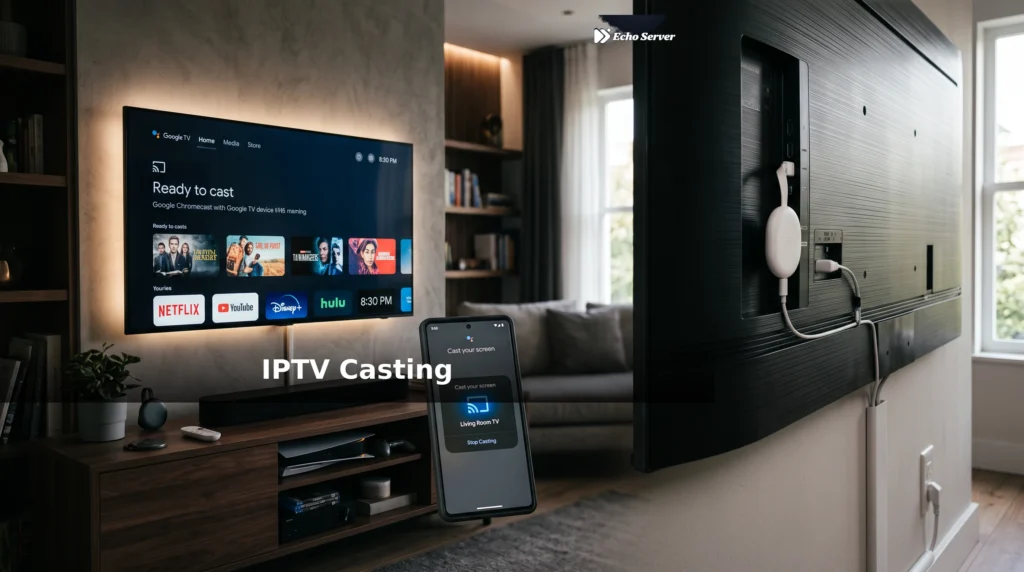
Casting IPTV to your TV via Chromecast lets you watch on the big screen without a dedicated IPTV box. This guide explains which IPTV apps support Chromecast, the complete setup process, why some apps can’t cast, network requirements, and troubleshooting tips for common casting failures.
Article Update History
October 2024: Initial publication covering Chromecast IPTV support, app compatibility, casting setup, network requirements, audio/video sync issues, and Chromecast vs Android TV comparison.
Can You Cast IPTV to Chromecast?
Yes, but it depends on your IPTV app. Some apps have built-in Chromecast support, some require screen mirroring, and some don’t work at all.
| IPTV App | Chromecast Support | How It Works |
|---|---|---|
| IPTV Smarters Pro | ✅ Built-in | Tap cast icon → select Chromecast → plays on TV |
| GSE Smart IPTV | ✅ Built-in | Cast icon in player, direct stream to Chromecast |
| VLC (Android/iOS) | ✅ Built-in | Playback controls → Renderer → Chromecast |
| TiviMate | ❌ No | Android TV app only — use screen mirroring instead |
| Perfect Player | ⚠️ Limited | Experimental, unreliable — use screen mirror |
Best apps for Chromecast IPTV: IPTV Smarters Pro (easiest) or GSE Smart IPTV.
How to Cast IPTV Using IPTV Smarters Pro
Prerequisites
- ✅ Chromecast device connected to your TV
- ✅ Phone/tablet on the same Wi-Fi network as Chromecast
- ✅ IPTV Smarters Pro installed on your phone/tablet
- ✅ IPTV subscription configured in Smarters Pro
Casting Steps
- Open IPTV Smarters Pro on your phone
- Navigate to the channel you want to watch
- Start playback
- Tap the cast icon (top-right corner of player)
- Select your Chromecast from the device list
- Stream starts playing on TV
- Use your phone as a remote (change channels, pause, adjust volume)
To stop casting: Tap cast icon again → “Disconnect”.
Screen Mirroring vs Chromecast Casting
There are two ways to get IPTV on your TV via Chromecast:
1. Chromecast Casting (App Built-In Support)
How it works:
- App sends stream URL directly to Chromecast
- Chromecast downloads and plays the stream itself
- Your phone is just a remote control
Pros:
- ✅ Better quality (Chromecast plays stream directly)
- ✅ Phone battery not drained (phone not streaming)
- ✅ Can use phone for other tasks while watching
- ✅ Lower latency
Cons:
- ❌ Only works if app supports it
2. Screen Mirroring (Cast Entire Phone Screen)
How it works:
- Phone mirrors its screen to Chromecast
- Everything on your phone appears on TV
- Works with any app
Pros:
- ✅ Works with apps that don’t support Chromecast natively (TiviMate, etc.)
- ✅ No special app support needed
Cons:
- ❌ Lower quality (compressed twice)
- ❌ Higher latency (noticeable delay)
- ❌ Drains phone battery quickly
- ❌ Can’t use phone for anything else while watching
- ❌ Phone notifications appear on TV
When to use each:
- Built-in casting: Use this whenever your app supports it (better in every way)
- Screen mirroring: Only when app doesn’t support Chromecast (TiviMate, older apps)
How to Screen Mirror IPTV to Chromecast
Android Screen Mirroring
- Ensure phone and Chromecast are on the same Wi-Fi
- Swipe down from top → tap Cast (or Screen Cast)
- Select your Chromecast from the list
- Your phone screen now appears on TV
- Open your IPTV app (TiviMate, etc.) and play a channel
To stop: Swipe down → tap Cast → Disconnect.
iPhone/iPad Screen Mirroring
iPhone doesn’t natively support Chromecast screen mirroring. You need:
- Download Replica app (free) from App Store
- Open Replica → tap your Chromecast
- Follow on-screen instructions to start mirroring
- Open IPTV app and play content
Alternative: Use an IPTV app with built-in Chromecast support (IPTV Smarters Pro, GSE Smart IPTV) instead of screen mirroring.
Network Requirements for Chromecast IPTV
Wi-Fi Speed
| Stream Quality | Minimum Speed | Recommended |
|---|---|---|
| SD (480p) | 3 Mbps | 10+ Mbps |
| HD (720p) | 5 Mbps | 15+ Mbps |
| Full HD (1080p) | 8 Mbps | 25+ Mbps |
| 4K (2160p) | 25 Mbps | 50+ Mbps |
Screen mirroring requires 2x the bandwidth (phone downloads stream, then uploads to Chromecast). For reliable HD screen mirroring, you need 25+ Mbps.
Same Network Requirement
Critical: Your phone and Chromecast MUST be on the same Wi-Fi network.
Common mistakes:
- ❌ Phone on cellular data, Chromecast on Wi-Fi
- ❌ Phone on 2.4 GHz Wi-Fi, Chromecast on 5 GHz (different networks with same name)
- ❌ Phone on guest network, Chromecast on main network
Solution: Check both devices are connected to the same Wi-Fi SSID.
Router Settings
Some routers block Chromecast communication by default:
- AP Isolation: Disabled (or Chromecast won’t appear in device list)
- mDNS/Bonjour: Enabled (required for device discovery)
- UPnP: Enabled (helps with streaming)
If you can’t see Chromecast in your app, check router settings or try restarting the router.
Troubleshooting Chromecast IPTV Issues
Chromecast Not Appearing in App
Diagnostics:
- Verify phone and Chromecast are on same Wi-Fi (Settings → Wi-Fi on both)
- Restart Chromecast (unplug power, wait 10 seconds, plug back in)
- Restart phone
- Check router AP Isolation setting (must be disabled)
- Try casting from another app (YouTube) to verify Chromecast works
Stream Buffers or Stutters
Possible causes:
- Wi-Fi too slow: Run speed test (need 25+ Mbps for HD)
- Wi-Fi congestion: Too many devices on network, or neighbor’s Wi-Fi interference
- Chromecast too far from router: Move router closer or use Wi-Fi extender
- ISP throttling: Try VPN to verify
- IPTV provider overload: Try different channel or wait 10 minutes
Audio and Video Out of Sync
Common with screen mirroring. Solutions:
- Use app with built-in Chromecast support instead of screen mirror
- Close background apps on phone (frees resources)
- Restart both phone and Chromecast
- If persistent, screen mirroring may not be viable — consider buying a Chromecast with Google TV and installing IPTV app directly
Casting Disconnects Randomly
Causes:
- Phone goes to sleep: Disable battery optimization for IPTV app
- Wi-Fi drops: Check router logs, consider wired Ethernet for Chromecast (needs adapter)
- Chromecast overheating: Ensure ventilation, don’t stack devices on top of it
Chromecast vs Chromecast with Google TV
| Feature | Chromecast (basic) | Chromecast with Google TV |
|---|---|---|
| IPTV Method | Must cast from phone | Install IPTV app directly on device |
| Phone Needed? | Yes (acts as remote) | No (has its own remote) |
| IPTV Apps Available | Only apps that support casting | All Android TV IPTV apps (TiviMate, Smarters, Kodi, etc.) |
| Recording | ❌ Not practical | ✅ Yes (with TiviMate Premium + USB storage) |
| Price | $30 | $50 (4K model) |
| Best For | Occasional IPTV casting | Primary IPTV viewing device |
Recommendation: If you watch IPTV regularly, buy Chromecast with Google TV ($50) instead of basic Chromecast ($30) — the $20 difference gets you a dedicated IPTV box that doesn’t require your phone.
Why Echo Best IPTV Works Great with Chromecast
Echo Best IPTV is designed for cross-platform compatibility:
- ✅ Works with all Chromecast-compatible IPTV apps (Smarters Pro, GSE, VLC)
- ✅ Standard M3U playlists (no special casting setup needed)
- ✅ Reliable streams reduce buffering during casting
- ✅ 20,000+ channels work identically whether cast or viewed directly
- ✅ VOD library accessible via casting (100,000+ titles)
Also works on Chromecast with Google TV:
- Install TiviMate or IPTV Smarters Pro from Google Play
- Paste M3U URL (from Echo welcome email)
- Watch 20,000+ channels without needing your phone
Perfect for Chromecast Users
Try Echo Best IPTV with full Chromecast support — cast from phone or install directly on Chromecast with Google TV. 24-hour free trial.
Start Your 24-Hour Free Trial →
€29.90-€69.90/year • Works on Any Chromecast
Frequently Asked Questions
Can I cast IPTV from iPhone to Chromecast?
Yes, using IPTV Smarters Pro, GSE Smart IPTV, or VLC — all have built-in Chromecast support on iOS. For screen mirroring, use the Replica app from the App Store. Built-in casting is better quality than screen mirroring.
Why can’t I cast TiviMate to Chromecast?
TiviMate is an Android TV app with no phone version, so it can’t cast to Chromecast. Workaround: use Android screen mirroring (lower quality), or buy Chromecast with Google TV and install TiviMate directly on it.
Does casting IPTV drain my phone battery?
Only if screen mirroring. Built-in Chromecast casting (IPTV Smarters Pro, GSE) sends the stream URL to Chromecast — your phone is just a remote and uses minimal battery. Screen mirroring drains battery quickly because your phone is actively streaming.
Can I cast 4K IPTV to Chromecast?
Yes, but you need Chromecast Ultra or Chromecast with Google TV 4K (not the basic Chromecast). Also need: 50+ Mbps internet, IPTV provider with 4K streams, and app with Chromecast support (no screen mirroring for 4K).
Why does my Chromecast IPTV stream buffer but phone playback doesn’t?
Possible causes: (1) Wi-Fi signal weak at Chromecast location — move router closer, (2) Chromecast on 2.4 GHz Wi-Fi, phone on faster 5 GHz — put both on 5 GHz, (3) Too many devices on network — disconnect unused ones, (4) ISP throttling Chromecast — try VPN.
Can I record IPTV while casting to Chromecast?
Not on basic Chromecast. For recording, use Chromecast with Google TV, install TiviMate Premium, connect USB storage, and record directly on the device. Screen-mirrored streams cannot be recorded reliably.
What’s the difference between casting and AirPlay for IPTV?
Chromecast (Google) and AirPlay (Apple) are different protocols. Chromecast works with Android/iPhone to cast to Google devices. AirPlay works with iPhone/iPad to cast to Apple TV. Some IPTV apps support both, some only one. For Chromecast specifically, use apps with Chromecast icon.
Does Echo Best IPTV work with Chromecast?
Yes. Echo Best IPTV provides standard M3U playlists that work with all Chromecast-compatible IPTV apps (Smarters Pro, GSE, VLC). Also works natively on Chromecast with Google TV. All plans (€29.90-€69.90/year) support Chromecast casting and include 24/7 setup support.

