
Fire Stick Running Costs: Device Payments, Apps and Optional Subscriptions
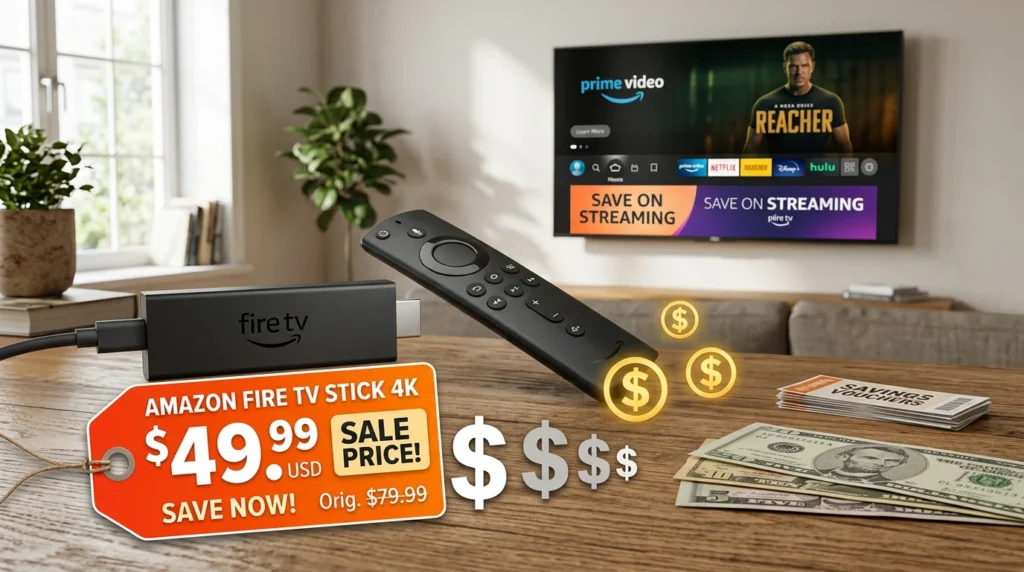
Fire TV Stick has no monthly fees for the device itself, but total costs depend on which streaming apps and services you use. This guide explains Fire Stick one-time costs, free vs paid apps, optional subscription services, and the true monthly cost of owning a Fire Stick. Article Update History October 2024: Initial publication covering Fire Stick purchase costs, free apps, optional subscriptions, internet requirements, and total cost comparison vs cable TV. Fire Stick Costs Explained One-time costs: Fire TV Stick: $40-$60 (one-time purchase) Internet service: Already paying (required) Monthly costs: $0 minimum (many free apps available) Optional subscriptions: Netflix, Prime Video, Hulu, etc. (your choice) Fire Stick Device Costs Device Price Best For Fire TV Stick Lite $30 HD streaming, budget option Fire TV Stick (Standard) $40 HD streaming, Alexa voice Fire TV Stick 4K $50 4K/HDR streaming Fire TV Stick 4K Max $60 4K, faster processor, Wi-Fi 6 No monthly device fee — you pay once, own it forever. Free Apps on Fire Stick Many apps cost nothing to use: ✅ YouTube (free with ads) ✅ Pluto TV (free live TV with ads) ✅ Tubi (free movies/shows with ads) ✅ Freevee (Amazon’s free streaming service) ✅ Plex (stream your own media) ✅ IPTV apps (need IPTV subscription separately) You can use Fire Stick with $0/month if you stick to free apps. Optional Subscription Services Fire Stick works with these paid services (optional): Service Monthly Cost Amazon Prime Video $8.99 (or $14.99 for full Prime) Netflix $6.99-$22.99 Hulu $7.99-$17.99 Disney+ $7.99-$13.99 Echo Best IPTV €2.49-€5.74/month (annual) You choose which to subscribe to — Fire Stick doesn’t require any specific service. Internet Costs (Required) Fire Stick requires internet (you’re already paying for this): HD streaming: 10-25 Mbps ($30-50/month typical) 4K streaming: 50+ Mbps ($50-80/month typical) Fire Stick adds $0 to internet bill — uses existing connection. Total Cost Scenarios Scenario 1: Free-Only ($50 one-time) Fire Stick 4K: $50 YouTube, Pluto TV, Tubi: Free Monthly cost: $0 Scenario 2: IPTV Only ($55/year) Fire Stick 4K: $50 one-time Echo Best IPTV Economy: €29.90/year (~$33) Monthly cost: $2.75 Scenario 3: Netflix + IPTV ($23/month) Fire Stick 4K: $50 one-time Netflix Standard: $15.49/month Echo Best IPTV Ultra: €49.90/year (~$55, or $4.58/month) Monthly cost: $20/month Compare to Cable TV Cable: $100-150/month Fire Stick + IPTV: $2.75/month Savings: $97-147/month ($1,164-$1,764/year) Hidden Costs to Consider None for Basic Use Fire Stick has no: ❌ Monthly device fees ❌ Activation fees ❌ Equipment rental ❌ Required subscriptions ❌ Cancellation fees Optional Add-Ons HDMI cable (if you don’t have one): $5-10 Ethernet adapter (for wired connection): $15 Better remote (backlit): $30 Fire Stick vs Other Streaming Devices Device One-Time Cost Monthly Fee Fire TV Stick 4K $50 $0 Roku Streaming Stick 4K $50 $0 Chromecast with Google TV $50 $0 Apple TV 4K $129 $0 Cable Box (rental) $0 $10-20 Echo Best IPTV on Fire Stick Echo Best IPTV offers the lowest monthly cost for live TV on Fire Stick: ✅ €29.90-€69.90/year ($33-$77/year) ✅ Monthly equivalent: $2.75-$6.42 ✅ 20,000+ channels (compare to cable’s 200-500) ✅ 100,000+ VOD movies/series ✅ Works on Fire Stick via IPTV apps (Smarters Pro, TiviMate, etc.) ✅ No device fees, no equipment rental Lowest Monthly Cost for Live TV Echo Best IPTV on Fire Stick: $2.75/month for 20,000+ channels. Compare to $100-150/month cable. 24-hour free trial. Start Your 24-Hour Free Trial → €29.90-€69.90/year • Works on Fire Stick Frequently Asked Questions Is there a monthly fee for Fire Stick? No. Fire Stick has no monthly device fee. You pay $40-$60 once to buy it, then it’s yours. Optional app subscriptions (Netflix, Hulu) cost extra, but many free apps are available (YouTube, Pluto TV, Tubi). How much does Fire Stick cost per month? $0 minimum if you use only free apps. If you add subscriptions: Netflix ($6.99+), Hulu ($7.99+), or Echo Best IPTV ($2.75/month annual plan). Total monthly cost is your choice based on which services you subscribe to. Do I need Amazon Prime for Fire Stick? No. Fire Stick works without Amazon Prime. Prime Video is optional ($8.99/month or $14.99 for full Prime membership). You can use YouTube, Netflix, IPTV apps, and other services without Prime. What’s the cheapest way to get live TV on Fire Stick? Echo Best IPTV Economy plan: €29.90/year ($33/year, or $2.75/month) for 20,000+ channels. Compare to YouTube TV ($73/month) or cable ($100-150/month). Works with free IPTV apps on Fire Stick. Does Fire Stick work without internet? No. Fire Stick requires internet connection (Wi-Fi or Ethernet). It’s a streaming device, so content comes over the internet. You’re already paying for internet — Fire Stick adds $0 to that bill. Can I watch free TV on Fire Stick? Yes. Free apps with ads: YouTube, Pluto TV (250+ live channels), Tubi (50,000+ movies/shows), Freevee (Amazon’s free service). You can use Fire Stick with $0/month if you stick to free content. How long does Fire Stick last? 4-6 years typical. Amazon supports Fire Stick with software updates for 4-5 years. After that it still works but may run slower or lose app support. $50 device lasting 5 years = $10/year ($0.83/month) amortized cost. How much does Echo Best IPTV cost on Fire Stick? €29.90-€69.90/year ($33-$77/year) depending on plan. Monthly equivalent: $2.75-$6.42. Works on Fire Stick via free IPTV apps (Smarters Pro, TiviMate). 20,000+ channels, 100,000+ VOD. 24-hour free trial available.
XCIPTV on Fire TV Stick: Installation and Login Checks
XCIPTV is a popular IPTV player app for Fire TV Stick that offers EPG support, recording features, and a user-friendly interface. This guide explains how to install XCIPTV on Fire Stick, complete the login process, configure your IPTV playlist, and troubleshoot common setup issues. Article Update History October 2024: Initial publication covering XCIPTV installation on Fire Stick, login methods (M3U, Xtream Codes, local file), playlist configuration, EPG setup, and troubleshooting guide. What Is XCIPTV? XCIPTV is a freemium IPTV player app that works on Fire TV Stick, Android TV, and Android mobile devices. It offers more features than basic IPTV apps but costs less than TiviMate. Key features: ✅ EPG (Electronic Program Guide) support ✅ Recording to local storage ✅ Multiple playlist formats (M3U, Xtream Codes) ✅ Parental controls ✅ Free version available (ads, limited features) ✅ Pro version: $5.99 one-time (removes ads, unlocks recording) Complete XCIPTV Fire Stick Setup Step 1: Install Downloader App XCIPTV isn’t in Amazon Appstore, so you need to sideload it: Search “Downloader” on Fire Stick home screen Install Downloader by AFTVnews Open Downloader Step 2: Enable Unknown Sources Fire Stick Settings → My Fire TV → Developer Options Turn ON “Apps from Unknown Sources” Confirm when prompted Step 3: Download XCIPTV APK In Downloader app, enter URL: https://www.xciptv.com Click “Download” on the XCIPTV APK link Wait for download to complete Click “Install” Click “Done” Step 4: Launch XCIPTV Go to Fire Stick Apps section Find XCIPTV Open XCIPTV Step 5: Add Your IPTV Playlist XCIPTV supports three login methods: Method 1: M3U URL (most common) In XCIPTV, select “Add Playlist” Choose “URL” Enter playlist name (e.g., “Echo IPTV”) Paste M3U URL from your IPTV provider Click “Save” Wait for channels to load Method 2: Xtream Codes Select “Add Playlist” → “Xtream Codes” Enter Server URL, Username, Password (from provider) Click “Login” Method 3: Local File Upload M3U file to USB drive or cloud storage Select “Add Playlist” → “File” Browse to M3U file location Select file Step 6: Configure EPG (Optional) XCIPTV Settings → EPG Add EPG URL (if separate from M3U) Click “Refresh EPG” XCIPTV Free vs Pro Feature Free Pro ($5.99) Ads ❌ Yes ✅ No EPG ✅ Yes ✅ Yes Recording ❌ No ✅ Yes Catch-Up TV ⚠️ Limited ✅ Full Multiple Playlists ⚠️ 1 playlist ✅ Unlimited Worth upgrading? Yes, if you want recording or ad-free experience. $5.99 one-time is good value vs TiviMate’s annual subscription. Troubleshooting XCIPTV on Fire Stick Channels Won’t Load Fixes: Verify M3U URL is correct (no extra spaces) Check IPTV subscription is active Delete playlist and re-add Restart Fire Stick Update XCIPTV to latest version App Crashes on Launch Solutions: Clear cache: Fire Stick Settings → Applications → XCIPTV → Clear cache Clear data (warning: removes playlists) Uninstall and reinstall XCIPTV Ensure Fire Stick has latest firmware EPG Not Showing Check: EPG URL configured in settings Click “Refresh EPG” in XCIPTV settings Wait 10-15 minutes for EPG download Verify IPTV provider includes EPG Recording Fails Requirements: XCIPTV Pro version ($5.99) External USB storage connected to Fire Stick Recording path set in settings Adequate storage space XCIPTV vs Other Fire Stick IPTV Apps Feature XCIPTV IPTV Smarters Pro Smart IPTV Price Free/$5.99 Free €5.49 Setup Medium (sideload) Medium (sideload) Medium (sideload + MAC activation) Recording ✅ Pro only ⚠️ Manual only ❌ No Best For Recording + EPG Simple, free solution Simple interface Why Echo Best IPTV Works Great with XCIPTV Echo Best IPTV is fully compatible with XCIPTV on Fire Stick: ✅ Standard M3U playlists (work in XCIPTV URL login) ✅ Xtream Codes API supported ✅ Full EPG for all 20,000+ channels ✅ Recording allowed for personal use ✅ 100,000+ VOD accessible in XCIPTV ✅ 24/7 support helps with XCIPTV setup Perfect for XCIPTV Users Try Echo Best IPTV with XCIPTV — M3U + EPG included, 20,000+ channels. 24-hour free trial. Start Your 24-Hour Free Trial → €29.90-€69.90/year • Works with XCIPTV Frequently Asked Questions Is XCIPTV free on Fire Stick? Yes, XCIPTV has a free version with ads. Pro version costs $5.99 one-time and removes ads, enables recording, and unlocks full catch-up TV. You still need a separate IPTV subscription for content. How do I install XCIPTV on Fire Stick? Enable Unknown Sources (Settings → Developer Options) → Install Downloader app → Download XCIPTV APK from xciptv.com → Install. Not in Amazon Appstore, so sideloading is required. Does XCIPTV work with M3U playlists? Yes. XCIPTV supports M3U URL, Xtream Codes login, and local M3U files. Add Playlist → URL → paste M3U from your IPTV provider. Works with all standard M3U playlists. Can XCIPTV record IPTV on Fire Stick? Yes, but requires XCIPTV Pro ($5.99) and external USB storage connected to Fire Stick. Configure recording path in settings, then schedule recordings from EPG. Free version doesn’t support recording. Why is XCIPTV not loading my channels? Check M3U URL is correct, verify IPTV subscription active, delete and re-add playlist, restart Fire Stick. If still failing, update XCIPTV to latest version or try reinstalling. Is XCIPTV better than IPTV Smarters Pro? XCIPTV Pro ($5.99 one-time) has scheduled recording. Smarters Pro is free but only manual recording. XCIPTV has cleaner interface; Smarters has better VOD integration. Both work well on Fire Stick. How do I add EPG to XCIPTV? EPG loads automatically if included in M3U playlist. For separate EPG: Settings → EPG → add XMLTV URL → Refresh EPG. Wait 10-15 minutes for download. Check with IPTV provider for EPG URL. Does Echo Best IPTV work with XCIPTV? Yes. Echo Best IPTV provides M3U and Xtream Codes credentials that work with XCIPTV. All plans (€29.90-€69.90/year) include EPG. 24/7 support helps with XCIPTV setup on Fire Stick.
Jellyfin IPTV Setup: M3U Tuners, XMLTV Mapping and Stream Limits
Jellyfin can integrate IPTV channels using M3U playlists through its Live TV & DVR feature. This guide explains how to set up IPTV in Jellyfin, configure M3U tuners, map XMLTV EPG data, troubleshoot stream limits, and optimize Jellyfin for IPTV viewing. Article Update History October 2024: Initial publication covering Jellyfin IPTV setup, M3U tuner configuration, XMLTV EPG mapping, stream limits, channel organization, and troubleshooting guide. What Is Jellyfin? Jellyfin is a free, open-source media server alternative to Plex and Emby. It organizes your local media and can integrate live TV using: HDHomeRun tuners (over-the-air TV) M3U playlists (IPTV — what we’ll configure) XMLTV EPG data (TV guide) Key facts: ✅ 100% free and open-source ✅ No premium features or subscriptions ✅ Works on Windows, Linux, macOS, Docker ✅ Supports IPTV via M3U playlists Complete Jellyfin IPTV Setup Step 1: Install Jellyfin Server Download: https://jellyfin.org/downloads/ Available for: Windows (installer) macOS (installer) Linux (packages for Ubuntu, Debian, Fedora, Arch) Docker (recommended for advanced users) After installation: Access Jellyfin web interface: http://localhost:8096 Complete initial setup wizard (create admin account, set media folders) Step 2: Enable Live TV Plugin In Jellyfin Dashboard, go to Plugins Click Catalog Find and install Live TV plugin Restart Jellyfin server Step 3: Add M3U Tuner Dashboard → Live TV Click Add Tuner Select M3U Tuner Paste your IPTV M3U playlist URL Set Tuner Type: IPTV Set Stream Limit (match your provider’s connection limit) Click Save Example M3U URL: Your IPTV provider (like Echo Best IPTV) sends this in welcome email. Step 4: Add XMLTV EPG Data EPG (Electronic Program Guide) shows what’s currently playing: Dashboard → Live TV → TV Guide Data Providers Click Add Select XMLTV Paste XMLTV URL (from IPTV provider) Click Save Click Refresh Guide Data Note: XMLTV URL is separate from M3U URL. Check your IPTV provider’s documentation. Step 5: Map Channels to EPG Jellyfin needs to match M3U channels to XMLTV EPG data: Dashboard → Live TV → Channels For each channel, click … → Edit Map to correct EPG data source Save Automatic mapping: If M3U includes tvg-id attributes that match XMLTV channel IDs, mapping happens automatically. Step 6: Watch IPTV in Jellyfin In Jellyfin web or app, click Live TV Select any channel from guide Stream starts playing Understanding Stream Limits Stream limit = how many simultaneous channels Jellyfin can pull from your IPTV provider. Set stream limit to match your IPTV plan: 1-connection plan: Set stream limit to 1 2-connection plan: Set stream limit to 2 5-connection plan: Set stream limit to 5 Why it matters: If you exceed your IPTV connection limit, streams will fail or buffer. Example: Echo Best IPTV VIP plan has 2 connections. Set Jellyfin stream limit to 2. You can watch 2 different channels simultaneously across all Jellyfin clients. Organizing Channels in Jellyfin Create Channel Groups Dashboard → Live TV → Channels Select channels → Bulk Actions Add to Channel Group (Sports, News, Movies, etc.) Hide Unwanted Channels Dashboard → Live TV → Channels Select channels to hide Click … → Hide Troubleshooting Jellyfin IPTV Channels Won’t Load Possible causes: Wrong M3U URL: Verify URL from provider Live TV plugin not installed: Check Dashboard → Plugins Jellyfin server not restarted: Restart after adding tuner EPG Not Showing Fixes: Verify XMLTV URL is correct Click “Refresh Guide Data” in Live TV settings Check channel mapping (Dashboard → Live TV → Channels) Wait 10-15 minutes for initial EPG download Stream Keeps Buffering Causes: Stream limit exceeded (too many simultaneous streams) Server internet too slow (need 25+ Mbps for HD) Transcoding enabled (disable for direct play) Solution: Dashboard → Playback → disable transcoding for Live TV “Tuner Limit Reached” Error Cause: Stream limit set too low or you’re exceeding IPTV connection limit. Fix: Dashboard → Live TV → Tuners → Edit M3U Tuner Increase stream limit (don’t exceed provider’s connection limit) Save and test Jellyfin vs Plex for IPTV Feature Jellyfin Plex Price Free (open-source) Free (Live TV requires Plex Pass $5/mo) M3U IPTV Support ✅ Yes (built-in) ✅ Yes (Plex Pass only) Setup Complexity Medium Easy Client Apps Good (official apps) Excellent (more platforms) Best For Free IPTV integration Users already on Plex Pass Why Echo Best IPTV Works Great with Jellyfin Echo Best IPTV is fully compatible with Jellyfin: ✅ Standard M3U playlists (work with Jellyfin M3U Tuner) ✅ XMLTV EPG data included ✅ Multiple connection plans (1-5 connections) match your stream limit needs ✅ 20,000+ channels accessible in Jellyfin ✅ Reliable streams reduce buffering ✅ 24/7 support helps with Jellyfin setup Perfect for Jellyfin Users Try Echo Best IPTV with Jellyfin — M3U + XMLTV EPG included, 20,000+ channels. 24-hour free trial. Start Your 24-Hour Free Trial → €29.90-€69.90/year • M3U + EPG Included Frequently Asked Questions Is Jellyfin free for IPTV? Yes, completely free. Jellyfin is open-source with no premium features or subscriptions. IPTV support via M3U playlists is built-in at no cost. Compare to Plex which requires Plex Pass ($5/month) for Live TV. How do I add IPTV to Jellyfin? Install Live TV plugin → Dashboard → Live TV → Add Tuner → M3U Tuner → paste M3U URL → set stream limit → Save. Add XMLTV URL for EPG. Channels appear in Live TV section. What is stream limit in Jellyfin IPTV? Stream limit = simultaneous channels Jellyfin can pull from IPTV. Set it to match your IPTV plan’s connection limit (e.g., 2-connection plan = stream limit 2). Exceeding causes “tuner limit reached” errors. Why is my Jellyfin IPTV buffering? Common causes: (1) stream limit exceeded — check how many clients watching, (2) transcoding enabled — disable it (Dashboard → Playback), (3) internet too slow — need 25+ Mbps for HD, (4) IPTV server overload — try different channel. Can Jellyfin record IPTV? Yes. Jellyfin supports DVR recording from M3U tuners. Dashboard → Live TV → enable DVR → set recording path. Schedule recordings from EPG. Requires adequate storage (1-5 GB per hour). How do I map XMLTV to M3U channels
Prime Video Ultra: Pricing, Features & IPTV Alternative 2026
Prime Video Ultra represents Amazon’s attempt to compete in the premium streaming market with enhanced video quality and exclusive features. But at its premium price point, many viewers are asking whether Prime Video Ultra delivers enough value—or if IPTV alternatives like Echo Best IPTV offer better channel selection, VOD libraries, and pricing for international content. This guide breaks down Prime Video Ultra’s pricing structure, key features, device compatibility, content library strengths and limitations, and how it compares to IPTV services that deliver 10,000-20,000+ live channels alongside on-demand content for a fraction of the annual cost. Article Update History October 22, 2026 – Initial publication – Verified Echo Best IPTV pricing (Economy €29.90, VIP €39.90, Ultra €49.90, Ultimate €69.90) – Confirmed 25+ servers, 50,000+ customers, 8 years in business – Reviewed current Prime Video subscription tiers and Amazon Prime membership structure What is Prime Video Ultra? Quick Answer: Prime Video Ultra is Amazon’s premium streaming tier within Prime Video, offering enhanced 4K/UHD video quality with Dolby Atmos audio support, ad-free viewing, and access to premium channels through Prime Video Channels. It’s included with Amazon Prime membership ($139/year in the US) or available standalone ($8.99/month), with an additional $2.99/month fee to remove ads from the base tier. The “Ultra” designation refers to the highest streaming quality available on Prime Video: 4K Ultra HD Resolution: 3840×2160 pixels (four times 1080p Full HD) HDR Support: HDR10, HDR10+, and Dolby Vision for enhanced color and contrast Dolby Atmos Audio: Object-based surround sound for compatible content Higher Bitrate: Up to 15 Mbps for 4K streaming (vs 5 Mbps for HD) However, not all Prime Video content streams in Ultra HD—only select original series, movies, and licensed titles support the highest quality. The vast majority of Prime Video’s library remains in 1080p Full HD or lower. Prime Video Pricing Breakdown 2026 Prime Video Subscription Options Tier Price What’s Included Prime Video (with ads) $8.99/month$107.88/year Standalone Prime Video access with ads, includes Ultra HD Prime Video (ad-free) $11.98/month$143.76/year $8.99 base + $2.99 ad-free upgrade Amazon Prime (includes Video) $14.99/month$139/year Prime Video + free shipping + Music + Photos + more (includes ads in Video) Prime + Ad-Free Video $17.98/month$215.76/year Full Prime membership + $2.99 ad-free Video upgrade Key Pricing Insights: Prime Video with ads costs $107.88/year standalone Removing ads adds $35.88/year ($2.99/month × 12) Amazon Prime membership ($139/year) includes Prime Video but with ads Total cost for Prime + ad-free Video: $215.76/year By comparison, Echo Best IPTV delivers 10,000-20,000+ live channels plus 50,000+ movies and up to 70,000+ series for €29.90-69.90/year ($32-75/year)—significantly less than Prime Video’s annual cost while offering vastly more content variety. Prime Video Ultra Features 1. Content Library Prime Video’s library includes: Amazon Originals: The Boys, The Lord of the Rings: The Rings of Power, Jack Ryan, The Marvelous Mrs. Maisel, Reacher Licensed Movies: Rotating selection of ~15,000-20,000 titles Licensed TV Series: ~3,000-5,000 series Live Channels: Limited; mostly through add-on Prime Video Channels subscriptions Rentals/Purchases: Additional content available for extra fees Limitations: No live TV channels included in base subscription Content rotates monthly—titles disappear regularly Many popular movies/shows require additional rental fees ($3.99-19.99 each) Limited international content compared to IPTV services 2. 4K Ultra HD Availability Only select titles stream in 4K Ultra HD: Most Amazon Originals support 4K/HDR Some licensed movies offer 4K (but many remain 1080p) Older catalog content typically maxes at 1080p or 720p In contrast, Echo Best IPTV includes 4K content availability across all plan tiers (Economy €29.90/year through Ultimate €69.90/year), with higher-tier plans offering larger 4K selections. 3. Device Compatibility Prime Video supports: Smart TVs (Samsung, LG, Sony, Vizio) Amazon Fire TV / Fire Stick Roku Apple TV Chromecast iOS and Android mobile apps Web browsers Gaming consoles (PlayStation, Xbox) Echo Best IPTV works on the same devices through compatible IPTV players (IPTV Smarters, TiViMate, VLC, Kodi), offering similar device flexibility without platform restrictions. 4. Simultaneous Streams Prime Video: Up to 3 simultaneous streams per account Downloads: Up to 2 devices can download content for offline viewing Echo Best IPTV includes 1 simultaneous connection on all plans. While Prime Video allows 3 streams, Echo’s vast channel selection (10,000-20,000+ channels vs Prime’s on-demand-only library) often provides better value for households needing diverse content options. Ready for More Channels & Better Value? Echo Best IPTV provides 10,000-20,000+ live channels, 50,000+ movies, and up to 70,000+ series for €29.90-69.90/year—far less than Prime Video’s annual cost. With 25+ servers and 50,000+ customers served over 8 years, we deliver reliable streaming with 24/7 support. Explore Echo Best IPTV → Prime Video Ultra vs IPTV: Head-to-Head Comparison Feature Prime Video Ultra Echo Best IPTV Annual Cost $107.88-215.76/year €29.90-69.90/year ($32-75) Live TV Channels None (add-on channels extra) 10,000-20,000+ included Movies (VOD) ~15,000-20,000 (rotating) 50,000+ (stable library) TV Series ~3,000-5,000 series Up to 70,000+ series 4K Content Select titles only Available on all plans International Channels Limited Extensive worldwide coverage EPG (Program Guide) N/A (no live TV) Full EPG for all channels Advertisements Yes (unless +$35.88/year) No ads in VOD library Simultaneous Streams 3 devices 1 stream Free Trial 30 days (Prime membership) 24 hours Customer Support Amazon chat/phone 24/7 throughout subscription When Prime Video Ultra Makes Sense Prime Video Ultra is worth considering if: You already have Amazon Prime: If you subscribe for free shipping/other Prime benefits, Prime Video comes included (though with ads) You want Amazon Originals: Exclusive series like The Boys, Rings of Power, or Reacher aren’t available elsewhere You need multiple simultaneous streams: 3 concurrent streams vs IPTV’s 1 You prefer mainstream on-demand: Pure VOD without live TV channels Offline downloads matter: Prime Video allows downloading for offline viewing on 2 devices When IPTV (Echo Best) Makes More Sense Echo Best IPTV is the better choice if: You want live TV channels: 10,000-20,000+ live channels vs Prime’s zero live channels You need international content: IPTV provides extensive worldwide channel coverage Budget is a priority: €29.90-69.90/year ($32-75) vs Prime’s $107.88-215.76/year You want a larger VOD library: 50,000+ movies and 70,000+ series vs Prime’s smaller
IPTV on Vizio TVs: Model Compatibility, Casting and External-Player Options
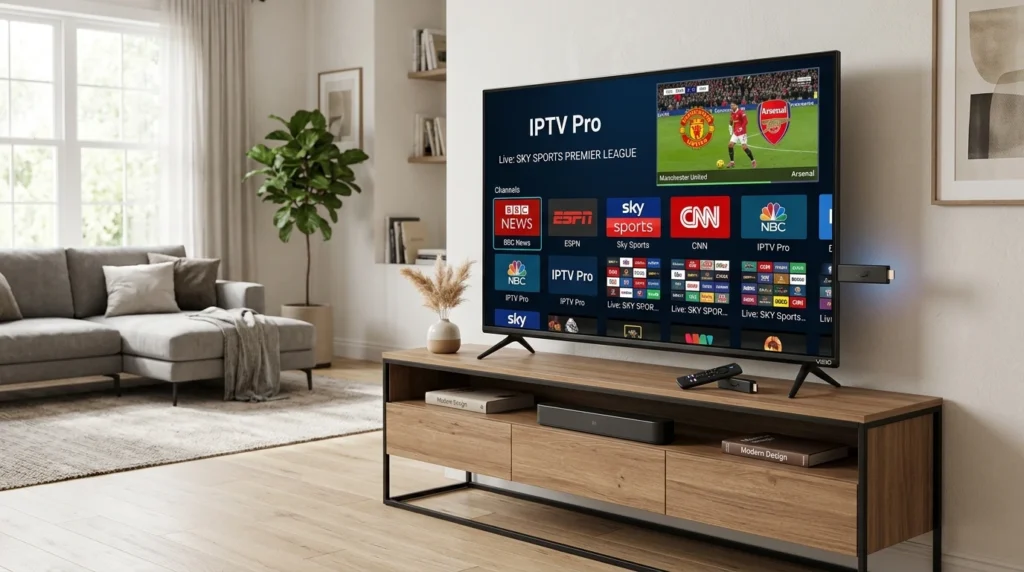
Vizio Smart TVs can stream IPTV through casting from mobile devices or by connecting external IPTV boxes. This guide explains which Vizio models support IPTV apps, the best methods to watch IPTV on Vizio TVs, casting setup steps, and external player options when built-in apps aren’t available. Article Update History October 2024: Initial publication covering Vizio IPTV compatibility, SmartCast vs older models, Chromecast casting, Fire Stick/Roku setup, and troubleshooting guide. Can You Watch IPTV on Vizio Smart TV? Yes, but Vizio doesn’t have dedicated IPTV apps in its app store. You need to either: Option 1: Cast IPTV from phone/tablet using Chromecast (built into SmartCast TVs) Option 2: Connect external device (Fire Stick, Roku, Apple TV, Android box) Vizio TV Models and IPTV Compatibility Vizio Model Type IPTV Apps? Best IPTV Method SmartCast (2016+) ❌ No Chromecast casting (built-in) Older Smart TVs (pre-2016) ❌ No External device (Fire Stick, Roku) Why no IPTV apps? Vizio’s SmartCast platform uses Chromecast built-in instead of a traditional app store. You cast apps from your phone rather than installing them on the TV. Method 1: Chromecast Casting to Vizio SmartCast All Vizio SmartCast TVs (2016+) have Chromecast built-in: Setup Steps Install IPTV app on phone/tablet (IPTV Smarters Pro or GSE Smart IPTV) Configure your M3U playlist in the app Ensure phone and Vizio TV on same Wi-Fi network Open IPTV app, play a channel Tap Cast icon in app Select your Vizio TV from device list Stream plays on TV Supported IPTV apps with Chromecast: ✅ IPTV Smarters Pro (Android/iOS) ✅ GSE Smart IPTV (Android/iOS) ✅ VLC (Android) Pros: ✅ No external device needed ✅ Free (uses built-in Chromecast) ✅ Phone acts as remote Cons: ❌ Drains phone battery ❌ Can’t use phone for other tasks ❌ Quality depends on Wi-Fi strength Method 2: External IPTV Device (Best Option) For better IPTV experience, connect an external device to your Vizio TV: Fire TV Stick ($50) Setup: Plug Fire Stick into Vizio TV’s HDMI port Power via USB or wall adapter Install IPTV app (Smarters Pro, TiviMate, etc.) Add M3U playlist Watch with Fire Stick remote Best for: Budget-friendly, works great for HD streams Roku Streaming Stick ($50) Setup: Same as Fire Stick — HDMI connection, install IPTV app, add playlist Available Roku IPTV apps: M3U Playlist Player IPTV Player (various from Roku Channel Store) Apple TV 4K ($129-179) Best premium option: Fastest performance Best 4K support Longest software support Works with IPTV Smarters Pro, GSE, Kodi Android TV Box ($50-150) Examples: Chromecast with Google TV, NVIDIA Shield TV Advantages: ✅ TiviMate support (best IPTV app) ✅ All IPTV apps available ✅ Recording support Vizio SmartCast Remote and HDMI-CEC Vizio TVs support HDMI-CEC, so you can control external devices with Vizio remote: Enable HDMI-CEC: Vizio Menu → System → CEC → Enable Connect Fire Stick/Roku/Apple TV via HDMI Vizio remote automatically controls external device Power, volume, navigation all work Tip: If Vizio remote doesn’t control Fire Stick, restart both TV and Fire Stick with HDMI-CEC enabled. Troubleshooting Vizio IPTV Issues Can’t Find Vizio TV When Casting Fixes: Verify phone and TV on same Wi-Fi network (not guest network) Restart Vizio TV Restart phone/tablet Disable VPN on phone (blocks local network discovery) Check router AP Isolation is disabled Casting Buffers or Stutters Causes: Wi-Fi too slow (need 25+ Mbps for HD) Vizio TV on 2.4 GHz Wi-Fi (switch to 5 GHz) Too many devices on network Solution: Use external device instead of casting for smoother performance Vizio Remote Won’t Control Fire Stick Enable HDMI-CEC: Vizio Menu → System → CEC → Enable Fire Stick Settings → Display & Sounds → HDMI CEC → Enable Unplug Fire Stick, wait 10 seconds, plug back in Test Vizio remote navigation Vizio vs Other Smart TVs for IPTV TV Brand IPTV Apps? Best Method Vizio (SmartCast) ❌ No Casting or external device Samsung (Tizen) ⚠️ Very limited External device recommended LG (webOS) ⚠️ Very limited External device recommended Sony (Google TV/Android TV) ✅ Yes Install apps directly TCL/Hisense (Roku/Android) ✅ Yes Install apps directly Bottom line: For dedicated IPTV viewing, external device (Fire Stick $50) gives better experience than casting on any smart TV brand. Why Echo Best IPTV Works Great on Vizio Echo Best IPTV works on Vizio TVs via casting or external devices: ✅ Standard M3U playlists (work with all IPTV apps) ✅ Cast from phone using Smarters Pro or GSE ✅ Works on Fire Stick, Roku, Apple TV, Android boxes ✅ 20,000+ channels accessible on Vizio via any method ✅ 100,000+ VOD library ✅ 24/7 support helps with Vizio setup Perfect for Vizio TVs Try Echo Best IPTV on your Vizio TV — cast from phone or use Fire Stick/Roku. 20,000+ channels, 24-hour free trial. Start Your 24-Hour Free Trial → €29.90-€69.90/year • Works on All Vizio Models Frequently Asked Questions Can I install IPTV apps directly on Vizio Smart TV? No. Vizio SmartCast doesn’t have an app store for IPTV apps. You must either cast from your phone using built-in Chromecast, or connect an external device like Fire Stick ($50) which has full IPTV app support. What’s the best way to watch IPTV on Vizio TV? Fire TV Stick ($50) connected via HDMI. Install IPTV Smarters Pro or TiviMate, add your playlist, and watch with Fire Stick remote. Better than casting — no phone drain, dedicated remote, smoother performance. Does Vizio SmartCast support Chromecast for IPTV? Yes. All Vizio SmartCast TVs (2016+) have Chromecast built-in. Install IPTV Smarters Pro or GSE on Android/iPhone, play a channel, tap Cast icon, select Vizio TV. Stream plays on TV while phone acts as remote. Can I use TiviMate on Vizio TV? Not directly — TiviMate is Android TV only. Install it on Fire Stick, Chromecast with Google TV, or Android TV box connected to your Vizio, then you can use TiviMate on the big screen. Why can’t I find my Vizio TV when casting IPTV? Ensure phone and Vizio on same Wi-Fi network (not guest network). Disable VPN
IPTV on Mac: Native Apps, Playlist Setup and Apple Silicon Compatibility
Mac computers can stream IPTV using native apps that work on both Intel and Apple Silicon (M1/M2/M3) Macs. This guide explains which IPTV apps work on macOS, the complete setup process, Apple Silicon compatibility considerations, and troubleshooting tips for common Mac IPTV issues. Article Update History October 2024: Initial publication covering macOS IPTV apps, M3U playlist setup, Apple Silicon (M1/M2/M3) compatibility, AirPlay to Apple TV, and troubleshooting guide for Mac IPTV. Can You Watch IPTV on Mac? Yes. macOS supports several IPTV apps that work on both Intel and Apple Silicon Macs (M1, M2, M3, M4). What you need: ✅ Mac running macOS 11 (Big Sur) or later ✅ IPTV subscription (like Echo Best IPTV) ✅ IPTV app (VLC, IPTV, or IINA) ✅ 25+ Mbps internet for HD streams Best IPTV Apps for Mac App Apple Silicon? Key Features VLC Media Player ✅ Native (Universal) Free, M3U support, reliable, no EPG IINA ✅ Native (Universal) Free, modern Mac design, M3U playlists IPTV (Mac App Store) ✅ Native Free, EPG support, simple interface GSE Smart IPTV ✅ Native Free, EPG, recording, parental controls Kodi ✅ Native (Universal) Free, full media center, complex setup Recommendation: IINA (best Mac-native experience) or VLC (most reliable). Complete Mac IPTV Setup (VLC) Step 1: Download VLC for Mac Go to https://www.videolan.org/vlc/ Click “Download VLC” (automatically detects Mac) Open the .dmg file when download completes Drag VLC icon to Applications folder Open VLC from Applications Apple Silicon note: VLC is a Universal app — works natively on Intel and M1/M2/M3/M4 Macs. Step 2: Add Your M3U Playlist You need an M3U URL from your IPTV provider (Echo Best IPTV sends this in welcome email): Open VLC Click File → Open Network… (or press ⌘+N) Paste your M3U playlist URL Click “Open” Channel list loads in VLC’s playlist window To save playlist for easy access: After opening M3U URL, go to File → Save Playlist Save as “Echo IPTV.m3u” to your Desktop or Documents Next time: File → Open File → select saved .m3u file Step 3: Watch Channels Playlist window shows all channels (View → Playlist if hidden) Double-click any channel to start watching Use VLC playback controls (play, pause, volume) Alternative: IINA Setup (Better Mac Experience) IINA is a modern Mac-native IPTV player with better macOS integration than VLC: Install IINA Go to https://iina.io/ Download latest version Open .dmg, drag IINA to Applications Open IINA Add M3U Playlist In IINA, click File → Open URL… (or press ⌘+U) Paste M3U URL Click “Open” Playlist appears in sidebar Click any channel to watch IINA advantages over VLC: ✅ Native macOS design (feels like a Mac app) ✅ Touch Bar support (MacBook Pro) ✅ Picture-in-Picture mode ✅ Better keyboard shortcuts ✅ Dark mode integration Mac App Store IPTV Apps IPTV (by Alexander Shevchuk) Simple, free IPTV player from Mac App Store: Open App Store on Mac Search “IPTV” Download “IPTV” by Alexander Shevchuk (free) Open app Click “+” to add playlist Paste M3U URL Channels load automatically Pros: ✅ Sandboxed (Mac App Store security) ✅ EPG support (if provider includes it) ✅ Simple interface ✅ Automatic updates GSE Smart IPTV Also available on Mac App Store (same developer as iOS version): Download from Mac App Store Open GSE Smart IPTV Add → M3U URL Paste URL, save Channels appear in list Features: EPG guide Recording to Mac storage Parental controls Custom playlists Apple Silicon (M1/M2/M3/M4) Compatibility All recommended IPTV apps work natively on Apple Silicon Macs: App Intel Apple Silicon Performance VLC ✅ Native ✅ Native (Universal) Excellent on both IINA ✅ Native ✅ Native (Universal) Excellent on both IPTV (App Store) ✅ Native ✅ Native Excellent on both GSE Smart IPTV ✅ Native ✅ Native Excellent on both Kodi ✅ Native ✅ Native (Universal) Good on both Bottom line: All major IPTV apps work perfectly on M1/M2/M3/M4 Macs. No Rosetta 2 translation needed. AirPlay IPTV from Mac to Apple TV You can stream IPTV from Mac to Apple TV via AirPlay: Setup Ensure Mac and Apple TV are on same Wi-Fi network Open IPTV app on Mac (VLC, IINA, etc.) Play a channel Click AirPlay icon in Mac menu bar (or app’s AirPlay button) Select your Apple TV Stream plays on TV Quality considerations: ✅ Full quality if Mac and Apple TV on 5 GHz Wi-Fi ⚠️ May buffer on 2.4 GHz Wi-Fi ✅ Better option: Install IPTV app directly on Apple TV (native performance) Keyboard Shortcuts for Mac IPTV VLC Shortcuts Action Shortcut Play/Pause Spacebar Fullscreen ⌘+F Volume Up/Down ⌘+Up / ⌘+Down Next/Previous in Playlist ⌘+→ / ⌘+← Show Playlist ⌘+L IINA Shortcuts Play/Pause: Spacebar Fullscreen: F Picture-in-Picture: P Volume: Up/Down arrows Playlist: ⌘+1 Troubleshooting Mac IPTV Issues Channels Won’t Load Possible causes: Wrong M3U URL: Verify URL from IPTV provider (no extra spaces) Firewall blocking: System Settings → Network → Firewall → allow VLC/IINA Internet down: Test by opening Safari IPTV subscription expired: Check account status Buffering or Stuttering Diagnostics: Wi-Fi too slow: Use Speedtest.net (need 25+ Mbps for HD) VPN interference: Disconnect VPN temporarily to test Mac running too many apps: Close unused apps (Activity Monitor) Server overload: Try different channel or wait 10 minutes VLC-specific fix: VLC → Preferences → Show All (bottom left) Input / Codecs → Network caching → increase to 3000ms Restart VLC No Sound Fixes: Check Mac volume (not muted) VLC → Audio → Audio Device → select correct output Try different channel (some streams have audio issues) Restart app App Quits Unexpectedly Solutions: Update to latest app version Update macOS: System Settings → General → Software Update For VLC: Delete preferences (~/Library/Preferences/org.videolan.vlc) and restart Reinstall app Mac vs Windows vs Apple TV for IPTV Feature Mac Windows Apple TV Setup Ease ✅ Very Easy ✅ Very Easy ✅ Very Easy App Selection ✅ Good (VLC, IINA, Kodi, GSE) ✅ Excellent (all apps) ✅ Good (Smarters, GSE, Kodi) Recording ✅ Yes (GSE, VLC manual) ✅ Yes (many apps) ⚠️ Limited (USB storage needed) TV Experience ⚠️ Needs AirPlay
M3U IPTV: What It Is, How to Use & Best Sources 2026
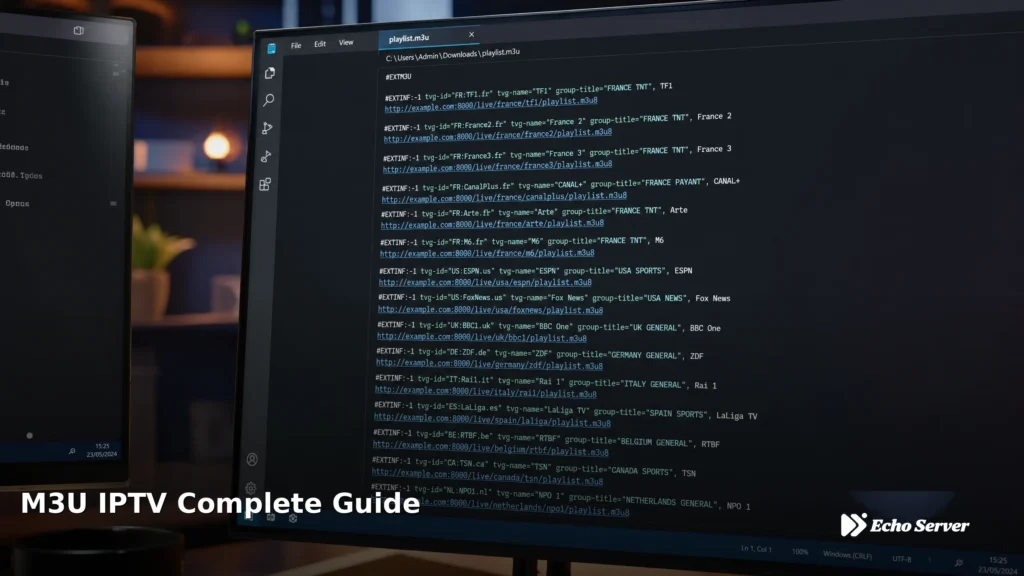
M3U is the universal playlist format that powers IPTV streaming across every device and player. Understanding M3U—what it is, how to use it, and where to find reliable sources—is essential for anyone looking to set up IPTV service on their Smart TV, Fire Stick, Android device, or computer. This guide explains M3U playlists from the ground up: the file format itself, how IPTV providers use it, how to load M3U URLs into your favorite players, and how to identify trustworthy M3U sources versus unreliable free lists. Article Update History October 21, 2026 – Initial publication – Verified Echo Best IPTV pricing (Economy €29.90, VIP €39.90, Ultra €49.90, Ultimate €69.90) – Confirmed 25+ servers, 50,000+ customers, 8 years in business – Reviewed M3U format specifications and current IPTV player compatibility What is M3U? Quick Answer: M3U is a plain-text file format that contains a list of media file locations or streaming URLs. In IPTV, an M3U playlist is a file (or URL pointing to a file) that lists all your available channels with their stream addresses, channel names, logos, and metadata. IPTV players read M3U files to display your channel lineup. The M3U format was originally created for MP3 audio playlists (hence “M3U” = MPEG 3 URL), but IPTV has adopted it as the standard way to distribute channel lists because: Universal Compatibility: Every IPTV player supports M3U (VLC, Kodi, IPTV Smarters, TiViMate, Perfect Player, etc.) Simple Text Format: M3U files are human-readable text—you can open them in Notepad and see exactly what channels are included Extended Metadata Support: M3U Extended format (#EXTM3U) includes channel names, logos, EPG IDs, and categories Easy Distribution: IPTV providers can host M3U files at a URL, and customers simply paste that URL into their player When you subscribe to Echo Best IPTV, you receive an M3U URL that instantly loads 10,000-20,000+ channels (depending on your plan) into any compatible player without manual channel entry. M3U vs M3U8: What’s the Difference? You’ll often see both “M3U” and “M3U8” mentioned in IPTV contexts. Here’s what distinguishes them: M3U (Original Format) Encoding: Uses the system’s default character encoding (often Latin-1 or Windows-1252) Character Support: Limited support for international characters (Arabic, Cyrillic, Asian scripts may display incorrectly) Best For: English-language channel lists, legacy compatibility M3U8 (UTF-8 Format) Encoding: Uses UTF-8 character encoding Character Support: Full support for all international characters and symbols HLS Compatibility: Often used for HLS (HTTP Live Streaming) playlists Best For: International IPTV services with multilingual channel names Which Should You Use? Most modern IPTV services (including Echo Best IPTV) provide both M3U and M3U8 URLs. If your service includes international channels with non-English names, use M3U8 to ensure channel names display correctly. If you’re only watching English channels, either format works fine. How M3U Playlists Work in IPTV When you load an M3U playlist into an IPTV player, here’s what happens behind the scenes: Step 1: Player Requests the M3U File Your IPTV player connects to the M3U URL (e.g., http://provider.com/playlist.m3u) and downloads the playlist file. This file is typically 1-5 MB for playlists with 10,000+ channels. Step 2: Player Parses Channel Information The player reads each line of the M3U file to extract: Stream URL: The actual web address where the channel’s video stream is hosted Channel Name: How the channel appears in your player’s guide Logo URL: The channel’s icon/logo image EPG ID: Links the channel to Electronic Program Guide data Group/Category: Organizes channels (News, Entertainment, etc.) Step 3: Player Displays Your Channel List All extracted channels appear in your player’s interface, organized by category if the M3U included group tags. You can now browse and select channels. Step 4: Streaming Begins When you select a channel, the player connects to that channel’s stream URL and begins buffering/playing the video. The M3U file itself doesn’t contain video—it only contains addresses pointing to video streams. M3U File Structure Explained A basic M3U Extended playlist looks like this: #EXTM3U #EXTINF:-1 tvg-id=”BBCOne.uk” tvg-name=”BBC One” tvg-logo=”http://example.com/bbc-logo.png” group-title=”UK Channels”,BBC One http://stream.provider.com/bbc-one/playlist.m3u8 #EXTINF:-1 tvg-id=”CNN.us” tvg-name=”CNN” tvg-logo=”http://example.com/cnn-logo.png” group-title=”News”,CNN http://stream.provider.com/cnn/playlist.m3u8 Breaking down each element: #EXTM3U: Header that identifies this as an Extended M3U file (always the first line) #EXTINF:-1: Marks the start of a new channel entry (-1 means no duration/live stream) tvg-id: Electronic Program Guide identifier for this channel tvg-name: Channel’s display name tvg-logo: URL to the channel’s logo image group-title: Category/group for organizing channels Stream URL: The actual HTTP/HLS stream address (always on the line after #EXTINF) This structure repeats for every channel in the playlist. A 10,000-channel M3U file contains 20,000+ lines (2 lines per channel). How to Use M3U Playlists Method 1: M3U URL (Recommended) Most IPTV providers (including Echo Best IPTV) give you an M3U URL rather than a downloadable file. This approach has major advantages: Automatic Updates: When your provider adds channels or fixes streams, changes appear instantly—no manual re-import No Storage Needed: The playlist stays on the provider’s server, not your device Works Everywhere: Same URL works on all your devices (TV, tablet, phone, computer) Provider Control: Your provider can manage your access (activate/deactivate subscription) How to load an M3U URL: Copy the M3U URL from your provider’s welcome email or dashboard Open your IPTV player (IPTV Smarters, TiViMate, VLC, etc.) Find the “Add Playlist” or “M3U URL” setting Paste your M3U URL and save Wait 30-60 seconds for the playlist to load Method 2: Downloaded M3U File Some providers offer downloadable M3U files instead of URLs. This method: Works Offline: Playlist stays on your device even if you lose internet (but streams still need internet) Requires Manual Updates: You must re-download and re-import whenever the provider updates channels Device-Specific: File must be transferred to each device separately How to use a downloaded M3U file: Download the M3U file to your device Transfer it to your streaming device if needed (USB, cloud storage, etc.) Open your IPTV player Select “Open File” or “Local Playlist” Browse to the M3U file location and select it M3U Player Compatibility M3U playlists work with virtually every IPTV
Smart IPTV (SIPTV) on Fire TV Stick: Setup and Activation Checks
Smart IPTV (SIPTV) is a popular IPTV player app for Fire TV Stick that lets you watch live TV channels using M3U playlists. This guide explains how to install Smart IPTV on Fire Stick, complete the activation process, configure your IPTV playlist, and troubleshoot common setup issues. Article Update History October 2024: Initial publication covering Smart IPTV installation on Fire Stick, activation steps, playlist configuration, EPG setup, and troubleshooting guide for common Smart IPTV issues. What Is Smart IPTV (SIPTV)? Smart IPTV is a paid IPTV player app that works on Fire TV Stick, Android TV, Samsung Smart TVs, and other platforms. It’s NOT an IPTV service — you need to bring your own IPTV subscription and M3U playlist. Key facts: ✅ One-time payment (€5.49) for lifetime license ✅ Supports M3U playlists from any IPTV provider ✅ EPG (Electronic Program Guide) support ✅ Works on Fire TV Stick, Android TV, Samsung TV, LG TV ❌ Requires activation with MAC address ❌ 7-day free trial, then must purchase Smart IPTV vs Other Apps: vs TiviMate: TiviMate is Android TV only (doesn’t work on Fire Stick officially), Smart IPTV works on Fire Stick vs IPTV Smarters Pro: Smarters is free, Smart IPTV costs €5.49 one-time vs Perfect Player: Smart IPTV has simpler interface, Perfect Player is more customizable Complete Smart IPTV Fire Stick Setup Step 1: Install Downloader App Fire Stick doesn’t have Smart IPTV in the Amazon Appstore, so you need to sideload it: On Fire Stick home screen, search for “Downloader” Select “Downloader” by AFTVnews Click “Download” or “Get” Open Downloader app Step 2: Enable Unknown Sources Go to Fire Stick Settings Select My Fire TV (or Device) Select Developer Options Turn ON Apps from Unknown Sources Confirm “Turn On” when prompted Step 3: Download Smart IPTV APK Open Downloader app In the URL field, enter: https://siptv.app/myapp Click “Go” Smart IPTV APK will download Click “Install” when download completes Click “Done” (not “Open” yet) Step 4: Get Your Fire Stick MAC Address Smart IPTV requires device activation using your Fire Stick’s MAC address: Open Smart IPTV app (from Fire Stick Apps) The app displays a MAC address on the first screen Write down this MAC address (format: 00:1A:79:XX:XX:XX) Alternative method to find MAC address: Fire Stick Settings → My Fire TV → About → Network Look for Wi-Fi MAC address or Ethernet MAC address Step 5: Activate Smart IPTV On a computer or phone, go to https://siptv.app/activation/ Enter your Fire Stick’s MAC address Click “Send” You’ll receive a confirmation (7-day free trial starts) After 7 days: You must pay €5.49 for lifetime activation at https://siptv.app/payment/ Step 6: Add Your IPTV Playlist You need an M3U playlist URL from your IPTV provider (like Echo Best IPTV): On computer/phone, go to https://siptv.app/mylist/ Enter your MAC address Paste your M3U playlist URL in the “Playlist URL” field Click “Send” Wait 10-20 minutes for playlist to sync Alternative method (add playlist directly on Fire Stick): Open Smart IPTV app on Fire Stick Press Menu button on remote Select “Add Playlist” Enter M3U URL using on-screen keyboard Save and reload channels Step 7: Restart Smart IPTV and Watch Close Smart IPTV app completely (force stop) Reopen Smart IPTV Channels should now appear Select any channel to start watching Smart IPTV Features on Fire Stick EPG (TV Guide) Smart IPTV supports EPG if your IPTV provider includes it in the M3U playlist: EPG data loads automatically from M3U (if included) Shows current and upcoming programs Navigate EPG: press Up arrow while watching a channel If EPG doesn’t show: Your IPTV provider may not include EPG data in M3U. Contact provider to verify EPG support. Favorites and Channel Groups Add to Favorites: While watching, press and hold OK button → Add to Favorites View Favorites: Press Menu → Favorites Channel Groups: Automatically created from M3U playlist structure Parental Control Press Menu button Select “Settings” Enable “Parental Control” Set a PIN code Select channels to lock Smart IPTV Remote Control Navigation Action Fire Stick Remote Change channels Up/Down arrows Select channel OK button (center of navigation ring) Open menu Menu button (3 lines) Go back Back button Show EPG Up arrow while watching Volume Volume buttons (controls TV) Troubleshooting Smart IPTV on Fire Stick Channels Won’t Load Possible causes: Playlist not synced yet: Wait 10-20 minutes after adding M3U URL Wrong MAC address: Verify MAC address matches the one in Smart IPTV app Activation expired: 7-day trial ended, need to pay €5.49 Wrong M3U URL: Double-check URL from IPTV provider Solution: Go to https://siptv.app/mylist/ on computer Enter MAC address Re-enter M3U URL Click “Send” Wait 15 minutes, then restart Smart IPTV app “Activation Required” Message Cause: 7-day trial expired or device not activated. Solution: Go to https://siptv.app/payment/ Enter your MAC address Pay €5.49 (one-time, lifetime license) Wait 5-10 minutes for activation Restart Smart IPTV app Buffering or Freezing Diagnostics: Internet too slow: Fire Stick needs 10+ Mbps for SD, 25+ for HD Wi-Fi congestion: Move Fire Stick closer to router or use Ethernet adapter Server overload: Try different channel or wait 10 minutes Cache issue: Settings → Clear cache in Smart IPTV app EPG Not Showing Causes: IPTV provider doesn’t include EPG in M3U EPG URL separate from M3U (need to add it) EPG data not synced yet Solution: Check with IPTV provider if EPG is included If separate EPG URL provided, add it at https://siptv.app/mylist/ (EPG URL field) Wait 15-20 minutes for sync Restart app App Crashes or Won’t Open Fixes: Clear cache: Settings → Applications → Manage Installed Applications → Smart IPTV → Clear cache Clear data: Same path → Clear data (warning: removes playlists, need to re-add) Reinstall app: Uninstall Smart IPTV, download and install again from https://siptv.app/myapp Restart Fire Stick: Settings → My Fire TV → Restart MAC Address Changed After Update Cause: Fire Stick firmware update sometimes changes MAC address. Solution: Open Smart IPTV, note new MAC address Go to https://siptv.app/activation/ Activate new MAC address Go to https://siptv.app/mylist/ Add playlist using new
IPTV on Apple TV: Compatibility and Setup Checks
Apple TV is one of the best devices for watching IPTV on your television. This guide explains which Apple TV models support IPTV, how to install and configure IPTV apps, why Apple TV offers a better IPTV experience than many Android boxes, and complete troubleshooting steps for common Apple TV IPTV issues. Article Update History October 2024: Initial publication covering Apple TV model compatibility, IPTV app installation, setup steps for IPTV Smarters Pro and GSE, Siri remote navigation, AirPlay integration, and Apple TV vs competitors comparison. Does IPTV Work on Apple TV? Yes. Apple TV runs tvOS (based on iOS) and supports IPTV apps from the App Store, giving you access to thousands of live TV channels on your television. Compatible Apple TV models: ✅ Apple TV 4K (2021, 2022, 2024 models) — best performance ✅ Apple TV 4K (2017) — works great ✅ Apple TV HD (4th generation, 2015) — works, slower interface ❌ Apple TV 3rd generation and older — cannot install apps (AirPlay only) What you need: ✅ Apple TV 4th generation or newer ✅ IPTV subscription (like Echo Best IPTV) ✅ IPTV app from tvOS App Store ✅ 25+ Mbps internet (HD), 50+ Mbps (4K) Best IPTV Apps for Apple TV IPTV App App Store? Key Features IPTV Smarters Pro ✅ Yes (free) EPG, VOD, catch-up, easy Siri remote navigation GSE Smart IPTV ✅ Yes (free) EPG, recording, parental controls, custom playlists iPlayTV ✅ Yes ($2.99) Native tvOS design, EPG, cloud sync with iPhone version VLC ✅ Yes (free) Basic M3U playback, no EPG, reliable but minimal UI TiviMate ❌ No Android TV only — not available on tvOS Recommendation: IPTV Smarters Pro (best balance of features and ease of use). Complete Apple TV IPTV Setup (IPTV Smarters Pro) Step 1: Install IPTV Smarters Pro on Apple TV Turn on Apple TV Navigate to App Store on home screen Search for “IPTV Smarters Pro” using Siri remote Select the app → Get → Download Open the app when installation completes Step 2: Add Your IPTV Subscription You’ll need credentials from your IPTV provider (Echo Best IPTV sends these in your welcome email). For M3U URL: In Smarters Pro, select “Add User” (or “+” icon) Choose “Load Your Playlist or File/URL” Select “M3U URL” Enter M3U URL using on-screen keyboard (Siri remote) Give playlist a name (e.g., “Echo IPTV”) Select “Add User” Tip: Typing URLs on Apple TV is slow. Use the “Remote” app on your iPhone to type faster, OR AirPlay from iPhone Smarters Pro to set up credentials, then they sync to Apple TV. For Xtream Codes login: Select “Add User” Choose “Login with Xtream Codes API” Enter Server URL, username, password Select “Add User” Step 3: Start Watching Wait 10-30 seconds for channel list to load Select “Live TV” to browse channels Navigate with Siri remote (swipe up/down/left/right) Click to select any channel Swipe down to access EPG (TV Guide) during playback Navigating IPTV with Siri Remote The Siri Remote (Apple TV 4th gen+) uses gestures: Action Siri Remote Gesture Navigate channels Swipe up/down on touchpad Select channel Click touchpad Go back Press Menu button (or Back button on newer remotes) Open EPG (TV Guide) Swipe down while watching Pause/Play Press Play/Pause button Volume Press Volume +/- (controls TV via HDMI-CEC) Search Hold Siri button, say “Search [channel name]” Tip: Download “Apple TV Remote” app on iPhone for easier text entry when adding playlists. Why Apple TV Is Great for IPTV 1. Hardware Performance Apple TV 4K has powerful hardware that handles 4K HDR streams smoothly: Processor: A12 Bionic chip (2021 model) or A15 (2022+ models) — faster than most Android TV boxes Video decode: Hardware HEVC/H.265 for efficient 4K playback HDR support: Dolby Vision, HDR10, HLG — best-in-class HDR Audio: Dolby Atmos pass-through for immersive sound 2. Software Updates Apple supports Apple TV with software updates for 5-7 years: ✅ Regular tvOS updates with bug fixes and new features ✅ App Store apps stay compatible longer ✅ Security patches for years Compare to generic Android TV boxes that often stop receiving updates after 6-12 months. 3. Ecosystem Integration If you use iPhone/iPad/Mac, Apple TV integrates seamlessly: AirPlay: Cast from iPhone/iPad to Apple TV instantly iCloud sync: IPTV app settings sync between devices (iPlayTV) HomeKit: Control Apple TV with Siri on iPhone (“Hey Siri, play ESPN on Apple TV”) Continuity: Start watching on iPhone, continue on Apple TV 4. User Interface tvOS has the smoothest TV interface: Animations are fluid (60fps) Siri remote gestures feel natural App switching is instant Consistent design across all apps Apple TV vs Other IPTV Devices Feature Apple TV 4K Fire TV Stick 4K Generic Android Box Price $129-179 $50 $40-100 4K Performance ✅ Excellent ✅ Good ⚠️ Varies (often poor) IPTV App Quality ✅ Curated App Store ✅ Good selection ⚠️ Sideloading often needed Software Updates ✅ 5-7 years ✅ 3-4 years ❌ 6-12 months (often none) Remote Quality ✅ Best (Siri remote) ✅ Good (Alexa voice) ⚠️ Cheap IR remote AirPlay/Casting ✅ AirPlay built-in ❌ No (Chromecast separate) ✅ Chromecast (some models) Best For Premium experience, Apple users Budget-friendly, good performance Avoid (quality lottery) Verdict: Apple TV 4K is the best IPTV device if you can afford it. Fire TV Stick 4K is the best budget alternative. Using AirPlay for IPTV If you have an older Apple TV (3rd gen or earlier) that can’t install apps, you can still watch IPTV via AirPlay from iPhone/iPad: Setup Install IPTV app on iPhone/iPad (Smarters Pro, GSE, etc.) Connect iPhone/iPad and Apple TV to same Wi-Fi network Open IPTV app on iPhone/iPad Play a channel Tap AirPlay icon Select Apple TV Stream plays on TV Limitations: ❌ Lower quality than native app (compressed twice) ❌ Drains iPhone/iPad battery ❌ Can’t use phone for other tasks ❌ Higher latency Better solution: Upgrade to Apple TV 4K ($129) for native IPTV app support. 4K IPTV on Apple TV Apple TV 4K handles 4K IPTV streams excellently if your provider offers them:
IPTV GitHub: Best Free Playlists, Tools & Resources 2026
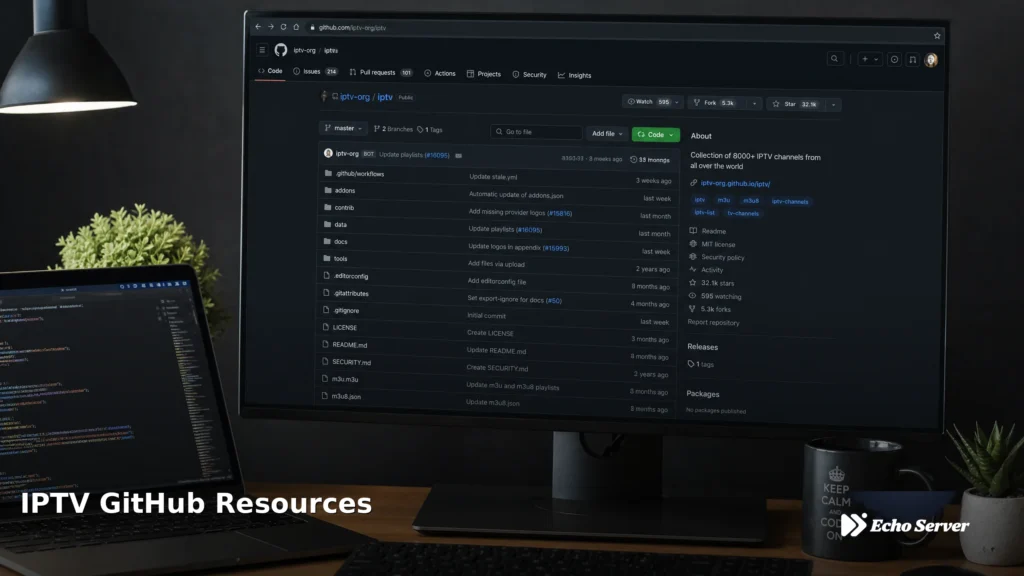
GitHub has become the go-to platform for IPTV enthusiasts seeking free M3U playlists, open-source player tools, and community-maintained channel lists. Unlike commercial IPTV services, GitHub repositories offer publicly curated resources—but with important trade-offs in reliability, content licensing, and support. This guide explores the IPTV GitHub ecosystem: where to find free playlists, which repositories are actively maintained, what tools developers have created, and the critical differences between GitHub resources and professional IPTV services like Echo Best IPTV. Article Update History October 20, 2026 – Initial publication – Verified Echo Best IPTV pricing (Economy €29.90, VIP €39.90, Ultra €49.90, Ultimate €69.90) – Confirmed 25+ servers, 50,000+ customers, 8 years in business – Reviewed GitHub IPTV ecosystem and repository status against current platform state What is IPTV GitHub? Quick Answer: “IPTV GitHub” refers to the collection of GitHub repositories hosting free M3U playlist files, EPG (Electronic Program Guide) sources, IPTV player tools, and channel aggregation scripts. These community-maintained resources provide free access to publicly available streams, often aggregated from various sources worldwide. GitHub is a code hosting platform where developers share open-source projects. Within the IPTV community, GitHub hosts: M3U Playlist Repositories: Collections of free channel URLs organized by country, category, or content type EPG XML Sources: Program guide data for free channels IPTV Player Projects: Open-source applications for viewing IPTV streams Aggregation Tools: Scripts that collect and organize channels from multiple sources Filter/Sort Utilities: Tools to process M3U files (remove duplicates, categorize, etc.) The largest IPTV repository on GitHub contains 80,000+ channel entries from public sources worldwide, updated daily through automated scripts. However, stream quality, availability, and legal status vary significantly. Popular IPTV GitHub Repositories These are among the most-starred and actively maintained IPTV repositories on GitHub as of October 2026: 1. iptv-org/iptv Stars: 75,000+ Update Frequency: Daily (automated) Content: 80,000+ publicly available channels from 200+ countries The largest community-maintained IPTV collection on GitHub. Channels are categorized by country and content type (news, entertainment, documentary). Quality and availability vary—many streams go offline without notice. Strengths: Massive selection, daily updates, organized by country Weaknesses: No support, frequent dead links, legal ambiguity, no EPG for most channels 2. Free-TV/IPTV Stars: 10,000+ Update Frequency: Weekly Content: Curated list of legal free-to-air channels Focuses on legally accessible free-to-air broadcasts. Smaller channel count (~5,000), but higher reliability since it prioritizes official broadcaster streams. Strengths: Legal sources, better reliability, official broadcaster streams Weaknesses: Limited selection, geographic restrictions, still no customer support 3. EPG Sources Several repositories provide XMLTV-format EPG data for free channels: iptv-org/epg: EPG for channels in the main iptv-org playlist Freeview EPG: UK Freeview channel guide data WebGrab+Plus configs: EPG scraping configurations for various regions EPG coverage is incomplete—many free channels lack reliable program guide data. 4. IPTV Player Tools Open-source players built for GitHub IPTV playlists: IPTVnator: Cross-platform desktop player with EPG support FreetuxTV: Linux IPTV/WebTV player Hypnotix: Linux Mint’s official IPTV player These tools consume M3U playlists from GitHub or other sources. Most lack advanced features like recording, multi-device sync, or customer support. How to Use GitHub IPTV Playlists Step 1: Find a Repository Navigate to github.com and search for “iptv m3u”. Sort by stars or recent updates to find actively maintained projects. Check the README file for playlist links and usage instructions. Step 2: Copy the M3U URL Most repositories provide direct M3U file URLs. Look for: index.m3u: Master playlist with all channels countries/[country-code].m3u: Country-specific playlists categories/[category].m3u: Content-type filtered lists Right-click the “Raw” button next to the M3U file and copy the URL (it will start with raw.githubusercontent.com). Step 3: Load in IPTV Player Paste the URL into your IPTV player: VLC: Media → Open Network Stream → Paste URL IPTV Smarters Pro: Add User → M3U URL tab → Paste link Kodi IPTV Simple Client: Settings → M3U Play List URL → Paste TiViMate: Add Playlist → URL → Enter link Step 4: Optional – Add EPG If the repository provides EPG, copy the EPG XML URL and add it to your player’s EPG settings. This enables the program guide for supported channels. Step 5: Test Channels Browse the channel list and test streams. Expect: 20-40% of channels may be offline at any time Buffering on popular channels during peak hours Geographic restrictions (some streams block non-local IPs) No support if streams fail GitHub IPTV Tools & Utilities Playlist Processors M3U Filter: Python script to remove duplicate channels, dead links, or specific categories from M3U files. Useful for cleaning large GitHub playlists before importing. IPTV Checker: Automated tool that tests M3U URLs and removes non-working streams. Reduces playlist size but requires technical setup. M3U Merger: Combines multiple M3U files from different GitHub repos into a single playlist. EPG Aggregators WebGrab+Plus: EPG scraping tool with configuration files hosted on GitHub. Collects program guide data from broadcaster websites and generates XMLTV files. EPG Updater Scripts: Automated scripts that download and merge EPG sources for GitHub IPTV playlists. Channel Discovery IPTV Crawler: Scans the web for publicly accessible HLS/M3U8 streams and generates playlists. Used by repository maintainers to discover new channels. GitHub IPTV vs Paid IPTV Services Understanding the trade-offs helps you decide which approach fits your needs: Factor GitHub IPTV Echo Best IPTV Cost Free €29.90-69.90/year Stream Reliability 20-40% failure rate, frequent buffering 25+ redundant servers, stable connections Channel Count 80,000+ (many offline/duplicates) 10,000-20,000+ verified working channels EPG Coverage Partial (10-20% of channels) Full EPG included for all channels VOD Library None (live channels only) 50,000+ movies, up to 70,000+ series 4K Quality Rare (most SD/720p) 4K available on all plans Customer Support None (community forums only) 24/7 throughout subscription Legal Status Ambiguous (varies by stream) Licensed service with authorized content Trial Period Always free (always uncertain quality) 24-hour free trial Setup Difficulty Moderate (manual M3U import) Simple (guided app setup) When GitHub IPTV Makes Sense: You want to experiment with IPTV before committing to a paid service You only need occasional access to specific free-to-air channels You’re technically skilled and comfortable troubleshooting stream failures You don’t mind browsing 80,000 channels to find