
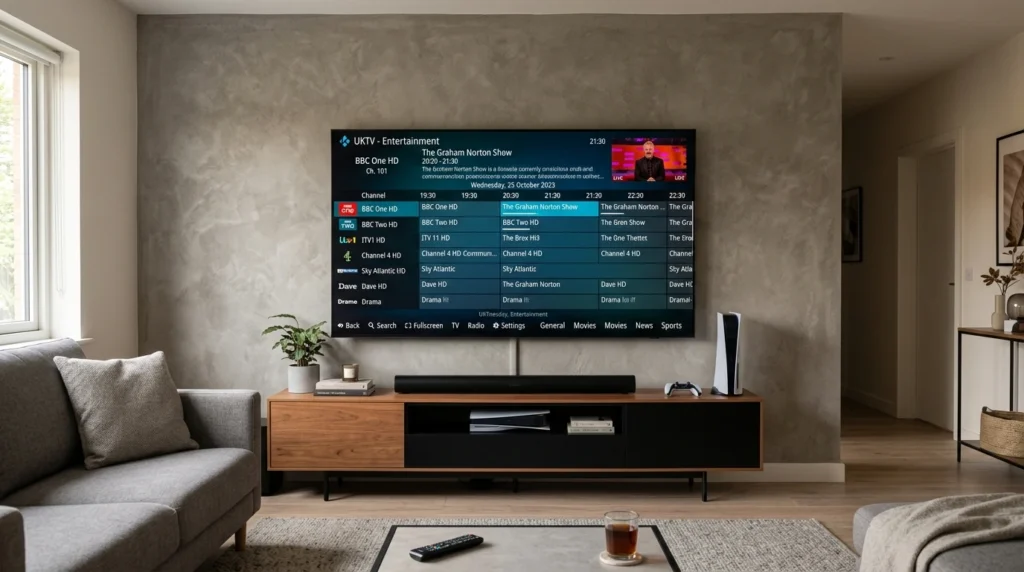
Kodi is a free media player that can stream IPTV content when configured with the right addons. This guide explains how Kodi and IPTV work together, which PVR addon to use, the complete setup process, and why Kodi’s interface appeals to users who want a traditional DVR-style TV experience.
Article Update History
October 2024: Initial publication covering Kodi basics, PVR IPTV Simple Client setup, M3U and EPG configuration, recording setup, and Kodi vs dedicated IPTV apps comparison.
What Is Kodi?
Kodi is a free, open-source media player originally designed for home theater PCs. It organizes and plays local media files (movies, music, photos) and can stream content from the internet when you install addons.
Key facts:
- ✅ 100% free (no subscription, no premium version)
- ✅ Open source (code is publicly available)
- ✅ Runs on Windows, Mac, Linux, Android, iOS, Fire TV, Raspberry Pi
- ✅ Addon system extends functionality (IPTV support requires an addon)
- ❌ Kodi itself is NOT an IPTV provider — it’s just the player
Important: Kodi does not include any content. You must provide your own IPTV subscription (like Echo Best IPTV) and configure Kodi to play it.
How Kodi and IPTV Work Together
Kodi doesn’t natively support IPTV. You need to install a PVR (Personal Video Recorder) addon that:
- Reads your IPTV provider’s M3U playlist (list of channels)
- Downloads EPG (electronic program guide) data
- Displays channels in Kodi’s TV interface
- Handles playback when you select a channel
The flow:
Your IPTV Provider (Echo Best IPTV)
↓
M3U Playlist URL + EPG URL
↓
Kodi PVR IPTV Simple Client addon
↓
Kodi TV Interface
↓
You watch channels
Which Kodi PVR Addon for IPTV?
The addon you need is PVR IPTV Simple Client.
| Addon | Purpose | Recommended? |
|---|---|---|
| PVR IPTV Simple Client | Official addon for M3U playlists and EPG | ✅ Yes (use this) |
| Xtream Codes PVR Client | For Xtream Codes API (some providers) | ⚠️ Only if provider requires it |
| Other “IPTV” addons | Third-party content addons | ❌ Not needed for legitimate IPTV |
For Echo Best IPTV: Use PVR IPTV Simple Client. Echo provides M3U playlist URLs that work perfectly with this official addon.
Complete Kodi IPTV Setup (Step-by-Step)
Step 1: Install Kodi
Download: https://kodi.tv/download
Available for:
- Windows 10/11
- macOS
- Android TV / Fire TV (install from Google Play or Amazon Appstore)
- Linux
- iOS (requires jailbreak or side-loading)
Installation: Standard installer — no tricks, no bloatware.
Step 2: Enable PVR Support in Kodi
- Open Kodi
- Go to Settings (gear icon) → Add-ons
- Click My add-ons
- Navigate to PVR clients
- Select PVR IPTV Simple Client
- Click Enable
If you don’t see PVR IPTV Simple Client, it’s included with Kodi by default but may need to be installed:
- Settings → Add-ons → Install from repository → Kodi Add-on repository → PVR clients → PVR IPTV Simple Client → Install
Step 3: Configure PVR IPTV Simple Client
After enabling the addon:
- Click Configure (opens addon settings)
- Go to General tab
- Set Location to “Remote Path (Internet address)”
- Paste your IPTV provider’s M3U URL into M3U Play List URL
- Go to EPG Settings tab
- Set XMLTV Location to “Remote Path (Internet address)”
- Paste your provider’s EPG URL into XMLTV Path
- Click OK
Where to get M3U and EPG URLs:
- Check your IPTV provider’s email (sent when you subscribe)
- Log into your provider’s customer portal
- Contact support if you can’t find them
Echo Best IPTV users: URLs are in your welcome email and account dashboard.
Step 4: Restart Kodi
Close and reopen Kodi to load the channels. First load may take 1-2 minutes as Kodi downloads the playlist and EPG.
Step 5: Access TV Channels
- From Kodi home screen, select TV (left menu)
- Go to Channels
- Your IPTV channels should appear in a list
- Select any channel to start watching
If channels don’t appear, check Step 3 configuration and verify your M3U URL is correct.
Kodi IPTV Interface Features
TV Guide (EPG)
Kodi’s TV Guide shows what’s currently playing and upcoming programs for all channels:
- Navigate to TV → Guide
- Browse by time or channel
- Click any program to start watching
- Right-click (or long-press) → Record to schedule recording
EPG not showing? Check that your EPG URL is configured correctly in PVR IPTV Simple Client settings.
Recording Channels
Kodi supports IPTV recording if you configure it:
- Settings → PVR & Live TV → Recording
- Enable recording
- Set recording path (where recordings are saved)
- Set recording margins (start early/end late to catch schedule changes)
Once configured, you can schedule recordings from the TV Guide:
- Find show in guide → Right-click → Record
- Choose “Record once” or “Record series” (all episodes)
Storage needed: 1-2 GB per hour of SD, 4-6 GB per hour of HD. See our complete IPTV recording guide for details.
Channel Groups and Favorites
Organize channels by creating groups:
- Channel Groups: Settings → PVR & Live TV → Guide → Show channel groups
- Favorites: Right-click any channel → Add to favorites
Groups help manage hundreds of channels (Echo Best IPTV includes 20,000+ channels across all plans).
Kodi vs Dedicated IPTV Apps
| Feature | Kodi | TiviMate / Smarters Pro |
|---|---|---|
| Price | Free | TiviMate $6/year, Smarters free |
| Setup Complexity | Medium (addon + configuration) | Easy (paste URL, done) |
| Interface Style | Traditional DVR/cable box | Modern streaming app |
| Recording | ✅ Scheduled, series, manual | TiviMate: ✅ Full. Smarters: ⚠️ Manual only |
| Catch-Up TV | ⚠️ Limited (depends on addon) | ✅ Excellent |
| VOD Integration | ⚠️ Separate section | ✅ Integrated in main UI |
| Other Media | ✅ Music, photos, local files | ❌ IPTV only |
| Best For | Users who want full media center + traditional TV UI | Users who want simple, modern IPTV-only experience |
When to Choose Kodi for IPTV
Choose Kodi if:
- ✅ You want a free, open-source solution
- ✅ You prefer a traditional DVR-style interface (familiar to cable/satellite TV users)
- ✅ You want to manage IPTV + local media in one app
- ✅ You need full recording features (scheduled, series recording)
- ✅ You’re technically comfortable (setup is more involved than dedicated IPTV apps)
Choose TiviMate or IPTV Smarters Pro if:
- ✅ You want the easiest setup (paste URL, done)
- ✅ You prefer a modern streaming-app interface
- ✅ You primarily use catch-up TV and VOD (better integration)
- ✅ You only need IPTV (don’t care about local media playback)
Troubleshooting Kodi IPTV Issues
Channels Don’t Appear in Kodi
Possible causes:
- PVR addon not enabled: Settings → Add-ons → My add-ons → PVR clients → PVR IPTV Simple Client → Enable
- M3U URL wrong: Double-check URL in addon settings (no extra spaces)
- Kodi needs restart: Close and reopen Kodi after configuration changes
- Provider playlist changed: Check for updated M3U URL from provider
EPG (TV Guide) Is Empty
Solutions:
- Verify EPG URL is correct in PVR IPTV Simple Client → EPG Settings
- Wait 5-10 minutes after first setup (EPG download takes time)
- Settings → PVR & Live TV → Guide → Clear data → Restart Kodi (forces re-download)
- Check that your IPTV provider actually includes EPG (not all do)
Channels Buffer or Won’t Play
Diagnostics:
- Internet too slow: Need 10+ Mbps for SD, 25+ for HD
- Server overload: Try different channel or wait 10 minutes
- Hardware too weak: Older devices struggle with HD — try lowering stream quality
- Addon cache settings: Settings → Player → Videos → increase buffer size
Recording Fails
Check:
- Recording path is writable (Kodi can save files there)
- Enough storage space available
- Device was powered on during scheduled recording time
- Connection limit not exceeded (recording uses one stream slot)
Kodi Skins for Better IPTV Experience
Kodi’s default skin (Estuary) works fine, but some users prefer skins optimized for TV:
| Skin | Style | Best For |
|---|---|---|
| Estuary (default) | Modern, clean | General use, beginners |
| Aeon Nox Silvo | Sleek, customizable | Users who want a polished, modern look |
| Arctic Zephyr | Minimal, fast | Older/slower devices |
To change skins: Settings → Interface → Skin → Get more → Browse available skins
Echo Best IPTV Works Perfectly with Kodi
Echo Best IPTV is fully compatible with Kodi:
- ✅ Standard M3U playlists (no special Kodi addon needed)
- ✅ Full EPG for all channels (shows program info in TV Guide)
- ✅ 20,000+ channels across all plans (Economy to Ultimate)
- ✅ 100,000+ VOD movies and series accessible through Kodi
- ✅ Recording allowed for personal use
- ✅ Works on all devices Kodi runs on (Windows, Mac, Android TV, Fire Stick, Linux)
Setup time with Echo Best IPTV: 5-10 minutes (install Kodi, enable PVR addon, paste M3U/EPG URLs, done).
Perfect for Kodi Users
Try Echo Best IPTV with full Kodi support, EPG included, and 100,000+ VOD titles — 24-hour free trial.
Start Your 24-Hour Free Trial →
€29.90-€69.90/year • M3U + EPG + VOD
Frequently Asked Questions
Is Kodi legal for IPTV?
Yes, Kodi itself is 100% legal. It’s just a media player. Legality depends on what you watch — legitimate IPTV subscriptions like Echo Best IPTV are legal, pirated streams are not. Kodi doesn’t provide content; you bring your own subscription.
Do I need to “jailbreak” Kodi for IPTV?
No. “Jailbroken Kodi” usually means pre-loaded with piracy addons, which are illegal and unnecessary. For legitimate IPTV, just install the official PVR IPTV Simple Client addon — no jailbreaking, no sketchy third-party repos.
Can I use Kodi on a Fire Stick for IPTV?
Yes. Kodi is available in the Amazon Appstore. Install it like any other app, then configure PVR IPTV Simple Client with your M3U URL. Works great on Fire TV Stick 4K; older sticks may struggle with HD streams.
Which is better for IPTV: Kodi or TiviMate?
TiviMate has a simpler setup and better catch-up/VOD integration. Kodi offers more customization, handles local media, and is completely free. If you only want IPTV: TiviMate. If you want a full media center with IPTV as one feature: Kodi.
Does Kodi work with Xtream Codes IPTV?
Yes, but use the “Xtream Codes PVR Client” addon instead of PVR IPTV Simple Client. Some providers (including Echo Best IPTV) support both M3U and Xtream Codes — M3U via PVR IPTV Simple Client is usually easier.
Can I watch 4K IPTV on Kodi?
Yes, if your device is powerful enough. Requirements: NVIDIA Shield TV or high-end Android TV box, 50+ Mbps internet, and a provider that offers 4K streams. Most IPTV content is 1080p HD or lower — verify your provider has 4K channels before buying 4K-capable hardware.
How do I update channels in Kodi when my provider changes the playlist?
PVR IPTV Simple Client automatically refreshes the playlist periodically. To force an update: Settings → Add-ons → My add-ons → PVR clients → PVR IPTV Simple Client → Configure → General → “Reload channels and EPG” → Restart Kodi.
Does Echo Best IPTV provide Kodi setup support?
Yes. Echo Best IPTV includes 24/7 support for all platforms, including Kodi. We provide M3U and EPG URLs in your welcome email, and our support team can guide you through PVR IPTV Simple Client configuration if needed. All plans (€29.90-€69.90/year) include full Kodi support.

