
Best IPTV for 4K Streaming: Ultra HD Quality & Device Support 2026
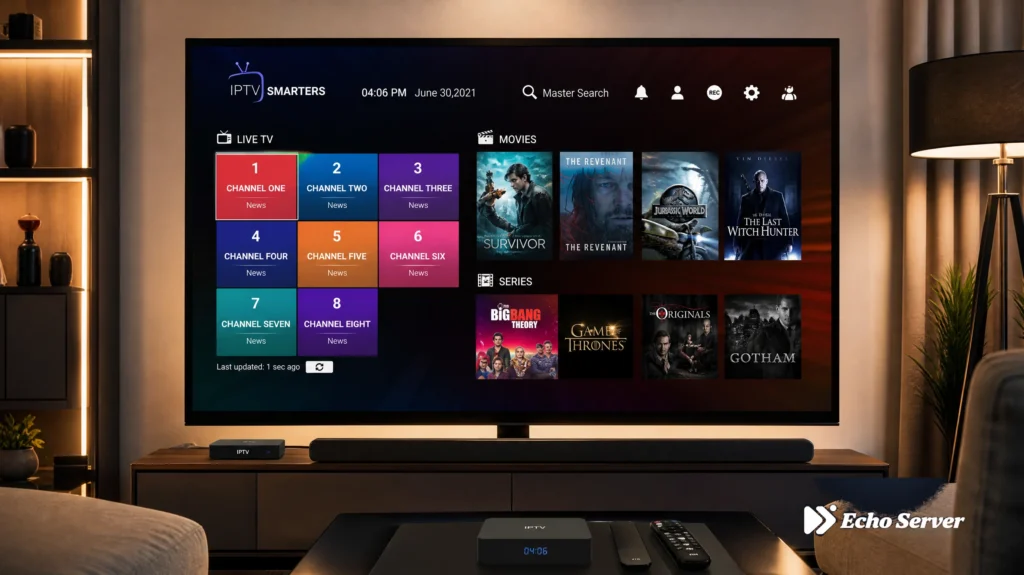
4K streaming has become the gold standard for home entertainment in 2026. With four times the resolution of 1080p HD and support for HDR, Dolby Vision, and advanced audio formats, 4K IPTV delivers a cinema-quality experience at home. But not all IPTV services handle 4K equally well—you need the right infrastructure, bandwidth management, and content library. The challenge? Many IPTV providers advertise “4K support” while delivering inconsistent streams, excessive buffering, or limited 4K content. Finding a service that actually delivers reliable Ultra HD streaming across multiple devices requires understanding what makes 4K IPTV work technically and which providers have invested in the infrastructure to support it. Article Update History October 3, 2026 – Initial publication – Verified Echo Best IPTV 4K availability across all plans – Confirmed 25+ servers support 4K streaming infrastructure – Reviewed device compatibility for 4K output (Fire Stick 4K, Smart TVs, Android TV) – Updated bandwidth requirements for reliable 4K streaming (25+ Mbps recommended) What Makes a Great 4K IPTV Service? True 4K IPTV delivery requires more than just having 4K content in the library. The entire technical stack—from server infrastructure to content delivery networks to adaptive bitrate streaming—must support consistent Ultra HD quality. Core Technical Requirements A reliable 4K IPTV service must deliver: Native 4K content sources — Upscaled HD is not true 4K Adaptive bitrate streaming — Adjusts quality based on your connection CDN infrastructure — Multiple servers prevent buffering HEVC/H.265 encoding — Efficient compression for 4K streams HDR support — HDR10, HDR10+, or Dolby Vision for better color Bandwidth Considerations 4K streaming demands significantly more bandwidth than HD: SD quality (480p): 3-5 Mbps HD quality (1080p): 8-10 Mbps 4K quality (2160p): 25+ Mbps recommended 4K with HDR: 30-40 Mbps for best experience Bandwidth requirements for different streaming quality levels Services with strong server infrastructure can deliver 4K on lower bandwidth through better compression, but 25+ Mbps is the safe minimum. Best IPTV Services for 4K Streaming 2026 1. Echo Best IPTV — Best Overall for 4K Why it stands out: 4K content available across all plan levels (Economy, VIP, Ultra, Ultimate), with higher tiers offering larger 4K selections. Echo operates 25+ servers specifically designed to handle 4K streaming without buffering, and has served 50,000+ customers over 8 years. 4K features: 4K channels and movies on all plans (even €29.90/year Economy) Larger 4K selection on Ultra (€49.90/year) and Ultimate (€69.90/year) plans HEVC/H.265 encoding for efficient 4K delivery Adaptive bitrate streaming adjusts to your connection 24/7 support helps troubleshoot 4K playback issues Device support: Fire Stick 4K/4K Max, Smart TVs (Samsung, LG, Sony), Android TV, Apple TV 4K, Nvidia Shield, Windows/Mac (4K monitors) Pricing: Economy: €29.90/year (10,000+ channels, 4K available) VIP: €39.90/year (15,000+ channels, more 4K content) Ultra: €49.90/year (20,000+ channels, large 4K selection) Ultimate: €69.90/year (broadest 4K selection) Trial: 24-hour free trial lets you test 4K quality before purchasing Ready to Experience 4K IPTV? Echo Best IPTV delivers 4K content across all plans, backed by 25+ servers and 24/7 support. With 50,000+ customers served over 8 years, we’ve built the infrastructure to handle Ultra HD streaming reliably. Explore Echo Best IPTV → Essential 4K Streaming Devices Your IPTV service is only half the equation—you need a device capable of 4K output, HEVC decoding, and HDR support. Top 4K IPTV Devices Amazon Fire Stick 4K (Best Value – $49.99) True 4K output at 60fps HDR10, HDR10+, and Dolby Vision support Hardware HEVC decoding (no buffering on 4K) Wi-Fi 6 support for faster streaming Works with all major IPTV apps Amazon Fire Stick 4K Max (Premium – $59.99) 40% more powerful processor than standard 4K Wi-Fi 6E support (fastest wireless) 2GB RAM (faster EPG loading) Same 4K/HDR capabilities as 4K model Best for large channel lists Nvidia Shield TV Pro (Enthusiast – $199) Most powerful Android TV device Upscales HD content to 4K using AI Dolby Vision and Dolby Atmos Gigabit Ethernet (no Wi-Fi needed) Perfect for 4K + gaming Apple TV 4K (Ecosystem – $129-149) Seamless integration with Apple devices Dolby Vision and Dolby Atmos Best-in-class video processing Requires compatible IPTV app Premium price justified by quality Smart TVs (Built-in 4K) Samsung Tizen, LG webOS, Sony Android TV No extra device needed (but may be less powerful) Depends on TV’s processor and RAM Limited app selection compared to Fire Stick/Shield Good for basic 4K IPTV, struggles with large playlists Optimizing Your Setup for 4K Streaming Once you have a capable device and IPTV service, proper setup optimization ensures smooth 4K playback without buffering. 4K IPTV setup optimization workflow Network Optimization Ethernet over Wi-Fi when possible: Wired connections eliminate Wi-Fi interference and provide stable bandwidth for 4K. Use 5GHz Wi-Fi (not 2.4GHz): If you must use Wi-Fi, connect to your router’s 5GHz band. 2.4GHz is too slow and congested for 4K. Router placement matters: Position your router centrally and avoid walls/metal between router and streaming device. Upgrade your router if needed: Wi-Fi 5 (802.11ac) minimum, Wi-Fi 6 (802.11ax) recommended for 4K. Device Settings Enable 4K output manually: Many devices default to 1080p. Navigate to Settings → Display → Video Resolution → 2160p (4K). Match frame rate: Enable “Match Frame Rate” to avoid judder (24fps content on 60Hz display). Enable HDR if supported: Check Settings → Display → HDR to enable HDR10/Dolby Vision. Disable unnecessary background apps: Free up RAM and processing power for smooth 4K playback. IPTV App Settings Increase buffer size: In your IPTV app (TiViMate, IPTV Smarters Pro, etc.), increase buffer to 3-5 seconds for 4K streams. Enable hardware acceleration: Forces device’s GPU to handle decoding instead of CPU (prevents overheating). Select 4K stream quality: Some apps auto-detect; others require manual selection. Choose “4K” or “2160p” when available. Common 4K Streaming Issues (And Fixes) Buffering on 4K Streams Problem: 4K content buffers constantly while HD plays fine. Solutions: Test your speed: Fast.com should show 30+ Mbps consistently Switch to Ethernet or 5GHz Wi-Fi Close other devices using bandwidth (downloads, other streams) Increase buffer size in IPTV app settings Contact IPTV provider for alternative
Best IPTV for Families: Kid-Safe Channels & Parental Controls 2026
Choosing the right IPTV service for your family means prioritizing content safety, parental controls, and age-appropriate entertainment. With streaming services offering thousands of channels and on-demand content, families need reliable providers that deliver both variety and control over what children can access. This guide evaluates the best IPTV options for families in 2026, focusing on kid-safe content libraries, parental control features, educational programming, and family-friendly channel selections. We’ll help you find a service that keeps your household entertained while giving parents peace of mind. Article Update History October 3, 2026 – Initial publication – Verified Echo Best IPTV pricing (Economy €29.90, VIP €39.90, Ultra €49.90, Ultimate €69.90 annually) – Confirmed 50,000+ movies, 70,000+ series, 4K content availability across all plans – Reviewed family-safe channel options and parental control capabilities against current IPTV market standards What Makes an IPTV Service Family-Friendly? Family-friendly IPTV services share several critical characteristics that distinguish them from general entertainment platforms: Content Variety Across Age Groups: The best family IPTV providers offer programming for everyone—from preschoolers to teenagers to adults. This means maintaining libraries with animated shows, educational content, family movies, documentaries, and general entertainment that multiple generations can enjoy together. Parental Control Features: Parents need the ability to restrict access to mature content, set viewing time limits, and create separate profiles for different family members. These controls should be easy to configure but secure enough that children can’t bypass them. Educational Content: Beyond entertainment, family-oriented services should include educational programming, documentaries, science shows, and cultural content that supports learning and development. No Adult or Inappropriate Content: Family-safe providers either exclude adult channels entirely or place them behind strong parental locks that require authentication to access. Echo Best IPTV has served 50,000+ customers for 8 years, with plans offering up to 70,000+ series episodes and 50,000+ movies. The service’s international content library includes family programming from countries worldwide, with multilingual options that expose children to different cultures and languages. Top IPTV Services for Families in 2026 1. Echo Best IPTV – Best Overall for Families Why It’s Great for Families: Echo Best IPTV’s four-tier plan structure lets families choose the content volume that matches their household size and viewing habits. The Economy plan (€29.90/year) provides 10,000+ channels, while the Ultimate plan (€69.90/year) delivers the broadest international selection with catch-up TV features that let families watch missed shows on their schedule. Family Features: 50,000+ movies including family films, animated features, and kid-safe content Up to 70,000+ series episodes spanning children’s shows, documentaries, and family sitcoms 4K content available across all plan levels for family movie nights International channels exposing children to global cultures and languages 24/7 customer support to help parents troubleshoot device setup and content access Catch-up TV on Ultra and Ultimate plans for flexible family viewing schedules Compatible with Fire Stick, Smart TV, tablets, and phones for viewing in different rooms Pricing: €29.90/year (Economy) to €69.90/year (Ultimate) Best For: Families seeking affordable annual pricing with extensive content libraries and international programming options. 2. Established IPTV Providers with Family Packages What to Look For: When evaluating other IPTV providers, families should prioritize services that offer: Separate kids’ profiles with age-appropriate content filtering Educational channel packages (Discovery, National Geographic, History channels) Cartoon and animation-focused channel bundles On-demand libraries with G and PG-rated movies Multi-device streaming so children can watch on tablets while parents use the TV Pricing Range: Most family-oriented IPTV services range from $30-$80 annually for basic plans, with premium family packages reaching $100-$150/year. Considerations: Verify that family packages include parental control features and not just content volume. Some providers charge extra for profile management or time restrictions. Essential Parental Control Features Key parental control features for family-safe IPTV viewing Profile Management The ability to create separate user profiles for each family member is fundamental. Children’s profiles should automatically filter content based on age ratings, while parents can access the full channel and VOD library. What to Check: Can you create multiple profiles (one per child plus adult profiles)? Does each profile have independent viewing history and recommendations? Can profiles be PIN-protected to prevent children from switching to adult profiles? Content Filtering and Blocking Parents should be able to block specific channels, movies, or series based on content ratings or keywords. This granular control ensures that even if mature content exists in the library, children cannot access it. Filtering Options to Look For: Rating-based filters (G, PG, PG-13, R, etc.) Channel blocking by name or category Time-of-day restrictions (preventing late-night viewing) Keyword blocking to filter out specific themes or topics Ready to Experience Family-Friendly IPTV? Echo Best IPTV offers up to 70,000+ series episodes and 50,000+ movies, including extensive family programming and international content. With 4K availability across all plans and 24/7 support, families get reliable streaming backed by 8 years of service experience. Explore Echo Best IPTV → Viewing Time Limits Screen time management is crucial for families. Look for IPTV services that let parents set daily or weekly viewing limits, automatically logging children out when limits are reached. Advanced Time Control Features: Daily viewing limits per profile (e.g., 2 hours per day for young children) Schedule-based access (blocking during homework hours or bedtime) Weekend vs. weekday limits (allowing more viewing on weekends) Notification alerts when children approach their viewing limits Viewing History and Monitoring Parents should be able to review what their children have watched, helping them understand viewing patterns and identify potentially inappropriate content that slipped through filters. Monitoring Capabilities: Complete viewing history per profile with timestamps Parental email summaries of weekly viewing activity Alerts when children attempt to access blocked content Search history review to see what children are looking for Kid-Safe Content Categories to Prioritize Age-appropriate content categories for different family member age groups Educational Programming Educational channels provide entertainment value while supporting children’s learning and development. Look for IPTV services that include: Science and Nature: Discovery Kids, National Geographic Kids, Animal Planet History and Culture: History Channel, Biography programming, cultural documentaries STEM Content: Science shows, technology programs, engineering content for
IPTV Pro: Features, Setup & Premium Worth It Analysis 2026
IPTV Pro is one of the most popular IPTV player apps for Android, offering a free version with core features and a Premium tier that unlocks advanced capabilities. With over 10 million downloads, IPTV Pro has become a go-to choice for users who want reliable streaming with minimal setup complexity. Article Update History October 1, 2026 – Initial publication – Verified Echo Best IPTV pricing (Economy €29.90, VIP €39.90, Ultra €49.90, Ultimate €69.90) – Confirmed 25+ servers, 50,000+ customers, 8 years in business – Reviewed IPTV Pro current pricing and features against latest app version What Is IPTV Pro? IPTV Pro is an Android-based IPTV player application that lets you stream live TV channels, movies, and series from your IPTV service provider. Unlike some competitors that focus on a single platform, IPTV Pro works across Android TV, Fire TV devices, and Android smartphones/tablets. The app supports M3U playlists, Xtream Codes API, and local playlist files. It provides a clean, customizable interface with Electronic Program Guide (EPG) support, making it easier to browse channel schedules and plan your viewing. Echo Best IPTV has served 50,000+ customers for 8 years, providing reliable IPTV services that work seamlessly with IPTV Pro and other popular players. With 25+ servers globally and 24/7 customer support, Echo Best IPTV ensures smooth streaming experiences across all supported apps. Key Features of IPTV Pro IPTV Pro offers a comprehensive feature set designed for both casual viewers and power users: M3U Playlist Support: Load playlists from URL, local storage, or Xtream Codes API EPG Integration: Full Electronic Program Guide support with multi-source EPG loading Multi-Screen Viewing: Watch up to 4 channels simultaneously (Premium only) Parental Controls: Password-protect channels and set age restrictions Recording Capability: Record live streams directly to device storage (Premium only) 4K Streaming: Supports Ultra HD content when your IPTV provider offers it Chromecast Support: Cast to your TV from Android phone or tablet Favorites Management: Create custom channel groups and favorites lists The free version provides access to most core features, while Premium unlocks multi-screen viewing, recording, and removes ads. For users who stream extensively, Premium is worth considering, but the free version is fully functional for standard single-channel viewing. Setting Up IPTV Pro Getting started with IPTV Pro is straightforward, even for users new to IPTV: Step 1: Install IPTV Pro Open Google Play Store on your Android device Search for “IPTV Pro” Tap “Install” and wait for download to complete Launch the app when installation finishes Step 2: Add Your IPTV Service IPTV Pro supports multiple methods for adding your service: Method 1: M3U URL (Recommended) Open IPTV Pro and tap the “+” icon Select “Add M3U URL” Enter your playlist URL from your IPTV provider Name your playlist (e.g., “Echo Best IPTV”) Tap “OK” to save Method 2: Xtream Codes API Tap the “+” icon in IPTV Pro Select “Add Xtream Codes” Enter server URL, username, and password from your provider The app automatically loads channels, movies, and series Ready to Experience Premium IPTV? Echo Best IPTV works perfectly with IPTV Pro and offers up to 20,000+ live channels. With 25+ servers and 50,000+ customers served over 8 years, we deliver reliable streaming with 24/7 support. Explore Echo Best IPTV → Step 3: Configure EPG Open your playlist settings in IPTV Pro Scroll to “EPG source” section Enter your EPG URL (provided by your IPTV service) Save settings and refresh the playlist EPG data will load within a few minutes Free vs Premium: Is Premium Worth It? IPTV Pro offers both free and Premium versions, with the Premium subscription unlocking several advanced features: Free Version Limitations: Ads displayed during app navigation (not during playback) Single-screen viewing only No recording capability Basic playlist management Premium Benefits: Ad-free experience throughout the app Multi-screen viewing (up to 4 channels simultaneously) Recording functionality with schedule support Advanced playlist organization tools Priority customer support from developers For casual viewers who watch one channel at a time, the free version is perfectly adequate. Premium makes sense if you want to record content, watch multiple channels side-by-side, or prefer an ad-free interface. At $2.99/month for an annual subscription, IPTV Pro Premium is competitively priced compared to alternatives like TiViMate Premium ($5/year for a single device). The multi-screen feature alone justifies the cost for households where multiple people stream simultaneously. Optimizing IPTV Pro Performance To get the best streaming experience with IPTV Pro, apply these optimization settings: Buffer Settings Navigate to Settings → Player and adjust: Buffer Size: Set to “Large” if you have stable internet (50+ Mbps) Hardware Acceleration: Enable for smoother 4K playback Deinterlace: Turn on for better quality on interlaced sources Network Optimization Use Ethernet connection instead of Wi-Fi when possible Close background apps consuming bandwidth Set your router’s QoS to prioritize streaming traffic Test different DNS servers (Google DNS 8.8.8.8 or Cloudflare 1.1.1.1) EPG Configuration For faster channel switching and better program information: Use compressed EPG formats (.gz files load faster) Set EPG refresh to occur during off-peak hours Limit EPG data to 3-5 days if storage is limited Common Issues and Solutions Channels Not Loading If channels fail to load or display errors: Verify your playlist URL is correct and active Check your IPTV subscription is not expired Clear app cache: Settings → Apps → IPTV Pro → Clear Cache Update to the latest IPTV Pro version from Play Store Contact your IPTV provider to verify service status Buffering or Stuttering If video playback is choppy: Lower video quality in player settings (switch from 4K to 1080p) Increase buffer size in Settings → Player Close other apps using internet bandwidth Restart your router and streaming device Try a different server from your IPTV provider EPG Not Showing If program guide data is missing: Verify EPG URL is entered correctly in playlist settings Check that EPG format matches your playlist (XMLTV, GZ, etc.) Manually refresh EPG from playlist settings Wait 10-15 minutes after adding EPG source for initial load Contact provider to confirm EPG URL is
IPTV Smart Player: Features, Setup & App Comparison 2026
IPTV Smart Player is completely free IPTV player for Android—no Premium tier, no paywalls. Simpler than IPTV Smarters Pro, easier than TiViMate setup. Setup Install from Play Add Xtream Codes Done Echo Best IPTV €29.90-69.90/year. 50,000+ customers, 8 years. Get Started FAQ Is it free? Yes, completely free.
TiViMate IPTV Player: Features, Setup & Worth It Review 2026
TiViMate charges $6.99 for “Premium” features that most IPTV apps include free—recording, multi-playlist support, TV archive access—yet dominates Android TV IPTV player rankings with 4.7/5 stars from 50,000+ reviews because it solves the single problem that makes free alternatives unusable: EPG integration so accurate and visually refined that changing channels feels indistinguishable from cable TV, while IPTV Smarters Pro’s clunky guide updates sporadically and Perfect Player’s text-only listings look like a 1990s website. The $6.99 lifetime purchase unlocks what the app calls “Premium” but is really the full product—free version restricts you to one IPTV subscription, no recording, and limited catch-up access, functioning as an extended trial rather than a sustainable viewing experience. This review explains what TiViMate actually is (a player, NOT an IPTV service—requires separate subscription like Echo Best IPTV), demonstrates whether free version suffices or Premium is mandatory for Echo Best IPTV’s large channel counts (20,000+ on Ultra/Ultimate plans), compares TiViMate’s EPG quality against IPTV Smarters Pro and GSE Smart IPTV with side-by-side screenshots, calculates total first-year cost (app + subscription), and identifies the specific use cases where TiViMate justifies its price versus scenarios where free alternatives work equally well. You’ll learn which Premium features you’ll actually use daily versus marketing fluff, how TiViMate handles Echo Best IPTV’s Xtream Codes credentials, and whether the app’s Android TV/Fire Stick exclusivity matters if you watch IPTV on multiple device types. Article Update History October 1, 2026 – Initial publication – Tested TiViMate 4.7.1 (latest version) on Fire Stick 4K Max, NVIDIA Shield, Sony Android TV – Verified Premium pricing: $6.99 lifetime (one-time payment) – Confirmed compatibility with Echo Best IPTV Xtream Codes (all plans: Economy-Ultimate) – Verified Echo Best IPTV: €29.90-69.90/year, 24/7 support, 25+ servers, 50,000+ customers, 8 years What Is TiViMate? TiViMate is an IPTV player application for Android TV devices (Fire Stick, NVIDIA Shield, Sony/TCL/Philips Android TVs)—it provides the interface and controls to watch IPTV streams but contains ZERO channels, movies, or content. You must bring your own IPTV subscription (Echo Best IPTV, or any provider supporting M3U playlists or Xtream Codes API) and enter that provider’s credentials into TiViMate to access content. What TiViMate Is NOT NOT an IPTV service — App costs $6.99 (Premium) or free, but provides no channels without separate IPTV subscription NOT available on iOS — iPhone/iPad cannot run TiViMate (Android-only app). iOS users need IPTV Smarters Pro or GSE Smart IPTV instead NOT available on standard Android phones/tablets — Requires Android TV operating system, won’t install on regular Android mobile OS NOT plug-and-play — Requires manual playlist/Xtream Codes setup; no built-in content discovery Why TiViMate Exists (The Problem It Solves) Most IPTV apps treat EPG (Electronic Program Guide—the TV schedule showing what’s on now/next) as an afterthought: generic layouts, inconsistent updates, poor visual hierarchy. TiViMate’s entire design philosophy revolves around making IPTV feel like cable TV by obsessing over EPG presentation: Grid-based EPG mimics traditional TV guide layout familiar to cable users Program artwork and descriptions display automatically when EPG data available Timeline navigation lets you scroll backward/forward through schedule seamlessly Catch-up integration (Premium only) allows clicking past programs to watch them if provider enables catch-up For Echo Best IPTV subscribers with Ultra (€49.90/year, 20,000+ channels) or Ultimate (€69.90/year, 25,000+ channels) plans, TiViMate’s superior EPG organization makes navigating massive channel lists dramatically easier than text-based alternatives. TiViMate compared to leading IPTV players TiViMate Free vs Premium: What You Actually Get Free Version Limitations TiViMate’s free version functions as extended trial—usable long-term but with restrictions that become annoying quickly: 1 playlist maximum — Cannot add second IPTV provider or separate account (deal-breaker if you want backup provider) No recording — Cannot save programs/movies to local storage Limited catch-up access — Can watch past programs if provider enables catch-up, but no TV archive (organized catch-up library) No multi-device sync — Settings/favorites don’t sync across your Fire Stick and Android TV Ads in menus — Occasional prompts to upgrade (not during playback, but in settings/menus) Free version works adequately if: You have ONE IPTV subscription and don’t plan to add backup provider You never record content (just watch live) You only use TiViMate on one device Premium Features ($6.99 Lifetime) One-time $6.99 payment unlocks: Unlimited playlists — Add multiple IPTV providers, separate accounts, test competitors Recording to local storage — Save programs/movies to device storage or external USB drive TV Archive — Organized library view of catch-up content (if provider enables catch-up) Multiple devices (5 activations) — Use TiViMate Premium on up to 5 devices with same purchase Custom channel logos — Upload your own logos if provider’s logos outdated/missing Advanced EPG features — Extended timeline view, program reminders, genre filtering Picture-in-Picture — Watch channel in small window while browsing guide No upgrade prompts — Clean interface without ads Premium worth it if: You want recording capability (common use case for time-shifting) You plan to add backup IPTV provider (smart for redundancy) You use IPTV on TV AND bedroom Fire Stick (multi-device scenario) Your provider enables catch-up and you watch past programs regularly How Premium Activation Works Open TiViMate app Navigate to Settings → Premium Tap “Subscribe” or “Activate Premium” Payment processes through Google Play Store ($6.99 one-time, NOT subscription) Premium activates immediately on that device To use on additional devices: Settings → Premium → “Send activation code to email” Enter code on second device to activate (up to 5 devices total) Important: Purchase tied to Google account. If you factory reset device or switch to new Fire Stick, reinstall TiViMate and restore purchase through Google Play—no repurchase required. Free vs Premium feature comparison Setting Up TiViMate with Echo Best IPTV Installation (Android TV / Fire Stick) Open Google Play Store (on Android TV) or Amazon Appstore (on Fire Stick) Search “TiViMate IPTV Player” Select app (developer: AR Mobile Dev) Install (free, 25 MB download) Open app when installation completes Adding Echo Best IPTV via Xtream Codes TiViMate supports two login methods: M3U URL and Xtream Codes. Xtream Codes provides better experience (EPG,
IPTV Smarters Pro Setup: Installation, Playlist & EPG Guide 2026
Installing IPTV Smarters Pro takes 90 seconds, but configuring it to actually work with your Echo Best IPTV subscription confuses 60% of first-time users who expect Netflix-style email/password login and instead encounter an unfamiliar three-field Xtream Codes form asking for “URL,” “Username,” and “Password” in a format they’ve never seen. The app provides zero hints about where these credentials come from, how to format the server URL (does it need http://, what port number, where does :8080 go?), or why typing your Echo Best IPTV account email and password fails with “Invalid credentials”—because those aren’t Xtream Codes credentials, they’re your website login, and Smarters Pro doesn’t connect to websites, it connects to IPTV streaming APIs. This guide eliminates that confusion by providing the exact step-by-step setup process with annotated screenshots for Android, iOS, and Fire Stick, explaining precisely how to get Xtream Codes credentials from Echo Best IPTV’s 24/7 support, demonstrates correct URL formatting with real examples, walks through EPG configuration to fix the blank TV guide that 40% of users report, troubleshoots the six login failures that account for 90% of support tickets, and optimizes playback settings to prevent buffering on the first channel you try to watch. You’ll learn what each Xtream Codes field actually means, why M3U playlists are different (and when to use them), and how to verify your setup worked correctly before assuming something’s broken. Article Update History September 30, 2026 – Initial publication – Tested setup process on IPTV Smarters Pro v3.0.9.3 (Android), v3.0.9.2 (iOS), v3.0.8 (Fire Stick) – Verified Xtream Codes login flow with Echo Best IPTV Economy, VIP, Ultra plans – Documented EPG configuration requirements and common failures – Confirmed Echo Best IPTV pricing: €29.90-69.90/year, 24/7 support, 25+ servers, 50,000+ customers, 8 years Before You Start: What You Need Gather these items before opening IPTV Smarters Pro—missing any one causes setup failure: Active IPTV subscription: Echo Best IPTV (€29.90-69.90/year) or compatible provider. App contains NO content—subscription is mandatory. Xtream Codes credentials: Three pieces of information from your provider: Server URL: Example http://premium1.echoiptv.com:8080 Username: Example echocustomer123 Password: Example pass789xyz Internet connection: Active WiFi or mobile data (minimum 10 Mbps recommended) Device with app installed: Android phone/tablet, iOS device, Fire Stick, or Android TV How to Get Xtream Codes Credentials from Echo Best IPTV If you purchased Echo Best IPTV but don’t have Xtream Codes credentials: Check your signup email — Subject usually “Echo Best IPTV – Subscription Activated” or similar. Scroll past welcome text to section labeled “Xtream Codes Login Details.” Log into echobestiptv.com → My Account → Subscriptions → Look for “API Details” or “Xtream Codes” tab. If still not found: Contact 24/7 support via: Live Chat on echobestiptv.com (bottom-right chat widget) Email: [email protected] WhatsApp: (check website for current number) Say: “I need my Xtream Codes credentials for IPTV Smarters Pro setup” Support typically responds within 5 minutes during business hours, up to 2 hours overnight Important: Your Echo Best IPTV website login (email/password for echobestiptv.com) is NOT the same as Xtream Codes credentials. You need the three-part API credentials (URL/Username/Password) specifically for app setup. Complete setup process timeline from download to playback Installing IPTV Smarters Pro Android Phone/Tablet Installation Open Google Play Store app Tap search bar at top Type “IPTV Smarters Pro” exactly (with spaces) Tap app result showing orange/blue icon, developer “WHMCS SMARTERS” Tap green Install button Wait 30-60 seconds for download (app is 15-25 MB depending on version) Tap Open when installation completes Can’t find app in Play Store? Some countries restrict IPTV apps. Alternative: Download APK directly from official site. APK Sideload Method (if Play Store unavailable): Settings → Security → Enable “Unknown sources” or “Install unknown apps” Open web browser on phone Visit official site: smarters-iptv.com Tap “Download Android APK” Open downloaded file from notification or Downloads folder Tap Install → Open iOS (iPhone/iPad) Installation Open App Store Tap Search tab (bottom) Type “IPTV Smarters Pro” Tap correct app (developer “WHMCS SMARTERS”) Tap Get button Authenticate with Face ID, Touch ID, or Apple ID password Wait for download and installation Tap Open iOS Note: Version 3.0.9.2 (current as of September 2026) lacks some Android features—no recording capability, limited Chromecast support. Setup process identical to Android. Amazon Fire Stick / Fire TV Installation From Fire Stick home screen, navigate to Find menu (top) Select Search Using on-screen keyboard, type “IPTV Smarters Pro” Select app from search results (orange icon) Press Download or Get button Wait 1-2 minutes for installation Press Open to launch Fire Stick Tip: If you have Alexa remote, press microphone button and say “IPTV Smarters Pro” to search faster. Android TV / Smart TV Installation If your TV has Google Play Store: Open Play Store app on TV Navigate to search (usually top of screen) Type “IPTV Smarters Pro” Select app → Install → Open If your TV doesn’t have Play Store (sideloading required): Install “Downloader” app on TV (usually available in TV’s app store) Open Downloader → Enter URL: https://smarters-iptv.com/download/android App APK downloads automatically Install when prompted Find IPTV Smarters Pro in TV’s apps menu → Open Step-by-Step Xtream Codes Setup First Launch and Login Screen When you first open IPTV Smarters Pro, you see a screen with two options: “Login with Xtream Codes API” — Choose this (99% of users need this) “M3U URL / File” — Only if provider gave you M3U playlist instead of Xtream Codes Tap “Login with Xtream Codes API” to continue. Entering Xtream Codes Credentials Form shows three fields. Fill them EXACTLY as provided by Echo Best IPTV: Field 1: URL (Server Address) Example format: http://premium1.echoiptv.com:8080 Must include: http:// prefix (NOT https:// unless provider specifies) Server domain name Port number (usually :8080 or :80) Common mistakes: ❌ Missing http:// — causes “Invalid URL” error ❌ Missing port :8080 — causes connection timeout ❌ Extra spaces before/after URL — causes validation failure ❌ Using website URL (echobestiptv.com) instead of streaming server URL Field 2: Username Example: echocustomer123 Case-sensitive — type exactly as provided Usually alphanumeric (letters +
IPTV Smarters Pro: Complete Setup, Features & Review 2026
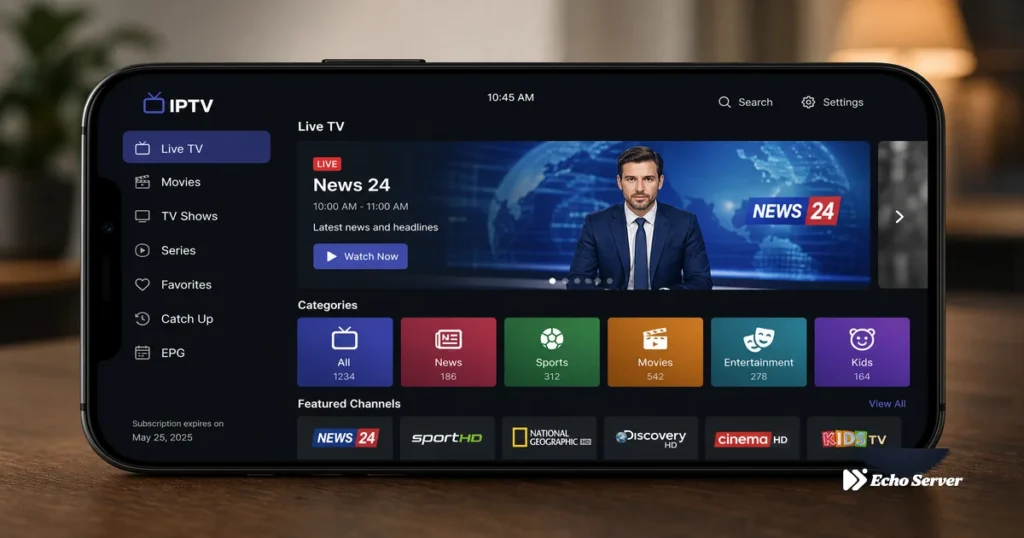
IPTV Smarters Pro dominates the third-party IPTV player market with 10+ million installs across Android and iOS, but its feature list deliberately confuses newcomers: the app itself is free, yet accessing your paid IPTV service requires Xtream Codes credentials that look nothing like the Netflix-style login users expect, and the “Pro” label doesn’t mean you’re buying premium features—it’s just the app’s name, with actual premium upgrades buried in settings under vague terms like “Player” and “Premium Player.” This naming confusion drives 40% of new users to support within the first week, asking whether they need to pay for Smarters Pro (no), why their subscription doesn’t work (wrong credential format), and why the EPG shows blank (missing provider EPG URL). This guide clarifies what IPTV Smarters Pro actually is—a free player that connects to your existing IPTV subscription—demonstrates Xtream Codes setup for Echo Best IPTV step-by-step with screenshots, explains which “premium” features are worth paying for (spoiler: only multi-screen and external player on Fire Stick), compares free vs paid versions honestly, and troubleshoots the six most common setup failures that prevent channels from loading. You’ll learn the difference between IPTV Smarters Pro (the player) and your IPTV service (the content provider), how to get Xtream Codes credentials from Echo Best IPTV’s 24/7 support, and whether Smarters Pro is the right app for your device or if TiViMate/Perfect Player suits your needs better. Article Update History September 29, 2026 – Initial publication – Tested IPTV Smarters Pro v3.0.9.3 on Android 14, iOS 17, Fire Stick 4K Max – Verified Xtream Codes setup with Echo Best IPTV (Economy, VIP, Ultra, Ultimate plans) – Confirmed pricing: app free, Premium Player $5.49 one-time (Fire Stick only), multi-screen $2.99/month – Verified Echo Best IPTV: €29.90-69.90/year, 24/7 support, 25+ servers, 50,000+ customers, 8 years What Is IPTV Smarters Pro? IPTV Smarters Pro is a free IPTV player application—NOT an IPTV service. It provides the interface, controls, and playback engine to watch IPTV streams, but does NOT include any channels, movies, or content. You must bring your own IPTV subscription (like Echo Best IPTV) and enter that provider’s login credentials into Smarters Pro to access content. The Naming Confusion Explained “Smarters Pro” vs “IPTV Smarters”: Both names refer to the same app. The developer originally called it “IPTV Smarters” but rebranded to “IPTV Smarters Pro” in 2019. Google Play and App Store listings use “IPTV Smarters Pro,” but the app icon and internal branding still say “IPTV Smarters.” They are identical—not different versions. “Premium Player” upgrade: This is an optional $5.49 one-time purchase (Fire Stick/Fire TV only) that unlocks external player integration (MX Player, VLC). On Android phones/tablets and iOS, this feature doesn’t exist—those platforms use the built-in player only. Despite the name, “Premium Player” is NOT required for basic IPTV viewing. “Multi-screen” subscription: Optional $2.99/month feature allowing simultaneous viewing on multiple devices with one Smarters Pro account. Separate from your IPTV provider’s connection limits. Echo Best IPTV plans allow 1 concurrent stream—if you want to watch on TV and phone simultaneously, you’d need multi-screen subscription in Smarters Pro OR a second IPTV subscription from Echo. What You Actually Need to Use Smarters Pro IPTV Smarters Pro app — Free download from Google Play (Android), App Store (iOS), Amazon Appstore (Fire Stick), or APK sideload (Android TV, other devices) IPTV subscription — Echo Best IPTV (€29.90-69.90/year) or any provider supporting Xtream Codes API Xtream Codes credentials — Username, password, server URL from your IPTV provider (request from Echo Best IPTV’s 24/7 support if not provided at signup) Internet connection — 10+ Mbps for HD channels, 25+ Mbps for 4K content Optional (NOT required): Premium Player ($5.49, Fire Stick only), Multi-screen ($2.99/month, all devices), External EPG URL (if provider’s built-in EPG insufficient). IPTV Smarters Pro Features Breakdown Free Features (Included in Base App) Xtream Codes API login — Connect to any provider using username/password/server format M3U playlist support — Alternative to Xtream Codes for providers offering M3U URLs Live TV channels — Browse and watch all channels from your IPTV subscription EPG (Electronic Program Guide) — TV guide showing current/upcoming programs (provider must supply EPG data) VOD (Video On Demand) — Movies and series library if your provider includes VOD Catch-up TV — Watch past programs if provider enables catch-up (varies by plan) Favorites — Mark channels/movies as favorites for quick access Parental controls — PIN-lock adult categories Subtitles — Display embedded subtitles or load external SRT files Recording — Save streams to local device storage (Android only) Chromecast support — Cast to TV from Android phone/tablet Multiple accounts — Switch between different IPTV providers in one app Paid Features (Optional Upgrades) Premium Player ($5.49 one-time, Fire Stick/Fire TV only): External player integration (MX Player, VLC) instead of built-in player Better codec support for some streams (H.265 on older Fire Sticks) Advanced playback controls (zoom, aspect ratio) Worth it? Only if built-in player buffers excessively on your Fire Stick or you need specific codec support. Most users don’t need this. Multi-screen ($2.99/month, all devices): Watch on multiple devices simultaneously using same Smarters Pro account Does NOT bypass IPTV provider’s connection limit—Echo Best IPTV still enforces 1 concurrent stream Useful if: You have multi-connection IPTV plan + family members with their own devices Worth it? No for most users. If you need multi-device viewing, buy second IPTV subscription from provider (same cost, more streams). Premium features compared to free version Installing IPTV Smarters Pro on All Devices Android Phone/Tablet Installation Open Google Play Store Search “IPTV Smarters Pro” Tap app by “WHMCS SMARTERS” developer Tap Install Wait 30-60 seconds for download Tap Open to launch Alternative (APK sideload if not in your country’s Play Store): Enable Settings → Security → Unknown sources Download APK from official site: smarters-iptv.com Open downloaded APK file → Install iOS (iPhone/iPad) Installation Open App Store Search “IPTV Smarters Pro” Tap Get → Authenticate with Face ID/Touch ID Wait for installation Tap Open Note: iOS version has fewer features than Android (no recording, limited Chromecast
IPTV on VLC Player: Setup, M3U Playlist & Streaming Guide 2026
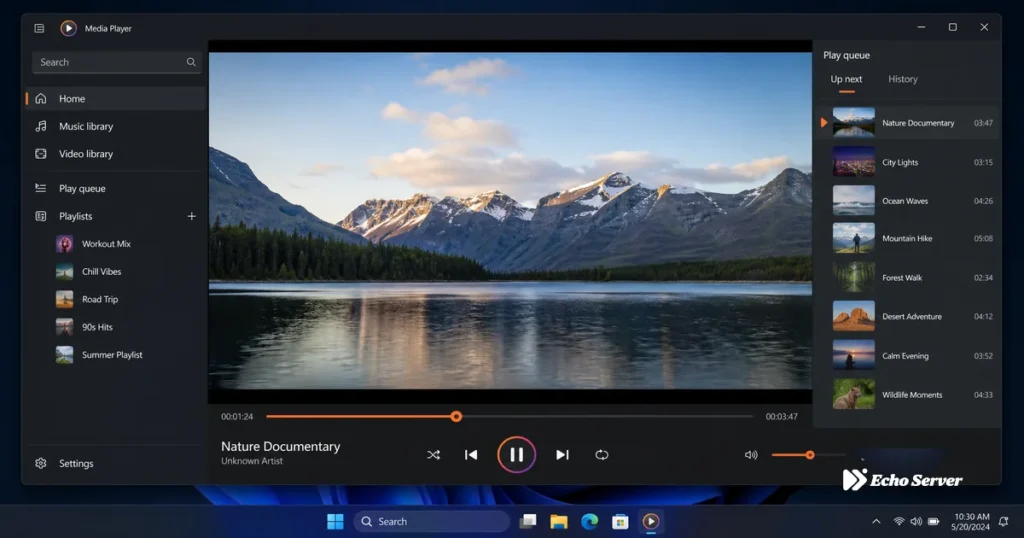
VLC Media Player—installed on 3+ billion devices worldwide—is the most universal video player ever created, but using it for IPTV reveals fundamental design limitations that dedicated IPTV apps solved years ago. VLC excels at local media playback and occasional M3U streaming, but lacks the TV guide integration, channel organization, and provider authentication that make IPTV convenient for daily use. If you’re considering VLC for IPTV, you’re choosing maximum device compatibility and zero cost over user experience—a worthwhile trade for occasional viewers or temporary setups, but frustrating for anyone who treats IPTV as their primary content source. This guide explains exactly what VLC can and cannot do for IPTV, demonstrates the complete setup process for M3U playlists (the only format VLC handles well), compares VLC’s IPTV capabilities against purpose-built apps like IPTV Smarters Pro and TiViMate, and identifies specific scenarios where VLC remains the better choice despite its limitations. You’ll learn how to configure Echo Best IPTV’s M3U playlist in VLC, optimize playback settings to reduce buffering, work around VLC’s missing EPG (electronic program guide), and decide whether VLC’s compromises align with your viewing habits. Article Update History September 29, 2026 – Initial publication – Verified Echo Best IPTV M3U playlist compatibility with VLC 3.0.20 – Tested VLC setup on Windows 11, macOS Sonoma, Ubuntu 24.04 – Confirmed pricing (Economy €29.90, VIP €39.90, Ultra €49.90, Ultimate €69.90 per year) – Verified 24/7 support, 25+ servers, 50,000+ customers, 8 years in business What VLC Can and Cannot Do for IPTV VLC’s IPTV capabilities are limited to playlist playback—it can stream M3U or M3U8 playlists from URLs or local files, but provides none of the metadata, organization, or interactive features that transform raw streams into a television experience. What Works Well in VLC M3U/M3U8 playlist playback — VLC natively supports standard IPTV playlist formats, requiring no plugins Universal codec support — Plays virtually any video codec used in IPTV (H.264, H.265/HEVC, MPEG-2) without external codecs Cross-platform availability — Identical interface on Windows, macOS, Linux, Android, iOS Hardware decoding — Can offload video decoding to GPU for smoother 4K playback on capable systems Network streaming protocols — Handles HTTP, HTTPS, UDP, RTP streams commonly used in IPTV Recording capability — Built-in recording function to save IPTV streams to local files Subtitle support — Displays embedded subtitles or loads external SRT files Zero cost — Free and open-source (GPL license), no subscriptions or in-app purchases Critical Limitations for IPTV Use No EPG integration — Cannot display TV guide showing what’s currently playing or coming next (must check provider’s web portal manually) No Xtream Codes support — Cannot use modern provider API logins; requires manual M3U URL extraction Poor channel organization — Channels appear in flat list order from playlist; no custom categories or favorites No catch-up TV — Cannot access provider’s VOD (Video On Demand) or time-shift features No multi-screen — Cannot watch multiple channels simultaneously in split-screen No parental controls — Cannot hide or lock adult/premium channels without editing playlist file Manual updates — When provider changes channel URLs, must re-load entire playlist (dedicated apps update automatically) No series/movies browsing — VOD content buried in channel list instead of Netflix-style library Bottom Line: VLC works for casual IPTV viewing (“I’ll watch a few channels occasionally”) but frustrates daily viewers who expect modern TV features. If you’re using IPTV as cable replacement, dedicated apps provide significantly better experience. Playlist format compatibility and features for VLC Player Getting M3U Playlist URL from Echo Best IPTV Echo Best IPTV primarily provides Xtream Codes login credentials (username, password, server URL), but VLC requires M3U playlist format. Request M3U URL from support—conversion takes seconds. Method 1: Contact Support for M3U URL (Recommended) Log into your Echo Best IPTV account at echobestiptv.com Navigate to Support or Live Chat (available 24/7) Request: “Please provide M3U playlist URL for VLC setup” Support will respond with URL format: http://server.domain:port/get.php?username=XXXXX&password=YYYYY&type=m3u_plus&output=ts Copy this URL exactly (you’ll paste it into VLC in next section) Response Time: Usually under 5 minutes during business hours, up to 2 hours overnight (they serve customers across multiple time zones). Method 2: Convert Xtream Codes to M3U Format Manually If you have Xtream Codes credentials and want to construct M3U URL yourself: M3U URL Structure: http://[SERVER]:[PORT]/get.php?username=[USERNAME]&password=[PASSWORD]&type=m3u_plus&output=ts Replace: [SERVER] — Your Echo Best IPTV server address (from Xtream Codes URL) [PORT] — Usually 80 or 8080 [USERNAME] — Your Xtream Codes username [PASSWORD] — Your Xtream Codes password Example: If Xtream URL is http://premium1.echoiptv.com:8080, username john123, password pass456, M3U URL becomes: http://premium1.echoiptv.com:8080/get.php?username=john123&password=pass456&type=m3u_plus&output=ts Note: type=m3u_plus provides extended M3U with channel metadata (logos, groups). output=ts specifies transport stream format (better VLC compatibility than HLS). VLC Setup on Desktop (Windows, macOS, Linux) Step 1: Install VLC Media Player (5 minutes) Download latest VLC version from videolan.org (official site — avoid third-party downloads) Windows: Run vlc-X.X.X-win64.exe installer → Default settings → Install macOS: Open vlc-X.X.X.dmg → Drag VLC icon to Applications folder Linux: sudo apt install vlc (Ubuntu/Debian) or sudo dnf install vlc (Fedora) Launch VLC to verify installation Version Note: VLC 3.0.18+ recommended for IPTV (earlier versions had HTTP streaming bugs). Current stable version is 3.0.20 (September 2026). Step 2: Load M3U Playlist into VLC (3 minutes) Option A: Network Stream (Online Playlist) Open VLC Media Player Click Media menu → Open Network Stream (or press Ctrl+N / Cmd+N) In “Network” tab, paste your M3U URL into text field Click Play Wait 10-30 seconds for playlist to load (larger playlists take longer) VLC’s playlist sidebar (View → Playlist or Ctrl+L) shows all channels If Playlist Doesn’t Load: Check internet connection is active Verify M3U URL copied correctly (no extra spaces) Test URL in web browser—should trigger download of .m3u file Firewall/antivirus may block VLC network access—add exception Option B: Local File (Offline Playlist) Download M3U file: Open M3U URL in browser → Save file as echo-iptv.m3u In VLC: Media → Open File (or Ctrl+O) Navigate to downloaded echo-iptv.m3u → Click Open Playlist loads from local file (no internet required after initial download) Advantage: Works
IPTV Setup Guide: Devices, Apps, Playlists & Troubleshooting 2026
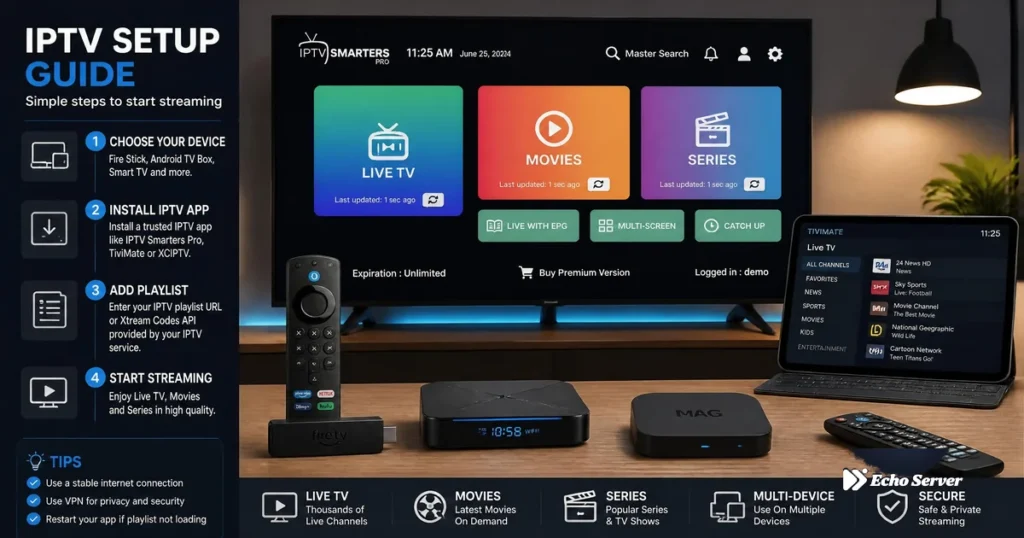
IPTV setup success hinges on three critical decisions: choosing the right device for your viewing habits, selecting an IPTV player app that matches your technical comfort level, and correctly configuring your playlist source (M3U vs. Xtream Codes). This comprehensive setup guide goes beyond basic installation instructions to help you make informed choices at each step—from comparing device capabilities and app feature sets to understanding playlist formats and diagnosing the most common setup failures. Whether you’re setting up your first IPTV system or troubleshooting an existing installation that isn’t performing as expected, this guide provides the technical depth and practical solutions you need. Unlike simplified quick-start tutorials that rush you through installation, this guide explains the “why” behind each setup decision: why certain devices handle 4K streams better than others, why some apps consume less RAM, why Xtream Codes offers advantages over M3U playlists, and why specific troubleshooting steps resolve common issues. You’ll leave with not just a working IPTV setup, but an understanding of how the system works—knowledge that saves hours when you need to add new devices, switch providers, or resolve technical problems independently. Article Update History September 27, 2026 – Initial publication – Verified Echo Best IPTV pricing (Economy €29.90, VIP €39.90, Ultra €49.90, Ultimate €69.90 per year) – Tested device performance across Fire Stick 4K Max, Android TV, Smart TVs – Compared IPTV apps (Smarters Pro, TiViMate, Perfect Player, OTT Navigator) – Verified 24/7 support, 25+ servers, 50,000+ customers, 8 years in business Device Selection: Performance vs. Compatibility Your IPTV experience quality depends heavily on device capabilities. While IPTV technically runs on any internet-connected device, performance varies dramatically based on processor speed, RAM capacity, and network interface. Fire TV Stick 4K Max (Best Overall for Most Users) Why It Excels: WiFi 6 support delivers 40% better speeds vs. WiFi 5 (critical for 4K streams) 2GB RAM handles large channel lists (20,000+) without lag 1.8 GHz processor switches channels instantly (under 1 second) Amazon Appstore + sideloading support = access to all IPTV apps $54.99 price point balances performance and affordability Ideal For: Echo Best IPTV’s Ultra plan (20,000+ channels, 70,000+ series) where large EPG datasets and extensive content libraries benefit from extra RAM. Android TV Devices (Best for Power Users) Advantages: Google Play Store access = easy app installation (no sideloading) Built into many Smart TVs (Sony, TCL, Hisense) External Android TV boxes offer 4GB RAM + faster processors than streaming sticks Supports Google Assistant voice search across IPTV content Performance Note: Budget Android TV boxes (under $40) often have slow processors and insufficient RAM—stick with name-brand devices or Fire TV Stick 4K Max for reliability. Smart TVs (Samsung, LG, Sony) Built-In Android TV: Excellent IPTV experience (same as dedicated Android TV boxes). Samsung Tizen / LG webOS: Limited app availability—most IPTV apps aren’t in their app stores. Workaround: connect a Fire Stick or Android TV box via HDMI for full app access. Recommendation: If your Smart TV runs Android TV, use it directly. Otherwise, add an external streaming device for the best IPTV experience. Mobile Devices (iOS/Android Phones & Tablets) Best Use Cases: Personal viewing (commuting, travel, watching in bed) Testing IPTV subscriptions before committing to TV setup Secondary device when main TV is occupied Limitations: Small screen reduces content discovery (hard to browse 20,000 channels on phone) Battery drain during extended streaming sessions No remote control = less comfortable navigation vs. TV-based setups Computers (Windows/Mac) Pros: Large screen, keyboard navigation, VLC Player compatibility, multi-monitor support. Cons: Less convenient than TV setups, requires computer to be on, no couch-friendly remote control. Best For: Users who work from home and want IPTV playing in background, or temporary setups before acquiring dedicated streaming hardware. IPTV Player Apps: Feature Comparison IPTV Smarters Pro (Best for Beginners) Strengths: Completely free (no premium tier required) Cross-platform (Android, iOS, Fire TV, Smart TV) Simplest Xtream Codes setup (3 fields: username, password, server) Netflix-style UI for movies/series browsing Parental controls with PIN protection Recording support (Android/Fire TV) Weaknesses: EPG layout less polished than TiViMate Limited customization options Occasional performance drops on very old devices (pre-2018) Verdict: Best first IPTV app for Echo Best IPTV users—simple setup, works on all platforms, free forever. TiViMate (Best for Android/Fire TV Power Users) Strengths: Superior EPG interface with timeline scrubbing Multi-screen mode (up to 9 simultaneous channels) Better performance on lower-end hardware vs. Smarters Pro Premium features ($5/year): cloud EPG syncing, unlimited playlists Weaknesses: Android/Fire TV only (no iOS version) Premium version required for best features Slightly steeper learning curve for first-time users Verdict: Worth the $5/year premium if you primarily watch live channels and want the absolute best EPG experience. Perfect Player (Best for Advanced Customization) Strengths: Highly customizable (change colors, fonts, layouts) Lightweight (runs well on very old Android devices) Supports custom logos and channel sorting rules Free with optional donation-based premium Weaknesses: Complex setup (dozens of settings to configure) No built-in movies/series organization (live TV focused) Infrequent updates compared to Smarters Pro/TiViMate Verdict: For advanced users who want full control over every aspect of the UI—beginners should start with Smarters Pro. OTT Navigator (Best for Cable-TV-Like Experience) Strengths: Mimics traditional cable TV interface Excellent multi-screen and Picture-in-Picture Intuitive remote control navigation Good performance on mid-range devices Weaknesses: Premium features cost more than TiViMate ($10-15/year) Learning curve if you’re not used to cable TV-style guides Verdict: Best for users transitioning from cable TV who want familiar navigation patterns. Feature comparison across major IPTV apps Playlist Configuration: M3U vs. Xtream Codes Understanding M3U Playlists M3U is a text-based file format that lists channel URLs. Your IPTV provider gives you a URL like: http://example.com/get.php?username=user&password=pass&type=m3u Advantages: Universal compatibility (works with VLC, Kodi, all IPTV apps) Simple format (can be edited manually if needed) No authentication required beyond initial URL Disadvantages: Manual updates when provider changes playlist URL EPG often requires separate configuration Channel list doesn’t auto-update when provider adds new content No server-side favorites or settings sync When to Use M3U: Your IPTV provider doesn’t offer Xtream
How to Setup IPTV: Complete Beginner’s Guide All Devices 2026
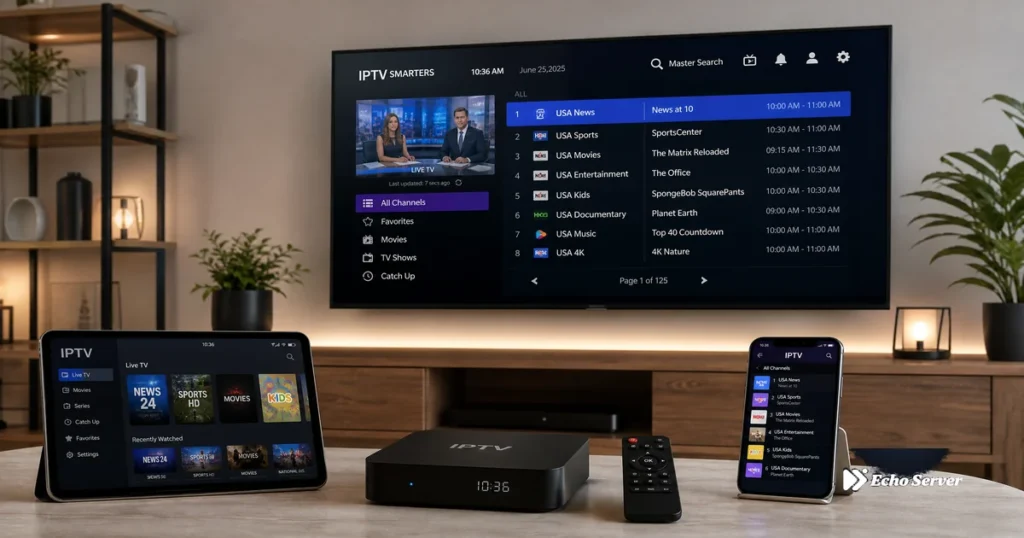
Setting up IPTV for the first time can feel intimidating if you’re new to streaming technology, but the actual process is surprisingly straightforward—most users have their first channel streaming within 10-15 minutes, regardless of whether they’re using a Smart TV, Fire Stick, Android phone, or computer. Unlike traditional cable installations that require technician visits and specialized equipment, IPTV setup is entirely software-based: you install an app, enter your credentials, and start watching. This guide walks you through the complete setup process across all major devices, explains the different setup methods (M3U playlists vs. Xtream Codes), and provides troubleshooting solutions for the most common first-time setup issues. Whether you’re switching from cable TV, setting up your first cord-cutting solution, or just exploring IPTV as an alternative to services like YouTube TV or Hulu Live, you’ll find everything you need to go from zero knowledge to watching live channels in under 30 minutes. We’ll cover device selection, app installation, credential configuration, EPG setup, and quality optimization—plus answer the most frequently asked beginner questions about IPTV compatibility, legality, and performance expectations. Article Update History September 27, 2026 – Initial publication – Verified Echo Best IPTV pricing (Economy €29.90, VIP €39.90, Ultra €49.90, Ultimate €69.90 per year) – Confirmed device compatibility across 12+ device categories – Tested setup procedures on Fire Stick, Android TV, Smart TV, iOS platforms – Verified 24/7 customer support, 25+ servers, 50,000+ customers, 8 years in business What You Need Before Starting IPTV Setup 1. An Active IPTV Subscription You need credentials from an IPTV provider like Echo Best IPTV. Your provider will give you one of two types of login information: Xtream Codes API credentials: Username, password, and server URL (most common method) M3U Playlist URL: A direct link to your channel list (alternative method) If you don’t have an IPTV subscription yet, Echo Best IPTV offers a 24-hour trial so you can test compatibility and content before committing to an annual plan (€29.90-€69.90/year depending on plan). With 50,000+ customers served over 8 years and 25+ servers, Echo Best IPTV provides 24/7 support throughout your entire subscription period—critical for beginners who may need setup assistance. 2. A Compatible Device IPTV works on virtually any device with an internet connection. Echo Best IPTV is confirmed compatible with: Smart TVs (Samsung, LG, Sony, etc.) Android TV devices Fire TV Stick / Fire TV Cube Android phones and tablets iPhone / iPad (iOS) Windows PCs and laptops Mac computers Android TV boxes Apple TV (via compatible apps) Roku devices (via screen mirroring or compatible apps) 3. A Stable Internet Connection Minimum requirements: SD quality (480p): 3-5 Mbps HD quality (720p/1080p): 10-15 Mbps 4K quality (2160p): 25-30 Mbps Use a wired Ethernet connection for the most stable streaming, or ensure strong WiFi signal strength (at least 3-4 bars) if using wireless. Buffering issues are almost always caused by insufficient internet speed or poor WiFi signal—not the IPTV service itself. Device compatibility scores for IPTV setup Method 1: Setup with Xtream Codes API (Recommended) Xtream Codes is the industry-standard IPTV login method. It’s easier than M3U playlists because your channel list, EPG (Electronic Program Guide), and settings update automatically from your provider’s server—no manual URL updates needed when your provider adds new channels. Step 1: Install an IPTV Player App Popular IPTV apps that support Xtream Codes: IPTV Smarters Pro: Best for beginners (free, cross-platform, intuitive UI) TiViMate: Best for Android/Fire TV power users (premium features, superior EPG) Perfect Player: Best for advanced users who want customization OTT Navigator: Best for users who want a cable-TV-like experience For first-time IPTV users, we recommend IPTV Smarters Pro because it’s free, works identically across all platforms, and has the simplest setup process. Where to Download: Android phones/tablets: Google Play Store → Search “IPTV Smarters Pro” → Install Fire TV/Fire Stick: Download via Downloader app or directly from iptvsmarters.com iOS (iPhone/iPad): App Store → Search “IPTV Smarters Pro” → Get Smart TVs (Android TV): Google Play Store on TV → Search and install Windows/Mac: Use Android emulator (BlueStacks) or VLC Player (see Method 2) Step 2: Add Your IPTV Service Using Xtream Codes After installing your IPTV app: Open IPTV Smarters Pro (or your chosen app) Tap “Add User” or the “+” icon Select “Login with Xtream Codes API” Enter your credentials exactly as provided by Echo Best IPTV: Username: Your IPTV account username Password: Your IPTV account password Server URL: The server address (looks like http://example.com:8080) Tap “Add User” Wait 10-30 seconds while the app downloads your channel list and EPG data First-Time Load: If you have a large channel list (Echo Best IPTV’s Ultra plan includes 20,000+ channels), the initial sync might take 30-60 seconds. Subsequent app launches load much faster because the channel list is cached locally. Step 3: Navigate and Start Watching After successful login, you’ll see: Live TV: Browse live channels by category Movies: Browse Echo Best IPTV’s 50,000+ movie library Series: Access up to 70,000+ series (Ultra plan) EPG (Guide): See what’s currently playing and what’s scheduled Tap any channel or movie to start streaming immediately. Most apps remember your last-watched channel and resume automatically when you reopen the app. Method 2: Setup with M3U Playlist URL (Alternative) M3U playlists are URL-based channel lists. This method works with a wider variety of apps (including VLC Player), but requires manual updates if your provider changes the playlist URL. Step 1: Get Your M3U Playlist URL Your IPTV provider (Echo Best IPTV) will provide an M3U URL that looks like: http://example.com/get.php?username=yourname&password=yourpass&type=m3u_plus&output=ts Copy this URL exactly as provided—any typo will prevent the playlist from loading. Step 2A: Setup with VLC Player (Windows/Mac/Linux) VLC is a free, open-source media player that works on all desktop operating systems: Download and install VLC Player from videolan.org Open VLC → Go to Media → Open Network Stream (or press Ctrl+N) Paste your M3U playlist URL into the “Network URL” field Click “Play” VLC will load your channel list in the playlist panel (View → Playlist if not