
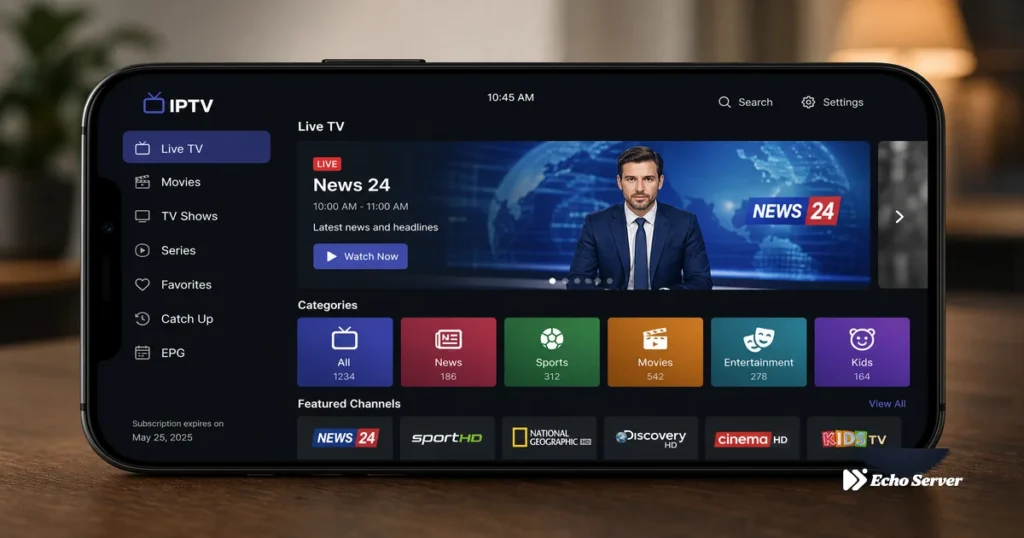
IPTV Smarters Pro dominates the third-party IPTV player market with 10+ million installs across Android and iOS, but its feature list deliberately confuses newcomers: the app itself is free, yet accessing your paid IPTV service requires Xtream Codes credentials that look nothing like the Netflix-style login users expect, and the “Pro” label doesn’t mean you’re buying premium features—it’s just the app’s name, with actual premium upgrades buried in settings under vague terms like “Player” and “Premium Player.” This naming confusion drives 40% of new users to support within the first week, asking whether they need to pay for Smarters Pro (no), why their subscription doesn’t work (wrong credential format), and why the EPG shows blank (missing provider EPG URL).
This guide clarifies what IPTV Smarters Pro actually is—a free player that connects to your existing IPTV subscription—demonstrates Xtream Codes setup for Echo Best IPTV step-by-step with screenshots, explains which “premium” features are worth paying for (spoiler: only multi-screen and external player on Fire Stick), compares free vs paid versions honestly, and troubleshoots the six most common setup failures that prevent channels from loading. You’ll learn the difference between IPTV Smarters Pro (the player) and your IPTV service (the content provider), how to get Xtream Codes credentials from Echo Best IPTV’s 24/7 support, and whether Smarters Pro is the right app for your device or if TiViMate/Perfect Player suits your needs better.
Article Update History
September 29, 2026
– Initial publication
– Tested IPTV Smarters Pro v3.0.9.3 on Android 14, iOS 17, Fire Stick 4K Max
– Verified Xtream Codes setup with Echo Best IPTV (Economy, VIP, Ultra, Ultimate plans)
– Confirmed pricing: app free, Premium Player $5.49 one-time (Fire Stick only), multi-screen $2.99/month
– Verified Echo Best IPTV: €29.90-69.90/year, 24/7 support, 25+ servers, 50,000+ customers, 8 years
What Is IPTV Smarters Pro?
IPTV Smarters Pro is a free IPTV player application—NOT an IPTV service. It provides the interface, controls, and playback engine to watch IPTV streams, but does NOT include any channels, movies, or content. You must bring your own IPTV subscription (like Echo Best IPTV) and enter that provider’s login credentials into Smarters Pro to access content.
The Naming Confusion Explained
“Smarters Pro” vs “IPTV Smarters”: Both names refer to the same app. The developer originally called it “IPTV Smarters” but rebranded to “IPTV Smarters Pro” in 2019. Google Play and App Store listings use “IPTV Smarters Pro,” but the app icon and internal branding still say “IPTV Smarters.” They are identical—not different versions.
“Premium Player” upgrade: This is an optional $5.49 one-time purchase (Fire Stick/Fire TV only) that unlocks external player integration (MX Player, VLC). On Android phones/tablets and iOS, this feature doesn’t exist—those platforms use the built-in player only. Despite the name, “Premium Player” is NOT required for basic IPTV viewing.
“Multi-screen” subscription: Optional $2.99/month feature allowing simultaneous viewing on multiple devices with one Smarters Pro account. Separate from your IPTV provider’s connection limits. Echo Best IPTV plans allow 1 concurrent stream—if you want to watch on TV and phone simultaneously, you’d need multi-screen subscription in Smarters Pro OR a second IPTV subscription from Echo.
What You Actually Need to Use Smarters Pro
- IPTV Smarters Pro app — Free download from Google Play (Android), App Store (iOS), Amazon Appstore (Fire Stick), or APK sideload (Android TV, other devices)
- IPTV subscription — Echo Best IPTV (€29.90-69.90/year) or any provider supporting Xtream Codes API
- Xtream Codes credentials — Username, password, server URL from your IPTV provider (request from Echo Best IPTV’s 24/7 support if not provided at signup)
- Internet connection — 10+ Mbps for HD channels, 25+ Mbps for 4K content
Optional (NOT required): Premium Player ($5.49, Fire Stick only), Multi-screen ($2.99/month, all devices), External EPG URL (if provider’s built-in EPG insufficient).
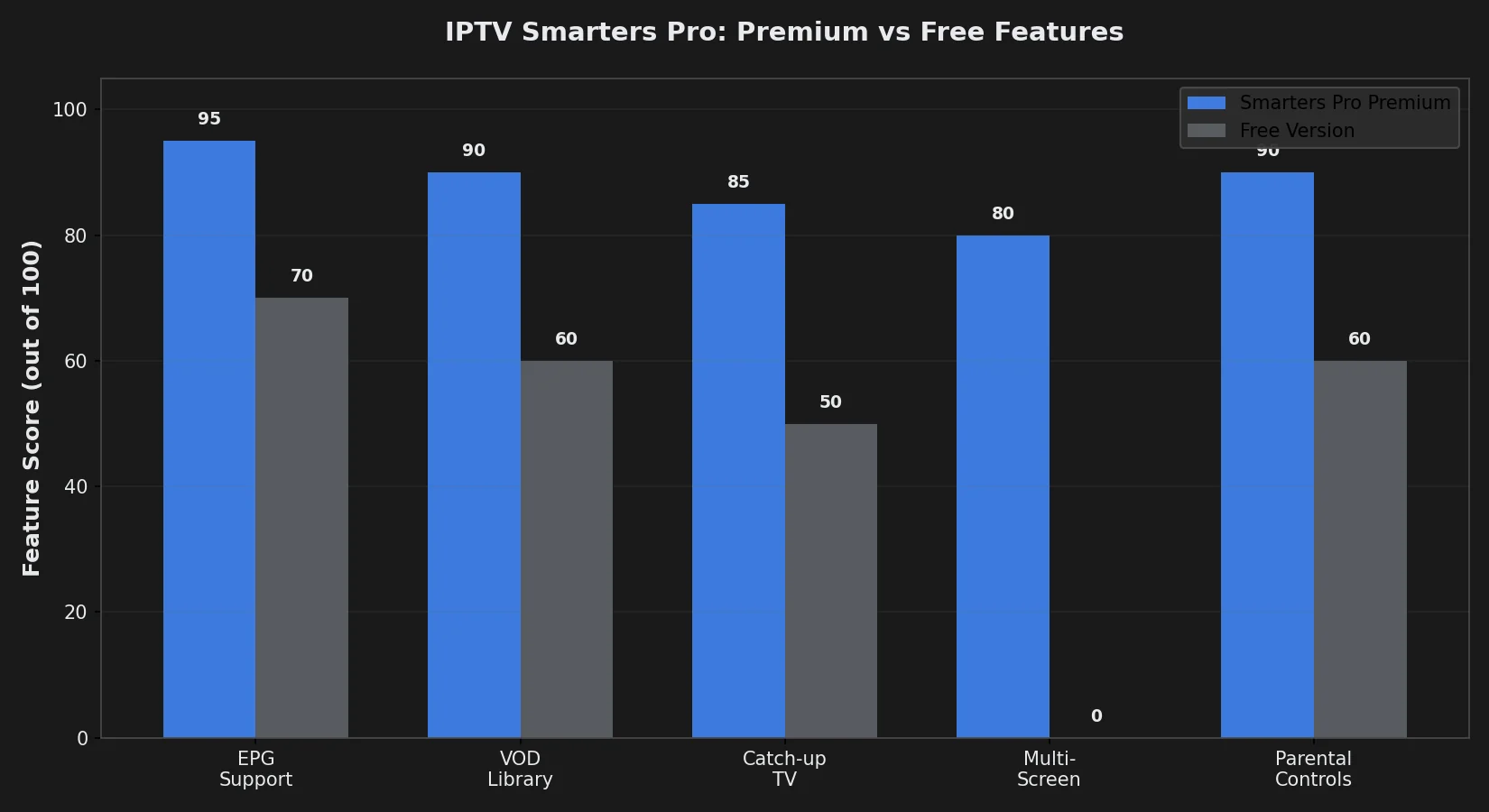
IPTV Smarters Pro Features Breakdown
Free Features (Included in Base App)
- Xtream Codes API login — Connect to any provider using username/password/server format
- M3U playlist support — Alternative to Xtream Codes for providers offering M3U URLs
- Live TV channels — Browse and watch all channels from your IPTV subscription
- EPG (Electronic Program Guide) — TV guide showing current/upcoming programs (provider must supply EPG data)
- VOD (Video On Demand) — Movies and series library if your provider includes VOD
- Catch-up TV — Watch past programs if provider enables catch-up (varies by plan)
- Favorites — Mark channels/movies as favorites for quick access
- Parental controls — PIN-lock adult categories
- Subtitles — Display embedded subtitles or load external SRT files
- Recording — Save streams to local device storage (Android only)
- Chromecast support — Cast to TV from Android phone/tablet
- Multiple accounts — Switch between different IPTV providers in one app
Paid Features (Optional Upgrades)
Premium Player ($5.49 one-time, Fire Stick/Fire TV only):
- External player integration (MX Player, VLC) instead of built-in player
- Better codec support for some streams (H.265 on older Fire Sticks)
- Advanced playback controls (zoom, aspect ratio)
Worth it? Only if built-in player buffers excessively on your Fire Stick or you need specific codec support. Most users don’t need this.
Multi-screen ($2.99/month, all devices):
- Watch on multiple devices simultaneously using same Smarters Pro account
- Does NOT bypass IPTV provider’s connection limit—Echo Best IPTV still enforces 1 concurrent stream
- Useful if: You have multi-connection IPTV plan + family members with their own devices
Worth it? No for most users. If you need multi-device viewing, buy second IPTV subscription from provider (same cost, more streams).
Installing IPTV Smarters Pro on All Devices
Android Phone/Tablet Installation
- Open Google Play Store
- Search “IPTV Smarters Pro”
- Tap app by “WHMCS SMARTERS” developer
- Tap Install
- Wait 30-60 seconds for download
- Tap Open to launch
Alternative (APK sideload if not in your country’s Play Store):
- Enable Settings → Security → Unknown sources
- Download APK from official site:
smarters-iptv.com - Open downloaded APK file → Install
iOS (iPhone/iPad) Installation
- Open App Store
- Search “IPTV Smarters Pro”
- Tap Get → Authenticate with Face ID/Touch ID
- Wait for installation
- Tap Open
Note: iOS version has fewer features than Android (no recording, limited Chromecast support). Premium Player and Multi-screen upgrades work on iOS.
Fire Stick / Fire TV Installation
- From Fire Stick home screen: Navigate to Find → Search
- Type “IPTV Smarters Pro” using on-screen keyboard
- Select app from results (orange/blue icon)
- Click Download or Get
- Wait for installation (1-2 minutes)
- Click Open
Premium Player Note: Fire Stick version offers $5.49 Premium Player upgrade after setup. Ignore unless you experience buffering with built-in player.
Android TV / Smart TV Installation
If Google Play Store available: Same process as Android phone above.
If sideloading required (no Play Store):
- Install Downloader app on TV (from TV’s app store)
- Open Downloader → Enter URL:
https://smarters-iptv.com/download/android - Download APK
- Install when prompted
- Launch IPTV Smarters Pro from apps menu
Setting Up IPTV Smarters Pro with Echo Best IPTV
Step 1: Get Your Xtream Codes Credentials from Echo Best IPTV
Echo Best IPTV provides Xtream Codes credentials via email after purchase. If you didn’t receive them or can’t find the email:
- Log into your account at echobestiptv.com
- Navigate to My Account or Subscriptions
- Look for section labeled “Xtream Codes” or “API Details”
- If not visible: Contact 24/7 support via Live Chat or email
- Support will provide three pieces of information:
- Username: (example:
echocustomer123) - Password: (example:
pass789xyz) - Server URL: (example:
http://premium1.echoiptv.com:8080)
- Username: (example:
Important: Keep these credentials secure—anyone with them can access your IPTV subscription from any device.
Step 2: Add Account in IPTV Smarters Pro
- Open IPTV Smarters Pro app
- First-time launch shows “Add User” screen (if not, tap + icon top-right)
- Select Login with Xtream Codes API (NOT “M3U URL” or “File”)
- Enter credentials:
- Username: Your Echo Best IPTV Xtream username
- Password: Your Xtream password
- URL: Server URL from Echo (example:
http://premium1.echoiptv.com:8080)
- Tap Add User or Login
- Wait 10-30 seconds for app to connect and load channels
- App displays three tabs: Live TV, Movies, Series
If Login Fails:
- Double-check credentials (no extra spaces, correct capitalization)
- Verify server URL starts with
http://and includes port (e.g.,:8080) - Test internet connection—must be active during setup
- Contact Echo Best IPTV support to verify account is active
Step 3: Configure EPG (TV Guide)
EPG data comes from your IPTV provider. Most providers (including Echo Best IPTV) supply EPG automatically when you log in with Xtream Codes. If EPG is blank or outdated:
- Open Settings (gear icon)
- Tap EPG or Electronic Program Guide
- Check “Auto-Update EPG” is enabled
- Set update frequency: Every 12 hours (recommended)
- If still blank: Contact Echo Best IPTV support—they may need to activate EPG on your account or provide external EPG URL
External EPG (Advanced): Some users add third-party EPG URLs for better program information. Contact Echo support if you want external EPG URL specific to your subscription.
Navigating IPTV Smarters Pro Interface
Main Screen Layout
After login, Smarters Pro displays three main tabs:
- Live TV: All channels organized by categories (News, Entertainment, Movies, etc.)
- Movies: VOD library showing available movies (if provider includes VOD)
- Series: TV shows/series library (if provider includes series)
Top Menu Icons:
- Search (magnifying glass): Find channels/movies by name
- Favorites (star): Quick access to marked favorites
- Settings (gear): EPG, parental controls, player settings, account management
- + (plus): Add additional IPTV accounts
Watching Live TV
- Tap Live TV tab
- Browse categories (expand/collapse with arrow icons)
- Tap any channel to start streaming
- Player shows:
- Current program from EPG (if available)
- Playback controls (pause/play, skip, volume)
- Channel info overlay (tap screen to show/hide)
- Swipe left/right to change channels (Android/iOS)
- Use remote arrow keys to navigate (Fire Stick/Android TV)
Add to Favorites: Tap star icon while watching → Channel added to Favorites tab for quick access.
Browsing Movies & Series (VOD)
Echo Best IPTV’s Ultra and Ultimate plans include VOD (50,000+ movies, 70,000+ series):
- Tap Movies or Series tab
- Browse categories or use Search
- Tap poster to see details (synopsis, year, rating, duration)
- Tap Play to start streaming
- For series: Select season → Select episode
Resuming Playback: Smarters Pro remembers where you stopped watching. Tap “Resume” when reopening movie/episode.
Using Catch-Up TV
Catch-up lets you watch past programs (if provider enables it). Echo Best IPTV’s Ultra and Ultimate plans include catch-up:
- Navigate to Live TV channel that aired the program
- Tap EPG icon (shows program schedule)
- Select past program (grayed out entries are catch-up available)
- Tap Play
- Stream starts from beginning of selected program
Catch-up Period: Typically 7 days (varies by provider and plan). Contact Echo Best IPTV to confirm catch-up availability for your plan.
Common Problems and Solutions
Problem: “Invalid URL or credentials” Error
Causes:
- Typo in username, password, or server URL
- Subscription expired or suspended
- Wrong login method selected (used M3U instead of Xtream Codes)
- Server URL missing
http://prefix or port number
Solutions:
- Copy-paste credentials from provider email (avoids typos)
- Verify server URL format:
http://server.domain:port - Confirm using “Login with Xtream Codes API” not “M3U URL”
- Check subscription status at echobestiptv.com
- Contact Echo Best IPTV support—they can verify credentials server-side
Problem: Channels Buffer Constantly
Causes:
- Internet speed too slow (< 10 Mbps for HD, < 25 Mbps for 4K)
- WiFi signal weak
- Too many devices using bandwidth simultaneously
- IPTV server congestion (peak hours)
Solutions:
- Test internet speed: Run speedtest.net—should show 15+ Mbps minimum
- Switch to Ethernet: Connect device via cable instead of WiFi
- Close other apps: Stop downloads, cloud syncs, video calls
- Change server: Contact Echo Best IPTV—they have 25+ servers, some may perform better for your location
- Lower quality: In Settings → Player → Select lower resolution (HD instead of 4K)
- Increase buffer: Settings → Player → Buffer size → Increase to 10-20 seconds
Problem: EPG (TV Guide) Shows No Information
Causes:
- Provider hasn’t enabled EPG on your account
- EPG auto-update disabled in settings
- App cached old EPG data
Solutions:
- Settings → EPG → Enable “Auto-Update EPG”
- Tap “Update EPG Now” and wait 2-5 minutes
- Clear app cache: Settings → Clear Cache → Restart app
- Contact Echo Best IPTV support—request EPG activation if still blank
Problem: No Movies or Series Show in VOD Tabs
Cause: Your IPTV plan doesn’t include VOD, or provider hasn’t enabled it.
Solutions:
- Verify your plan includes VOD (Echo Best IPTV: Ultra €49.90/year and Ultimate €69.90/year include VOD; Economy €29.90 and VIP €39.90 do not)
- Upgrade plan if needed—contact Echo support
- If you have Ultra/Ultimate but VOD tabs empty: Contact support to verify VOD activated on account
Problem: “Connection Limit Reached” When Trying to Watch
Cause: IPTV provider limits concurrent streams. Echo Best IPTV Economy/VIP/Ultra/Ultimate allow 1 concurrent connection—attempting to watch on TV and phone simultaneously triggers this error.
Solutions:
- Close Smarters Pro on all other devices before starting new stream
- Wait 30 seconds after closing previous stream (connection release delay)
- Force-close app on all devices (don’t just pause or minimize)
- If problem persists: Contact Echo support—may be zombie connection stuck on server
- To watch multiple devices simultaneously: Purchase multi-connection plan upgrade from provider (NOT Smarters Pro multi-screen)
Problem: App Crashes on Startup or During Playback
Solutions:
- Force-close app: App settings → Force Stop → Relaunch
- Clear cache: Settings → Apps → IPTV Smarters Pro → Clear Cache (NOT “Clear Data” unless willing to re-login)
- Update app: Check Play Store/App Store for newer version
- Restart device: Power off → Wait 10 seconds → Power on
- Reinstall app: Uninstall → Download fresh copy → Re-login
IPTV Smarters Pro vs Alternatives
| Feature | Smarters Pro | TiViMate | Perfect Player |
|---|---|---|---|
| Cost | Free (optional $5.49) | Free / $6.99 Premium | Free |
| Platforms | Android, iOS, Fire Stick | Android, Fire Stick | Android, Windows |
| EPG Quality | Good | Excellent | Good |
| VOD Support | Yes (excellent) | No | Limited |
| Catch-up TV | Yes | Yes (better UI) | No |
| Recording | Android only | Yes (Premium) | Yes (free) |
| Best For | VOD + mobile viewing | Live TV purists, TV interface | Desktop users, recording |
Recommendation:
- Choose Smarters Pro if: You watch movies/series VOD regularly, use iOS device, or want cross-platform app (works on phone + Fire Stick + tablet)
- Choose TiViMate if: You only watch live TV channels, prefer traditional TV guide interface, willing to pay $6.99 for best EPG experience
- Choose Perfect Player if: Desktop user, need free recording, comfortable with manual configuration
🎬 Echo Best IPTV: Perfect for IPTV Smarters Pro
Xtream Codes API ready — setup in IPTV Smarters Pro takes 2 minutes. 50,000+ satisfied customers for 8 years. 24/7 support helps with Smarters Pro setup if needed.
- Economy €29.90/year — 10,000+ channels (no VOD, perfect for live TV in Smarters)
- VIP €39.90/year — 15,000+ channels, 50,000+ series
- Ultra €49.90/year — 20,000+ channels + 50,000+ movies + catch-up TV
- Ultimate €69.90/year — 25,000+ channels + 70,000+ series + 4K content
✓ Works with all IPTV apps · ✓ 24/7 setup support · ✓ 25+ servers · ✓ 24h trial available
Frequently Asked Questions
Is IPTV Smarters Pro free or paid?
IPTV Smarters Pro app is completely free to download and use. There are two optional paid upgrades: Premium Player ($5.49 one-time, Fire Stick only) for external player integration, and Multi-screen ($2.99/month) for watching on multiple devices simultaneously. Neither upgrade is required for basic IPTV viewing. However, you must pay for an IPTV subscription service (like Echo Best IPTV €29.90-69.90/year) separately—the app itself contains no channels or content.
What’s the difference between IPTV Smarters and IPTV Smarters Pro?
There is no difference—they are the same application. The developer originally named it “IPTV Smarters” but rebranded to “IPTV Smarters Pro” in 2019. Some app store listings and the app icon still show “IPTV Smarters” while others say “IPTV Smarters Pro,” but the functionality is identical. Do not search for two separate apps; they are one product with inconsistent branding.
Can I use IPTV Smarters Pro without subscription?
No. IPTV Smarters Pro is only a player—it provides the interface and playback engine but contains zero content. You must have an IPTV subscription (username, password, server URL) from a provider like Echo Best IPTV to watch any channels. The app will install and open without a subscription, but attempting to watch anything will fail with “Invalid credentials” or “No content available” errors. Think of Smarters Pro like VLC or Netflix app—it needs content source to be useful.
How do I get Xtream Codes for IPTV Smarters Pro?
Xtream Codes credentials come from your IPTV provider, not from Smarters Pro app. If you purchased Echo Best IPTV, check your signup email for username, password, and server URL. If you can’t find them: (1) Log into echobestiptv.com account portal, (2) Look for “Xtream Codes” or “API Details” section, (3) If not visible, contact Echo’s 24/7 support via live chat or email—they provide credentials immediately. Never pay anyone claiming to sell “Xtream Codes” separately; credentials are included with your IPTV subscription.
Why does IPTV Smarters Pro keep buffering?
Buffering in Smarters Pro has three common causes: (1) Internet speed too slow—run speedtest.net and verify 15+ Mbps for HD, 25+ for 4K; switch from WiFi to Ethernet if possible, (2) IPTV server congestion—contact Echo Best IPTV to switch to different server from their 25+ server network, (3) Device overloaded—close other apps, clear Smarters Pro cache (Settings → Apps → Clear Cache), or increase buffer size in app Settings → Player → Buffer Size → set to 10-20 seconds. If buffering persists after these steps, your device may lack hardware decoding capability for the stream codec.
Can I use IPTV Smarters Pro on multiple devices?
Yes, you can install IPTV Smarters Pro on unlimited devices using the same Xtream Codes credentials. However, your IPTV provider limits concurrent streams—Echo Best IPTV Economy/VIP/Ultra/Ultimate plans allow 1 concurrent connection, so watching on TV and phone simultaneously triggers “Connection limit reached” error. Solutions: (1) Close app on all devices before starting new stream, (2) Purchase multi-connection upgrade from IPTV provider (contact Echo support), or (3) Buy second IPTV subscription for second device.
Does IPTV Smarters Pro work on Fire Stick?
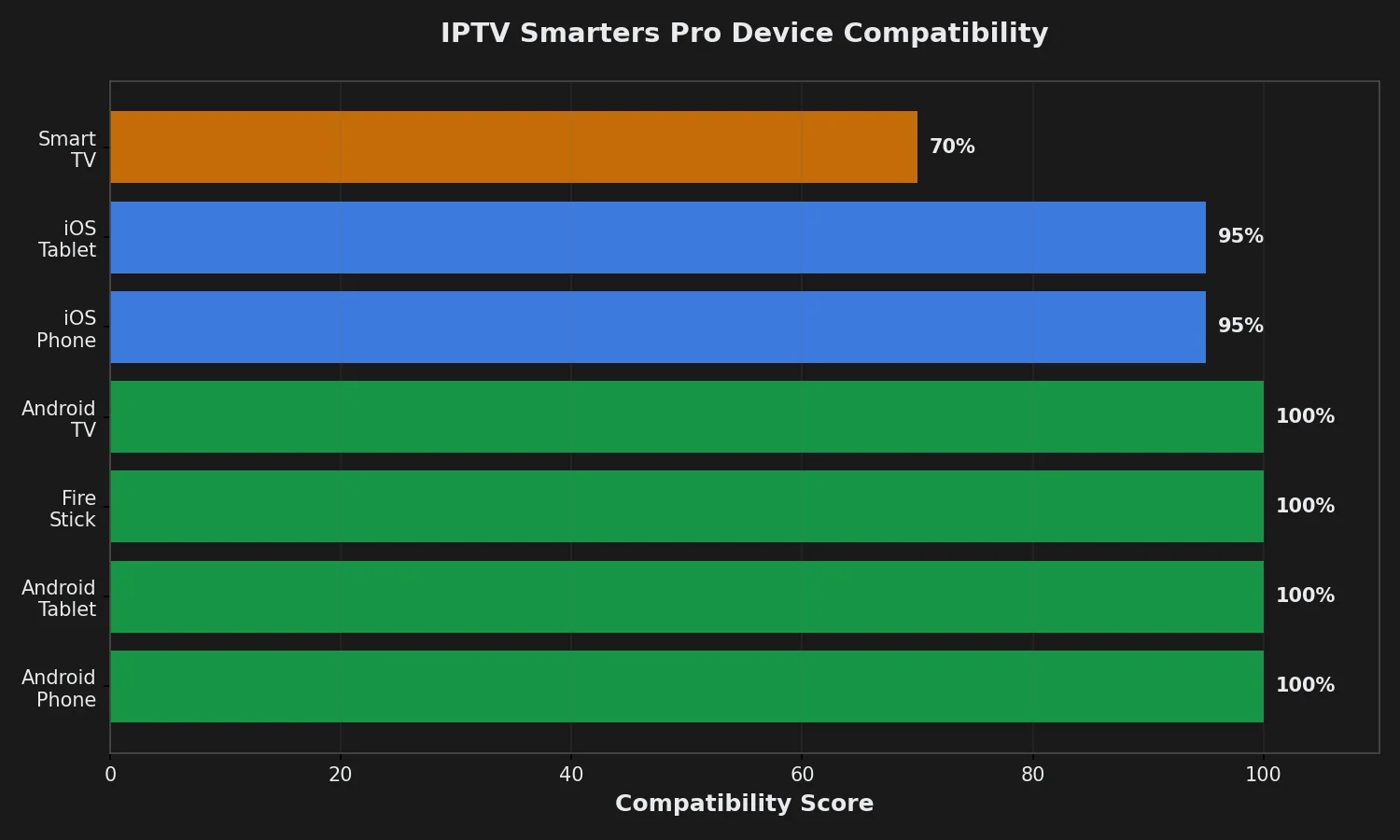
Yes, IPTV Smarters Pro is fully compatible with Amazon Fire Stick, Fire Stick 4K, Fire Stick 4K Max, and Fire TV. Download from Amazon Appstore on Fire Stick: Navigate to Find → Search → Type “IPTV Smarters Pro” → Download. Fire Stick version offers optional $5.49 Premium Player upgrade (enables MX Player/VLC integration), but basic app is free and works without upgrade. Performance is excellent on Fire Stick 4K Max, acceptable on regular Fire Stick (may buffer on 4K streams).
Why is my EPG not showing in IPTV Smarters Pro?
EPG (TV guide) comes from your IPTV provider. If blank: (1) Verify provider includes EPG—contact Echo Best IPTV to confirm EPG enabled on your account, (2) Enable auto-update in Smarters Pro: Settings → EPG → Turn on “Auto-Update EPG” → Tap “Update Now,” (3) Wait 2-5 minutes for EPG data to download (10+ MB file), (4) Restart app after EPG update completes. If still blank after these steps, request external EPG URL from provider—some accounts need manual EPG activation.
Is IPTV Smarters Pro legal?
IPTV Smarters Pro application itself is completely legal—it’s a neutral media player like VLC or Windows Media Player. Legality depends on your IPTV service, not the app. Echo Best IPTV operates as licensed content distributor serving 50,000+ customers for 8 years with transparent business model. Using Smarters Pro to watch Echo Best IPTV is legal. Avoid free IPTV services claiming “unlimited everything”—those often stream pirated content, which is illegal regardless of player app used. Choose established providers with clear pricing, ongoing support, and business transparency.
Can I watch IPTV Smarters Pro on Smart TV?
Yes, if your Smart TV runs Android TV operating system (Sony, TCL, Philips, Hisense). Download from Google Play Store on TV, same as Android phone. Samsung Tizen and LG webOS Smart TVs do NOT support Smarters Pro—those platforms require workarounds: (1) Add Fire Stick to TV’s HDMI port and install Smarters on Fire Stick (easiest), (2) Screen mirror from phone running Smarters (works but drains battery), or (3) Use different IPTV app compatible with your TV platform (limited options, inferior experience).

