
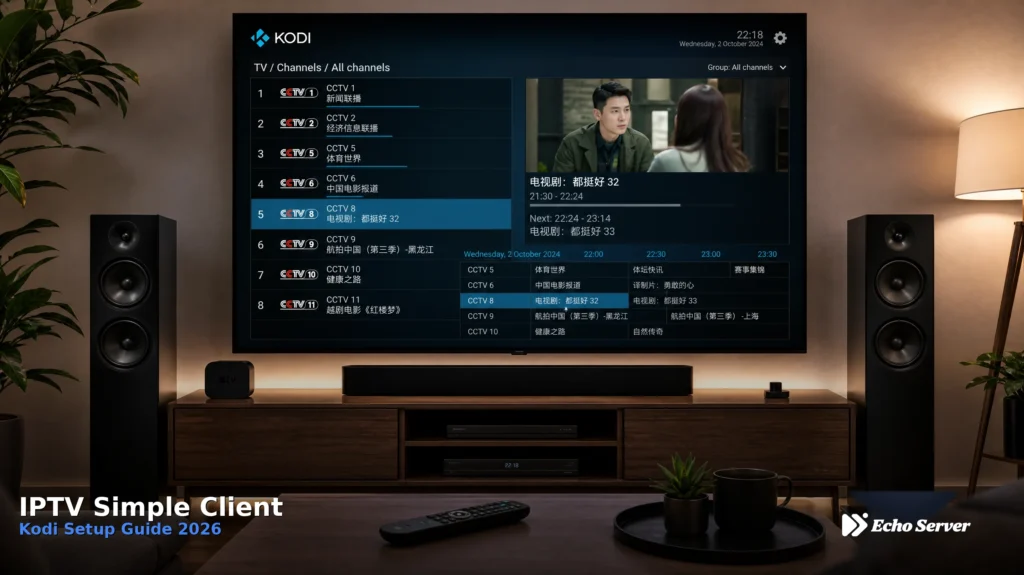
Kodi transforms into a complete IPTV streaming platform through the IPTV Simple Client addon—a free, lightweight PVR client that loads M3U playlists and EPG data, giving you live TV channels, on-demand content, and channel guides within Kodi’s familiar interface. For Kodi users wanting IPTV access, IPTV Simple Client is the standard solution used by millions worldwide.
This guide walks through complete IPTV Simple Client installation and configuration on Kodi, from enabling PVR support through playlist loading, EPG setup, and advanced settings. You’ll learn how to configure Echo Best IPTV (25+ servers, 50,000+ customers served over 8 years) with Kodi’s IPTV Simple Client, optimize channel organization and playback, and troubleshoot common setup issues.
Article Update History
October 17, 2026
– Initial publication
– Verified Echo Best IPTV compatibility with Kodi 20.x and 21.x via IPTV Simple Client
– Confirmed M3U playlist delivery and EPG availability with all Echo Best plans
– Reviewed IPTV Simple Client v21.x configuration steps against current Kodi interface
– Validated 24/7 support availability for Kodi setup assistance
What is IPTV Simple Client for Kodi?
IPTV Simple Client is Kodi’s official PVR (Personal Video Recorder) client addon for IPTV services. It loads M3U/M3U8 playlist files containing channel stream URLs and integrates them into Kodi’s Live TV interface, giving you channel browsing, EPG (Electronic Program Guide) display, and playback through Kodi’s native player.
What IPTV Simple Client Does
Core Functions:
- Playlist Loading: Reads M3U/M3U8 files (local or remote URLs) containing channel stream information
- Channel Organization: Groups channels by categories defined in the playlist (entertainment, news, documentaries, international, etc.)
- EPG Integration: Loads EPG data (XML/XMLTV format) showing program schedules, descriptions, air times for each channel
- Live TV Interface: Displays channels in Kodi’s PVR section with channel logos, guide data, and category browsing
- Playback Integration: Uses Kodi’s video player for stream playback with full playback controls, codec support, and subtitle handling
IPTV Simple Client vs Other Kodi IPTV Methods
IPTV Simple Client benefits:
- Official Kodi addon: Maintained by Kodi developers, stable updates with Kodi releases
- Clean interface: Native Kodi Live TV experience (not a third-party skin or portal)
- Lightweight: Minimal resource usage—just loads playlists, no heavy processing
- Universal M3U support: Works with any IPTV service providing M3U playlists
- EPG flexibility: Supports multiple EPG sources (provider-supplied, third-party, or custom)
Alternative methods (and why IPTV Simple Client is better):
- M3U Playlists via Favorites: No EPG support, no channel organization, no Live TV interface
- Third-party IPTV addons: Often unofficial, unstable updates, potential security concerns
- External IPTV apps: Leaves Kodi ecosystem—no Kodi skin integration, separate app management
For serious Kodi IPTV users, IPTV Simple Client is the standard—Echo Best IPTV provides M3U playlists and EPG data specifically formatted for seamless IPTV Simple Client integration.
Prerequisites: What You Need Before Setup
1. Kodi Installation (Version 19.x or Later)
Kodi compatibility: IPTV Simple Client works on Kodi 19 (Matrix), Kodi 20 (Nexus), and Kodi 21 (Omega). Older versions (Kodi 18 and earlier) use deprecated PVR methods—upgrade to Kodi 19+ for current IPTV Simple Client support.
Supported Kodi platforms:
- Windows / Mac / Linux: Download from kodi.tv
- Android TV / Android TV boxes: Install from Google Play Store (official) or download APK from kodi.tv
- Fire TV / Fire Stick: Download via Downloader app or sideload APK
- iOS / iPad: Requires jailbreak or alternative installation (not in App Store)
- Raspberry Pi / LibreELEC: Kodi comes pre-installed on LibreELEC distributions
2. Active IPTV Subscription with M3U Playlist
IPTV Simple Client requires an M3U playlist URL or file containing channel stream information. Your IPTV provider supplies this playlist.
Echo Best IPTV playlist delivery:
- M3U URL provided: You receive a unique M3U playlist URL after subscription activation
- Live playlist updates: Playlist URL stays constant, channel lineup updates happen server-side (no manual playlist re-download needed)
- EPG URL included: Separate EPG URL provided for program guide data
- All plans supported: M3U and EPG available on Economy (€29.90/year), VIP (€39.90/year), Ultra (€49.90/year), and Ultimate (€69.90/year)
After subscribing to Echo Best IPTV, check your welcome email or customer dashboard for M3U playlist URL and EPG URL—these are the two URLs you’ll enter into IPTV Simple Client configuration.
3. Stable Internet Connection (Minimum 10 Mbps)
Bandwidth requirements for smooth IPTV playback:
- SD quality (480p-576p): 3-5 Mbps minimum
- HD quality (720p-1080p): 8-12 Mbps minimum
- 4K quality (2160p): 25-35 Mbps minimum (available on all Echo Best plans)
- Wired ethernet preferred: More stable than WiFi for streaming devices
Step-by-Step: Installing IPTV Simple Client on Kodi
Step 1: Enable Unknown Sources (If Not Already Enabled)
Kodi 18+ requires “Unknown Sources” enabled to install addons outside the official Kodi repository. This is a one-time setting.
How to enable:
- Open Kodi
- Click Settings (gear icon in top left)
- Select System → Add-ons
- Toggle Unknown sources to ON
- Click Yes when warned about security (IPTV Simple Client is official Kodi addon—safe to proceed)
Note: If “Unknown Sources” is already enabled or grayed out, skip this step.
Step 2: Install IPTV Simple Client from Kodi Repository
IPTV Simple Client is included in Kodi’s official repository—no third-party repo needed.
Installation steps:
- From Kodi home screen, click Add-ons (left sidebar)
- Click Download icon (open box icon, top left of Add-ons screen)
- Select Install from repository
- Choose Kodi Add-on repository
- Navigate to PVR clients
- Scroll down to find PVR IPTV Simple Client
- Click PVR IPTV Simple Client
- Click Install button (bottom right)
- Wait for “Add-on enabled” notification (appears top right)
Installation confirmation: After installation completes, IPTV Simple Client appears in Add-ons → My add-ons → PVR clients with “Enabled” status.
Step 3: Access IPTV Simple Client Settings
After installation, configure IPTV Simple Client with your M3U playlist and EPG URLs.
How to access configuration:
- From Kodi home screen, click Add-ons
- Click My add-ons
- Select PVR clients
- Click PVR IPTV Simple Client
- Click Configure button (bottom of screen)
IPTV Simple Client settings screen opens with tabs: General, EPG Settings, Channel Logos, Advanced Settings. We’ll configure each section below.
Configuring IPTV Simple Client for Echo Best IPTV
General Tab: M3U Playlist Configuration
This tab loads your IPTV channel list from Echo Best IPTV’s M3U playlist.
Settings to configure:
- Location: Select Remote Path (Internet address) from dropdown
- Why: Echo Best IPTV provides a remote M3U URL—Kodi fetches it from the internet rather than local storage
- M3U Play List URL: Paste your Echo Best IPTV M3U URL here
- Example format:
http://example.com/get.php?username=XXXXX&password=XXXXX&type=m3u - Where to find it: Check your Echo Best IPTV welcome email or customer dashboard after subscription activation
- IMPORTANT: Copy the FULL URL exactly—any missing characters break the playlist
- Example format:
- Cache m3u at local storage: Enable (toggle ON)
- Why: Kodi caches the playlist locally for faster channel list loading and offline EPG browsing
- Start channel number: Leave at 1 (default)
- Why: Channels number sequentially starting from 1—no need to change unless merging multiple playlists
Click OK to save General tab settings.
EPG Settings Tab: Electronic Program Guide Configuration
EPG (Electronic Program Guide) shows what’s currently playing and upcoming programs for each channel. Echo Best IPTV provides EPG data via XML/XMLTV URL.
Settings to configure:
- XMLTV location: Select Remote Path (Internet address) from dropdown
- XMLTV URL: Paste your Echo Best IPTV EPG URL here
- Example format:
http://example.com/xmltv.php?username=XXXXX&password=XXXXX - Where to find it: Same place as M3U URL (welcome email or customer dashboard)
- Example format:
- Cache XMLTV at local storage: Enable (toggle ON)
- Why: EPG data is large (several MB)—caching prevents repeated downloads and enables offline guide browsing
- EPG time shift: Set to 0.00 (default)
- Why: Echo Best IPTV EPG times are already correct—no offset needed unless you’re in a different timezone than the EPG source
Click OK to save EPG Settings.
Channel Logos Tab: Logo Display Settings
Channel logos (network icons) appear in the Live TV guide. Echo Best IPTV’s M3U playlist includes logo URLs—IPTV Simple Client fetches them automatically.
Recommended settings:
- Channel logos location: Select Remote Path (Internet address)
- Channel logos folder: Leave blank (logos come from M3U playlist URLs, not a separate folder)
- Channel logos from XMLTV: Enable (toggle ON)
- Why: If EPG includes logo URLs, IPTV Simple Client uses them as fallback when M3U logos are missing
Click OK to save Channel Logos settings.
Advanced Settings Tab: Optional Performance Tweaks
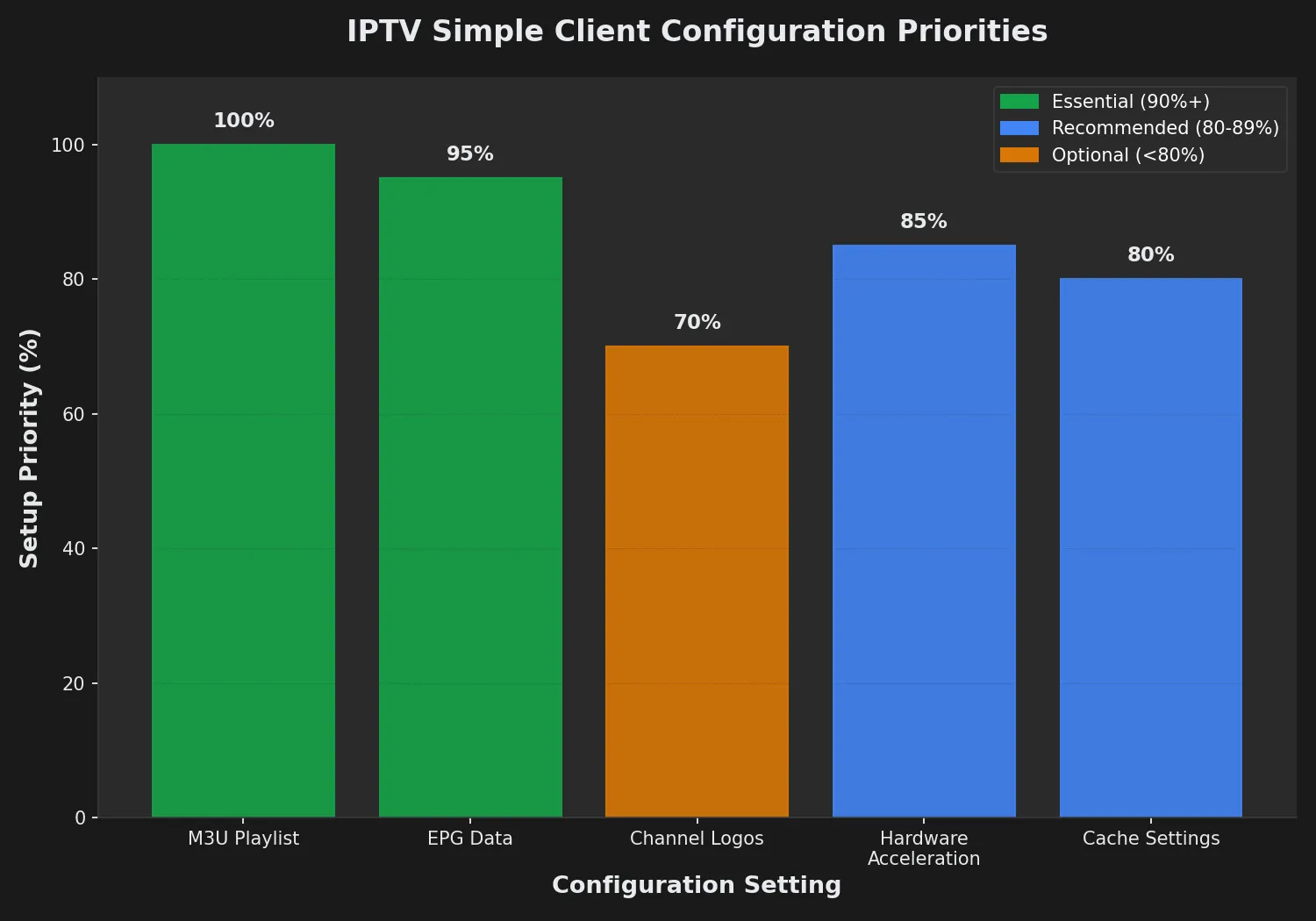
Most users don’t need to change Advanced Settings. These are optional optimizations.
Useful advanced settings:
- M3U refresh mode: Set to Repeated refresh
- Why: Kodi re-downloads the M3U playlist periodically to catch channel lineup updates from Echo Best IPTV servers
- M3U refresh interval: Set to 60 minutes or 120 minutes
- Why: Balance between staying current (shorter interval) and reducing bandwidth usage (longer interval)
- Number of EPG update check hours: Set to 24 hours (default)
- Why: EPG data doesn’t change hourly—daily updates are sufficient
Click OK to save all settings and exit IPTV Simple Client configuration.
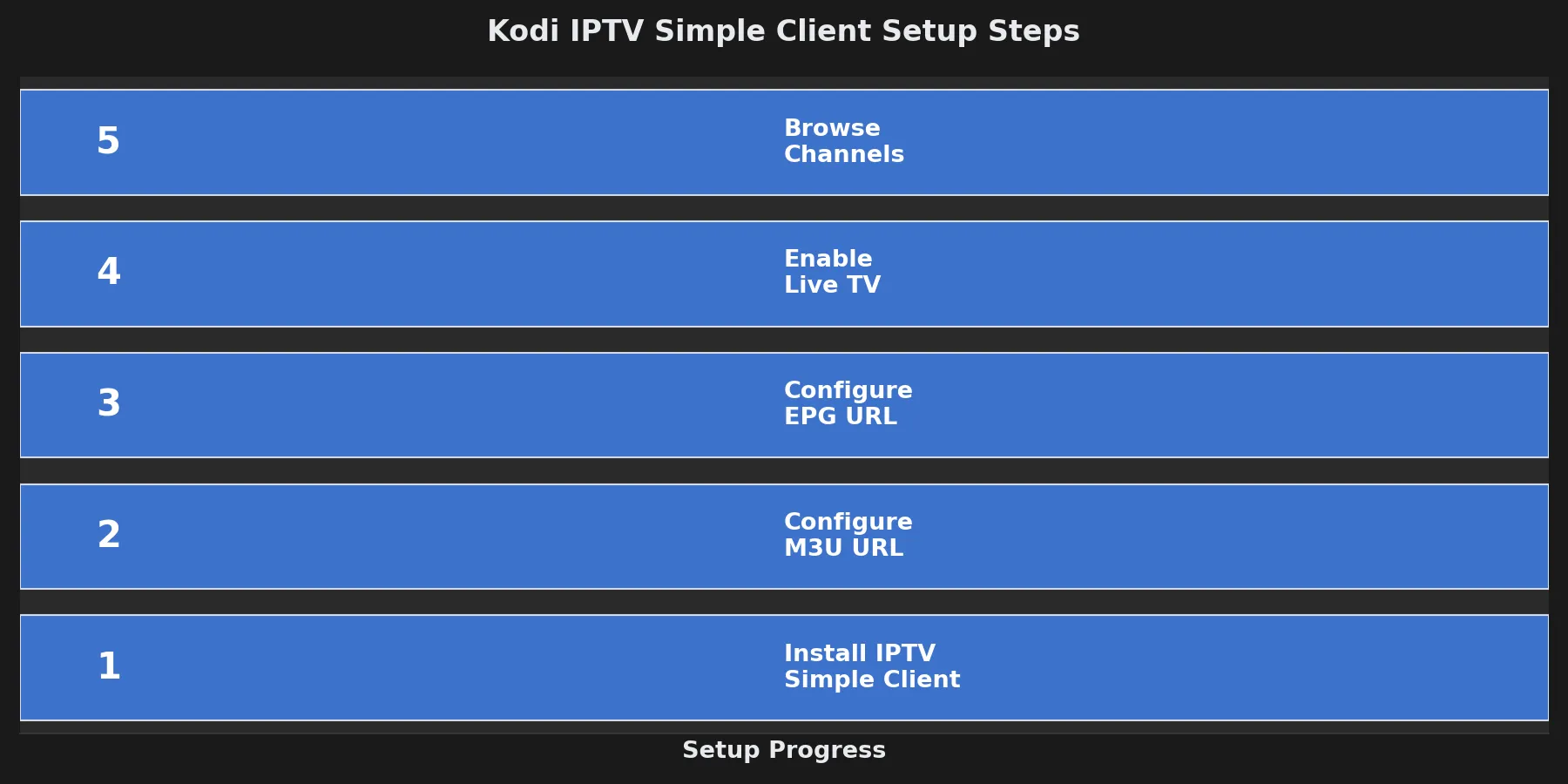
Need Help with Kodi IPTV Setup?
Echo Best IPTV provides 24/7 customer support throughout your subscription. Our support team helps with Kodi configuration, M3U playlist issues, EPG troubleshooting, and device-specific setup questions.
Accessing and Using Live TV in Kodi
Step 1: Enable Live TV in Kodi Interface
After IPTV Simple Client configuration, enable Kodi’s Live TV section.
How to enable:
- Go to Kodi home screen
- Click Settings (gear icon)
- Select Interface → Skin
- Click Configure skin
- Under Main menu items, enable TV toggle
- Click OK
Result: “TV” menu item now appears in Kodi’s main menu (left sidebar).
Step 2: Navigate to Live TV Channels
Access your Echo Best IPTV channels through Kodi’s TV interface.
How to browse channels:
- Click TV from Kodi home screen
- Select Channels to see full channel list (organized by categories from M3U playlist)
- Or select Guide to see EPG grid view with program schedules
Channel organization: Channels appear grouped by categories defined in Echo Best IPTV’s M3U playlist (e.g., Entertainment, News, Documentaries, International, Movies, Series). Navigate categories using left sidebar in Channels view.
Step 3: Play a Channel
To start playback:
- Browse to desired channel in Channels or Guide view
- Click channel name or logo
- Kodi video player starts streaming the channel
Playback controls:
- Pause/Resume: Space bar (keyboard) or Pause button (remote)
- Stop: X button or Back/Exit
- Volume: Up/Down arrows or volume buttons on remote
- Full screen toggle: Backslash key or remote OK button
- Info overlay: Press I key or Info button on remote (shows program title, description, remaining time)
Using the EPG (Electronic Program Guide)
EPG Guide view features:
- Grid layout: Channels listed vertically (left), time blocks horizontally (top)
- Current program highlighted: What’s playing now appears highlighted in each channel row
- Future programs visible: Scroll right to see upcoming program schedules
- Program details: Click any program to see full description, start/end times, episode info
- Quick navigation: Jump to specific time using timeline at top of guide
EPG refresh: IPTV Simple Client automatically updates EPG data based on your configured refresh interval (default: 24 hours). Manual refresh: Go to IPTV Simple Client settings → EPG Settings → Trigger EPG update.
Optimizing IPTV Simple Client Performance
1. Adjust Video Player Cache Settings
Kodi’s default video cache settings can cause buffering on slower connections. Increase buffer size for smoother IPTV playback.
How to increase cache (requires advancedsettings.xml edit):
- Navigate to Kodi userdata folder:
- Windows:
%APPDATA%\Kodi\userdata\ - Mac:
~/Library/Application Support/Kodi/userdata/ - Android:
/sdcard/Android/data/org.xbmc.kodi/files/.kodi/userdata/ - LibreELEC:
/storage/.kodi/userdata/
- Windows:
- Create file named advancedsettings.xml (if not exists)
- Add this XML content:
<advancedsettings> <network> <buffermode>1</buffermode> <cachemembuffersize>157286400</cachemembuffersize> <readbufferfactor>4.0</readbufferfactor> </network> </advancedsettings> - Save file and restart Kodi
What these settings do:
- buffermode 1: Buffer all internet streams (not just video)
- cachemembuffersize 157286400: 150MB cache buffer (adjust based on device RAM—use 104857600 for 100MB on low-RAM devices)
- readbufferfactor 4.0: Fill buffer 4x faster than playback speed (prevents buffer drainage during temporary network slowdowns)
2. Use Hardware Acceleration for 4K Content
Enable hardware decoding to reduce CPU load when playing 4K channels (available on all Echo Best IPTV plans).
How to enable:
- Kodi home screen → Settings → Player → Videos
- Set Adjust display refresh rate to On start/stop (prevents screen flickering when switching channels)
- Enable Allow hardware acceleration (toggle ON)
- Under Decoding method, select your device’s hardware decoder:
- Android / Fire TV: MediaCodec (hardware)
- Windows: DXVA2 or D3D11VA
- Mac: VideoToolbox
- Linux: VAAPI or VDPAU
3. Organize Channels with Favorites and Groups
Create custom channel groups for faster navigation (favorite channels, specific genres, language groups).
How to create channel groups:
- Go to TV → Channels
- Right-click (or long-press on Android) a channel
- Select Add to favorites or Edit
- Choose existing group or create new group
- Repeat for other channels you want in that group
Viewing custom groups: In TV → Channels, change filter dropdown from “All channels” to your custom group name.
Troubleshooting Common IPTV Simple Client Issues
Issue 1: Channels Not Loading / Empty Channel List
Symptoms: Live TV section shows zero channels, or IPTV Simple Client says “0 channels loaded.”
Causes and fixes:
- Incorrect M3U URL: Verify you copied the complete URL from Echo Best IPTV email/dashboard. Even one missing character breaks the playlist.
- Fix: Re-paste M3U URL in IPTV Simple Client settings → General tab → M3U Play List URL
- Playlist not cached yet: First-time load takes 10-30 seconds.
- Fix: Wait 60 seconds, then restart Kodi. Check TV → Channels again.
- IPTV Simple Client disabled: Addon might have auto-disabled after error.
- Fix: Go to Add-ons → My add-ons → PVR clients → PVR IPTV Simple Client → Enable
- Firewall/antivirus blocking: Security software may block M3U download.
- Fix: Temporarily disable firewall/antivirus, reload playlist, then re-enable security software
Issue 2: EPG Not Showing / No Program Guide Data
Symptoms: Channels load fine but Guide view shows “No information available” or blank program listings.
Causes and fixes:
- Incorrect EPG URL: Verify EPG URL is correct.
- Fix: Re-paste EPG URL in IPTV Simple Client settings → EPG Settings tab → XMLTV URL
- EPG not downloaded yet: EPG files are large (5-20 MB)—first download takes 1-3 minutes.
- Fix: Wait 5 minutes, restart Kodi, check Guide again
- EPG time zone mismatch: EPG shows programs but at wrong times.
- Fix: Adjust EPG Settings → EPG time shift (try +1.00 or -1.00 hour offsets until times match)
- Manual EPG trigger: Force immediate EPG update.
- Fix: IPTV Simple Client settings → EPG Settings → Trigger EPG update button
Issue 3: Channels Buffer or Won’t Play
Symptoms: Channel starts loading, then stops with “Playback failed” or constant buffering.
Causes and fixes:
- Slow internet connection: IPTV requires consistent bandwidth.
- Fix: Test internet speed (speedtest.net). If below 10 Mbps, close other streaming devices/downloads. Use wired ethernet instead of WiFi.
- Low video cache: Kodi’s default buffer too small.
- Fix: Increase cache via advancedsettings.xml (see “Optimizing Performance” section above)
- Server overload at peak hours: Temporary congestion on specific channels.
- Fix: Contact Echo Best IPTV 24/7 support—with 25+ servers, they can switch you to less-congested server
- Hardware decoder issues: Some devices have buggy hardware acceleration.
- Fix: Kodi Settings → Player → Videos → Turn OFF hardware acceleration temporarily (uses software decoding—higher CPU but more stable)
Issue 4: Channel Logos Missing
Symptoms: Channels work, EPG loads, but channel logos don’t appear in Guide or Channels view.
Causes and fixes:
- Logo caching delay: Kodi downloads logos in background—can take 10-20 minutes for hundreds of channels.
- Fix: Wait 30 minutes after first playlist load. Logos appear gradually.
- Logo URLs missing from playlist: Some M3U playlists don’t include logo tags.
- Fix: Enable “Channel logos from XMLTV” in IPTV Simple Client → Channel Logos tab (EPG often includes logo URLs as fallback)
- Clear Kodi cache: Corrupted logo cache prevents display.
- Fix: Settings → System → Add-ons → Manage dependencies → PVR IPTV Simple Client → Clear cache
Why Choose Echo Best IPTV for Kodi?
1. Kodi-Optimized M3U Playlists
Echo Best IPTV delivers M3U playlists specifically formatted for IPTV Simple Client compatibility—channel categories, logo URLs, and group tags pre-configured for seamless Kodi integration. No manual playlist editing required.
2. Comprehensive EPG Coverage
Full EPG (Electronic Program Guide) data provided for all channels across all plans (Economy through Ultimate). EPG shows current programs, upcoming schedules, episode descriptions, and air times—integrated directly into Kodi’s Guide view.
3. 24/7 Technical Support for Kodi Setup
Echo Best IPTV’s support team (available 24/7 throughout your subscription) assists with Kodi-specific setup questions: M3U URL configuration, EPG troubleshooting, buffer optimization, and device compatibility. After 8 years serving 50,000+ customers, we’ve resolved every Kodi configuration scenario.
4. Multi-Device Flexibility
Your Echo Best IPTV subscription works across multiple devices—configure it on Kodi (living room), IPTV Smarters (mobile), and VLC (laptop) simultaneously. While only ONE stream plays at a time per subscription, you can install and configure unlimited devices.
Supported Kodi platforms with Echo Best IPTV:
- Windows PCs and laptops
- Mac computers
- Android TV boxes (Nvidia Shield, Mi Box, etc.)
- Amazon Fire TV and Fire Stick (all generations)
- Raspberry Pi running LibreELEC or Kodi
- Linux distributions
5. Reliable Infrastructure (25+ Servers)
With 25+ IPTV servers maintained by Echo Best IPTV, you get consistent uptime and server redundancy. If one server experiences issues, support can migrate your account to an alternative server—minimal downtime, no service interruption.
6. Affordable Annual Pricing (€29.90-€69.90/Year)
Echo Best IPTV offers annual plans starting at €29.90/year (Economy plan: 10,000+ channels, 50,000+ movies, 20,000+ series). Higher tiers add more content, catch-up TV, and expanded international coverage—all plans include 4K content and full Kodi IPTV Simple Client compatibility.
Stream IPTV on Kodi with Echo Best
Complete Kodi IPTV integration—M3U playlists, EPG data, and 24/7 setup support
- ✓ Kodi-optimized M3U playlists ready for IPTV Simple Client
- ✓ Full EPG data included on all plans
- ✓ 10,000-20,000+ channels depending on plan
- ✓ 4K content available across all plans
- ✓ 24/7 technical support for Kodi setup assistance
- ✓ 24-hour trial available to test before subscribing
Annual plans from €29.90/year | Works with Kodi 19+, Fire TV, Android TV, and more
Frequently Asked Questions
Is IPTV Simple Client free to use?
Yes, IPTV Simple Client is a completely free, open-source addon maintained by Kodi developers. It’s included in Kodi’s official repository and requires no purchase or subscription to install and use. However, you need an active IPTV service subscription (like Echo Best IPTV) that provides M3U playlists to load channels into IPTV Simple Client—the addon itself is just the player/organizer, not the content source.
Can I use Echo Best IPTV with Kodi on Fire Stick?
Yes, Echo Best IPTV works perfectly with Kodi installed on Amazon Fire TV and Fire Stick devices (all generations). Install Kodi via the Downloader app or sideload the APK from kodi.tv, then follow the same IPTV Simple Client setup steps: install the addon from Kodi repository, paste your Echo Best M3U and EPG URLs into configuration, and start streaming. Fire Stick’s hardware decoding handles HD and 4K channels smoothly (ensure stable internet connection—minimum 10 Mbps for HD, 25 Mbps for 4K).
How do I get my M3U and EPG URLs from Echo Best IPTV?
After subscribing to Echo Best IPTV, you receive your unique M3U playlist URL and EPG URL via two methods: (1) check the welcome email sent to your registered email address after account activation—it contains both URLs with your credentials embedded, or (2) log into your Echo Best IPTV customer dashboard/account panel where M3U and EPG URLs are displayed in the account settings or activation details section. Both URLs remain constant throughout your subscription—no need to update them unless you change passwords.
Why is my EPG showing programs at wrong times in Kodi?
EPG time mismatches occur when the EPG data’s timezone doesn’t match your Kodi system timezone. Fix this by adjusting IPTV Simple Client’s EPG time shift setting: go to IPTV Simple Client settings → EPG Settings tab → EPG time shift, then change from 0.00 to +1.00 or -1.00 (or whatever offset corrects the times). For example, if programs show 2 hours early, set EPG time shift to +2.00. If they show 1 hour late, set -1.00. After changing the value, restart Kodi and check the Guide again—times should now match your local timezone.
How often does IPTV Simple Client refresh the M3U playlist?
By default, IPTV Simple Client refreshes the M3U playlist every 24 hours if you set “M3U refresh mode” to “Repeated refresh” in Advanced Settings. You can customize this interval from 30 minutes to 24 hours depending on how frequently your IPTV provider updates channel lineups. For Echo Best IPTV, 60-120 minute refresh intervals work well—our M3U playlists update server-side whenever channel lists change, so periodic refresh ensures your Kodi channel list stays current without manual playlist re-downloads.
Can I use multiple IPTV services in Kodi simultaneously?
No, IPTV Simple Client only supports one M3U playlist at a time—you can’t load playlists from multiple providers simultaneously. However, you can manually switch between services by changing the M3U URL in IPTV Simple Client settings. If you need channels from multiple sources, either: (1) merge the M3U playlists into one combined file before loading (requires manual editing), or (2) use different Kodi profiles for each service (Settings → Profiles → Add profile), switching profiles to change IPTV providers. Most users find a single comprehensive service like Echo Best IPTV (10,000-20,000+ channels across all plans) eliminates the need for multiple providers.
Will IPTV Simple Client work with Kodi 21 (Omega)?
Yes, IPTV Simple Client fully supports Kodi 21 (Omega) released in 2024. The addon is maintained by Kodi’s core development team and receives updates alongside major Kodi releases. Kodi 19 (Matrix), Kodi 20 (Nexus), and Kodi 21 (Omega) all include IPTV Simple Client in the official repository with the same configuration workflow. If you’re running Kodi 18 or older, upgrade to Kodi 19+ for current IPTV Simple Client support—older versions use deprecated PVR methods no longer compatible with modern M3U playlists.
How do I fix buffering issues with IPTV Simple Client?
IPTV buffering in Kodi typically stems from insufficient video cache or slow internet. Fix buffering by: (1) increasing Kodi’s video cache—create an advancedsettings.xml file in Kodi’s userdata folder with larger cachemembuffersize (150MB = 157286400 bytes) and higher readbufferfactor (4.0), then restart Kodi; (2) use wired ethernet instead of WiFi for more stable bandwidth; (3) close other streaming devices/downloads consuming bandwidth; (4) test internet speed (speedtest.net)—HD channels need 10+ Mbps, 4K needs 25+ Mbps; (5) contact Echo Best IPTV 24/7 support if buffering persists—with 25+ servers, they can switch you to a less-congested server for your region.

