
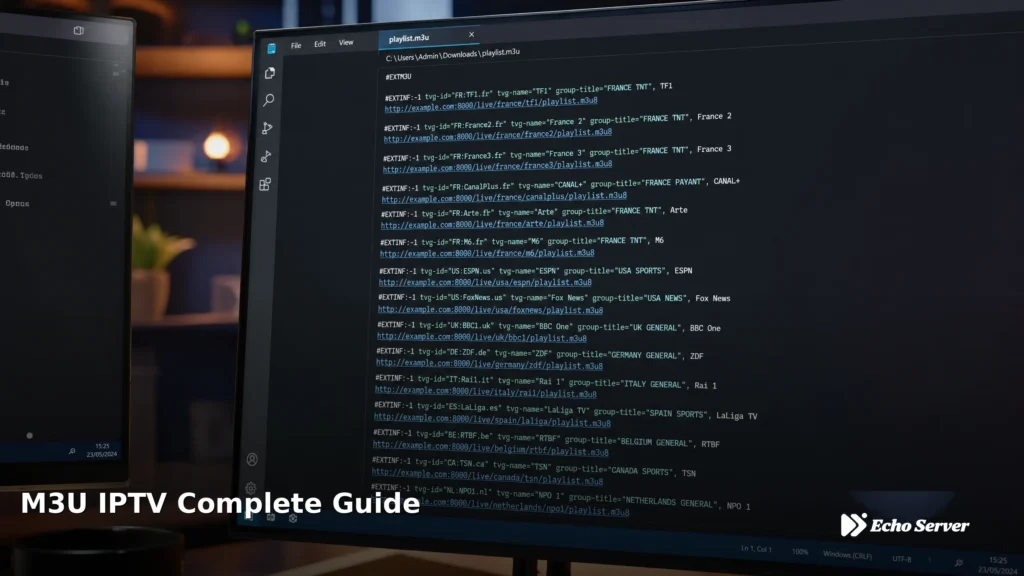
M3U is the universal playlist format that powers IPTV streaming across every device and player. Understanding M3U—what it is, how to use it, and where to find reliable sources—is essential for anyone looking to set up IPTV service on their Smart TV, Fire Stick, Android device, or computer.
This guide explains M3U playlists from the ground up: the file format itself, how IPTV providers use it, how to load M3U URLs into your favorite players, and how to identify trustworthy M3U sources versus unreliable free lists.
Article Update History
October 21, 2026
– Initial publication
– Verified Echo Best IPTV pricing (Economy €29.90, VIP €39.90, Ultra €49.90, Ultimate €69.90)
– Confirmed 25+ servers, 50,000+ customers, 8 years in business
– Reviewed M3U format specifications and current IPTV player compatibility
What is M3U?
Quick Answer: M3U is a plain-text file format that contains a list of media file locations or streaming URLs. In IPTV, an M3U playlist is a file (or URL pointing to a file) that lists all your available channels with their stream addresses, channel names, logos, and metadata. IPTV players read M3U files to display your channel lineup.
The M3U format was originally created for MP3 audio playlists (hence “M3U” = MPEG 3 URL), but IPTV has adopted it as the standard way to distribute channel lists because:
- Universal Compatibility: Every IPTV player supports M3U (VLC, Kodi, IPTV Smarters, TiViMate, Perfect Player, etc.)
- Simple Text Format: M3U files are human-readable text—you can open them in Notepad and see exactly what channels are included
- Extended Metadata Support: M3U Extended format (#EXTM3U) includes channel names, logos, EPG IDs, and categories
- Easy Distribution: IPTV providers can host M3U files at a URL, and customers simply paste that URL into their player
When you subscribe to Echo Best IPTV, you receive an M3U URL that instantly loads 10,000-20,000+ channels (depending on your plan) into any compatible player without manual channel entry.
M3U vs M3U8: What’s the Difference?
You’ll often see both “M3U” and “M3U8” mentioned in IPTV contexts. Here’s what distinguishes them:
M3U (Original Format)
- Encoding: Uses the system’s default character encoding (often Latin-1 or Windows-1252)
- Character Support: Limited support for international characters (Arabic, Cyrillic, Asian scripts may display incorrectly)
- Best For: English-language channel lists, legacy compatibility
M3U8 (UTF-8 Format)
- Encoding: Uses UTF-8 character encoding
- Character Support: Full support for all international characters and symbols
- HLS Compatibility: Often used for HLS (HTTP Live Streaming) playlists
- Best For: International IPTV services with multilingual channel names
Which Should You Use? Most modern IPTV services (including Echo Best IPTV) provide both M3U and M3U8 URLs. If your service includes international channels with non-English names, use M3U8 to ensure channel names display correctly. If you’re only watching English channels, either format works fine.
How M3U Playlists Work in IPTV
When you load an M3U playlist into an IPTV player, here’s what happens behind the scenes:
Step 1: Player Requests the M3U File
Your IPTV player connects to the M3U URL (e.g., http://provider.com/playlist.m3u) and downloads the playlist file. This file is typically 1-5 MB for playlists with 10,000+ channels.
Step 2: Player Parses Channel Information
The player reads each line of the M3U file to extract:
- Stream URL: The actual web address where the channel’s video stream is hosted
- Channel Name: How the channel appears in your player’s guide
- Logo URL: The channel’s icon/logo image
- EPG ID: Links the channel to Electronic Program Guide data
- Group/Category: Organizes channels (News, Entertainment, etc.)
Step 3: Player Displays Your Channel List
All extracted channels appear in your player’s interface, organized by category if the M3U included group tags. You can now browse and select channels.
Step 4: Streaming Begins
When you select a channel, the player connects to that channel’s stream URL and begins buffering/playing the video. The M3U file itself doesn’t contain video—it only contains addresses pointing to video streams.
M3U File Structure Explained
A basic M3U Extended playlist looks like this:
#EXTM3U
#EXTINF:-1 tvg-id="BBCOne.uk" tvg-name="BBC One" tvg-logo="http://example.com/bbc-logo.png" group-title="UK Channels",BBC One
http://stream.provider.com/bbc-one/playlist.m3u8
#EXTINF:-1 tvg-id="CNN.us" tvg-name="CNN" tvg-logo="http://example.com/cnn-logo.png" group-title="News",CNN
http://stream.provider.com/cnn/playlist.m3u8
Breaking down each element:
- #EXTM3U: Header that identifies this as an Extended M3U file (always the first line)
- #EXTINF:-1: Marks the start of a new channel entry (-1 means no duration/live stream)
- tvg-id: Electronic Program Guide identifier for this channel
- tvg-name: Channel’s display name
- tvg-logo: URL to the channel’s logo image
- group-title: Category/group for organizing channels
- Stream URL: The actual HTTP/HLS stream address (always on the line after #EXTINF)
This structure repeats for every channel in the playlist. A 10,000-channel M3U file contains 20,000+ lines (2 lines per channel).
How to Use M3U Playlists
Method 1: M3U URL (Recommended)
Most IPTV providers (including Echo Best IPTV) give you an M3U URL rather than a downloadable file. This approach has major advantages:
- Automatic Updates: When your provider adds channels or fixes streams, changes appear instantly—no manual re-import
- No Storage Needed: The playlist stays on the provider’s server, not your device
- Works Everywhere: Same URL works on all your devices (TV, tablet, phone, computer)
- Provider Control: Your provider can manage your access (activate/deactivate subscription)
How to load an M3U URL:
- Copy the M3U URL from your provider’s welcome email or dashboard
- Open your IPTV player (IPTV Smarters, TiViMate, VLC, etc.)
- Find the “Add Playlist” or “M3U URL” setting
- Paste your M3U URL and save
- Wait 30-60 seconds for the playlist to load
Method 2: Downloaded M3U File
Some providers offer downloadable M3U files instead of URLs. This method:
- Works Offline: Playlist stays on your device even if you lose internet (but streams still need internet)
- Requires Manual Updates: You must re-download and re-import whenever the provider updates channels
- Device-Specific: File must be transferred to each device separately
How to use a downloaded M3U file:
- Download the M3U file to your device
- Transfer it to your streaming device if needed (USB, cloud storage, etc.)
- Open your IPTV player
- Select “Open File” or “Local Playlist”
- Browse to the M3U file location and select it
M3U Player Compatibility
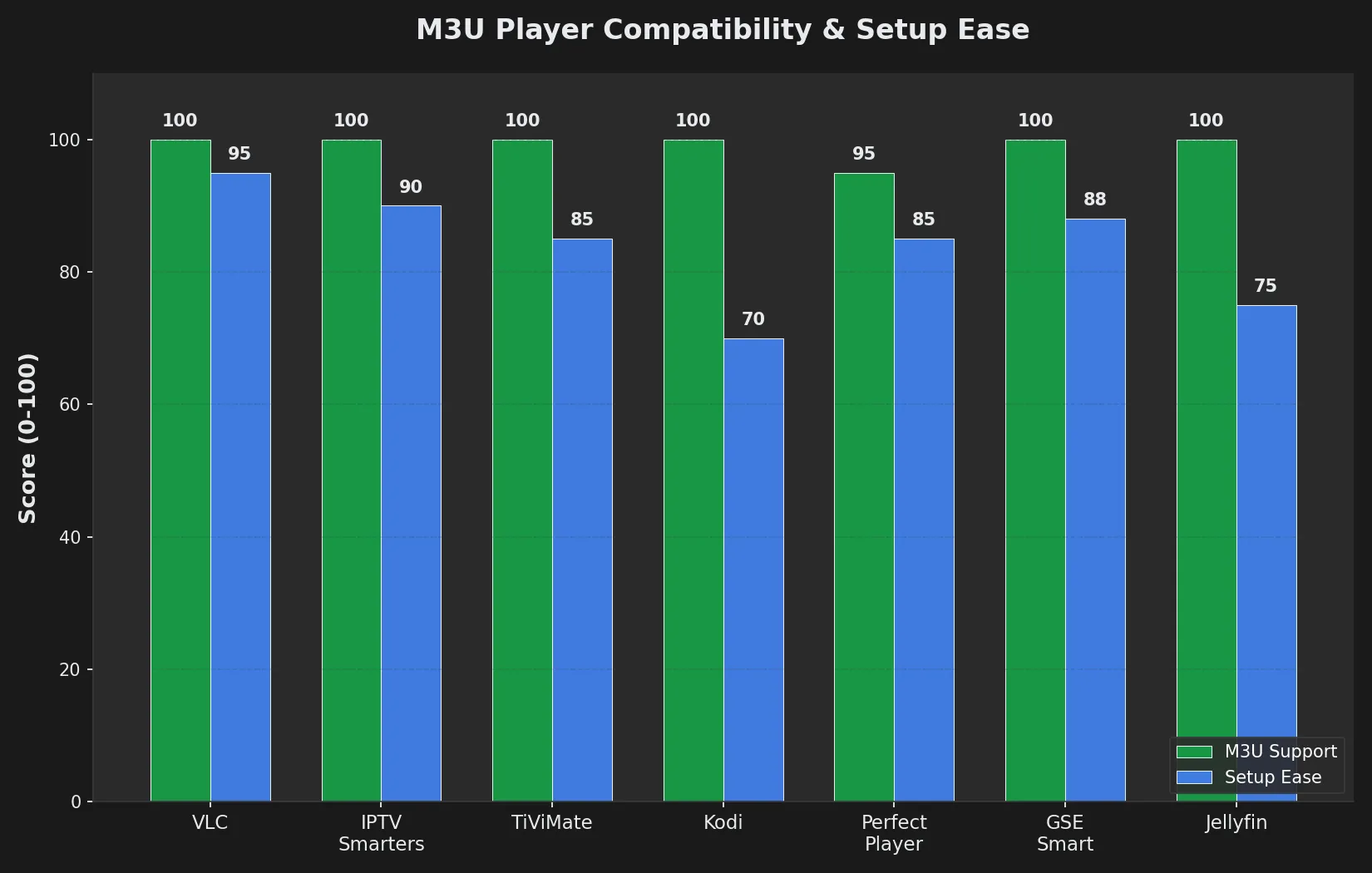
M3U playlists work with virtually every IPTV player:
| Player | Platforms | M3U Support |
|---|---|---|
| VLC Media Player | Windows, Mac, Linux, Android, iOS | URL + File |
| IPTV Smarters Pro | Android, iOS, Fire Stick, Smart TV | URL + File |
| TiViMate | Android, Fire Stick | URL + File |
| Kodi (IPTV Simple Client) | Windows, Mac, Linux, Android, Fire Stick | URL + File |
| Perfect Player | Android, Fire Stick | URL + File |
| GSE Smart IPTV | iOS, Apple TV | URL + File |
| Jellyfin (M3U Tuner) | Server-based (all platforms) | URL only |
Echo Best IPTV provides M3U URLs that work seamlessly with all these players. Setup takes under 5 minutes regardless of which player you choose.
Ready to Experience Premium IPTV?
Echo Best IPTV provides professional M3U playlists with 10,000-20,000+ verified channels, full EPG metadata, and automatic updates. With 25+ servers and 50,000+ customers served over 8 years, we deliver reliable M3U streaming with 24/7 support.
Best M3U Sources for IPTV
1. Professional IPTV Services (Recommended)
Paid IPTV providers like Echo Best IPTV offer the most reliable M3U experience:
- Curated Channel Lists: All channels tested and verified working
- Full EPG Integration: Complete program guide metadata for all channels
- Automatic Updates: Broken streams fixed immediately without customer action
- Redundant Servers: Echo operates 25+ servers to prevent downtime
- Customer Support: 24/7 technical support for setup and troubleshooting
- VOD Libraries: Bonus on-demand movies/series alongside live channels
- Legal Clarity: Licensed content with proper broadcasting rights
Echo Best IPTV plans start at €29.90/year (less than €2.50/month) and include:
- 10,000-20,000+ live channels depending on plan
- 50,000+ movies and up to 70,000+ series
- 4K streaming on all plans
- Clean M3U Extended format with logos, EPG, and categories
- 24-hour free trial to test before purchasing
2. Free M3U Lists (Use with Caution)
Free M3U playlists are available from various sources, but come with significant drawbacks:
GitHub Repositories:
- Community-maintained M3U files with 80,000+ channels
- 40-60% of channels typically don’t work
- No customer support or reliability guarantee
- Legal status ambiguous (mixes authorized and unauthorized streams)
- No EPG for most channels
IPTV Forum Sites:
- User-shared M3U files of varying quality
- High risk of malware-infected downloads
- Streams often go offline quickly
- No support or updates
Free vs Paid M3U Comparison:
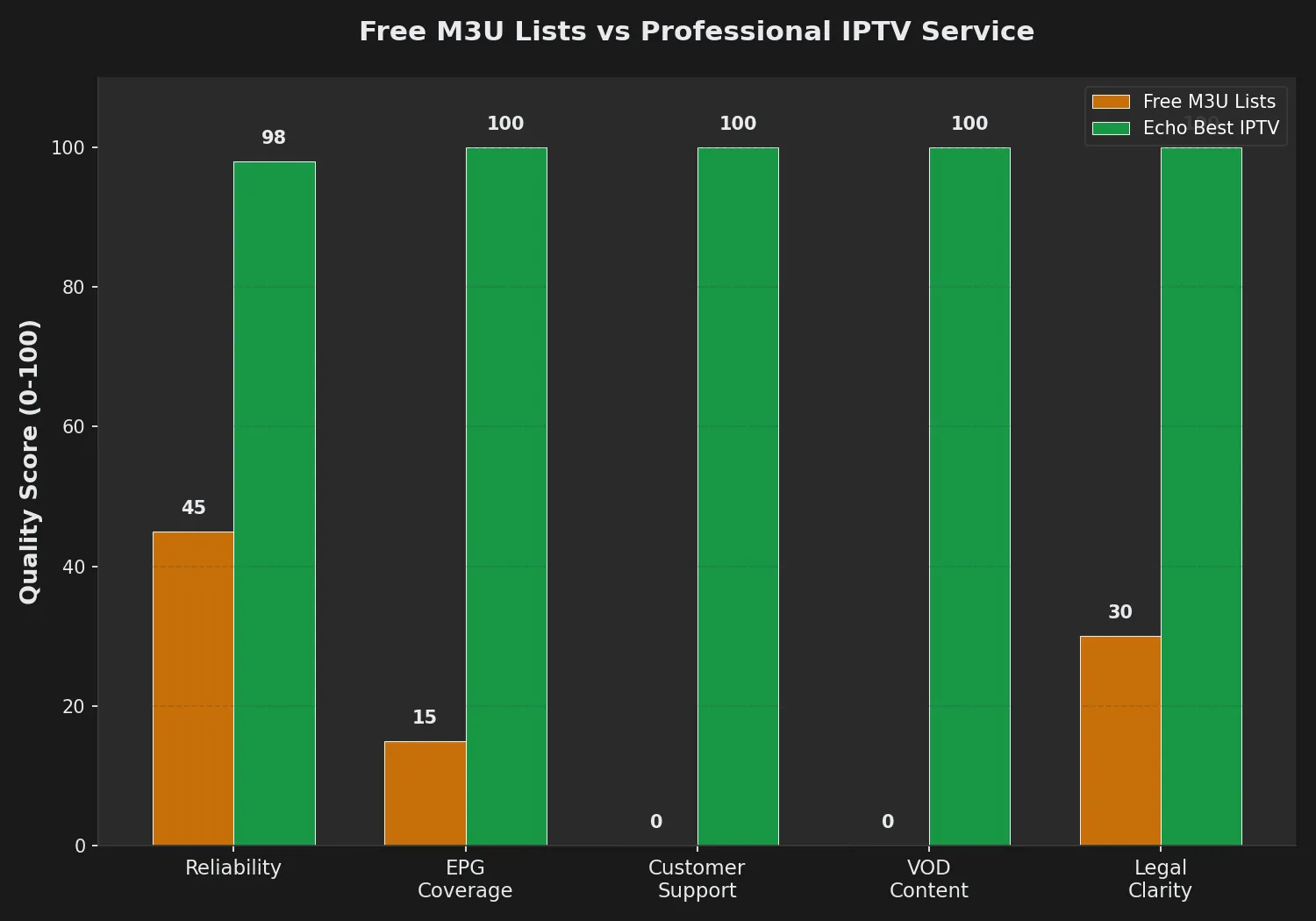
| Factor | Free M3U Lists | Echo Best IPTV |
|---|---|---|
| Cost | Free | €29.90-69.90/year |
| Working Channels | 40-60% work | 99%+ uptime |
| EPG Coverage | 10-20% have EPG | 100% EPG included |
| Customer Support | None | 24/7 support |
| VOD Content | None (live only) | 50,000+ movies, 70,000+ series |
| Updates | Manual, inconsistent | Automatic, instant |
| Legal Status | Ambiguous/risky | Licensed, legal |
3. Official Broadcaster M3U Streams
Some broadcasters provide official M3U streams for their free-to-air channels:
- BBC iPlayer (UK): Official UK channels via BBC’s own apps
- Pluto TV: Free ad-supported channels with official M3U streams
- Local News Stations: Many provide M3U streams for local viewing
These are legal and reliable but offer limited channel selection compared to full IPTV services.
Common M3U Problems & Solutions
Problem: M3U URL Won’t Load
Symptoms: Player shows “Error loading playlist” or “Invalid URL”
Solutions:
- Check URL accuracy: M3U URLs are case-sensitive and must be copied exactly (no extra spaces)
- Verify internet connection: Player needs internet to download the M3U file from the provider’s server
- Try incognito/private browser: Copy the URL in a private browser window to rule out caching issues
- Contact provider: URL may have expired or changed—request a new one
Problem: Channels Load But Won’t Play
Symptoms: Channel list appears but selecting channels results in black screen or buffering forever
Solutions:
- Test internet speed: Need 10+ Mbps for HD, 25+ Mbps for 4K
- Try different channels: If only some channels fail, the specific stream may be down (not your connection)
- Check provider status: Server maintenance may affect all channels temporarily
- Switch to alternate server: Professional providers like Echo Best IPTV offer 25+ servers—request an alternate M3U URL if one server is slow
Problem: Channel Names Show as Question Marks or Gibberish
Symptoms: International channel names display as ??? or strange characters
Solutions:
- Use M3U8 instead of M3U: M3U8 uses UTF-8 encoding for proper international character support
- Update your player: Older IPTV player versions may not handle UTF-8 correctly
- Request alternate format: Ask your provider if they offer a Latin-1 encoded M3U for your region
Problem: No EPG / Program Guide Data
Symptoms: Channels work but show no program information
Solutions:
- Check if EPG URL is separate: Some providers require you to add an EPG XML URL separately from the M3U
- Wait for EPG download: EPG data can take 5-10 minutes to download initially
- Verify EPG is included in subscription: Free M3U lists rarely include EPG; paid services like Echo Best IPTV include full EPG automatically
Problem: Playlist Updates Break Everything
Symptoms: Playlist worked fine, then suddenly all channels fail after provider updated it
Solutions:
- Clear player cache: Old cached playlist data may conflict with new structure
- Re-add the M3U URL: Remove and re-add the playlist to force a fresh download
- Check provider announcements: Provider may have changed M3U URL format—you might need a new URL
M3U Best Practices
1. Always Use M3U URLs Over Downloaded Files
When your provider offers both, choose the M3U URL. This ensures:
- Automatic channel updates without manual re-import
- Instant access to new channels your provider adds
- Broken streams fixed server-side without your involvement
2. Keep Your M3U URL Private
Your M3U URL is tied to your account. Sharing it means:
- Others can stream using your subscription
- Excessive use may trigger account suspension
- Providers can track usage to your account
Treat your M3U URL like a password—don’t share it publicly.
3. Use M3U8 for International Content
If your IPTV service includes channels in Arabic, Cyrillic, Asian languages, or other non-Latin scripts, always request the M3U8 version to ensure channel names display correctly.
4. Test in VLC First
Before setting up a complex player like Kodi or Jellyfin, test your M3U URL in VLC (Media → Open Network Stream → paste URL). VLC will quickly reveal if the URL works or needs troubleshooting.
5. Choose Professional Sources
Free M3U lists from forums and GitHub may seem appealing, but the time spent troubleshooting broken channels, missing EPG, and legal ambiguity far outweighs the €29.90-69.90/year cost of a reliable service.
After 8 years serving 50,000+ customers, Echo Best IPTV demonstrates why professional M3U sources matter: consistent uptime, full EPG, VOD libraries, and 24/7 support when you need it.
Experience Premium IPTV with Echo Best
Join 50,000+ satisfied customers streaming with Echo Best IPTV
- ✓ Up to 20,000+ live channels depending on plan
- ✓ 50,000+ movies & 70,000+ series in our library
- ✓ 4K content available across all plans
- ✓ 24/7 customer support throughout your subscription
- ✓ 24-hour trial to test before you buy
Get Started with Echo Best IPTV →
Annual plans from €29.90/year | 24-hour trial available
Frequently Asked Questions
What is an M3U file in IPTV?
An M3U file is a text-based playlist that contains a list of streaming URLs for IPTV channels. When you load an M3U file into an IPTV player, the player reads the file to discover which channels are available, what they’re called, where their streams are located, and what category they belong to.
M3U files don’t contain video themselves—they’re like a table of contents that points to where the actual video streams are hosted. The Extended M3U format (#EXTM3U) adds metadata like channel logos, EPG IDs, and group tags to enhance the viewing experience.
Professional IPTV services like Echo Best IPTV provide M3U URLs (not downloadable files) so your playlist updates automatically whenever channels are added or changed.
How do I get an M3U URL for IPTV?
To get an M3U URL for IPTV:
- Subscribe to an IPTV service: Professional providers like Echo Best IPTV (€29.90-69.90/year) provide M3U URLs upon subscription
- Check your welcome email: After subscribing, you’ll receive an email with your unique M3U URL
- Access your customer dashboard: Most providers also display your M3U URL in an online account portal
- Copy the full URL: The URL typically looks like http://provider.com/get.php?username=abc&password=xyz&type=m3u
Never share your M3U URL publicly—it’s tied to your personal subscription account.
Free M3U lists exist on GitHub and IPTV forums, but they suffer from 40-60% non-working channels, no EPG, no support, and legal ambiguity. For reliable daily viewing, a paid service’s M3U URL is recommended.
Can I use the same M3U URL on multiple devices?
Yes, but with an important limitation: most IPTV subscriptions allow only one simultaneous stream even though you can configure the M3U URL on unlimited devices.
This means:
- ✓ You can add your M3U URL to your Smart TV, Fire Stick, phone, tablet, and computer
- ✓ You can watch on any of these devices at different times
- ✗ You cannot stream on two devices at the exact same time (one stream per subscription)
If someone tries to stream while you’re already watching, one stream will be disconnected.
Echo Best IPTV includes 1 simultaneous connection on all plans (Economy €29.90/year through Ultimate €69.90/year). Configure it on all your devices, but stream on one at a time.
Why do some channels in my M3U playlist not work?
Several reasons can cause channels in an M3U playlist to fail:
- Outdated stream URLs: Channels change their stream addresses, but the M3U file wasn’t updated
- Geographic restrictions: Some streams block viewers outside specific countries
- Temporary outages: Broadcaster maintenance or technical issues affect specific channels
- Free playlist quality: Free M3U lists aggregate URLs without testing them—40-60% failure rates are normal
- Insufficient internet speed: HD/4K channels need 10-25+ Mbps; slower connections cause playback failures
Professional IPTV services solve this by maintaining 25+ redundant servers (like Echo Best IPTV), monitoring channel health 24/7, and updating stream URLs automatically when broadcasters make changes. Customers never see broken channels because they’re fixed server-side before impacting viewing.
What’s better: M3U URL or downloaded M3U file?
M3U URLs are better for IPTV because:
- Automatic updates: When your provider fixes broken streams or adds channels, changes appear instantly without manual re-import
- Works on all devices: Same URL works on TV, phone, tablet, computer—no file transfers needed
- No storage required: Playlist stays on provider’s server, not filling your device storage
- Provider manages quality: Your provider can update channels without requiring action from you
Downloaded M3U files make sense only for:
- Offline playlist editing (removing channels you don’t want)
- Backup purposes (though URLs rarely change)
- Providers who don’t offer hosted URLs (uncommon)
Echo Best IPTV provides M3U URLs for all plans specifically to enable automatic channel updates and seamless multi-device setup.
How do I add an M3U playlist to IPTV Smarters Pro?
To add an M3U playlist to IPTV Smarters Pro:
- Open IPTV Smarters Pro on your device
- Click “Add User” (or “+” icon) on the main screen
- Select “M3U URL” tab at the top (not Xtream Codes API)
- Enter a playlist name (e.g., “Echo IPTV” or “My Channels”)
- Paste your M3U URL in the “M3U Playlist URL” field
- Optional: Add EPG URL if your provider gave you a separate EPG address
- Click “Add User” to save
- Wait 30-60 seconds for Smarters to download the playlist
- Select your playlist from the main menu to start browsing channels
IPTV Smarters Pro works with any M3U URL, including Echo Best IPTV’s URLs. Setup is identical on Android, iOS, Fire Stick, and Smart TV versions.
Is it legal to use M3U playlists?
Using M3U playlists is legal—M3U is just a file format. However, the legality of IPTV depends on the content source, not the playlist format:
Legal M3U sources:
- Licensed IPTV services like Echo Best IPTV (authorized broadcasting rights)
- Official broadcaster streams (BBC iPlayer, Pluto TV, etc.)
- Free-to-air channels provided by broadcasters themselves
Illegal M3U sources:
- Pirated streams of premium channels without broadcaster permission
- Re-broadcasts of copyrighted content without authorization
- Free M3U lists aggregating unauthorized streams
The M3U format itself is neutral—it’s like a web browser. Browsers are legal tools, but what you access with them determines legality. Choose IPTV providers that operate legally with proper content licensing to avoid legal risk.
Echo Best IPTV operates as a licensed service with authorized content, removing legal ambiguity from your IPTV viewing.
Can I edit M3U playlists to remove channels I don’t want?
Yes, you can edit M3U files because they’re plain text:
- Download the M3U file (or save the M3U URL content from your browser)
- Open in a text editor (Notepad, TextEdit, VS Code, etc.)
- Find the channel you want to remove (search for the channel name)
- Delete both lines: the #EXTINF line AND the stream URL line below it
- Save the file with .m3u extension
- Load the edited file into your IPTV player
Important notes:
- Use UTF-8 encoding when saving to preserve international characters
- Don’t delete the first line (#EXTM3U header)
- Always delete in pairs (metadata line + URL line)
- Editing breaks automatic updates—manually re-edit when provider updates
Most users find it easier to use their IPTV player’s built-in favorites/hide features rather than editing M3U files directly. Players like TiViMate and IPTV Smarters Pro let you hide unwanted channels without file editing.

