
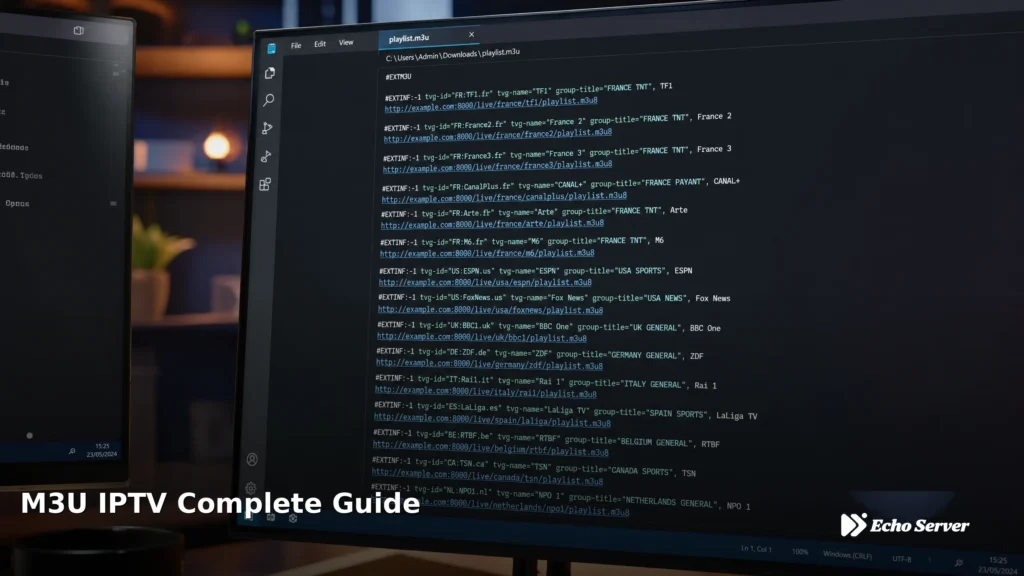
Mac computers can stream IPTV using native apps that work on both Intel and Apple Silicon (M1/M2/M3) Macs. This guide explains which IPTV apps work on macOS, the complete setup process, Apple Silicon compatibility considerations, and troubleshooting tips for common Mac IPTV issues.
Article Update History
October 2024: Initial publication covering macOS IPTV apps, M3U playlist setup, Apple Silicon (M1/M2/M3) compatibility, AirPlay to Apple TV, and troubleshooting guide for Mac IPTV.
Can You Watch IPTV on Mac?
Yes. macOS supports several IPTV apps that work on both Intel and Apple Silicon Macs (M1, M2, M3, M4).
What you need:
- ✅ Mac running macOS 11 (Big Sur) or later
- ✅ IPTV subscription (like Echo Best IPTV)
- ✅ IPTV app (VLC, IPTV, or IINA)
- ✅ 25+ Mbps internet for HD streams
Best IPTV Apps for Mac
| App | Apple Silicon? | Key Features |
|---|---|---|
| VLC Media Player | ✅ Native (Universal) | Free, M3U support, reliable, no EPG |
| IINA | ✅ Native (Universal) | Free, modern Mac design, M3U playlists |
| IPTV (Mac App Store) | ✅ Native | Free, EPG support, simple interface |
| GSE Smart IPTV | ✅ Native | Free, EPG, recording, parental controls |
| Kodi | ✅ Native (Universal) | Free, full media center, complex setup |
Recommendation: IINA (best Mac-native experience) or VLC (most reliable).
Complete Mac IPTV Setup (VLC)
Step 1: Download VLC for Mac
- Go to https://www.videolan.org/vlc/
- Click “Download VLC” (automatically detects Mac)
- Open the .dmg file when download completes
- Drag VLC icon to Applications folder
- Open VLC from Applications
Apple Silicon note: VLC is a Universal app — works natively on Intel and M1/M2/M3/M4 Macs.
Step 2: Add Your M3U Playlist
You need an M3U URL from your IPTV provider (Echo Best IPTV sends this in welcome email):
- Open VLC
- Click File → Open Network… (or press ⌘+N)
- Paste your M3U playlist URL
- Click “Open”
- Channel list loads in VLC’s playlist window
To save playlist for easy access:
- After opening M3U URL, go to File → Save Playlist
- Save as “Echo IPTV.m3u” to your Desktop or Documents
- Next time: File → Open File → select saved .m3u file
Step 3: Watch Channels
- Playlist window shows all channels (View → Playlist if hidden)
- Double-click any channel to start watching
- Use VLC playback controls (play, pause, volume)
Alternative: IINA Setup (Better Mac Experience)
IINA is a modern Mac-native IPTV player with better macOS integration than VLC:
Install IINA
- Go to https://iina.io/
- Download latest version
- Open .dmg, drag IINA to Applications
- Open IINA
Add M3U Playlist
- In IINA, click File → Open URL… (or press ⌘+U)
- Paste M3U URL
- Click “Open”
- Playlist appears in sidebar
- Click any channel to watch
IINA advantages over VLC:
- ✅ Native macOS design (feels like a Mac app)
- ✅ Touch Bar support (MacBook Pro)
- ✅ Picture-in-Picture mode
- ✅ Better keyboard shortcuts
- ✅ Dark mode integration
Mac App Store IPTV Apps
IPTV (by Alexander Shevchuk)
Simple, free IPTV player from Mac App Store:
- Open App Store on Mac
- Search “IPTV”
- Download “IPTV” by Alexander Shevchuk (free)
- Open app
- Click “+” to add playlist
- Paste M3U URL
- Channels load automatically
Pros:
- ✅ Sandboxed (Mac App Store security)
- ✅ EPG support (if provider includes it)
- ✅ Simple interface
- ✅ Automatic updates
GSE Smart IPTV
Also available on Mac App Store (same developer as iOS version):
- Download from Mac App Store
- Open GSE Smart IPTV
- Add → M3U URL
- Paste URL, save
- Channels appear in list
Features:
- EPG guide
- Recording to Mac storage
- Parental controls
- Custom playlists
Apple Silicon (M1/M2/M3/M4) Compatibility
All recommended IPTV apps work natively on Apple Silicon Macs:
| App | Intel | Apple Silicon | Performance |
|---|---|---|---|
| VLC | ✅ Native | ✅ Native (Universal) | Excellent on both |
| IINA | ✅ Native | ✅ Native (Universal) | Excellent on both |
| IPTV (App Store) | ✅ Native | ✅ Native | Excellent on both |
| GSE Smart IPTV | ✅ Native | ✅ Native | Excellent on both |
| Kodi | ✅ Native | ✅ Native (Universal) | Good on both |
Bottom line: All major IPTV apps work perfectly on M1/M2/M3/M4 Macs. No Rosetta 2 translation needed.
AirPlay IPTV from Mac to Apple TV
You can stream IPTV from Mac to Apple TV via AirPlay:
Setup
- Ensure Mac and Apple TV are on same Wi-Fi network
- Open IPTV app on Mac (VLC, IINA, etc.)
- Play a channel
- Click AirPlay icon in Mac menu bar (or app’s AirPlay button)
- Select your Apple TV
- Stream plays on TV
Quality considerations:
- ✅ Full quality if Mac and Apple TV on 5 GHz Wi-Fi
- ⚠️ May buffer on 2.4 GHz Wi-Fi
- ✅ Better option: Install IPTV app directly on Apple TV (native performance)
Keyboard Shortcuts for Mac IPTV
VLC Shortcuts
| Action | Shortcut |
|---|---|
| Play/Pause | Spacebar |
| Fullscreen | ⌘+F |
| Volume Up/Down | ⌘+Up / ⌘+Down |
| Next/Previous in Playlist | ⌘+→ / ⌘+← |
| Show Playlist | ⌘+L |
IINA Shortcuts
- Play/Pause: Spacebar
- Fullscreen: F
- Picture-in-Picture: P
- Volume: Up/Down arrows
- Playlist: ⌘+1
Troubleshooting Mac IPTV Issues
Channels Won’t Load
Possible causes:
- Wrong M3U URL: Verify URL from IPTV provider (no extra spaces)
- Firewall blocking: System Settings → Network → Firewall → allow VLC/IINA
- Internet down: Test by opening Safari
- IPTV subscription expired: Check account status
Buffering or Stuttering
Diagnostics:
- Wi-Fi too slow: Use Speedtest.net (need 25+ Mbps for HD)
- VPN interference: Disconnect VPN temporarily to test
- Mac running too many apps: Close unused apps (Activity Monitor)
- Server overload: Try different channel or wait 10 minutes
VLC-specific fix:
- VLC → Preferences → Show All (bottom left)
- Input / Codecs → Network caching → increase to 3000ms
- Restart VLC
No Sound
Fixes:
- Check Mac volume (not muted)
- VLC → Audio → Audio Device → select correct output
- Try different channel (some streams have audio issues)
- Restart app
App Quits Unexpectedly
Solutions:
- Update to latest app version
- Update macOS: System Settings → General → Software Update
- For VLC: Delete preferences (~/Library/Preferences/org.videolan.vlc) and restart
- Reinstall app
Mac vs Windows vs Apple TV for IPTV
| Feature | Mac | Windows | Apple TV |
|---|---|---|---|
| Setup Ease | ✅ Very Easy | ✅ Very Easy | ✅ Very Easy |
| App Selection | ✅ Good (VLC, IINA, Kodi, GSE) | ✅ Excellent (all apps) | ✅ Good (Smarters, GSE, Kodi) |
| Recording | ✅ Yes (GSE, VLC manual) | ✅ Yes (many apps) | ⚠️ Limited (USB storage needed) |
| TV Experience | ⚠️ Needs AirPlay to TV | ⚠️ Needs HDMI cable | ✅ Native TV interface |
| Best For | Desktop/laptop viewing | Desktop viewing, recording | Primary TV viewing |
Why Echo Best IPTV Works Great on Mac
Echo Best IPTV is fully compatible with all Mac IPTV apps:
- ✅ Standard M3U playlists (work in VLC, IINA, Kodi, GSE)
- ✅ Full EPG for all 20,000+ channels
- ✅ Works on Intel and Apple Silicon Macs
- ✅ 100,000+ VOD movies and series accessible on Mac
- ✅ AirPlay to Apple TV supported
- ✅ 24/7 support helps with Mac setup if needed
Setup time: 5 minutes (download VLC/IINA, paste M3U URL, done).
Perfect for Mac Users
Try Echo Best IPTV on your Mac — works with VLC, IINA, and all Mac IPTV apps. 20,000+ channels, 100,000+ VOD titles. 24-hour free trial.
Start Your 24-Hour Free Trial →
€29.90-€69.90/year • Works on Intel & Apple Silicon Macs
Frequently Asked Questions
Can I watch IPTV on MacBook Pro/Air?
Yes. All MacBooks (Intel and Apple Silicon M1/M2/M3/M4) can run IPTV apps. Download VLC or IINA (free), add your M3U playlist URL, and watch immediately. No special software or configuration needed.
Does IPTV work on M1/M2/M3/M4 Macs?
Yes. All major IPTV apps (VLC, IINA, GSE, Kodi, IPTV app) are Universal apps that run natively on Apple Silicon Macs. No Rosetta 2 translation needed — full performance on M-series chips.
What’s the best free IPTV app for Mac?
VLC is the most reliable free option — works on all Macs, handles any M3U playlist, stable playback. IINA is the best Mac-native experience — modern design, Touch Bar support, Picture-in-Picture. Both are completely free.
Can I use TiviMate on Mac?
No. TiviMate is Android TV only and has no macOS version. Use VLC, IINA, or GSE Smart IPTV instead — all offer similar features (playlist support, EPG) on Mac.
How do I get EPG (TV Guide) on Mac IPTV?
EPG works automatically if your IPTV provider includes it in the M3U playlist. Apps that support EPG on Mac: IPTV (App Store), GSE Smart IPTV, Kodi with PVR addon. VLC and IINA don’t show EPG — they’re simpler players focused on playback.
Can I record IPTV on Mac?
Yes. GSE Smart IPTV supports scheduled recording to Mac storage. VLC can manually record (Playback → Record). Kodi with PVR IPTV Simple Client supports scheduled recording. Requires adequate storage (1-5 GB per hour depending on quality).
Why does IPTV buffer on my Mac but not on my phone?
Possible causes: (1) Mac on 2.4 GHz Wi-Fi, phone on faster 5 GHz — switch Mac to 5 GHz network, (2) VPN running on Mac — disconnect to test, (3) Mac running background tasks — check Activity Monitor and close unused apps, (4) Increase network caching in VLC preferences.
Does Echo Best IPTV work on Mac?
Yes. Echo Best IPTV works on all Macs (Intel and Apple Silicon). We provide M3U playlist URLs that work with VLC, IINA, Kodi, GSE, and all Mac IPTV apps. All plans (€29.90-€69.90/year) include macOS support and 24/7 setup help.

