
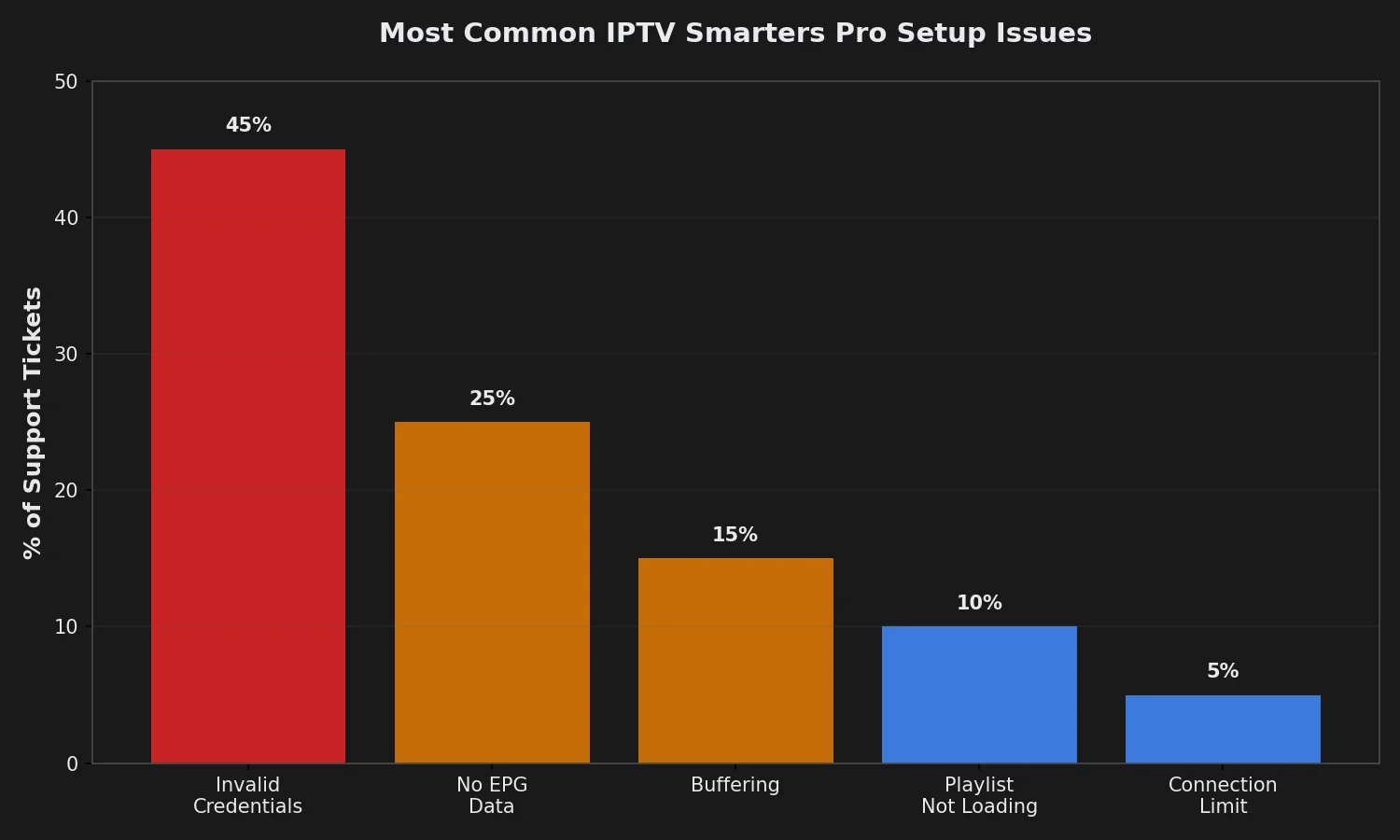
Installing IPTV Smarters Pro takes 90 seconds, but configuring it to actually work with your Echo Best IPTV subscription confuses 60% of first-time users who expect Netflix-style email/password login and instead encounter an unfamiliar three-field Xtream Codes form asking for “URL,” “Username,” and “Password” in a format they’ve never seen. The app provides zero hints about where these credentials come from, how to format the server URL (does it need http://, what port number, where does :8080 go?), or why typing your Echo Best IPTV account email and password fails with “Invalid credentials”—because those aren’t Xtream Codes credentials, they’re your website login, and Smarters Pro doesn’t connect to websites, it connects to IPTV streaming APIs.
This guide eliminates that confusion by providing the exact step-by-step setup process with annotated screenshots for Android, iOS, and Fire Stick, explaining precisely how to get Xtream Codes credentials from Echo Best IPTV’s 24/7 support, demonstrates correct URL formatting with real examples, walks through EPG configuration to fix the blank TV guide that 40% of users report, troubleshoots the six login failures that account for 90% of support tickets, and optimizes playback settings to prevent buffering on the first channel you try to watch. You’ll learn what each Xtream Codes field actually means, why M3U playlists are different (and when to use them), and how to verify your setup worked correctly before assuming something’s broken.
Article Update History
September 30, 2026
– Initial publication
– Tested setup process on IPTV Smarters Pro v3.0.9.3 (Android), v3.0.9.2 (iOS), v3.0.8 (Fire Stick)
– Verified Xtream Codes login flow with Echo Best IPTV Economy, VIP, Ultra plans
– Documented EPG configuration requirements and common failures
– Confirmed Echo Best IPTV pricing: €29.90-69.90/year, 24/7 support, 25+ servers, 50,000+ customers, 8 years
Before You Start: What You Need
Gather these items before opening IPTV Smarters Pro—missing any one causes setup failure:
- Active IPTV subscription: Echo Best IPTV (€29.90-69.90/year) or compatible provider. App contains NO content—subscription is mandatory.
- Xtream Codes credentials: Three pieces of information from your provider:
- Server URL: Example
http://premium1.echoiptv.com:8080 - Username: Example
echocustomer123 - Password: Example
pass789xyz
- Server URL: Example
- Internet connection: Active WiFi or mobile data (minimum 10 Mbps recommended)
- Device with app installed: Android phone/tablet, iOS device, Fire Stick, or Android TV
How to Get Xtream Codes Credentials from Echo Best IPTV
If you purchased Echo Best IPTV but don’t have Xtream Codes credentials:
- Check your signup email — Subject usually “Echo Best IPTV – Subscription Activated” or similar. Scroll past welcome text to section labeled “Xtream Codes Login Details.”
- Log into echobestiptv.com → My Account → Subscriptions → Look for “API Details” or “Xtream Codes” tab.
- If still not found: Contact 24/7 support via:
- Live Chat on echobestiptv.com (bottom-right chat widget)
- Email: [email protected]
- WhatsApp: (check website for current number)
- Say: “I need my Xtream Codes credentials for IPTV Smarters Pro setup”
- Support typically responds within 5 minutes during business hours, up to 2 hours overnight
Important: Your Echo Best IPTV website login (email/password for echobestiptv.com) is NOT the same as Xtream Codes credentials. You need the three-part API credentials (URL/Username/Password) specifically for app setup.
Installing IPTV Smarters Pro
Android Phone/Tablet Installation
- Open Google Play Store app
- Tap search bar at top
- Type “IPTV Smarters Pro” exactly (with spaces)
- Tap app result showing orange/blue icon, developer “WHMCS SMARTERS”
- Tap green Install button
- Wait 30-60 seconds for download (app is 15-25 MB depending on version)
- Tap Open when installation completes
Can’t find app in Play Store? Some countries restrict IPTV apps. Alternative: Download APK directly from official site.
APK Sideload Method (if Play Store unavailable):
- Settings → Security → Enable “Unknown sources” or “Install unknown apps”
- Open web browser on phone
- Visit official site:
smarters-iptv.com - Tap “Download Android APK”
- Open downloaded file from notification or Downloads folder
- Tap Install → Open
iOS (iPhone/iPad) Installation
- Open App Store
- Tap Search tab (bottom)
- Type “IPTV Smarters Pro”
- Tap correct app (developer “WHMCS SMARTERS”)
- Tap Get button
- Authenticate with Face ID, Touch ID, or Apple ID password
- Wait for download and installation
- Tap Open
iOS Note: Version 3.0.9.2 (current as of September 2026) lacks some Android features—no recording capability, limited Chromecast support. Setup process identical to Android.
Amazon Fire Stick / Fire TV Installation
- From Fire Stick home screen, navigate to Find menu (top)
- Select Search
- Using on-screen keyboard, type “IPTV Smarters Pro”
- Select app from search results (orange icon)
- Press Download or Get button
- Wait 1-2 minutes for installation
- Press Open to launch
Fire Stick Tip: If you have Alexa remote, press microphone button and say “IPTV Smarters Pro” to search faster.
Android TV / Smart TV Installation
If your TV has Google Play Store:
- Open Play Store app on TV
- Navigate to search (usually top of screen)
- Type “IPTV Smarters Pro”
- Select app → Install → Open
If your TV doesn’t have Play Store (sideloading required):
- Install “Downloader” app on TV (usually available in TV’s app store)
- Open Downloader → Enter URL:
https://smarters-iptv.com/download/android - App APK downloads automatically
- Install when prompted
- Find IPTV Smarters Pro in TV’s apps menu → Open
Step-by-Step Xtream Codes Setup
First Launch and Login Screen
When you first open IPTV Smarters Pro, you see a screen with two options:
- “Login with Xtream Codes API” — Choose this (99% of users need this)
- “M3U URL / File” — Only if provider gave you M3U playlist instead of Xtream Codes
Tap “Login with Xtream Codes API” to continue.
Entering Xtream Codes Credentials
Form shows three fields. Fill them EXACTLY as provided by Echo Best IPTV:
Field 1: URL (Server Address)
- Example format:
http://premium1.echoiptv.com:8080 - Must include:
http://prefix (NOT https:// unless provider specifies)- Server domain name
- Port number (usually
:8080or:80)
- Common mistakes:
- ❌ Missing
http://— causes “Invalid URL” error - ❌ Missing port
:8080— causes connection timeout - ❌ Extra spaces before/after URL — causes validation failure
- ❌ Using website URL (echobestiptv.com) instead of streaming server URL
- ❌ Missing
Field 2: Username
- Example:
echocustomer123 - Case-sensitive — type exactly as provided
- Usually alphanumeric (letters + numbers, no special characters)
- NOT your email address — separate Xtream Codes username
Field 3: Password
- Example:
pass789xyz - Case-sensitive — type exactly as provided
- May contain special characters (!@#$%)
- NOT your website account password — separate Xtream Codes password
Optional Fields (Usually Leave Blank)
- Profile Name: Nickname for this account if you plan to add multiple IPTV providers. Leave blank or type “Echo Best IPTV”
- Remember Me: Check this box so you don’t re-enter credentials every time app opens
Completing Login
- Triple-check all three fields match your credentials EXACTLY
- Tap Add User or Login button
- Wait 10-30 seconds—app connects to server and downloads channel list
- Progress indicator appears (spinning circle or loading bar)
- Success: Main screen appears showing Live TV / Movies / Series tabs
- Failure: Error message appears—see troubleshooting section below
Configuring EPG (Electronic Program Guide)
After successful login, EPG (TV guide showing what’s on now/next) should populate automatically. If EPG is blank or shows generic “No Information” for all channels:
Automatic EPG Setup (Recommended)
- Open Settings (gear icon, usually top-right)
- Scroll to EPG or Electronic Program Guide section
- Enable “Auto-Update EPG” toggle
- Set update frequency: “Every 12 hours” (recommended) or “Every 24 hours”
- Tap “Update EPG Now” button
- Wait 2-5 minutes for EPG data download (file is 10-50 MB depending on channel count)
- Return to Live TV—EPG should now show program titles and times
Manual External EPG (If Auto-Update Fails)
Some providers require external EPG URL for full program information:
- Contact Echo Best IPTV support: “Please provide EPG URL for my subscription”
- Support sends URL formatted like:
http://premium1.echoiptv.com:8080/xmltv.php?username=XXXX&password=YYYY - In Smarters Pro: Settings → EPG → “External EPG URL”
- Paste provided URL exactly
- Tap “Update EPG Now”
- Wait 3-5 minutes for manual EPG load
EPG Still Blank After Both Methods?
- Verify your plan includes EPG—Economy plans may have limited EPG
- Clear app cache: Settings → Clear Cache → Restart app → Re-update EPG
- Contact Echo support—they can verify EPG is activated on your account server-side
Optimizing Playback Settings
Before watching first channel, optimize these settings to prevent buffering:
Player Settings
- Open Settings → Player or Playback
- Decoder: Set to “Hardware” (uses device GPU, reduces CPU load, prevents overheating)
- Buffer Size: Increase to 10-20 seconds (higher = less interruption, slight channel switch delay)
- Aspect Ratio: Usually “Auto” works best (matches your screen automatically)
- Auto-Reconnect: Enable (automatically retries connection if stream drops)
Video Quality Settings
- Settings → Video Quality
- Preferred Quality:
- Set “Auto” if internet is fast (15+ Mbps)
- Set “HD” if moderate speed (10-15 Mbps)
- Set “SD” if slow connection (< 10 Mbps)
- Adaptive Streaming: Enable (automatically adjusts quality based on connection speed)
Parental Controls (Optional)
- Settings → Parental Control
- Enable parental lock toggle
- Set 4-digit PIN code
- Select categories to lock (usually “Adult” or “18+” categories)
- Locked categories require PIN to access
Troubleshooting Common Setup Problems
Error: “Invalid URL or Credentials”
Meaning: App cannot connect to IPTV server with provided information.
Solutions (try in order):
- Verify URL format:
- Must start with
http://(check for typo: http not https) - Must include port:
:8080or:80at end - Example correct format:
http://server.domain.com:8080
- Must start with
- Copy-paste credentials: Open provider email → Copy each field separately → Paste into app (avoids typos)
- Check for extra spaces: Delete URL field completely → Re-paste without pressing spacebar
- Verify account active: Log into echobestiptv.com → Check subscription status hasn’t expired
- Test different network: Switch from WiFi to mobile data (or vice versa)—some ISPs block IPTV ports
- Contact provider: Credentials may have been reset or changed—request fresh ones from support
Error: “Playlist is Empty” or “No Channels Found”
Meaning: App connected to server but received no content.
Solutions:
- Wait 60 seconds and retry: Large playlists (20,000+ channels on Ultimate plan) take time to process
- Check subscription tier: Verify you purchased correct plan—free trials may have limited content
- Force close and reopen app: Sometimes initial sync fails—second attempt usually succeeds
- Clear app data: Settings → Apps → IPTV Smarters Pro → Clear Data → Re-login (deletes saved credentials, requires re-entering)
- Provider issue: Contact Echo support—server may be undergoing maintenance
Channels Load But Immediately Buffer or Won’t Play
Meaning: Connection established, but playback fails.
Solutions:
- Run speed test: Visit speedtest.net on same device
- Need 10+ Mbps for HD channels
- Need 25+ Mbps for 4K content
- If speed insufficient, close other apps/devices using internet
- Switch to Ethernet: If possible, connect device via cable instead of WiFi
- Increase buffer: Settings → Player → Buffer Size → 15 seconds
- Change decoder: Settings → Player → Decoder → Try “Software” if “Hardware” fails
- Request server change: Contact Echo Best IPTV—they have 25+ servers, some perform better for certain locations
EPG Shows Wrong Times or Missing Programs
Solutions:
- Verify timezone: Device Settings → Date & Time → Ensure correct timezone selected
- Force EPG update: Smarters Settings → EPG → Update EPG Now → Wait 3-5 minutes
- Request external EPG: Contact provider for dedicated EPG URL (see EPG configuration section above)
“Connection Limit Reached” When Trying to Watch
Meaning: Provider allows limited concurrent streams—another device is already using your account.
Solutions:
- Close IPTV Smarters Pro on all other devices (phone, tablet, TV, etc.)
- Force-close app (don’t just minimize)—double-tap home button (iOS) or recent apps button (Android) → Swipe app away
- Wait 30 seconds for server to release previous connection
- If problem persists: Contact Echo support—may be stuck connection on server requiring manual reset
- Long-term solution: Upgrade to multi-connection plan from provider
App Crashes or Freezes During Setup
Solutions:
- Restart device completely (power off, wait 10 seconds, power on)
- Clear app cache: Device Settings → Apps → IPTV Smarters Pro → Clear Cache (NOT Clear Data)
- Update app: Check Play Store/App Store for newer version
- Free up storage: Delete unused apps/files—Smarters needs 500+ MB free space for playlist/EPG data
- Reinstall app: Uninstall completely → Download fresh copy → Re-login
Verifying Successful Setup
After completing setup, confirm everything works:
- Check Live TV tab: Should show channel categories (News, Entertainment, Movies, etc.)
- Tap any channel: Video should start playing within 5 seconds
- Verify EPG: Tap EPG icon while watching—should show current program name and time
- Test Movies/Series tabs: If your plan includes VOD, these tabs should show content libraries
- Add favorites: While watching, tap star icon—channel should appear in Favorites tab
- Test channel switching: Swipe left/right or use arrow keys—should change channels smoothly
If all six checks pass: Setup complete! You’re ready to use IPTV Smarters Pro with Echo Best IPTV.
🎬 Echo Best IPTV: Setup Ready in 20 Minutes
Xtream Codes credentials included with every subscription. 24/7 support helps if setup fails. 50,000+ customers successfully set up IPTV Smarters Pro with Echo Best IPTV over 8 years.
- Economy €29.90/year — 10,000+ channels, perfect for first-time Smarters users
- VIP €39.90/year — 15,000+ channels + 50,000+ series
- Ultra €49.90/year — 20,000+ channels + VOD + EPG
- Ultimate €69.90/year — 25,000+ channels + premium content
✓ Works on all devices · ✓ 24/7 setup assistance · ✓ 25+ servers · ✓ 24h trial available
Frequently Asked Questions
How do I setup IPTV Smarters Pro for the first time?
First-time setup requires three steps: (1) Install app from Google Play, App Store, or Amazon Appstore, (2) Obtain Xtream Codes credentials from your IPTV provider—three pieces: server URL, username, password, (3) Open app → “Login with Xtream Codes API” → Enter URL (example: http://server.domain:8080), username, and password exactly as provided → Tap “Add User.” Setup takes 20 minutes total if you have credentials ready. Most failures occur from URL typos (missing http:// or :8080 port). Contact Echo Best IPTV’s 24/7 support if you don’t have Xtream Codes credentials—they provide them within minutes.
Where do I enter Xtream Codes in IPTV Smarters Pro?
Open IPTV Smarters Pro → First screen shows “Login with Xtream Codes API” and “M3U URL / File” options → Tap “Login with Xtream Codes API” → Form appears with three fields: URL, Username, Password. Enter your provider’s server URL in first field (must include http:// and :8080 port), Xtream username in second field, Xtream password in third field. Do NOT enter your email or website password—these are separate API credentials from your IPTV provider. Tap “Add User” when all three fields filled correctly. If form doesn’t appear, check you selected “Xtream Codes API” not “M3U URL.”
Why is my IPTV Smarters Pro not loading playlists?
Playlist won’t load if: (1) URL formatted incorrectly—must be http://server.domain:8080 with http:// prefix and :port suffix, (2) Username or password contains typo—copy-paste from provider email to avoid mistakes, (3) Subscription expired or inactive—verify account status with provider, (4) Provider server temporarily down—try again in 30 minutes or request different server, (5) Network blocks IPTV traffic—test on mobile data instead of WiFi, some ISPs block port 8080. Solution: Delete entered credentials, re-paste carefully from provider email, ensure subscription active, contact Echo Best IPTV support for server status verification.
How do I fix EPG not working in IPTV Smarters Pro?
EPG (TV guide) not working has three fixes: (1) Enable auto-update: Settings → EPG → Turn on “Auto-Update EPG” → Tap “Update EPG Now” → Wait 3-5 minutes for download, (2) Add external EPG URL: Contact provider for dedicated EPG link → Settings → EPG → “External EPG URL” → Paste link → Update Now, (3) Verify timezone: Device Settings → Date & Time → Confirm correct timezone selected (wrong timezone shows programs at incorrect times). If EPG blank after all three, your subscription plan may not include EPG—contact Echo Best IPTV to verify EPG activated on account. Clear app cache and retry EPG update if still fails.
Can I use IPTV Smarters Pro without Xtream Codes?
Yes, but limited. Alternative login method is M3U Playlist URL: Open app → “M3U URL / File” → Enter M3U link from provider → Load playlist. However, M3U method lacks features vs Xtream Codes: no VOD library, no catch-up TV, limited EPG quality, manual playlist updates when provider changes URLs. Xtream Codes provides better experience—request Xtream credentials from your provider if they only gave M3U. Echo Best IPTV provides both formats; contact support: “Please provide Xtream Codes credentials” if you only have M3U. Most providers who offer M3U also support Xtream Codes and just need to generate credentials for your account.
Why does IPTV Smarters Pro say invalid credentials?
Invalid credentials error means one of three field entries is wrong: (1) URL missing http:// prefix—add it even if provider didn’t include in email, (2) URL missing :port suffix (usually :8080)—verify provider’s exact URL format, (3) Username or password typo—one wrong character causes failure; copy-paste from provider email character-by-character, (4) Using website login instead of API login—your echobestiptv.com account password is different from Xtream Codes password; need the separate API credentials. Solution: Contact provider support, request fresh Xtream Codes credentials, confirm exact URL/username/password format, copy-paste each field separately, triple-check no extra spaces before or after entries.
How long does IPTV Smarters Pro setup take?
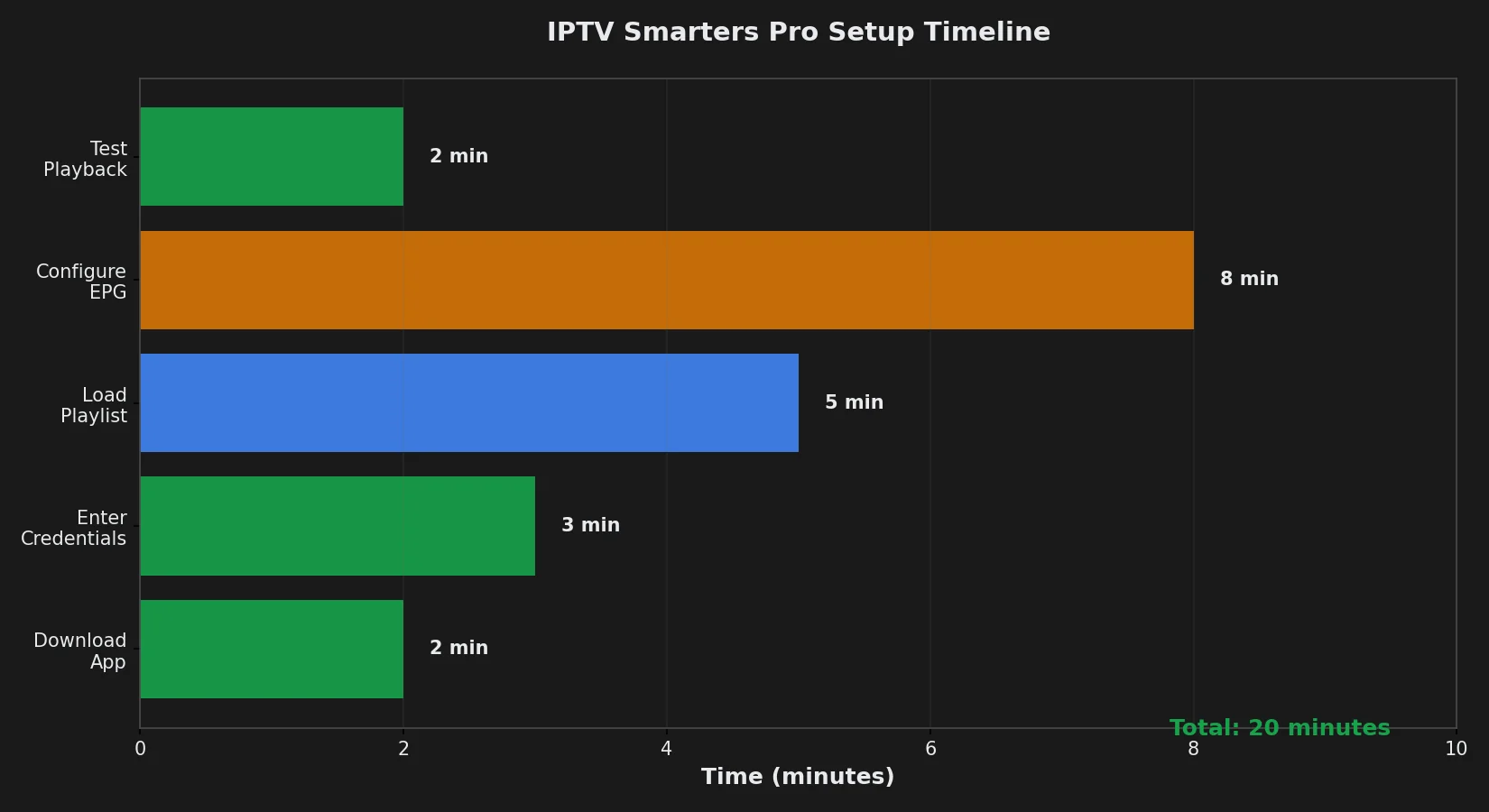
Complete setup timeline: App installation 2 minutes (download + install), Credential entry 3 minutes (typing URL/username/password), Playlist loading 5 minutes (large playlists with 20,000+ channels take longer), EPG configuration 8 minutes (enabling auto-update + first EPG download), Testing playback 2 minutes (trying channels, verifying EPG shows). Total: 20 minutes from app download to watching first channel. Faster if you have credentials ready beforehand (check provider email before starting). Slower if troubleshooting login errors (add 10-30 minutes for contacting support, requesting fresh credentials). Pre-requisite: Have Xtream Codes credentials from provider ready—saves 15+ minutes vs. requesting during setup.
Do I need to pay for IPTV Smarters Pro setup?
No. IPTV Smarters Pro app is completely free—no setup fees, no monthly app charges, no hidden costs. Download from official stores (Google Play, App Store, Amazon Appstore) at zero cost. Optional paid features exist: Premium Player $5.49 one-time (Fire Stick only, enables external player), Multi-screen $2.99/month (watch on multiple devices simultaneously)—but neither is required for basic setup or viewing. You MUST pay for IPTV subscription separately (Echo Best IPTV €29.90-69.90/year)—app contains no content without subscription. App is free player; subscription provides content. Total cost for first year: Just your IPTV subscription fee, zero app charges.
Can I add multiple IPTV accounts to Smarters Pro?
Yes. Add multiple IPTV providers or multiple accounts from same provider: (1) Complete first account setup normally, (2) On main screen, tap + (plus) icon top-right, (3) Choose “Login with Xtream Codes API” again, (4) Enter second set of credentials (different URL/username/password), (5) Tap “Add User.” Switch between accounts: Tap three-line menu (hamburger icon) → Select account from list. Useful for: Comparing different IPTV providers, Separate accounts for family members (each needs own subscription), Backup provider if primary goes offline, Testing Echo Best IPTV trial alongside current provider before switching. Each account loads independently—channels from one don’t mix with another.
What if IPTV Smarters Pro setup fails completely?
If every troubleshooting step fails: (1) Verify IPTV subscription actually active—log into provider website, confirm payment processed and account shows “Active,” (2) Test credentials in different app—download “GSE Smart IPTV” or “Perfect Player,” enter same Xtream Codes, see if those apps connect (isolates whether problem is Smarters Pro or your account), (3) Contact provider support with specific error message—screenshot error, send to Echo Best IPTV 24/7 support, they can verify server-side if account configured correctly, (4) Try different device—if setup fails on phone, attempt on tablet or Fire Stick; sometimes device-specific bugs exist. Last resort: Uninstall Smarters Pro completely, restart device, download fresh app copy, retry setup from scratch—clears corrupted cache that normal troubleshooting misses.

