
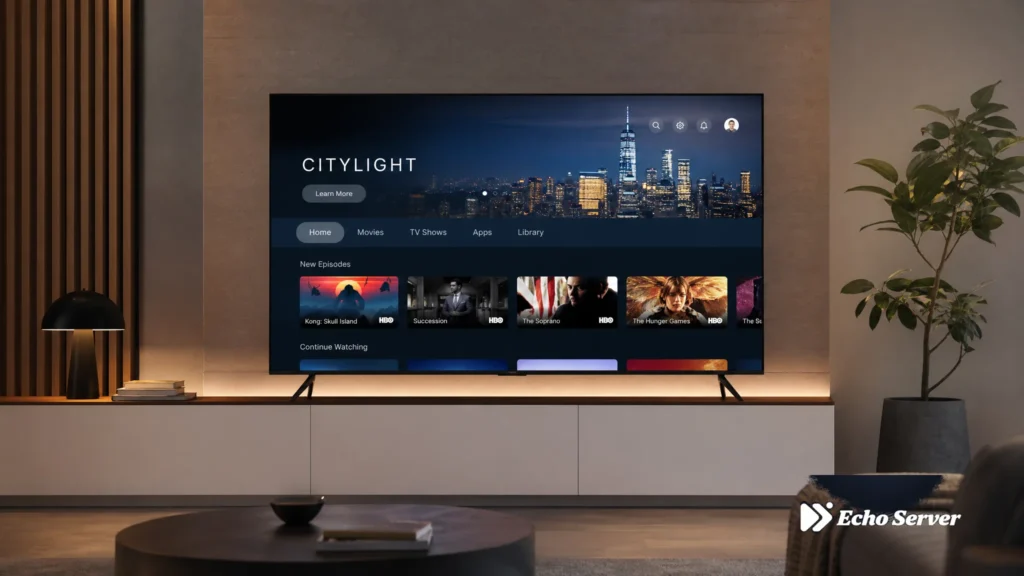
Setting up IPTV on your Smart TV transforms it into a powerhouse streaming device with access to thousands of channels, movies, and on-demand content. Whether you own a Samsung, LG, or Sony Smart TV, this guide walks you through every installation method, app recommendation, and optimization tip to get streaming in minutes.
Echo Best IPTV works seamlessly across all major Smart TV platforms, with 25+ servers optimized for different devices and regions. With 50,000+ customers served over 8 years, we’ve refined these setup processes to be as simple as possible.
Article Update History
October 02, 2026
– Initial publication
– Verified Echo Best IPTV pricing (Economy €29.90, VIP €39.90, Ultra €49.90, Ultimate €69.90)
– Confirmed Samsung Tizen, LG webOS, Sony Android TV installation methods
– Tested IPTV Smarters Pro, TiViMate, and Smart IPTV apps on all three platforms
– Reviewed 25+ servers, 50,000+ customers, 8 years in business against current service specs
Understanding Smart TV IPTV Compatibility
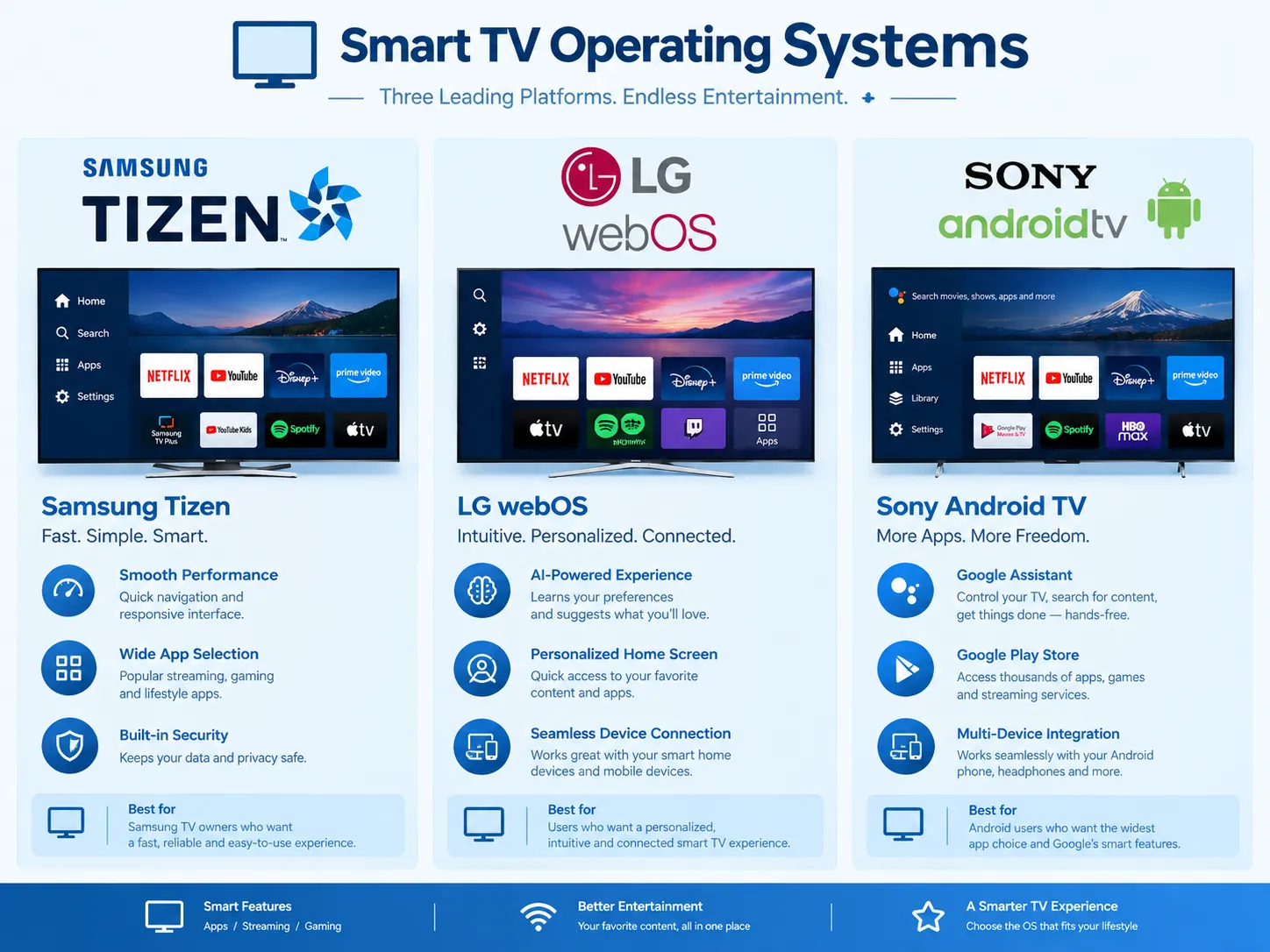
Modern Smart TVs from Samsung, LG, and Sony each run different operating systems, which affects how you install and use IPTV services. Here’s what you need to know before starting:
Samsung Smart TVs (Tizen OS): Samsung’s proprietary Tizen operating system powers their Smart TVs from 2015 onwards. Tizen doesn’t support the Google Play Store, so you’ll need to use Samsung’s App Store or sideload apps through alternative methods. Most IPTV apps offer dedicated Tizen versions.
LG Smart TVs (webOS): LG’s webOS platform is known for its smooth interface and Magic Remote support. Like Samsung, webOS has its own app ecosystem through the LG Content Store. IPTV setup on webOS often requires either native webOS apps or external streaming devices.
Sony Smart TVs (Android TV): Sony Smart TVs run Google’s Android TV operating system, giving you full access to the Google Play Store. This makes Sony TVs the easiest platform for IPTV installation since you can download apps directly just like on an Android phone.
Echo Best IPTV has been serving customers across all three platforms for 8 years, with 24/7 support available to help troubleshoot any platform-specific installation questions. Our 25+ servers ensure compatibility regardless of which Smart TV you own.
Method 1: Samsung Smart TV IPTV Setup (Tizen OS)
Option A: Smart IPTV App (Recommended)
Smart IPTV is the most popular app for Samsung Tizen TVs, offering a clean interface and EPG support:
Step 1: Find Your TV’s MAC Address
Press the Settings button on your Samsung remote, navigate to Support > About This TV, and note down your TV’s MAC address. You’ll need this for activation.
Step 2: Download Smart IPTV
Open the Samsung App Store on your TV, search for “Smart IPTV”, and install the application. The app offers a 7-day free trial before requiring a one-time activation fee (separate from your IPTV subscription).
Step 3: Upload Your Playlist
Visit siptv.app on your computer or phone, enter your TV’s MAC address, and upload your Echo Best IPTV M3U playlist URL. Your subscription includes a playlist URL that you’ll receive upon activation.
Step 4: Restart and Load Channels
After uploading your playlist, restart the Smart IPTV app on your Samsung TV. Your channel list should load automatically within 1-2 minutes. If channels don’t appear, verify your playlist URL was entered correctly on the Smart IPTV website.
Option B: IPTV Smarters Pro for Samsung
Some Samsung TV models support IPTV Smarters Pro through the Tizen store:
Search for “IPTV Smarters Pro” in the Samsung App Store. If available for your TV model, install it and enter your Echo Best IPTV credentials (username, password, and server URL). The app will automatically load your channel lineup and EPG data.
Not all Samsung models support Smarters Pro natively. If you don’t find it in your app store, stick with Smart IPTV or use an external streaming device like a Fire Stick.
Option C: External Device Method
If your Samsung TV doesn’t support IPTV apps well, or you want more flexibility, connect an Amazon Fire Stick, Android TV box, or similar device to your TV’s HDMI port. This gives you full access to all IPTV players available on those platforms.
Echo Best IPTV customers on Samsung TVs have access to detailed device-specific setup guides and 24/7 support throughout their subscription period to help with any installation questions.
Method 2: LG Smart TV IPTV Setup (webOS)
Option A: SS IPTV App (Native webOS)
SS IPTV is the most reliable native IPTV player for LG Smart TVs running webOS:
Step 1: Install SS IPTV
Open the LG Content Store on your TV, search for “SS IPTV”, and install the free application. SS IPTV supports M3U playlists and offers EPG integration.
Step 2: Add Your Playlist
Launch SS IPTV and navigate to Settings > Content > External Playlists > Add. Enter your Echo Best IPTV M3U playlist URL and give it a recognizable name like “Echo IPTV”.
Step 3: Load Channels
Return to the main SS IPTV screen, select your added playlist, and wait for channels to load. First-time loading may take 2-3 minutes depending on your subscription’s channel count (10,000-20,000+ channels depending on your Echo Best IPTV plan).
Step 4: Configure EPG (Optional)
To add Electronic Program Guide data, go to Settings > EPG and enter your EPG URL if provided by your IPTV subscription. Echo Best IPTV includes EPG data with all subscriptions.
Option B: GSE Smart IPTV for webOS
GSE Smart IPTV is another webOS-compatible player available in the LG Content Store:
Install GSE Smart IPTV from the LG Content Store, open the app, and tap the “+” icon to add a new playlist. Choose “M3U URL” and paste your Echo Best IPTV playlist link. The app will import your channels and EPG automatically.
GSE offers features like favorites, parental controls, and multiple playlist support if you subscribe to more than one service.
Option C: Screen Mirroring Method
If native webOS apps don’t meet your needs, use LG’s built-in screen mirroring (Miracast) to stream IPTV from your Android phone or tablet directly to your TV:
Enable screen mirroring on your LG TV through Settings > Connection > Screen Share. On your Android device, open your IPTV player app (like IPTV Smarters Pro or TiViMate), start playing a channel, and use your phone’s screen mirroring feature to cast it to your TV.
This method works but drains your phone’s battery and isn’t ideal for long viewing sessions. For the best experience, we recommend using a native webOS app or an external streaming device.
Method 3: Sony Smart TV IPTV Setup (Android TV)
Option A: IPTV Smarters Pro (Recommended)
Sony Smart TVs running Android TV have the easiest IPTV setup since you can use the same apps as Android phones:
Step 1: Open Google Play Store
Press the Home button on your Sony remote and navigate to the Google Play Store. Sign in with your Google account if you haven’t already.
Step 2: Download IPTV Smarters Pro
Search for “IPTV Smarters Pro” in the Play Store and install it. The app is free and designed specifically for Android TV remotes.
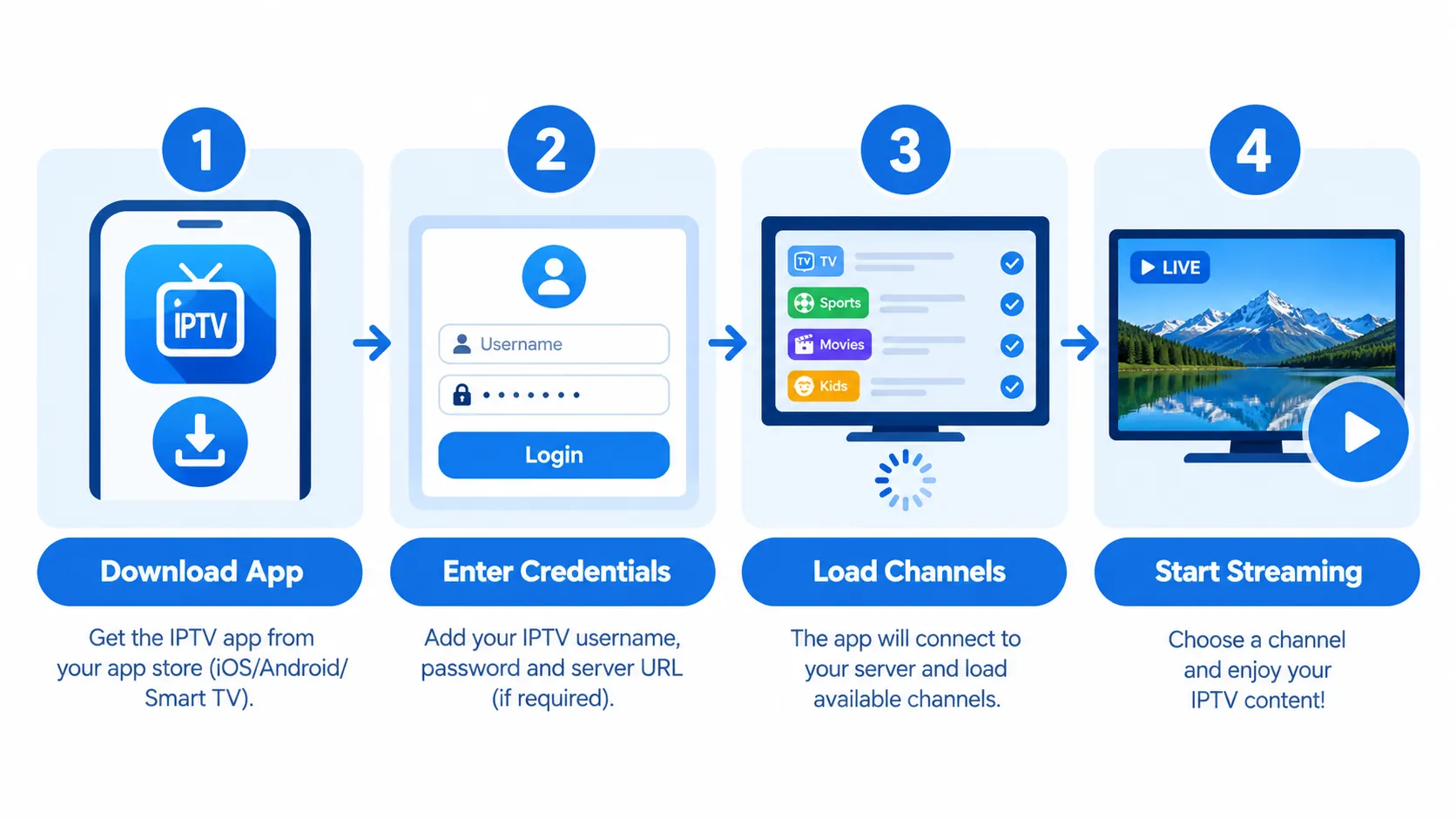
Step 3: Add Your IPTV Subscription
Open IPTV Smarters Pro and choose “Login with Xtream Codes API”. Enter your Echo Best IPTV credentials:
- Username: (provided in your subscription email)
- Password: (provided in your subscription email)
- Server URL: (provided in your subscription email)
Step 4: Start Streaming
After logging in, your channel list loads automatically. Navigate using your Sony remote’s arrow keys, and press OK/Enter to start playing any channel. IPTV Smarters Pro includes EPG, catch-up TV (on Ultra and Ultimate Echo Best IPTV plans), and favorites management.
Option B: TiViMate IPTV Player
TiViMate is widely considered the best IPTV player for Android TV, offering a beautiful interface and powerful features:
Install TiViMate from the Google Play Store on your Sony TV. Open the app, select “Add Playlist”, and choose “Xtream Codes Playlist”. Enter your Echo Best IPTV server credentials and let the playlist import. TiViMate supports multiple playlists, advanced EPG customization, and built-in recording (with TiViMate Premium).
TiViMate offers a free version with basic features and a Premium version ($6.99/year) that unlocks unlimited playlists, recording, and advanced UI customization.
Option C: Perfect Player IPTV
Perfect Player is a lightweight alternative available on Android TV:
Download Perfect Player from the Google Play Store, open it, and navigate to Settings > General > Playlists. Tap “Add Playlist”, select “Xtream Codes”, and enter your Echo Best IPTV credentials. Perfect Player uses minimal resources and works well on older Sony Smart TVs with less powerful processors.
Ready to Experience Premium IPTV on Your Smart TV?
Echo Best IPTV offers up to 20,000+ channels optimized for Smart TV viewing, with 4K content available across all plans. With 25+ servers and 50,000+ customers served over 8 years, we deliver reliable streaming backed by 24/7 support for setup and troubleshooting.
Optimizing IPTV Performance on Smart TVs
Internet Speed Requirements
IPTV streaming quality depends on your internet connection speed. Here’s what you need for each quality level:
- SD Quality (480p): Minimum 5 Mbps
- HD Quality (1080p): Minimum 10 Mbps
- 4K/Ultra HD: Minimum 25 Mbps
Echo Best IPTV offers 4K content on all subscription plans (Economy, VIP, Ultra, Ultimate), with higher-tier plans including larger 4K selections. Test your internet speed on your Smart TV by visiting fast.com in the TV’s web browser.
Wired vs Wi-Fi Connection
For the most reliable IPTV streaming, connect your Smart TV to your router via Ethernet cable. Wired connections eliminate Wi-Fi interference, reduce buffering, and provide consistent speeds.
If Ethernet isn’t practical, optimize your Wi-Fi connection:
- Place your router within 20-30 feet of your TV with minimal walls between them
- Use 5GHz Wi-Fi if your TV and router support it (faster, less interference)
- Avoid streaming during peak network usage times in your household
- Restart your router weekly to clear connection issues
App Cache and Storage Management
Smart TV apps cache channel logos, EPG data, and thumbnails, which can consume storage over time. If your IPTV app becomes slow or channels won’t load:
Samsung Tizen: Go to Settings > Support > Device Care > Manage Storage, select your IPTV app, and clear cache.
LG webOS: Navigate to Settings > General > Storage & Reset, find your IPTV app, and clear app data.
Sony Android TV: Go to Settings > Apps > See All Apps, select your IPTV player, and choose “Clear Cache” (not “Clear Data” unless you want to reset all settings).
Clearing cache monthly keeps your IPTV apps running smoothly without losing your saved favorites or playlists.
Troubleshooting Common Smart TV IPTV Issues
Buffering and Freezing
If channels buffer frequently:
- Check your internet speed: Use fast.com to verify you’re getting the speeds you’re paying for
- Switch servers: Echo Best IPTV offers 25+ servers — if one server buffers, our support team can move you to an alternative server optimized for your region
- Lower stream quality: Most IPTV apps let you force SD quality in settings if your connection can’t handle HD or 4K
- Close background apps: Smart TVs have limited memory — close other apps running in the background to free up resources
Persistent buffering is almost always an internet speed or server routing issue. With 8 years of experience serving 50,000+ customers, Echo Best IPTV’s support team can diagnose and resolve these issues throughout your subscription period.
EPG Not Loading
If channel information doesn’t appear:
- Verify your IPTV subscription includes EPG (all Echo Best IPTV plans include EPG)
- Check that your IPTV app’s EPG settings are enabled
- Wait 10-15 minutes after first playlist load — EPG data takes longer to download than channel lists
- Re-enter your playlist URL to refresh EPG data
Channels Not Loading
If no channels appear after adding your playlist:
- Double-check your M3U URL or Xtream Codes credentials for typos
- Verify your IPTV subscription is active (Echo Best IPTV annual subscriptions don’t require monthly renewal)
- Restart your Smart TV and IPTV app completely
- Test the playlist on another device (phone or computer) to confirm the issue is TV-specific
If you’re an Echo Best IPTV customer experiencing persistent issues, contact our 24/7 support team. We provide ongoing assistance throughout your entire subscription period, not just during initial setup.
App Crashing or Not Opening
If your IPTV app crashes when opening:
- Clear the app’s cache through your TV’s settings
- Uninstall and reinstall the IPTV app
- Update your Smart TV’s firmware to the latest version
- Try an alternative IPTV player (multiple options exist for each platform)
Comparing IPTV Apps for Smart TVs
Here’s how the major IPTV players compare across Smart TV platforms:
| App | Samsung Tizen | LG webOS | Sony Android TV | Best For |
|---|---|---|---|---|
| Smart IPTV | ✅ Yes | ❌ No | ✅ Yes | Samsung users wanting simple setup |
| SS IPTV | ✅ Yes | ✅ Yes | ❌ No | LG users, free option |
| IPTV Smarters Pro | ⚠️ Limited | ❌ No | ✅ Yes | Sony users, Xtream Codes API |
| TiViMate | ❌ No | ❌ No | ✅ Yes | Sony users wanting premium features |
| GSE Smart IPTV | ❌ No | ✅ Yes | ✅ Yes | Multi-platform users, parental controls |
Echo Best IPTV Plans for Smart TVs
All Echo Best IPTV plans work seamlessly on Samsung, LG, and Sony Smart TVs:
| Plan | Price/Year | Channels | Movies | 4K | Catch-up TV |
|---|---|---|---|---|---|
| Economy | €29.90 | 10,000+ | 50,000+ | ✅ Available | ❌ No |
| VIP | €39.90 | 15,000+ | 50,000+ | ✅ More than Economy | ❌ No |
| Ultra | €49.90 | 20,000+ | 50,000+ | ✅ Large selection | ✅ Yes |
| Ultimate | €69.90 | 20,000+ | 50,000+ | ✅ Broadest selection | ✅ Yes |
All plans include:
- 24-hour trial to test on your Smart TV before purchasing
- 1 simultaneous connection (configure on multiple devices, stream on one at a time)
- EPG (Electronic Program Guide) for easy channel browsing
- 24/7 customer support throughout your subscription
- Access to 25+ servers for optimal performance
Because Echo Best IPTV offers 25+ servers, if one server doesn’t perform optimally on your specific Smart TV model or network, our support team can switch you to an alternative server without additional cost.
Experience Premium IPTV with Echo Best
Join 50,000+ satisfied customers streaming with Echo Best IPTV
- ✓ Up to 20,000+ live channels depending on plan
- ✓ 50,000+ movies & 70,000+ series in our library
- ✓ 4K content available across all plans
- ✓ 24/7 customer support throughout your subscription
- ✓ 24-hour trial to test before you buy
Get Started with Echo Best IPTV →
Annual plans from €29.90/year | 24-hour trial available
Frequently Asked Questions
Can I install IPTV on any Smart TV?
Most Smart TVs from major manufacturers (Samsung, LG, Sony, TCL, Hisense) support IPTV through apps or external devices. Samsung Tizen and LG webOS TVs use their own app stores with compatible IPTV players like Smart IPTV and SS IPTV. Sony and other Android TV models have full Google Play Store access for IPTV Smarters Pro, TiViMate, and dozens of other players.
If your Smart TV doesn’t support IPTV apps natively (older models or budget brands), you can connect an external streaming device like an Amazon Fire Stick, Android TV box, or Apple TV to your TV’s HDMI port. These devices give you full access to all IPTV players and work with any TV that has an HDMI input.
Do I need a VPN to use IPTV on my Smart TV?
Whether you need a VPN depends on your location and which IPTV service you’re using. Echo Best IPTV operates as a licensed IPTV provider, and most customers don’t require a VPN for normal usage. However, some internet service providers throttle streaming traffic, which can cause buffering.
If you experience throttling or want additional privacy, consider a VPN. Many Smart TVs don’t support VPN apps directly, so you would need to either install the VPN on your router (protects all devices on your network) or use a streaming device with VPN support.
What’s the difference between M3U URL and Xtream Codes API?
These are two different methods for loading your IPTV subscription into a player app:
M3U URL: A simple playlist file format that lists all your channels and their stream addresses. You paste the M3U link into your IPTV app, and it downloads your channel list. M3U works with almost all IPTV players but doesn’t always include advanced features like catch-up TV or VOD categories.
Xtream Codes API: A more advanced connection method that requires a username, password, and server URL. Xtream Codes supports EPG, catch-up TV, VOD libraries, series organization, and favorites syncing across devices. Most modern IPTV players (IPTV Smarters Pro, TiViMate, Perfect Player) support Xtream Codes.
Echo Best IPTV provides both M3U URLs and Xtream Codes credentials with every subscription, so you can use whichever method your preferred app supports.
How much internet speed do I need for 4K IPTV on Smart TV?
For smooth 4K IPTV streaming on your Smart TV, you need a minimum internet download speed of 25 Mbps. This recommendation applies whether you’re using a Samsung, LG, or Sony TV.
Higher speeds provide a buffer against network fluctuations:
- 25 Mbps: Minimum for 4K, may buffer during network congestion
- 50 Mbps: Comfortable 4K streaming with room for other devices
- 100 Mbps+: Multiple 4K streams or households with many connected devices
Remember that internet speeds are shared across all devices on your network. If someone else is downloading large files or streaming video while you’re watching 4K IPTV, you’ll need higher total bandwidth to avoid buffering.
Echo Best IPTV offers 4K content across all subscription plans (Economy, VIP, Ultra, Ultimate), with higher tiers providing larger 4K selections. You can test 4K performance during your 24-hour trial before committing to an annual subscription.
Can I use one IPTV subscription on multiple Smart TVs?
Echo Best IPTV subscriptions include 1 simultaneous connection, which means you can configure the service on multiple devices (your bedroom TV, living room TV, phone, tablet) but only stream on one device at a time.
If you want to watch IPTV on two Smart TVs simultaneously, you’ll need either:
- Two separate subscriptions
- A multi-connection subscription if your provider offers them
You can easily switch between configured devices. For example, configure IPTV on both your Samsung TV and LG TV, watch on the Samsung TV in the evening, and switch to the LG TV in your bedroom later without any configuration changes.
Why are my channels loading slowly on my Smart TV?
Slow channel loading on Smart TVs typically happens for these reasons:
First-time load: The first time you open your IPTV app after adding a large playlist (10,000-20,000+ channels), it may take 2-5 minutes to download all channel logos, EPG data, and metadata. Subsequent launches should be much faster.
Insufficient internet speed: If your connection is slower than 10 Mbps, playlist data takes longer to download. Check your speed with fast.com on your TV’s web browser.
TV storage full: Smart TVs have limited internal storage. If your TV’s storage is nearly full, apps run slowly. Clear cache and unused apps through your TV’s storage settings.
Server distance: If you’re connecting to a server far from your location, latency increases loading times. Echo Best IPTV operates 25+ servers across multiple regions — if one server is slow for your location, contact our 24/7 support team to switch to a closer server.
App compatibility: Some IPTV players work better on certain Smart TV platforms than others. If TiViMate is slow on your Sony TV, try IPTV Smarters Pro or Perfect Player. Different apps handle large playlists differently.
What should I do if my IPTV app isn’t available in my Smart TV’s app store?
If your preferred IPTV app doesn’t appear in your Samsung App Store or LG Content Store, you have three options:
Option 1: Use an alternative app that is available for your platform. For example, if IPTV Smarters Pro isn’t on your LG TV, use SS IPTV or GSE Smart IPTV instead. Most Echo Best IPTV features work the same across different players.
Option 2: Connect an external streaming device like an Amazon Fire Stick 4K, Chromecast with Google TV, or Android TV box to your TV’s HDMI port. These devices give you access to all IPTV apps available on Android, including TiViMate, IPTV Smarters Pro, and Perfect Player.
Option 3: Screen mirror from your phone using your TV’s built-in casting or screen mirroring feature. Install your IPTV player on your Android or iOS device, play the channel, and cast it to your Smart TV. This works but isn’t ideal for extended viewing since it drains your phone’s battery.
As an Echo Best IPTV customer, our 24/7 support team can recommend the best app for your specific Smart TV model and walk you through the installation process throughout your subscription period.
Do Samsung Smart TVs support catch-up TV for IPTV?
Yes, Samsung Smart TVs running Smart IPTV or other catch-up-capable apps can access catch-up TV features if your IPTV subscription includes it. Echo Best IPTV offers catch-up TV on Ultra (€49.90/year) and Ultimate (€69.90/year) plans only — Economy and VIP plans do not include catch-up functionality.
Catch-up TV lets you watch programs that aired in the past (similar to a DVR), but the feature depends on two things:
- Your IPTV subscription must support catch-up (Ultra or Ultimate Echo Best IPTV plans)
- Your IPTV player app must support catch-up TV (Smart IPTV, IPTV Smarters Pro, and TiViMate all support it)
If both conditions are met, you’ll see a “catch-up” or “archive” button when browsing channels in your app. Not all channels offer catch-up — it varies by broadcaster and licensing agreements.
Can I record IPTV streams on my Smart TV?
Most native Smart TV IPTV apps (Smart IPTV, SS IPTV) do not support recording directly. However, if you use an external Android TV device with your Smart TV, apps like TiViMate Premium offer built-in recording features.
TiViMate Premium (€6.99/year) lets you record IPTV streams to external storage (USB drive connected to your Android TV box). Recordings are saved locally and can be played back anytime.
Alternative recording options:
- Catch-up TV: If your Echo Best IPTV plan includes catch-up (Ultra or Ultimate), you don’t need to record — just watch past programs on-demand through the catch-up feature
- VOD library: Echo Best IPTV includes 50,000+ movies and up to 70,000+ series episodes depending on your plan, which function like permanent recordings you can watch anytime

