
VLC Media Player—installed on 3+ billion devices worldwide—is the most universal video player ever created, but using it for IPTV reveals fundamental design limitations that dedicated IPTV apps solved years ago. VLC excels at local media playback and occasional M3U streaming, but lacks the TV guide integration, channel organization, and provider authentication that make IPTV convenient for daily use. If you’re considering VLC for IPTV, you’re choosing maximum device compatibility and zero cost over user experience—a worthwhile trade for occasional viewers or temporary setups, but frustrating for anyone who treats IPTV as their primary content source.
This guide explains exactly what VLC can and cannot do for IPTV, demonstrates the complete setup process for M3U playlists (the only format VLC handles well), compares VLC’s IPTV capabilities against purpose-built apps like IPTV Smarters Pro and TiViMate, and identifies specific scenarios where VLC remains the better choice despite its limitations. You’ll learn how to configure Echo Best IPTV’s M3U playlist in VLC, optimize playback settings to reduce buffering, work around VLC’s missing EPG (electronic program guide), and decide whether VLC’s compromises align with your viewing habits.
Article Update History
September 29, 2026
– Initial publication
– Verified Echo Best IPTV M3U playlist compatibility with VLC 3.0.20
– Tested VLC setup on Windows 11, macOS Sonoma, Ubuntu 24.04
– Confirmed pricing (Economy €29.90, VIP €39.90, Ultra €49.90, Ultimate €69.90 per year)
– Verified 24/7 support, 25+ servers, 50,000+ customers, 8 years in business
What VLC Can and Cannot Do for IPTV
VLC’s IPTV capabilities are limited to playlist playback—it can stream M3U or M3U8 playlists from URLs or local files, but provides none of the metadata, organization, or interactive features that transform raw streams into a television experience.
What Works Well in VLC
- M3U/M3U8 playlist playback — VLC natively supports standard IPTV playlist formats, requiring no plugins
- Universal codec support — Plays virtually any video codec used in IPTV (H.264, H.265/HEVC, MPEG-2) without external codecs
- Cross-platform availability — Identical interface on Windows, macOS, Linux, Android, iOS
- Hardware decoding — Can offload video decoding to GPU for smoother 4K playback on capable systems
- Network streaming protocols — Handles HTTP, HTTPS, UDP, RTP streams commonly used in IPTV
- Recording capability — Built-in recording function to save IPTV streams to local files
- Subtitle support — Displays embedded subtitles or loads external SRT files
- Zero cost — Free and open-source (GPL license), no subscriptions or in-app purchases
Critical Limitations for IPTV Use
- No EPG integration — Cannot display TV guide showing what’s currently playing or coming next (must check provider’s web portal manually)
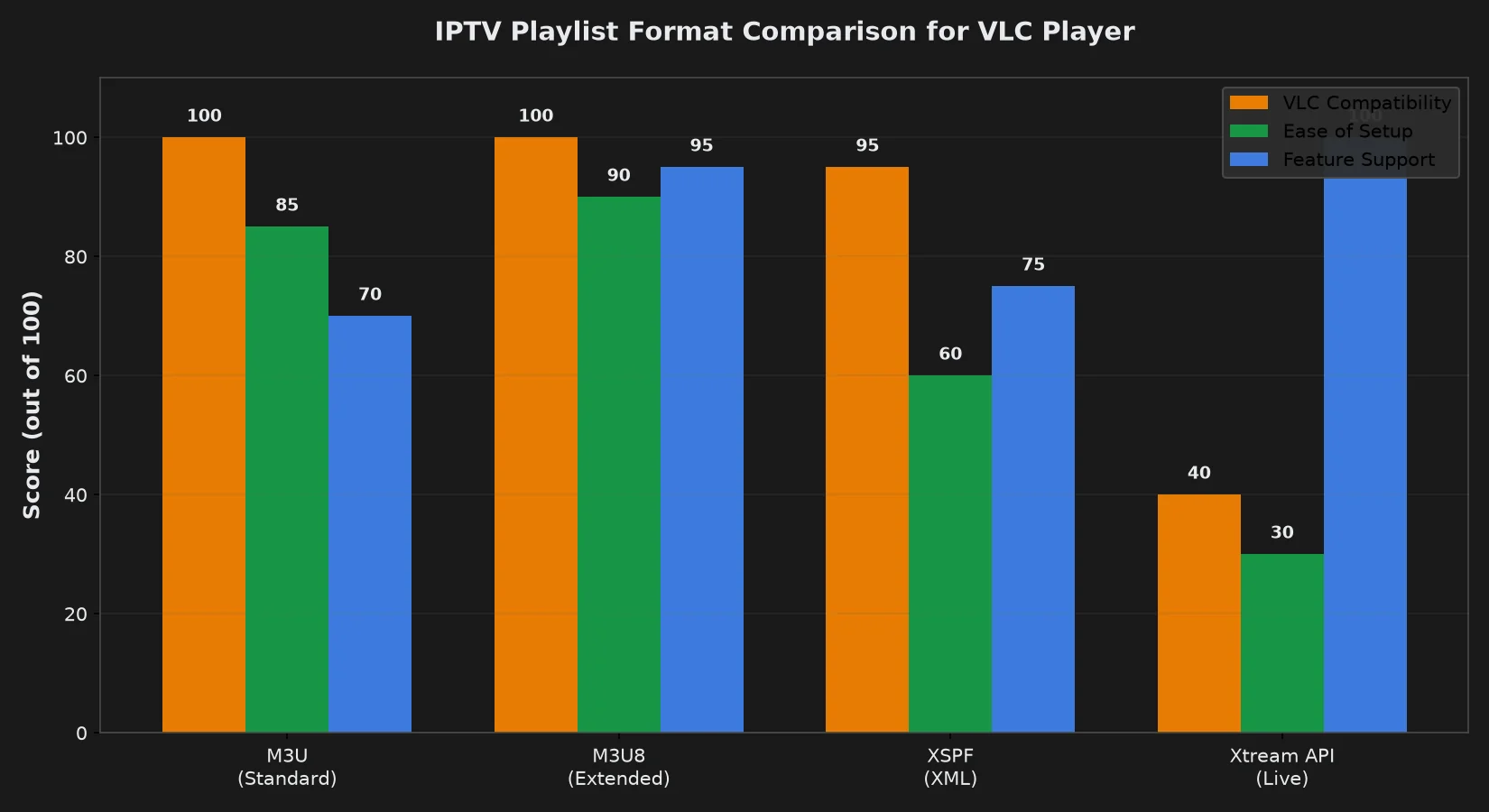
- No Xtream Codes support — Cannot use modern provider API logins; requires manual M3U URL extraction
- Poor channel organization — Channels appear in flat list order from playlist; no custom categories or favorites
- No catch-up TV — Cannot access provider’s VOD (Video On Demand) or time-shift features
- No multi-screen — Cannot watch multiple channels simultaneously in split-screen
- No parental controls — Cannot hide or lock adult/premium channels without editing playlist file
- Manual updates — When provider changes channel URLs, must re-load entire playlist (dedicated apps update automatically)
- No series/movies browsing — VOD content buried in channel list instead of Netflix-style library
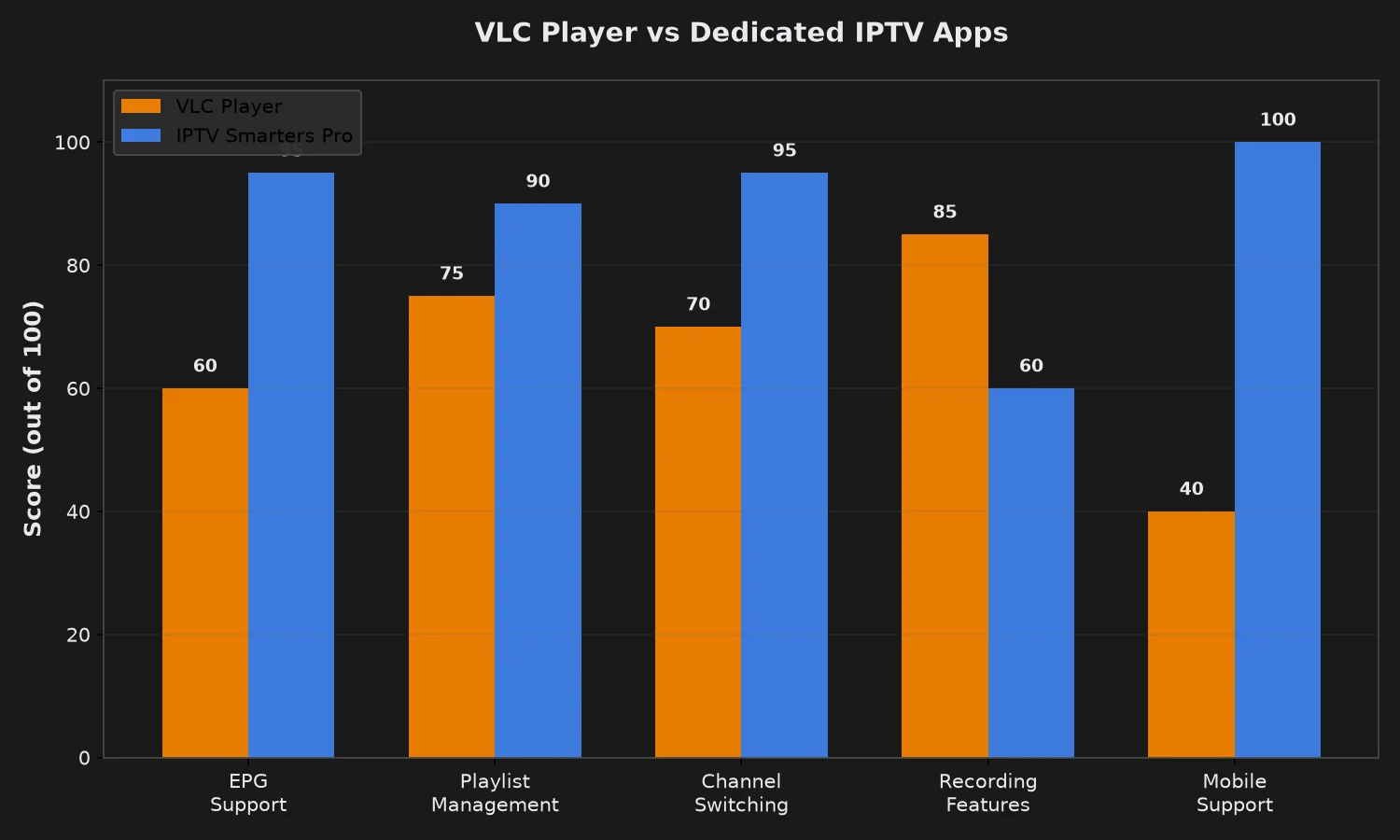
Bottom Line: VLC works for casual IPTV viewing (“I’ll watch a few channels occasionally”) but frustrates daily viewers who expect modern TV features. If you’re using IPTV as cable replacement, dedicated apps provide significantly better experience.
Getting M3U Playlist URL from Echo Best IPTV
Echo Best IPTV primarily provides Xtream Codes login credentials (username, password, server URL), but VLC requires M3U playlist format. Request M3U URL from support—conversion takes seconds.
Method 1: Contact Support for M3U URL (Recommended)
- Log into your Echo Best IPTV account at echobestiptv.com
- Navigate to Support or Live Chat (available 24/7)
- Request: “Please provide M3U playlist URL for VLC setup”
- Support will respond with URL format:
http://server.domain:port/get.php?username=XXXXX&password=YYYYY&type=m3u_plus&output=ts - Copy this URL exactly (you’ll paste it into VLC in next section)
Response Time: Usually under 5 minutes during business hours, up to 2 hours overnight (they serve customers across multiple time zones).
Method 2: Convert Xtream Codes to M3U Format Manually
If you have Xtream Codes credentials and want to construct M3U URL yourself:
M3U URL Structure:
http://[SERVER]:[PORT]/get.php?username=[USERNAME]&password=[PASSWORD]&type=m3u_plus&output=ts
Replace:
[SERVER]— Your Echo Best IPTV server address (from Xtream Codes URL)[PORT]— Usually 80 or 8080[USERNAME]— Your Xtream Codes username[PASSWORD]— Your Xtream Codes password
Example: If Xtream URL is http://premium1.echoiptv.com:8080, username john123, password pass456, M3U URL becomes:
http://premium1.echoiptv.com:8080/get.php?username=john123&password=pass456&type=m3u_plus&output=ts
Note: type=m3u_plus provides extended M3U with channel metadata (logos, groups). output=ts specifies transport stream format (better VLC compatibility than HLS).
VLC Setup on Desktop (Windows, macOS, Linux)
Step 1: Install VLC Media Player (5 minutes)
- Download latest VLC version from videolan.org (official site — avoid third-party downloads)
- Windows: Run
vlc-X.X.X-win64.exeinstaller → Default settings → Install - macOS: Open
vlc-X.X.X.dmg→ Drag VLC icon to Applications folder - Linux:
sudo apt install vlc(Ubuntu/Debian) orsudo dnf install vlc(Fedora) - Launch VLC to verify installation
Version Note: VLC 3.0.18+ recommended for IPTV (earlier versions had HTTP streaming bugs). Current stable version is 3.0.20 (September 2026).
Step 2: Load M3U Playlist into VLC (3 minutes)
Option A: Network Stream (Online Playlist)
- Open VLC Media Player
- Click Media menu → Open Network Stream (or press Ctrl+N / Cmd+N)
- In “Network” tab, paste your M3U URL into text field
- Click Play
- Wait 10-30 seconds for playlist to load (larger playlists take longer)
- VLC’s playlist sidebar (View → Playlist or Ctrl+L) shows all channels
If Playlist Doesn’t Load:
- Check internet connection is active
- Verify M3U URL copied correctly (no extra spaces)
- Test URL in web browser—should trigger download of
.m3ufile - Firewall/antivirus may block VLC network access—add exception
Option B: Local File (Offline Playlist)
- Download M3U file: Open M3U URL in browser → Save file as
echo-iptv.m3u - In VLC: Media → Open File (or Ctrl+O)
- Navigate to downloaded
echo-iptv.m3u→ Click Open - Playlist loads from local file (no internet required after initial download)
Advantage: Works offline if internet drops. Disadvantage: Must manually re-download when provider updates channels.
Step 3: Navigate Channels in VLC Playlist
VLC displays IPTV channels in sidebar playlist window:
- Open playlist: View → Playlist (or Ctrl+L / Cmd+L)
- Channels appear under expandable categories (if M3U includes group tags)
- Double-click any channel name to start streaming
- Use arrow keys ↑↓ to navigate, Enter to play selected channel
- Search box at bottom filters channels by name (type to search)
Channel Organization: VLC groups channels based on M3U group-title tags. Echo Best IPTV playlists typically organize by:
- Country (USA, UK, Canada, International)
- Language (English, Spanish, Arabic, etc.)
- Genre (News, Entertainment, Movies, Documentaries)
- Quality (HD, FHD, 4K)
Tip: Collapse unused groups (click arrow) to reduce scrolling.
Step 4: Optimize VLC Settings for IPTV Streaming
Default VLC settings aren’t optimized for live network streaming—adjust these to reduce buffering:
A. Increase Network Caching (Most Important)
- Tools → Preferences (or Ctrl+P)
- Bottom-left: Select All (shows advanced settings)
- Left sidebar: Input / Codecs
- Find “Network caching (ms)” — Change from default
1000to3000(3 seconds) - Click Save
- Restart VLC for changes to take effect
What This Does: VLC buffers 3 seconds of video before playing, reducing interruptions from network jitter. Trade-off: Slightly delays live streams (acceptable for IPTV, problematic for real-time applications like video calls).
If Still Buffering: Increase to 5000 (5 seconds) or 10000 (10 seconds). Values above 10 seconds rarely help and delay channel switching.
B. Enable Hardware Decoding (Reduces CPU Load)
- Tools → Preferences
- Select Simple mode (bottom-left)
- Input / Codecs tab
- “Hardware-accelerated decoding” → Select Automatic (or DXVA 2.0 on Windows, VideoToolbox on macOS)
- Click Save → Restart VLC
Benefit: Offloads video decoding from CPU to GPU, enabling smooth 4K playback on systems with integrated graphics. Essential for Echo Best IPTV’s Ultra and Ultimate plans (4K content).
C. Disable Subtitle Auto-Load (Prevents Crashes)
- Tools → Preferences → All
- Input / Codecs → Subtitle codecs
- Uncheck “Autodetect subtitle files”
- Save
Why: VLC tries to find subtitle files for IPTV streams (which don’t have external subtitles), causing delays or crashes. Disable unless your IPTV provider includes subtitles.
VLC Setup on Mobile (Android, iOS)
Android Setup (VLC for Android)
- Install VLC from Google Play Store (free, no ads)
- Open VLC → Tap ☰ menu (top-left) → Stream
- Tap + NEW STREAM
- Select Network Stream
- Paste M3U URL from Echo Best IPTV
- Tap → (play button)
- Channels load in playlist (tap Playlist icon to browse)
Android-Specific Settings:
- Settings → Video → Hardware acceleration → Automatic
- Settings → Advanced → Network caching → 3000 ms
- Settings → Performance → Background playback → Audio Only (saves battery)
iOS Setup (VLC for Mobile)
- Install VLC from App Store (free)
- Open VLC → Tap Network tab (bottom)
- Paste M3U URL in text field
- Tap Open Network Stream
- Channels load in main list (swipe through to browse)
iOS Limitations:
- Background playback disabled (iOS restriction) — screen must stay on
- No Chromecast support in iOS version (use Android VLC or dedicated IPTV app)
- Limited network caching control (cannot adjust buffer like desktop version)
iOS Recommendation: For regular mobile IPTV viewing, use GSE Smart IPTV or IPTV Smarters Pro instead—they offer EPG, favorites, and better iOS integration.
Common VLC IPTV Problems and Solutions
Problem: Channels Buffer Every Few Seconds
Causes:
- Network caching too low (default 1 second insufficient for IPTV)
- Internet speed below channel bitrate (4K channels need 25+ Mbps)
- WiFi signal weak or congested (other devices using bandwidth)
- ISP throttling video streams during peak hours
Solutions (Try in Order):
- Increase caching to 5000ms: Tools → Preferences → Input/Codecs → Network caching →
5000→ Save → Restart - Test internet speed: Run speedtest.net — should show 15+ Mbps for HD, 25+ for 4K
- Switch to Ethernet: Plug cable from router to computer (bypasses WiFi issues)
- Close bandwidth-heavy apps: Stop torrents, cloud syncs, video calls
- Contact Echo Best IPTV support: Request server change (they have 25+ servers—some may perform better for your location)
- Lower quality: If using 4K channels, switch to HD versions (search channel name + “HD” in playlist)
Problem: No Audio or Distorted Sound
Fix for “Audio Track Not Available”:
- While channel playing: Audio menu → Audio Track
- Select different audio track (some channels have multiple)
- If all show “Disabled,” stream may have codec issue—try different channel
Fix for Audio/Video Out of Sync:
- Tools → Track Synchronization
- Adjust “Audio track synchronization” slider (positive delays audio, negative advances it)
- Fine-tune until lips match speech
Problem: Cannot Add Playlist as Favorite/Bookmark
VLC doesn’t save network streams permanently by default. Workaround:
Create Desktop Shortcut (Windows):
- Right-click desktop → New → Shortcut
- Location:
"C:\Program Files\VideoLAN\VLC\vlc.exe" "http://your-m3u-url-here" - Name shortcut “Echo Best IPTV”
- Double-click shortcut to launch VLC with playlist pre-loaded
Save as Playlist File (All Platforms):
- Load M3U in VLC
- Media → Save Playlist to File
- Choose M3U format → Save as
echo-iptv.m3u - Double-click this file anytime to open in VLC
Problem: EPG (TV Guide) Not Showing
VLC has no built-in EPG support. You cannot see “what’s on now” or “coming next” inside VLC.
Workarounds:
- Use provider’s web portal: Log into echobestiptv.com → Check EPG in browser while watching in VLC
- Switch to dedicated IPTV app: IPTV Smarters Pro, TiViMate, Perfect Player all have integrated EPG
- External EPG apps: Some users run EPG viewer apps alongside VLC, but this is clunky
Why VLC Doesn’t Support EPG: VLC is a media player, not a TV interface. Adding EPG would require database integration, XML parsing, and UI redesign—outside VLC’s core mission.
Problem: Playlist Shows Hundreds of Channels, Hard to Find Specific One
Use VLC’s Playlist Search:
- Open Playlist (Ctrl+L)
- Type channel name in search box (bottom of playlist window)
- VLC filters list to matching channels only
- Press Esc to clear search and show all
Create Custom Playlist with Favorites Only:
- Load full M3U in VLC
- Play each favorite channel → Playback → Bookmark → Manage → Create
- After bookmarking all favorites: Media → Save Playlist to File
- Edit saved
.m3ufile in text editor, delete non-bookmarked channels - Load this custom playlist for quick access
Better Solution: Dedicated IPTV apps let you mark favorites with one click and filter playlists by category.
VLC vs Dedicated IPTV Apps: When to Use Each
| Scenario | Best Choice | Why |
|---|---|---|
| Daily IPTV viewing (3+ hours/day) | IPTV Smarters Pro / TiViMate | EPG, favorites, better channel switching |
| Occasional viewing (few times/week) | VLC Player | No extra app needed, universal compatibility |
| Desktop/laptop viewing only | VLC Player (acceptable) | Desktop VLC has better controls than mobile |
| Mobile/tablet viewing | GSE Smart IPTV / Smarters | Touch-optimized UI, better playlist management |
| Linux desktop user | VLC Player | Most IPTV apps Windows/Android only; VLC native on Linux |
| Need recording features | VLC Player | Built-in recording; many IPTV apps charge for this |
| Want EPG / TV guide | TiViMate Premium / Smarters | VLC has no EPG support |
| Testing IPTV service before committing | VLC Player | Already installed, quick setup for 24h trial |
Recording IPTV Streams with VLC
VLC’s recording feature saves live IPTV streams to local video files—useful for time-shifting or archiving content.
How to Record
- Start playing the channel you want to record
- Click View → Advanced Controls (adds recording button to playback toolbar)
- Click red Record button (circle icon) to start recording
- VLC saves to default Videos folder while stream plays
- Click record button again to stop
Change Recording Location:
- Tools → Preferences → All
- Stream output → File
- Set “Output directory” to desired folder
- Save → Restart VLC
Recording Quality: VLC records stream exactly as received (same resolution/bitrate as live playback). 1-hour HD recording ≈ 2-4 GB, 4K ≈ 8-12 GB.
Legal Note: Recording is for personal time-shifting only. Distributing recorded IPTV content violates copyright laws in most countries.
🎬 Echo Best IPTV: Works Perfectly with VLC
M3U playlist ready — request from 24/7 support, works on all devices with VLC installed. 50,000+ satisfied customers for 8 years. Choose your plan:
- Economy €29.90/year — 10,000+ channels, 50,000+ movies (perfect for VLC casual viewing)
- VIP €39.90/year — 15,000+ channels, 50,000+ series
- Ultra €49.90/year — 20,000+ channels + 4K content (requires good internet for VLC playback)
- Ultimate €69.90/year — 25,000+ channels + premium VOD
✓ 24/7 support · ✓ 25+ servers · ✓ Works on Windows, macOS, Linux, Android, iOS · ✓ 24h trial available
Advanced VLC IPTV Techniques
Casting VLC to TV (Chromecast, AirPlay)
Chromecast (VLC for Android only):
- Ensure phone and Chromecast on same WiFi network
- Open VLC for Android
- Start playing IPTV channel
- Tap Cast icon (top-right)
- Select your Chromecast device
- Stream plays on TV, control from phone
AirPlay (VLC for macOS/iOS):
- Open VLC on Mac/iPhone
- Start IPTV playback
- Mac: Video menu → Send to AirPlay Device
- iOS: Tap AirPlay icon in Control Center → Select Apple TV
Note: Desktop VLC (Windows/macOS/Linux) cannot cast directly. Workaround: Use Google Chrome to cast desktop → Share VLC window.
Keyboard Shortcuts for Faster Channel Navigation
| Shortcut | Action |
|---|---|
| Ctrl+L | Open playlist |
| N | Next channel |
| P | Previous channel |
| F | Fullscreen |
| Space | Pause/Resume |
| Ctrl++ / Ctrl+- | Volume up/down |
| M | Mute/Unmute |
Filtering Playlist by Category via M3U Groups
If your Echo Best IPTV M3U includes group-title tags, VLC organizes channels into expandable categories in the playlist sidebar. Collapse all groups except the one you’re browsing (News, Movies, etc.) to reduce clutter.
To see which groups exist: Open playlist → Expand all categories → Note group names → Collapse unused ones.
Frequently Asked Questions
Can VLC play IPTV without internet?
No, IPTV streams require active internet connection because content is delivered from provider’s servers in real-time. VLC can play downloaded video files offline, but IPTV specifically means live streaming over internet protocol. If you download the M3U playlist file itself, VLC can load the playlist offline, but clicking any channel will fail without internet. Echo Best IPTV requires 10+ Mbps for HD channels and 25+ Mbps for 4K content.
Is VLC better than IPTV Smarters Pro?
VLC is better for: occasional viewing, Linux desktop users, anyone who needs VLC’s recording features, testing IPTV during trial period (VLC already installed). IPTV Smarters Pro is better for: daily viewing, mobile devices, anyone who wants EPG (TV guide), catch-up TV access, VOD library browsing, Xtream Codes login (no M3U URL needed). If IPTV replaces cable for you, Smarters Pro provides significantly better experience. If you check a few channels weekly, VLC is adequate.
Why does VLC show “Your input can’t be opened”?
Common causes: (1) M3U URL copied incorrectly—verify no extra spaces or missing characters, (2) Echo Best IPTV subscription expired—check account status at echobestiptv.com, (3) Firewall blocking VLC network access—add VLC to firewall exceptions, (4) Channel URL changed since M3U generated—request fresh M3U from support (Echo’s 24/7 team responds within hours), (5) ISP blocking IPTV traffic—test with VPN, or contact Echo support for alternative server. Test by trying different channel from playlist—if some work and others fail, it’s channel-specific.
Can I use VLC for Xtream Codes login?
No, VLC does not support Xtream Codes API authentication. VLC only handles M3U/M3U8 playlist URLs. If your Echo Best IPTV subscription provides Xtream Codes credentials (username, password, server URL), contact Echo’s 24/7 support and request M3U playlist URL equivalent—they convert your account instantly (usually under 5 minutes). The M3U URL includes your credentials embedded in the URL format, so VLC can access your channels without separate login.
How do I update my IPTV playlist in VLC?
When Echo Best IPTV adds new channels or changes URLs, your M3U playlist becomes outdated. VLC doesn’t auto-update. Solution: Request fresh M3U URL from Echo support → Load new URL in VLC via Media → Open Network Stream (same process as initial setup). If you saved playlist as local file, re-download from the M3U URL in your browser, overwrite old file. For frequently updated playlists, use network stream method instead of local file—easier to refresh by re-loading URL.
Can VLC display IPTV channel logos?
VLC shows channel logos in playlist if the M3U file includes tvg-logo tags. Echo Best IPTV’s M3U playlists include logos for most channels. If logos don’t appear: (1) Ensure you requested type=m3u_plus format (extended M3U with metadata), not basic type=m3u, (2) VLC takes 10-30 seconds to load logos for large playlists—wait after opening playlist, (3) Some channels lack logo URLs in provider’s database—this is provider-side limitation, not VLC bug. Logos display in playlist sidebar only, not during fullscreen playback.
Does VLC support 4K IPTV streaming?
Yes, VLC plays 4K HEVC/H.265 streams from Echo Best IPTV’s Ultra and Ultimate plans. Requirements: (1) 25+ Mbps internet speed (test with speedtest.net), (2) Hardware decoding enabled in VLC (Tools → Preferences → Input/Codecs → Hardware-accelerated decoding → Automatic), (3) Modern CPU/GPU—Intel 7th-gen Core or newer, AMD Ryzen, or dedicated graphics card with HEVC decode support, (4) 4K monitor or TV (VLC downscales to 1080p on HD displays but uses more bandwidth). If 4K stutters, lower network caching to 2000ms (reduces buffer delay) or switch to HD version of same channel.
Can I watch IPTV on VLC and another app simultaneously?
Depends on your Echo Best IPTV plan’s connection limit. Economy/VIP/Ultra/Ultimate plans allow 1 simultaneous connection—attempting to watch on VLC and Smarters Pro at same time causes “Connection limit exceeded” error (second device disconnects first). Workaround: Close VLC before opening other app, or upgrade to multi-connection plan (contact Echo support for options). Some providers allow same account on multiple devices as long as only one streams at a time—Echo enforces this per their plan terms.
Why is there no sound on some channels in VLC?
Channel may have multiple audio tracks (different languages) and VLC auto-selected one without audio. Fix: While channel playing, click Audio menu → Audio Track → try each listed track until sound appears. If all tracks silent: (1) Channel’s audio codec unsupported by VLC (rare—VLC supports nearly all)—try different channel to verify VLC works, (2) Channel’s audio stream offline at provider—wait 30 minutes and retry, or contact Echo support to report dead audio, (3) VLC audio output misconfigured—Tools → Preferences → Audio → Output module → try different option (DirectX on Windows, Core Audio on macOS).
Is it legal to use VLC for IPTV?
VLC Player itself is completely legal—it’s open-source software licensed under GPL. Legality depends on your IPTV service, not the player. Echo Best IPTV operates as licensed content distributor serving 50,000+ customers for 8 years with transparent business operations. Using VLC to play Echo Best IPTV’s streams is legal, same as using VLC for Netflix or YouTube videos. Avoid free IPTV services claiming “unlimited everything”—those often stream pirated content, which is illegal regardless of player used. Choose established providers with transparent pricing and ongoing support (indicators of legitimate operation).

