
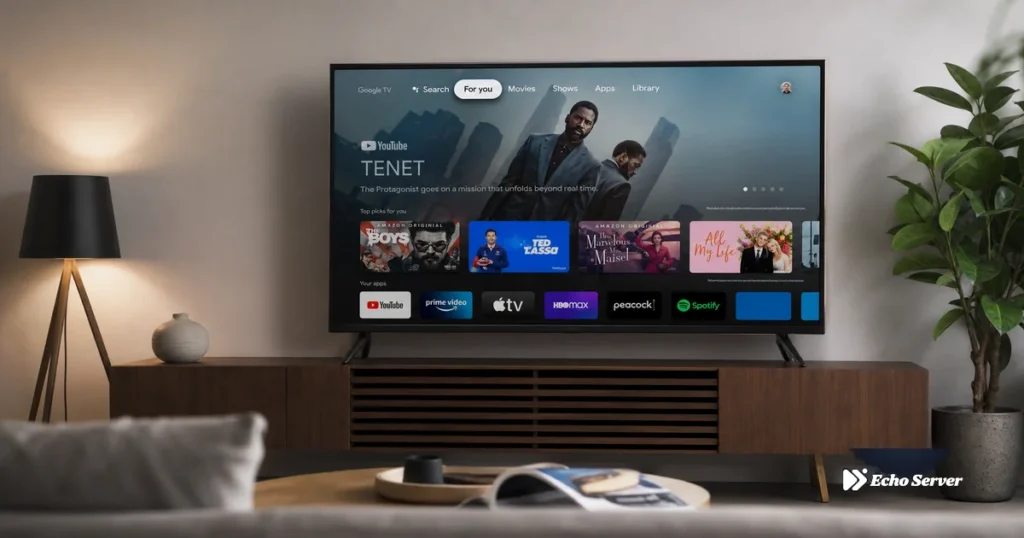
Smart TVs promise convenient streaming with built-in apps and no external hardware required, but IPTV setup complexity varies dramatically depending on your TV’s operating system. Samsung Tizen and LG webOS—the two most popular proprietary Smart TV platforms—severely restrict IPTV app availability, forcing users to rely on workarounds like screen mirroring or external devices. Sony, TCL, Philips, and Hisense Smart TVs running Android TV offer native IPTV app installation identical to smartphones. This fundamental difference determines whether your IPTV setup takes 10 minutes or requires purchasing additional hardware to achieve acceptable performance.
This guide provides specific installation methods for each major Smart TV platform, explains why some Smart TVs make IPTV unnecessarily difficult, and presents practical solutions when your TV’s built-in capabilities fall short. You’ll learn which Samsung and LG models support IPTV (most don’t), how to work around platform limitations without buying extra equipment, when an external streaming device becomes the better choice, and how to configure system settings for optimal IPTV performance on TVs that do support it natively.
Article Update History
September 28, 2026
– Initial publication
– Verified Echo Best IPTV pricing (Economy €29.90, VIP €39.90, Ultra €49.90, Ultimate €69.90 per year)
– Tested setup methods on Samsung Tizen 2025, LG webOS 6.0, Sony Android TV models
– Confirmed app availability limitations across Smart TV platforms
– Verified 24/7 support, 25+ servers, 50,000+ customers, 8 years in business
Understanding Smart TV Operating Systems
Smart TV IPTV compatibility depends entirely on the operating system, not the brand name or price point. A $2,000 Samsung TV might have worse IPTV support than a $400 TCL because Samsung uses proprietary Tizen OS while TCL uses open Android TV.
Android TV (Sony, TCL, Philips, Hisense) – Full IPTV Support
How It Works: These TVs run Google’s Android TV operating system—identical to Android phones and tablets. Google Play Store is built-in, giving you access to all IPTV apps (Smarters Pro, TiViMate, Perfect Player, OTT Navigator).
IPTV Setup Process: Install app from Play Store → Enter Xtream Codes credentials → Done (10-15 minutes total).
Performance: Excellent on mid-range and premium models (2GB+ RAM). Budget models (under $400) may lag with large channel lists (15,000+).
Brands Using Android TV: Sony (all 2020+ models), TCL (P-series and higher), Philips (most European models), Hisense (A-series and U-series).
Samsung Tizen OS – Severely Limited IPTV Support
The Problem: Samsung’s proprietary Tizen OS doesn’t support Google Play Store and has strict app store policies that exclude most IPTV apps. IPTV Smarters Pro, TiViMate, and Perfect Player are NOT available in Samsung’s app store.
Available Options (All Compromises):
- SS IPTV (Samsung app store) — Limited features, requires manual M3U upload, no Xtream Codes support, poor EPG quality
- Screen mirroring from phone/tablet — Works but drains mobile battery, inconvenient for daily use
- External device (Fire Stick, Android TV box) — Best solution but requires extra hardware ($55+)
Verdict: If you already own a Samsung TV, use external device for serious IPTV viewing. If buying new TV specifically for IPTV, choose Android TV instead.
LG webOS – Similar Limitations to Samsung
The Problem: LG’s webOS platform also restricts third-party apps. Major IPTV players aren’t available in LG Content Store.
Available Options:
- LG Channels (built-in app) — Supports M3U playlists but interface is basic, no advanced features
- Screen mirroring (same limitations as Samsung)
- External device (recommended for regular use)
Verdict: Same recommendation as Samsung—external streaming device provides better experience than workarounds.
Android TV Smart TV Setup (Sony, TCL, Philips)
This is the straightforward path—identical to smartphone IPTV setup.
Step 1: Access Google Play Store (2 minutes)
- Press Home button on TV remote
- Navigate to Apps or Google Play Store icon
- If first-time setup, sign in with Google account
- Search for “IPTV Smarters Pro” or “TiViMate”
- Select app from results → Click Install
- Wait 30-60 seconds for download and installation
Step 2: Configure Xtream Codes Credentials (3 minutes)
- Open installed IPTV app
- Select “Add User” or “Add Playlist”
- Choose “Xtream Codes API” login method
- Enter Echo Best IPTV credentials:
- Username: Your IPTV account username
- Password: Your IPTV account password
- Server URL: Server address from Echo Best IPTV
- Save and wait for channel list sync (20-40 seconds)
Step 3: Optimize TV Settings for IPTV (10 minutes)
Network Settings:
- Settings → Network → Check connection type (WiFi or Ethernet)
- If using WiFi, verify signal strength is “Excellent” or “Good”
- Run speed test (install Speedtest app from Play Store):
- Minimum 10 Mbps for HD channels
- Minimum 25 Mbps for 4K content
- If speed insufficient, switch to Ethernet cable (most Android TVs have built-in Ethernet port)
Display Settings:
- Settings → Display → Set resolution to “Auto” (lets TV match stream quality)
- Enable “Match content frame rate” if available (reduces judder)
- Disable motion smoothing / motion interpolation (causes soap opera effect on IPTV)
Power Settings:
- Settings → Power → Screen saver → Set to “Never” or 30+ minutes
- Settings → Power → Auto power off → Set to 4+ hours or disable
Samsung Tizen TV Workarounds
Option 1: SS IPTV App (Limited but Native)
SS IPTV is one of the few IPTV apps available in Samsung’s app store, but it has significant limitations compared to full-featured apps.
Installation:
- Press Home on Samsung remote
- Navigate to Apps
- Search for “SS IPTV”
- Install app (free)
Setup with M3U Playlist:
- Get M3U playlist URL from Echo Best IPTV (contact support if you only have Xtream Codes—they can provide M3U equivalent)
- Open SS IPTV app
- Go to Settings → Content → External playlists
- Add playlist → Enter M3U URL
- Save and wait for channel list to load
Limitations You’ll Encounter:
- No Xtream Codes support (M3U only)
- Basic EPG (program guide often incomplete or missing)
- No catch-up TV or recording features
- Manual playlist updates required when provider changes URLs
- Limited parental control options
Verdict: Acceptable for casual viewing but frustrating for daily use with Echo Best IPTV’s large channel offerings (20,000+ on Ultra plan).
Option 2: Screen Mirroring from Phone/Tablet
Use your Android phone or iPhone to run full-featured IPTV apps (Smarters Pro, TiViMate), then mirror the screen to your Samsung TV.
Setup Process:
- Install IPTV app on your phone (from Google Play or App Store)
- Configure with Xtream Codes credentials
- On Samsung TV: Settings → General → External Device Manager → Device Connect Manager → Enable
- On your phone:
- Android: Settings → Connected devices → Cast → Select your Samsung TV
- iPhone: Swipe down from top-right → AirPlay → Select Samsung TV
- Open IPTV app on phone—it appears on TV screen
Downsides:
- Drains phone battery quickly (2-3 hours max before recharge needed)
- Phone unavailable for other tasks while streaming
- Slight quality degradation vs. native playback
- Interruptions from phone notifications/calls
Verdict: Good for testing IPTV before committing to external hardware, impractical for regular viewing.
Option 3: External Streaming Device (Recommended)
Add Fire Stick 4K Max ($55) or Android TV box to your Samsung TV’s HDMI port.
Why This Works Best:
- Full access to all IPTV apps (no Samsung limitations)
- Better performance than TV’s built-in processor for large channel lists
- Dedicated remote control optimized for app navigation
- Regular software updates for security and features
- One-time cost ($55) vs. ongoing frustration with workarounds
Setup:
- Plug Fire Stick into Samsung TV’s HDMI port
- Switch TV input to that HDMI port
- Follow Fire Stick setup (5 minutes)
- Install IPTV app and configure normally (10 minutes)
Verdict: If you use IPTV regularly (daily viewing), this $55 investment eliminates all Samsung Tizen limitations permanently.
LG webOS TV Solutions
Option 1: LG Channels App (Built-In, Limited)
LG’s built-in “LG Channels” app supports M3U playlists but lacks advanced features.
Setup:
- Press Home on LG remote
- Open LG Channels app (pre-installed)
- Go to Settings → Manage channels → Add channels
- Select “URL” input method
- Enter M3U playlist URL from Echo Best IPTV
- Save and wait for channel import
Limitations:
- Basic interface—no Netflix-style browsing for movies/series
- EPG support varies by playlist (often incomplete)
- No multi-screen or advanced playback features
- Channel organization is manual and tedious
Verdict: Similar to Samsung’s SS IPTV—usable but limited. Fine for Economy plan (10,000 channels), struggles with Ultra plan (20,000+ channels).
Option 2: External Device (Same Recommendation as Samsung)
Add Fire Stick 4K Max or Android TV box to bypass LG webOS limitations entirely. Setup and benefits identical to Samsung external device solution above.
Sony Android TV Setup (Easiest Path)
Sony TVs running Android TV are the best Smart TV option for IPTV—no compromises needed.
Setup Process:
- Open Google Play Store on Sony TV
- Install IPTV Smarters Pro or TiViMate
- Configure with Xtream Codes credentials
- Optimize display/network settings (see Android TV section above)
Sony-Specific Advantages:
- Premium TV panels (OLED on A-series, high-end LED on X-series) enhance picture quality
- Excellent remote control with dedicated Google Assistant button
- Built-in Ethernet on all models (no adapter needed)
- 2-3GB RAM on most models (handles large channel lists smoothly)
Performance Notes:

