
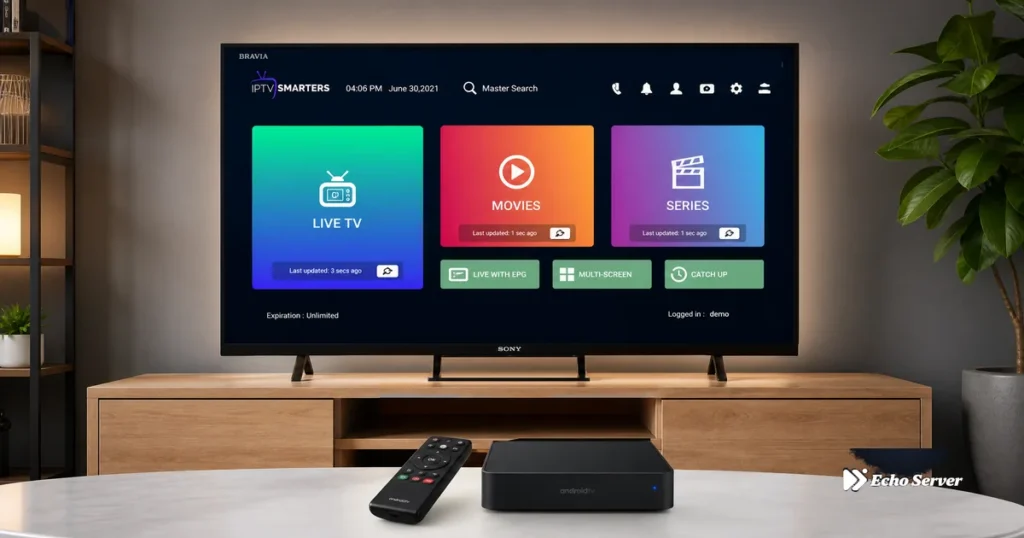
Android TV transforms any television into a powerful IPTV streaming platform, combining Google Play Store’s vast app ecosystem with the processing power needed to handle large channel lists and 4K streaming. Unlike proprietary Smart TV operating systems (Samsung Tizen, LG webOS) that limit which IPTV apps you can install, Android TV provides unrestricted access to all major IPTV players—IPTV Smarters Pro, TiViMate, Perfect Player, OTT Navigator, and dozens more—without sideloading or workarounds. This makes Android TV the ideal platform for IPTV users who want maximum app choice, seamless updates, and performance that rivals dedicated streaming boxes at a fraction of the cost.
This comprehensive guide covers everything specific to Android TV IPTV setup: which Android TV devices offer the best performance for different budgets, how to leverage Google Play Store for one-tap app installation, which IPTV apps are optimized specifically for Android TV’s remote control navigation, and how to configure system settings to eliminate common issues like buffering and audio sync problems. Whether you own a Sony Bravia, TCL Android TV, Nvidia Shield, or Xiaomi Mi Box, you’ll have a fully optimized IPTV system running within 20 minutes.
Article Update History
September 28, 2026
– Initial publication
– Verified Echo Best IPTV pricing (Economy €29.90, VIP €39.90, Ultra €49.90, Ultimate €69.90 per year)
– Tested apps on Sony Bravia XR, TCL P735, Nvidia Shield TV Pro
– Confirmed app availability: Smarters Pro, TiViMate, Perfect Player, OTT Navigator
– Verified 24/7 support, 25+ servers, 50,000+ customers, 8 years in business
Why Android TV Is the Best Platform for IPTV
1. Native Google Play Store Access
Install IPTV apps with one click—no APK downloads, no sideloading, no enabling “unknown sources.” Search for “IPTV Smarters Pro” in Google Play Store, tap Install, and you’re done. Apps update automatically, maintaining security patches and new features without manual intervention.
2. Superior Hardware in Most Android TV Devices
Most Android TVs (Sony, TCL, Philips) and dedicated boxes (Nvidia Shield, Xiaomi Mi Box) include 2-3GB RAM and quad-core processors—sufficient for Echo Best IPTV’s largest plans (20,000+ channels on Ultra plan). Fire Stick 4K has only 1.5GB RAM; Fire Stick 4K Max has 2GB but costs extra. Many Android TVs include this performance at no additional cost.
3. Built-In Ethernet Ports (On TVs and Most Boxes)
Fire Stick requires a separate Ethernet adapter ($15); Android TVs and boxes typically include Gigabit Ethernet ports, providing the most stable connection for 4K IPTV streaming without additional purchases.
4. Google Assistant Voice Search
Say “Open IPTV Smarters Pro” or “Search for [movie name]” via Google Assistant—faster than remote control navigation through menus. Works system-wide across all installed IPTV apps.
5. Chromecast Built-In
Cast IPTV content from your phone to Android TV when you want to share something you found on mobile. Also enables screen mirroring for troubleshooting or showing others how to navigate your IPTV setup.
Best Android TV Devices for IPTV (2026)
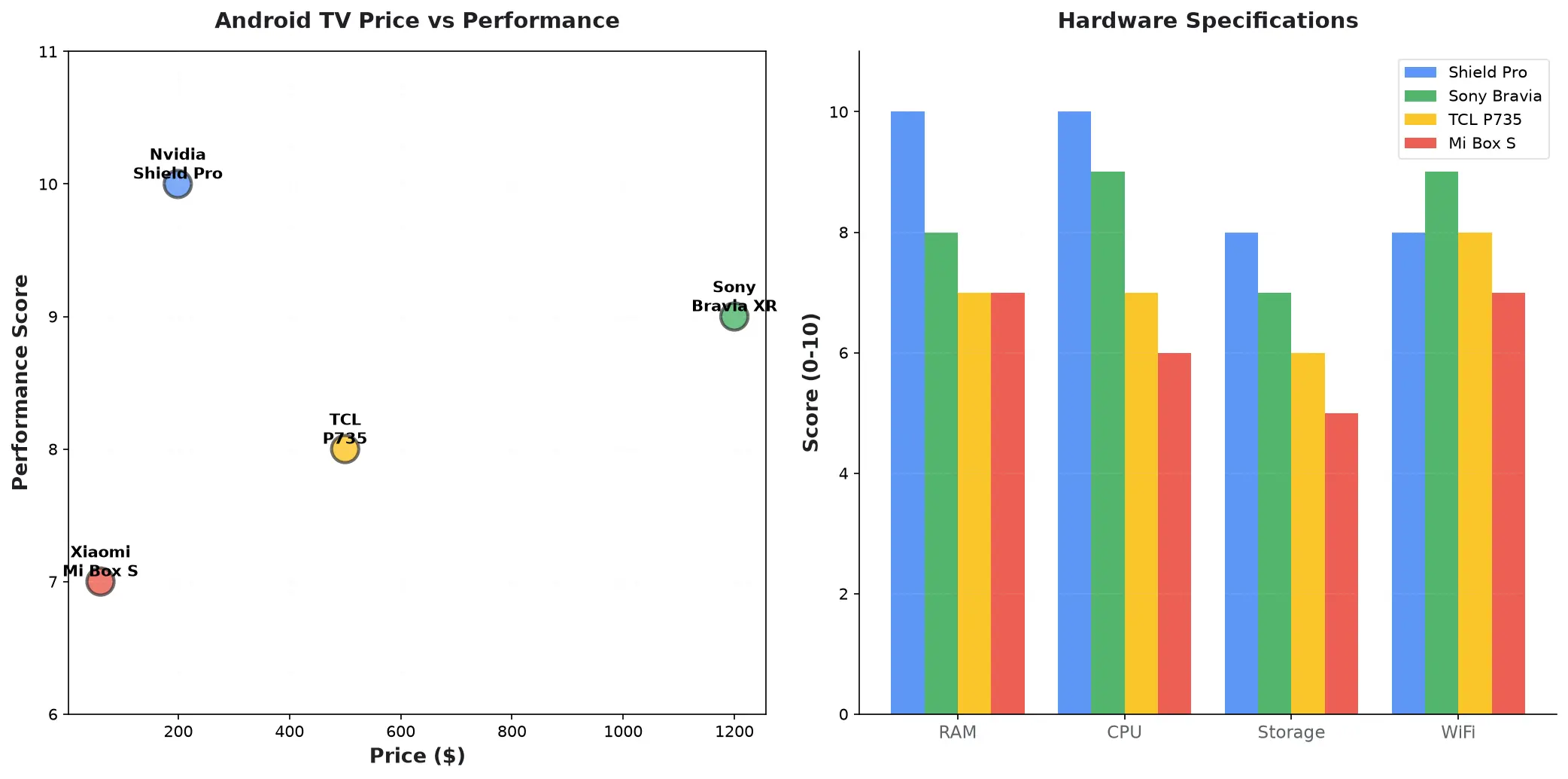
Nvidia Shield TV Pro ($199) – Best Overall Performance
Specifications:
- 3GB RAM (2x Fire Stick 4K Max)
- Tegra X1+ processor (fastest Android TV device)
- Gigabit Ethernet + WiFi 5 (AC)
- 16GB storage (expandable via USB)
- 4K HDR, Dolby Vision, Dolby Atmos
Why It Excels for IPTV:
- Handles Echo Best IPTV’s Ultimate plan (largest channel lists) without lag
- Multi-screen mode in TiViMate runs 4 simultaneous 1080p streams smoothly
- AI upscaling enhances SD channels to near-HD quality
- Server-grade performance—never buffers on fast connections
Drawbacks: Premium price ($199 vs. $55 Fire Stick 4K Max). Only worth it if you use IPTV heavily (4+ hours daily) or need absolute best performance.
Sony Bravia XR Series (Built-In Android TV) – Best Premium TV Option
What You Get:
- Android TV pre-installed (no external box needed)
- Premium panel quality (OLED or high-end LED)
- 2-3GB RAM depending on model
- Excellent remote with dedicated Google Assistant button
IPTV Performance: Equivalent to mid-range Android TV box—handles most IPTV apps smoothly. Higher-end models (X90K, A80K) match Nvidia Shield performance for IPTV tasks.
Note: Budget Sony models (under $500) sometimes use slower processors—verify specs before assuming all Sony Bravia TVs perform identically for IPTV.
TCL P735 / C735 Series ($400-600) – Best Value Android TV
Why It’s Great for IPTV:
- Android TV built-in (Google Play Store access)
- 2GB RAM (same as Fire Stick 4K Max)
- 4K HDR, Dolby Vision support
- Fraction of Sony’s price with 90% of the performance
Real-World IPTV Use: Runs IPTV Smarters Pro and TiViMate flawlessly with Echo Best IPTV’s VIP or Ultra plans. Occasional minor lag with Ultimate plan’s largest channel lists, but still very usable.
Xiaomi Mi Box S ($60) – Best Budget Android TV Box
Specifications:
- 2GB RAM, quad-core processor
- Android TV 9 (upgradeable to 11 on some units)
- 4K HDR support
- Compact design, Bluetooth remote
IPTV Performance: Handles Echo Best IPTV’s Economy and VIP plans (10,000-15,000 channels) smoothly. Ultra plan (20,000+ channels) causes occasional EPG lag when scrolling through full guide. Perfect budget option if you don’t need the largest channel packages.
Best IPTV Apps for Android TV (Ranked)
1. TiViMate Premium ($5/year) – Best for Live TV Focus
Why It’s #1 for Android TV:
- Designed specifically for Android TV remote control navigation
- Best EPG interface—timeline scrubbing, multi-day view, instant channel preview
- Superior performance on Android TV vs. other platforms
- Multi-screen mode (4-9 simultaneous channels)
- Cloud EPG syncing across devices (Premium)
Perfect For: Echo Best IPTV users who primarily watch live channels and want the best possible EPG experience. The $5/year premium cost is negligible for the feature set.
2. IPTV Smarters Pro (Free) – Best All-Around Option
Strengths on Android TV:
- Completely free (no premium tier pressure)
- Excellent movies/series organization (better than TiViMate)
- Simple Xtream Codes setup (3 fields: username, password, server)
- Parental controls with PIN protection
- Regular updates via Google Play Store
Perfect For: Echo Best IPTV users who watch equal amounts of live TV and on-demand content (movies/series). Best free option with no compromises.
3. Perfect Player (Free) – Best for Customization
Advanced Features:
- Highly customizable UI (change colors, fonts, layouts)
- Custom logos and channel sorting rules
- Runs well even on older/slower Android TV devices
- Advanced playlist management
Drawbacks: Steeper learning curve—dozens of settings to configure. Not ideal for first-time IPTV users. TiViMate or Smarters Pro better for beginners.
4. OTT Navigator ($10-15/year) – Best for Cable TV Refugees
What Makes It Different:
- Mimics traditional cable TV interface
- Familiar channel surfing experience
- Good Picture-in-Picture implementation
- Intuitive for users transitioning from cable
Verdict: Worth trying if TiViMate’s interface feels unfamiliar and you want something closer to traditional cable TV navigation.
Complete Android TV IPTV Setup (Step-by-Step)
Step 1: Install Your Chosen IPTV App (2 minutes)
- Press Home button on Android TV remote
- Navigate to Google Play Store (usually in top row of apps)
- Click the Search icon (magnifying glass)
- Type “IPTV Smarters Pro” or “TiViMate” using on-screen keyboard
- Select the app from search results
- Click Install
- Wait 30-60 seconds for installation to complete
- Click Open (or access later from Apps menu)
Voice Search Shortcut: Press and hold the Google Assistant button on your remote, say “Install IPTV Smarters Pro”—Android TV finds and installs it automatically.
Step 2: Configure Xtream Codes Credentials (3 minutes)
For IPTV Smarters Pro:
- Open app → Tap “Add User”
- Select “Login with Xtream Codes API”
- Enter Echo Best IPTV credentials:
- Username: Your IPTV account username
- Password: Your IPTV account password
- Server URL: Server address from Echo Best IPTV
- Tap “Add User”
- Wait 20-40 seconds for channel list download
For TiViMate:
- Open app → Navigate to “Add Playlist”
- Select “Xtream Codes API”
- Enter same credentials as above
- Name the playlist (e.g., “Echo Best IPTV”)
- Tap “Next” → Wait for sync
Step 3: Configure EPG (Electronic Program Guide) (5 minutes)
IPTV Smarters Pro:
- Navigate to Settings (three-line menu icon)
- Select “EPG”
- Enable “Auto-refresh EPG”
- Set refresh interval: 12 hours
- Tap “Force Refresh EPG”
- Wait 2-3 minutes for EPG data to download
TiViMate:
- Settings → EPG → EPG source
- Select “Use Xtream provider’s EPG” (automatic with Xtream Codes)
- Set auto-update frequency: 12 hours
- Tap “Update EPG” to force manual refresh
Step 4: Optimize Android TV System Settings (10 minutes)
A. Network Settings (Critical for Buffering Prevention)
- Press Home → Navigate to Settings
- Select Network & Internet
- If using WiFi:
- Check signal strength (should be “Excellent” or “Good”)
- If weak, switch to 5GHz WiFi band (Settings → WiFi → Advanced)
- Consider adding Ethernet cable for zero buffering
- Run speed test (install “Speedtest by Ookla” from Play Store):
- Minimum 10 Mbps for HD
- Minimum 25 Mbps for 4K
- If below minimums, contact ISP or upgrade plan
B. Display Settings (For Best Picture Quality)
- Settings → Display & Sound → Advanced Settings
- Set “Resolution” to “Auto” (lets Android TV match content)
- Enable “Match content frame rate” if available (reduces judder)
- Disable “Motion smoothing” / “Motion interpolation” (causes soap opera effect on IPTV)
C. Power Settings (Prevent Sleep During Playback)
- Settings → Device Preferences → Screen saver
- Set “When to start” to “Never” or “30 minutes” (prevents interruption during movies)
- Settings → Device Preferences → Power → Sleep timer
- Set to “Never” or long duration (4+ hours)
Step 5: Configure In-App Settings (5 minutes)
Player Settings (If Experiencing Issues):
- Settings → Player → Use External Player → Select “System Player” or install “MX Player”
- Settings → Player → Hardware Acceleration → Enable (uses GPU for decoding = less CPU load)
Buffer Settings (If Channels Buffer):
- Settings → Player → Buffer Size → “Large” or “Maximum”
- Settings → Stream Format → “Auto” (lets app choose best format)
Parental Controls (If Needed):
- Settings → Parental Controls → Enable
- Set 4-digit PIN
- Lock adult/sensitive categories
Advanced Configuration: Multi-Screen and Favorites
Setting Up Multi-Screen Mode (TiViMate Only)
Multi-screen lets you watch up to 4 channels simultaneously—great for monitoring multiple news channels or watching different series at once.
- While watching a channel, press OK on remote to bring up player controls
- Navigate to Multi-screen icon (usually grid icon)
- Select layout: 2-screen (vertical/horizontal), 3-screen, or 4-screen grid
- Browse to other channels—each new selection fills next screen panel
- Press OK on any panel to unmute that channel (mutes others)
- Long-press OK to maximize that channel to fullscreen
Performance Note: Multi-screen requires 50+ Mbps internet (4 channels × 12-15 Mbps each). Works best on Nvidia Shield or high-end Sony/TCL models. Budget devices may stutter with 4 simultaneous HD streams.
Creating and Managing Favorites
IPTV Smarters Pro:
- Browse to a channel you watch frequently
- Long-press OK on remote (or tap and hold on touchscreen remote apps)
- Select “Add to Favorites”
- Repeat for all frequently-watched channels
- Access via main menu → Favorites section
TiViMate:
- While watching a channel, press OK → Select “Add to Favorites”
- Or browse EPG → Long-press any channel → “Add to Favorites”
- Create multiple favorite groups (News, Series, Movies, Kids, etc.)
- Switch between groups via main menu → Favorites → Select group
Troubleshooting Android TV-Specific Issues
Issue 1: App Not Appearing in Google Play Store
Cause: Some IPTV apps (TiViMate specifically) aren’t available in all regions’ Play Stores.
Solutions:
- Install via APK: Download TiViMate APK from official website (tivimate.com), transfer to USB drive, install via File Manager on Android TV
- Use alternative app: If TiViMate unavailable, IPTV Smarters Pro is available worldwide
- Change Play Store region: Add payment method from country where app is available (not recommended—violates Google ToS)
Issue 2: Remote Control Not Navigating App Properly
Cause: Some IPTV apps don’t fully support Android TV’s D-pad remote navigation—they’re designed for touchscreen.
Solutions:
- Use Android TV remote app: Install “Google TV” app on your phone—provides virtual touchscreen for navigating apps
- Add wireless keyboard/mouse: Pair Bluetooth keyboard for easier text entry and navigation
- Switch apps: TiViMate and OTT Navigator are specifically optimized for remote control; Perfect Player requires more mouse-like navigation
Issue 3: Audio and Video Out of Sync
Cause: Processing delay in Android TV’s audio pipeline, especially with soundbars or external audio systems.
Solutions:
- Enable audio passthrough: Settings → Display & Sound → Advanced → Digital audio out → “Passthrough” (sends audio directly to soundbar without TV processing)
- Disable audio processing: Turn off “Virtual Surround” and “Dialog Enhancement” in TV audio settings
- Adjust app audio delay: Some apps (TiViMate) include audio sync adjustment—Settings → Player → Audio delay → Adjust +/- until synced
- Update Android TV firmware: Settings → About → System update—audio sync bugs often fixed in updates
Issue 4: 4K Channels Playing in Lower Quality
Cause: Android TV auto-downgrades resolution when it detects bandwidth or processing issues.
Solutions:
- Force 4K output: Settings → Display & Sound → Resolution → Manually select “2160p (4K)”
- Test internet speed: Need consistent 30+ Mbps for 4K—run speed test and upgrade if needed
- Disable other devices: Close Netflix/YouTube on other devices consuming bandwidth
- Switch to Ethernet: WiFi fluctuations cause quality downgrades—wired connection stays at 4K
Frequently Asked Questions
Do all Android TVs support all IPTV apps?
Most major IPTV apps (Smarters Pro, TiViMate, Perfect Player) work on all Android TV devices. However, app availability in Google Play Store varies by region. If an app isn’t available in your country’s Play Store, you can sideload the APK from the official website. Performance varies by device—budget Android TV boxes (under $50) struggle with large channel lists (15,000+), while premium devices (Nvidia Shield, high-end Sony) handle everything smoothly.
Is Android TV better than Fire Stick for IPTV?
Android TV offers wider app selection (no sideloading needed), often better hardware (more RAM in built-in TVs), and Ethernet ports built-in. Fire Stick 4K Max ($55) is cheaper than buying a separate Android TV box, but if you’re buying a new TV anyway, Android TV models offer better value than Smart TVs + Fire Stick combined. For existing TV owners, Fire Stick 4K Max is the budget option; dedicated Android TV box (Nvidia Shield) is the premium choice.
Can I use Google Assistant to change IPTV channels?
Not directly—Google Assistant can open apps (“Open IPTV Smarters Pro”) but can’t control playback within third-party IPTV apps. You need to use the remote control for channel navigation. Some IPTV apps are developing Google Assistant integration, but it’s not widespread as of 2026.
How do I update IPTV apps on Android TV?
Apps installed from Google Play Store update automatically. To manually check: Open Play Store → My Apps → Select IPTV app → Tap “Update” if available. Apps sideloaded via APK require manual re-download and reinstallation from the official website—they don’t auto-update.
Why does my Android TV say “Insufficient Storage” when installing IPTV apps?
Most Android TVs have 8-16GB storage, but system files consume 4-6GB, leaving limited space for apps. Solutions: (1) Uninstall unused apps, (2) Clear cache (Settings → Apps → Select app → Clear cache), (3) Factory reset if severely cluttered (Settings → Device Preferences → Reset), (4) For Android TV boxes, add external USB storage to expand capacity.
Can I use a VPN on Android TV for IPTV?
Yes, install VPN apps (NordVPN, ExpressVPN, Surfshark) directly from Google Play Store. Enable VPN before opening your IPTV app—all traffic routes through encrypted tunnel. Note: VPNs can reduce internet speed 10-20%, potentially causing buffering. Test IPTV without VPN first to ensure it works, then add VPN if needed for privacy.
What’s the difference between Android TV and Google TV?
Google TV is the newer interface layer on top of Android TV (launched 2020). Functionally identical for IPTV—same apps, same Google Play Store, same performance. Google TV has a different home screen UI focused on content recommendations. For IPTV purposes, treat them as the same platform.
How many IPTV apps can I install on Android TV simultaneously?
No hard limit, but practical limit is 5-10 depending on device storage. Each IPTV app consumes 50-150MB, plus cached channel lists (another 50-200MB for large providers like Echo Best IPTV). Keep 2-3 apps maximum—install TiViMate and Smarters Pro to compare, then uninstall the one you don’t prefer to free storage.
Can I transfer my IPTV app settings from Fire Stick to Android TV?
Settings don’t transfer automatically—each device requires fresh app installation and configuration. However, Xtream Codes credentials work identically across platforms. Write down your username/password/server from Fire Stick, install the same app on Android TV, enter the same credentials, and your channel list/EPG load identically. Favorites and app-specific settings require manual recreation.
Why does Android TV performance degrade over time with IPTV apps?
Cached data accumulation—EPG data, channel logos, and temporary files build up. Solution: Clear app cache monthly (Settings → Apps → IPTV app → Clear cache). Avoid “Clear data” which deletes your login credentials and favorites. If performance issues persist after cache clearing, factory reset Android TV (backup settings first).
Conclusion: Android TV Delivers Premium IPTV Experience
Android TV combines native app store convenience, powerful hardware, and unrestricted app access to create the most flexible IPTV platform available. Whether you’re using a built-in Android TV (Sony, TCL) or a dedicated box (Nvidia Shield, Mi Box S), you get the same core advantages: one-click app installation from Google Play Store, automatic updates, Google Assistant integration, and hardware capable of handling Echo Best IPTV’s largest channel packages without performance compromises.
The setup process—install app from Play Store, enter Xtream Codes credentials, configure EPG—takes under 15 minutes and works identically across all Android TV devices. Echo Best IPTV’s infrastructure (25+ servers, 24/7 support, 8 years serving 50,000+ customers) pairs perfectly with Android TV’s technical capabilities, delivering the stability and performance that demanding IPTV users require. With annual plans starting at €29.90 and a 24-hour trial to test compatibility, Echo Best IPTV on Android TV represents the sweet spot of affordability, performance, and ease-of-use for cord-cutters transitioning from cable to internet-based television.

