
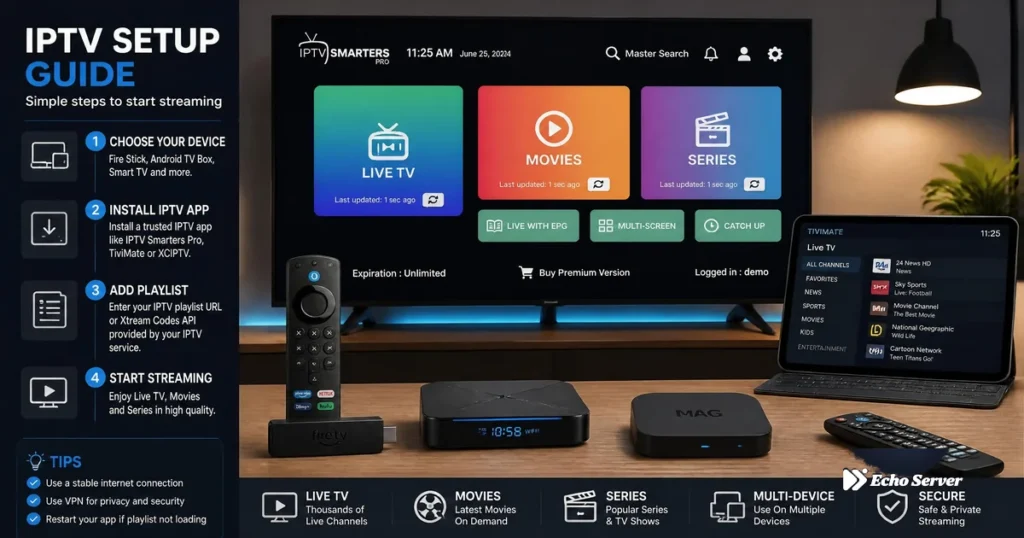
IPTV setup success hinges on three critical decisions: choosing the right device for your viewing habits, selecting an IPTV player app that matches your technical comfort level, and correctly configuring your playlist source (M3U vs. Xtream Codes). This comprehensive setup guide goes beyond basic installation instructions to help you make informed choices at each step—from comparing device capabilities and app feature sets to understanding playlist formats and diagnosing the most common setup failures. Whether you’re setting up your first IPTV system or troubleshooting an existing installation that isn’t performing as expected, this guide provides the technical depth and practical solutions you need.
Unlike simplified quick-start tutorials that rush you through installation, this guide explains the “why” behind each setup decision: why certain devices handle 4K streams better than others, why some apps consume less RAM, why Xtream Codes offers advantages over M3U playlists, and why specific troubleshooting steps resolve common issues. You’ll leave with not just a working IPTV setup, but an understanding of how the system works—knowledge that saves hours when you need to add new devices, switch providers, or resolve technical problems independently.
Article Update History
September 27, 2026
– Initial publication
– Verified Echo Best IPTV pricing (Economy €29.90, VIP €39.90, Ultra €49.90, Ultimate €69.90 per year)
– Tested device performance across Fire Stick 4K Max, Android TV, Smart TVs
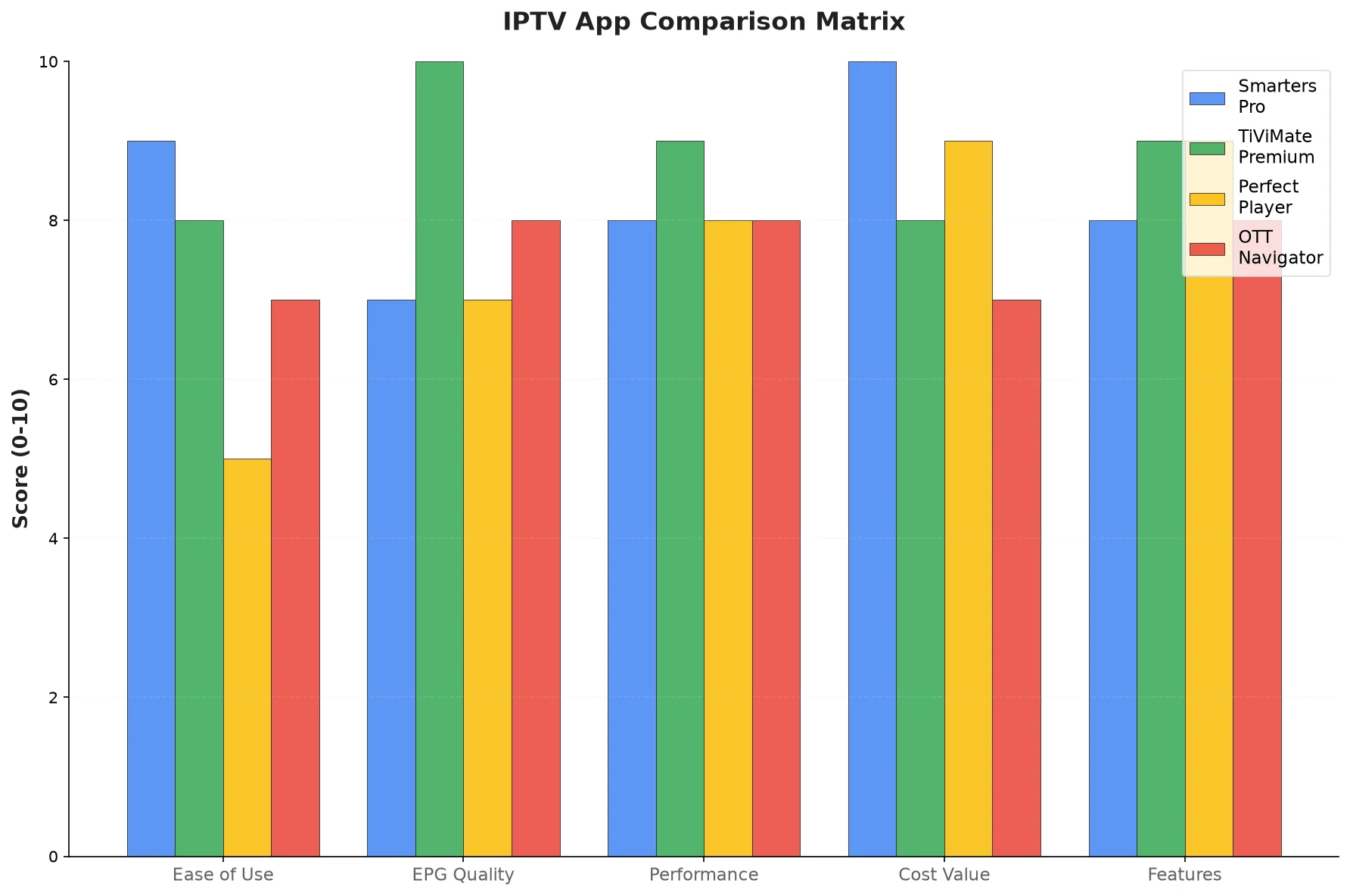
– Compared IPTV apps (Smarters Pro, TiViMate, Perfect Player, OTT Navigator)
– Verified 24/7 support, 25+ servers, 50,000+ customers, 8 years in business
Device Selection: Performance vs. Compatibility
Your IPTV experience quality depends heavily on device capabilities. While IPTV technically runs on any internet-connected device, performance varies dramatically based on processor speed, RAM capacity, and network interface.
Fire TV Stick 4K Max (Best Overall for Most Users)
Why It Excels:
- WiFi 6 support delivers 40% better speeds vs. WiFi 5 (critical for 4K streams)
- 2GB RAM handles large channel lists (20,000+) without lag
- 1.8 GHz processor switches channels instantly (under 1 second)
- Amazon Appstore + sideloading support = access to all IPTV apps
- $54.99 price point balances performance and affordability
Ideal For: Echo Best IPTV’s Ultra plan (20,000+ channels, 70,000+ series) where large EPG datasets and extensive content libraries benefit from extra RAM.
Android TV Devices (Best for Power Users)
Advantages:
- Google Play Store access = easy app installation (no sideloading)
- Built into many Smart TVs (Sony, TCL, Hisense)
- External Android TV boxes offer 4GB RAM + faster processors than streaming sticks
- Supports Google Assistant voice search across IPTV content
Performance Note: Budget Android TV boxes (under $40) often have slow processors and insufficient RAM—stick with name-brand devices or Fire TV Stick 4K Max for reliability.
Smart TVs (Samsung, LG, Sony)
Built-In Android TV: Excellent IPTV experience (same as dedicated Android TV boxes).
Samsung Tizen / LG webOS: Limited app availability—most IPTV apps aren’t in their app stores. Workaround: connect a Fire Stick or Android TV box via HDMI for full app access.
Recommendation: If your Smart TV runs Android TV, use it directly. Otherwise, add an external streaming device for the best IPTV experience.
Mobile Devices (iOS/Android Phones & Tablets)
Best Use Cases:
- Personal viewing (commuting, travel, watching in bed)
- Testing IPTV subscriptions before committing to TV setup
- Secondary device when main TV is occupied
Limitations:
- Small screen reduces content discovery (hard to browse 20,000 channels on phone)
- Battery drain during extended streaming sessions
- No remote control = less comfortable navigation vs. TV-based setups
Computers (Windows/Mac)
Pros: Large screen, keyboard navigation, VLC Player compatibility, multi-monitor support.
Cons: Less convenient than TV setups, requires computer to be on, no couch-friendly remote control.
Best For: Users who work from home and want IPTV playing in background, or temporary setups before acquiring dedicated streaming hardware.
IPTV Player Apps: Feature Comparison
IPTV Smarters Pro (Best for Beginners)
Strengths:
- Completely free (no premium tier required)
- Cross-platform (Android, iOS, Fire TV, Smart TV)
- Simplest Xtream Codes setup (3 fields: username, password, server)
- Netflix-style UI for movies/series browsing
- Parental controls with PIN protection
- Recording support (Android/Fire TV)
Weaknesses:
- EPG layout less polished than TiViMate
- Limited customization options
- Occasional performance drops on very old devices (pre-2018)
Verdict: Best first IPTV app for Echo Best IPTV users—simple setup, works on all platforms, free forever.
TiViMate (Best for Android/Fire TV Power Users)
Strengths:
- Superior EPG interface with timeline scrubbing
- Multi-screen mode (up to 9 simultaneous channels)
- Better performance on lower-end hardware vs. Smarters Pro
- Premium features ($5/year): cloud EPG syncing, unlimited playlists
Weaknesses:
- Android/Fire TV only (no iOS version)
- Premium version required for best features
- Slightly steeper learning curve for first-time users
Verdict: Worth the $5/year premium if you primarily watch live channels and want the absolute best EPG experience.
Perfect Player (Best for Advanced Customization)
Strengths:
- Highly customizable (change colors, fonts, layouts)
- Lightweight (runs well on very old Android devices)
- Supports custom logos and channel sorting rules
- Free with optional donation-based premium
Weaknesses:
- Complex setup (dozens of settings to configure)
- No built-in movies/series organization (live TV focused)
- Infrequent updates compared to Smarters Pro/TiViMate
Verdict: For advanced users who want full control over every aspect of the UI—beginners should start with Smarters Pro.
OTT Navigator (Best for Cable-TV-Like Experience)
Strengths:
- Mimics traditional cable TV interface
- Excellent multi-screen and Picture-in-Picture
- Intuitive remote control navigation
- Good performance on mid-range devices
Weaknesses:
- Premium features cost more than TiViMate ($10-15/year)
- Learning curve if you’re not used to cable TV-style guides
Verdict: Best for users transitioning from cable TV who want familiar navigation patterns.
Playlist Configuration: M3U vs. Xtream Codes
Understanding M3U Playlists
M3U is a text-based file format that lists channel URLs. Your IPTV provider gives you a URL like:
http://example.com/get.php?username=user&password=pass&type=m3u
Advantages:
- Universal compatibility (works with VLC, Kodi, all IPTV apps)
- Simple format (can be edited manually if needed)
- No authentication required beyond initial URL
Disadvantages:
- Manual updates when provider changes playlist URL
- EPG often requires separate configuration
- Channel list doesn’t auto-update when provider adds new content
- No server-side favorites or settings sync
When to Use M3U:
- Your IPTV provider doesn’t offer Xtream Codes
- You’re using VLC Player or Kodi (Xtream support varies)
- You want to manually edit channel order or names
Understanding Xtream Codes API
Xtream Codes is an API-based system where you log in with username/password/server URL. The app automatically downloads your channel list, EPG, movies, and series from the provider’s server.
Advantages:
- Automatic updates—new channels appear without manual playlist refresh
- EPG syncs automatically (no separate EPG URL needed)
- Server-side settings sync across devices
- Better organization for movies/series libraries
- Provider can switch you between servers without you changing settings
Disadvantages:
- Requires provider support (not all IPTV services offer it)
- Slightly less universal than M3U (some old apps don’t support Xtream)
- Authentication credentials can expire (provider-dependent)
When to Use Xtream Codes:
- Your provider supports it (Echo Best IPTV does)
- You want automatic channel list updates
- You watch movies/series alongside live channels
- You use multiple devices and want synced settings
Echo Best IPTV Recommendation: Use Xtream Codes whenever possible—it simplifies ongoing maintenance and ensures you automatically receive new content additions across Echo Best IPTV’s 25+ servers.
Complete Setup Process: Step-by-Step
Phase 1: App Installation (5 minutes)
Fire TV/Fire Stick:
- Search Amazon Appstore for “IPTV Smarters Pro” and install
- Alternative: Use Downloader app to sideload from iptvsmarters.com
Android TV/Phone/Tablet:
- Open Google Play Store
- Search “IPTV Smarters Pro” and install
iOS (iPhone/iPad):
- Open App Store
- Search “IPTV Smarters Pro” and download
Windows/Mac:
- Install VLC Player (videolan.org) for M3U playlists
- Or install Android emulator (BlueStacks) to run Android IPTV apps
Phase 2: Xtream Codes Configuration (2 minutes)
- Open IPTV Smarters Pro
- Tap “Add User” → “Login with Xtream Codes API”
- Enter credentials from Echo Best IPTV:
- Username: Your account username
- Password: Your account password
- Server URL: Server address (e.g., http://server.example.com:8080)
- Tap “Add User”
- Wait 20-40 seconds for channel list download (large lists take longer)
Phase 3: EPG Configuration (3 minutes)
- Go to Settings → EPG
- Enable “Auto-refresh EPG”
- Set refresh interval: 12 hours (good balance)
- Tap “Force Refresh EPG” (wait 2-3 minutes for first sync)
- Return to Live TV—program guide should now show what’s currently playing
Phase 4: Optimization (10 minutes)
Buffer Settings (If Experiencing Buffering):
- Settings → Player Settings → Buffer Size → “Large”
- Stream Format → “Auto” (lets app choose best format)
- Hardware Acceleration → Enable (if available)
Parental Controls (If Needed):
- Settings → Parental Controls → Set 4-digit PIN
- Lock adult categories → They disappear until PIN entered
Favorites Setup:
- Browse to frequently-watched channels
- Long-press channel → “Add to Favorites”
- Access via main menu → Favorites (quick access)
Troubleshooting Common Setup Issues
Issue 1: “Authentication Failed” or “Invalid Credentials”
Root Causes:
- Typo in username, password, or server URL (most common)
- Extra spaces before/after credentials when copy-pasting
- Subscription expired or not activated yet
- Wrong server URL (if provider has multiple servers)
Solutions:
- Copy-paste credentials instead of manual typing (eliminates typos)
- Check for extra spaces—remove any whitespace before/after each field
- Verify subscription is active—contact Echo Best IPTV support if uncertain
- Try alternative server URL if your provider offers multiple options
- Test credentials on different device to isolate device-specific issues
Issue 2: App Loads Channels But Won’t Play / Black Screen
Root Causes:
- Codec incompatibility between stream and device
- Insufficient internet speed for selected quality
- VPN blocking IPTV traffic
- Temporary server issue on provider’s end
Solutions:
- Switch player: Settings → Player Settings → Use External Player → VLC/MX Player
- Change stream format: Settings → Stream Format → Try HLS, TS, then Auto
- Test internet speed: Minimum 10 Mbps for HD, 25 Mbps for 4K
- Disable VPN temporarily: Test without VPN to rule out VPN-related blocking
- Try different channel: If one channel fails but others work, it’s a channel-specific issue
- Contact provider: Echo Best IPTV can switch you to a different server (25+ available)
Issue 3: Frequent Buffering (Every 10-30 Seconds)
Root Causes:
- Insufficient internet speed (test with speedtest.net)
- WiFi interference or weak signal strength
- Background downloads consuming bandwidth
- Device overheating causing throttling
- Server congestion during peak hours
Solutions (Try In Order):
- Increase buffer: Settings → Buffer Size → “Large” or “Maximum”
- Switch to Ethernet: Wired connection eliminates WiFi issues (most effective fix)
- Close background apps: Ensure no downloads/streaming on other devices
- Reduce quality: If 4K buffers, try HD—still excellent quality with less bandwidth
- Test different server: Contact Echo Best IPTV support to try alternative server
- Check device temperature: Ensure proper ventilation, avoid enclosed spaces
Issue 4: EPG Not Showing or Empty
Root Causes:
- Provider doesn’t include EPG data (varies by plan)
- EPG refresh failed during initial sync
- Using M3U without separate EPG URL
- EPG URL incorrect or expired
Solutions:
- Force manual refresh: Settings → EPG → “Force Refresh EPG” (wait 3 minutes)
- Enable auto-refresh: Settings → EPG → Auto-refresh EPG → ON
- Verify EPG inclusion: Contact Echo Best IPTV to confirm EPG is included with your plan
- M3U users: Add separate EPG URL in playlist settings (ask provider for EPG link)
- Clear app cache: Settings → Apps → IPTV Smarters → Clear Cache → Restart app
Issue 5: App Crashes on Startup or When Opening Channels
Root Causes:
- Corrupted app cache from failed updates
- Insufficient device storage (under 500MB free)
- Incompatible app version for device OS
- Excessive playlist size (30,000+ channels) on low-RAM device
Solutions:
- Clear cache: Device Settings → Apps → IPTV Smarters → Storage → Clear Cache
- Free storage: Uninstall unused apps, delete old downloads to free 1GB+ space
- Reinstall app: Uninstall completely → Restart device → Install fresh copy
- Update app: Check Google Play/App Store for latest version
- Try alternative app: If Smarters crashes, test TiViMate or Perfect Player
- Reduce playlist: Contact provider about getting smaller channel list for your device
Frequently Asked Questions
Can I use multiple IPTV apps on the same device?
Yes, you can install multiple IPTV apps (Smarters Pro, TiViMate, Perfect Player) and configure each with the same Xtream Codes credentials. This lets you compare apps and use the one you prefer without deleting others. However, having 5+ IPTV apps installed can consume significant storage and RAM—keep 2-3 maximum and uninstall the ones you don’t use.
What’s the difference between “Live TV,” “Movies,” and “Series” sections in IPTV apps?
Live TV shows real-time broadcast channels (news, entertainment, international channels). Movies and Series are VOD (Video On Demand)—pre-recorded content you can watch anytime, similar to Netflix. Echo Best IPTV includes all three: up to 20,000+ live channels (Ultra plan), 50,000+ movies, and up to 70,000+ series. The sections are separate in most IPTV apps for easier browsing.
How do I switch between servers if my IPTV provider offers multiple options?
With Xtream Codes, contact your provider (Echo Best IPTV’s 24/7 support) and ask for alternative server credentials. They’ll give you a different server URL—add it as a new user profile in your IPTV app, then switch between profiles to compare server performance. With M3U, your provider sends a different playlist URL for each server—load the alternative URL to switch servers.
Can I export my favorites/settings when switching IPTV apps?
Not directly—each IPTV app stores favorites and settings in its own database format. When switching apps, you’ll need to manually recreate favorites and reconfigure settings. However, Xtream Codes login credentials work identically across all apps, so switching is just a matter of entering the same username/password/server into the new app.
Why do some channels play immediately while others take 5-10 seconds to load?
Channel load time depends on the stream source’s response speed and whether the stream is already being transcoded. Popular channels that many users watch simultaneously often load faster (server keeps stream ready). Less-watched channels might need server-side transcoding to start, adding 3-5 seconds. This is normal behavior—not an app or device issue.
What does “catch-up TV” mean and how do I use it?
Catch-up TV lets you watch programs that aired in the past 24-72 hours (timeframe varies by provider and channel). In the EPG, programs with catch-up support show a “play” icon—tap to watch from the beginning even if the show already ended. Echo Best IPTV’s Ultra and Ultimate plans include catch-up on select channels. Not all channels offer catch-up—it depends on provider agreements.
Can I use IPTV on my TV without a separate streaming device?
If your Smart TV runs Android TV (Sony, TCL, Hisense, Philips), yes—install IPTV apps directly from Google Play Store. If it runs Samsung Tizen or LG webOS, IPTV app availability is limited—you’ll get better results adding a Fire Stick 4K Max ($55) or Android TV box via HDMI. The external device gives you access to all IPTV apps and better performance.
How do I know which server Echo Best IPTV assigned to my subscription?
Check your Xtream Codes server URL—it usually includes the server location or identifier (e.g., server-uk1.example.com or server2.example.com). If you’re experiencing performance issues, contact Echo Best IPTV support and mention your current server—they can test alternative servers from their 25+ available and switch you to one that performs better for your geographic location.
What should I do if IPTV works on WiFi but not on mobile data?
Many mobile carriers throttle or block streaming traffic on cellular data to manage network congestion. Solutions: (1) Use a VPN to encrypt traffic so carriers can’t identify and throttle IPTV streams, (2) Switch to unlimited data plan if available, (3) Reduce stream quality to consume less data (Settings → Quality → SD/720p instead of HD/4K), (4) Only watch IPTV on WiFi and use mobile data for other purposes.
Is there a way to test my IPTV setup before buying a full subscription?
Yes, Echo Best IPTV offers a 24-hour trial that gives you full access to test channel quality, app compatibility, EPG functionality, and buffering performance on your actual devices and internet connection. This is crucial for verifying everything works before committing to an annual subscription. Test across all devices you plan to use (phone, TV, Fire Stick) during the trial period.
Conclusion: Building a Reliable IPTV System
Successful IPTV setup isn’t just about following installation steps—it’s about making informed equipment choices, selecting the right software for your needs, and understanding how to diagnose issues when they arise. Choose a device with sufficient RAM and processing power (Fire Stick 4K Max delivers best value), select an IPTV app that matches your technical comfort level (Smarters Pro for simplicity, TiViMate for power users), and configure Xtream Codes whenever your provider supports it to minimize ongoing maintenance.
Echo Best IPTV’s infrastructure—25+ servers, 24/7 support, and 8 years of service to 50,000+ customers—provides the backend reliability that makes setup straightforward and ongoing performance consistent. When issues do occur, the troubleshooting framework in this guide helps you isolate whether problems stem from device limitations, network issues, or provider-side factors that Echo Best IPTV support can address through server switching or configuration adjustments. With annual plans starting at €29.90, Echo Best IPTV combines affordability with the technical support infrastructure that first-time IPTV users need for confident, successful setup.

