
Fire Stick IPTV Setup: Step-by-Step Installation & Best Apps 2026
The Amazon Fire Stick has become the streaming device of choice for millions of IPTV users worldwide—and for good reason. At under $50, it transforms any TV with an HDMI port into a full-featured IPTV entertainment center capable of streaming thousands of live channels, on-demand content, and even 4K video. But if you’re new to IPTV, the setup process might seem intimidating: enabling developer options, sideloading apps, and configuring service credentials all sound technical. The truth? Fire Stick IPTV setup takes 15 minutes or less when you know the right steps—no tech background required.
Whether you’re a cord-cutter looking to replace cable, an international content seeker wanting access to global channels, or simply trying to save money while expanding your viewing options, this guide walks you through everything: from initial Fire Stick configuration to choosing the best IPTV app, connecting your subscription, and optimizing streaming performance. By the end, you’ll have a fully functional IPTV setup streaming your favorite channels in HD or 4K.
Article Update History
September 24, 2026
– Initial publication
– Verified Echo Best IPTV pricing (Economy €29.90, VIP €39.90, Ultra €49.90, Ultimate €69.90)
– Confirmed 25+ servers, 50,000+ customers, 8 years in business
– Reviewed app compatibility (IPTV Smarters Pro, TiViMate, Perfect Player) against current Fire OS version
– Updated Fire Stick model comparison with current retail prices
What You’ll Need Before Starting
Before diving into the setup process, gather these essential items to ensure a smooth installation experience. Having everything ready upfront prevents interruptions mid-setup and saves time troubleshooting common issues later.
Required Hardware:
- Amazon Fire Stick (any model — Lite, 3rd Gen, 4K, 4K Max, or Cube all work)
- TV with HDMI port (any size, must have at least one available HDMI input)
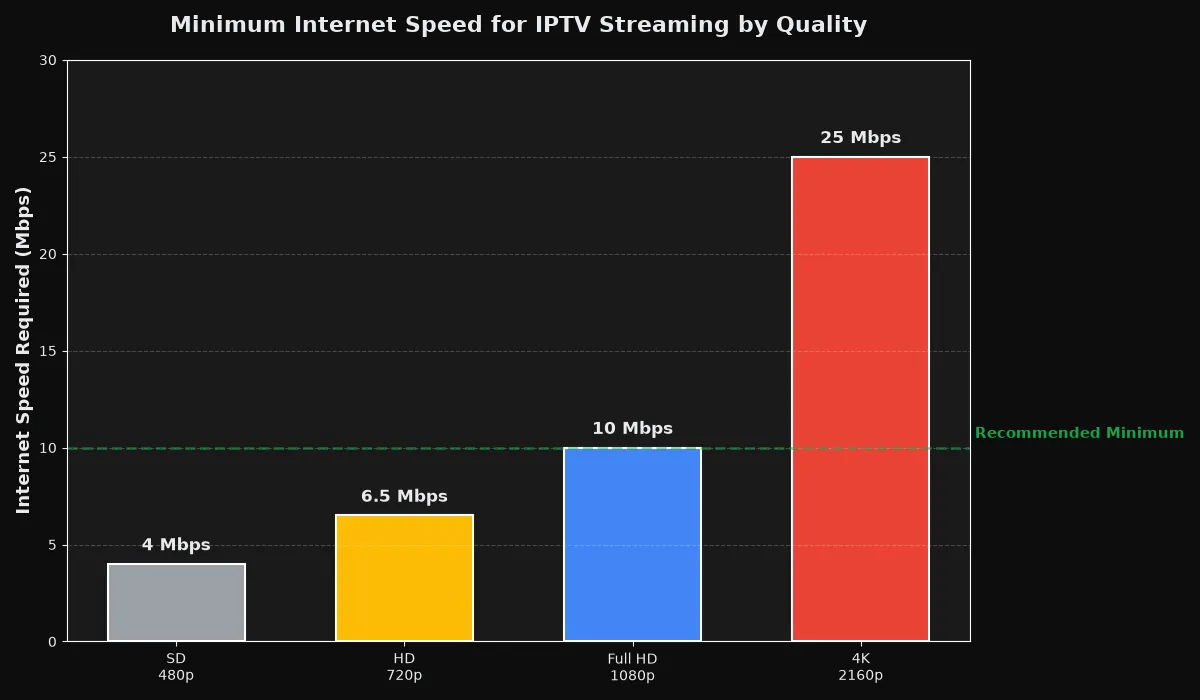
- Stable internet connection (minimum 10 Mbps recommended; 25+ Mbps for 4K streaming)
- Fire Stick remote (included with device, or use the Fire TV mobile app as backup)
Required Services & Information:
- Amazon account (free to create; needed for Fire OS activation even if not buying from Amazon)
- Active IPTV subscription with login credentials (username/password or M3U playlist URL)
- Your IPTV service’s connection details (most providers email these after signup)
Optional But Helpful:
- VPN subscription (recommended for privacy; some networks block IPTV traffic)
- Ethernet adapter (if WiFi is unstable; Amazon sells official adapters for $14.99)
- Keyboard or mouse app (for easier text entry during app configuration)
If you don’t have an IPTV subscription yet, most services—including Echo Best IPTV—offer a 24-hour free trial so you can test compatibility, channel selection, and streaming quality before purchasing an annual plan. This is especially valuable for Fire Stick users, since device-specific performance can vary based on your WiFi environment and Fire Stick model.
Which Fire Stick Model is Best for IPTV?
Not all Fire Sticks are created equal when it comes to IPTV performance. Here’s a quick breakdown of each model’s capabilities and which one offers the best value for IPTV streaming in 2026.
| Model | Price (USD) | Max Resolution | WiFi | Best For |
|---|---|---|---|---|
| Fire TV Stick Lite | $29.99 | 1080p (HD) | Dual-band | Budget users, HD TVs |
| Fire TV Stick (3rd Gen) | $39.99 | 1080p (HD) | Dual-band | General IPTV streaming |
| Fire TV Stick 4K | $49.99 | 2160p (4K) | Dual-band | Best overall value |
| Fire TV Stick 4K Max | $54.99 | 2160p (4K) | WiFi 6 | Power users, WiFi 6 routers |
| Fire TV Cube | $139.99 | 2160p (4K) | WiFi 6E + Ethernet | Hands-free control, premium setups |
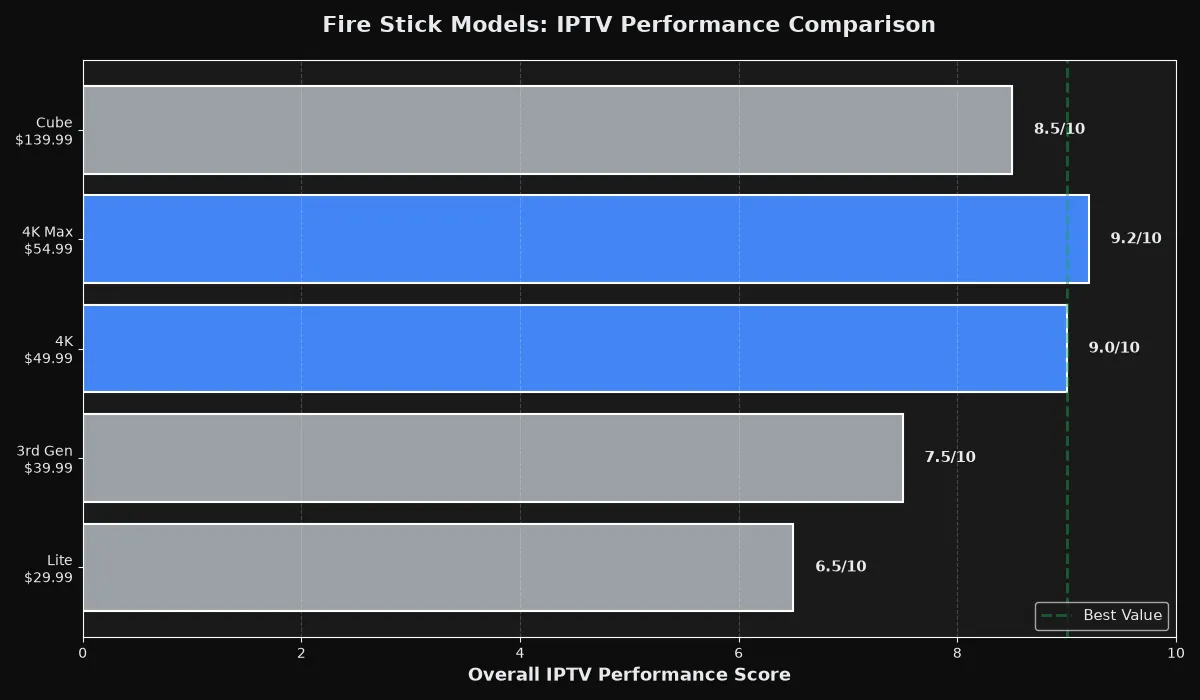
Our Recommendation: The Fire TV Stick 4K ($49.99) offers the best price-to-performance ratio for most IPTV users. It handles 4K streams smoothly, supports all major IPTV apps, and costs just $10 more than the standard HD version. If you have a 4K TV and your IPTV service offers 4K content (Echo Best IPTV includes 4K channels across all plans), this is the sweet spot. The 4K Max is worth the extra $5 only if you have a WiFi 6 router and experience buffering on the standard 4K model.
Avoid the Lite unless budget is your only concern—it lacks Dolby Atmos support and has slightly weaker hardware, which can lead to occasional stuttering on demanding streams.
Step-by-Step: Fire Stick IPTV Setup Process
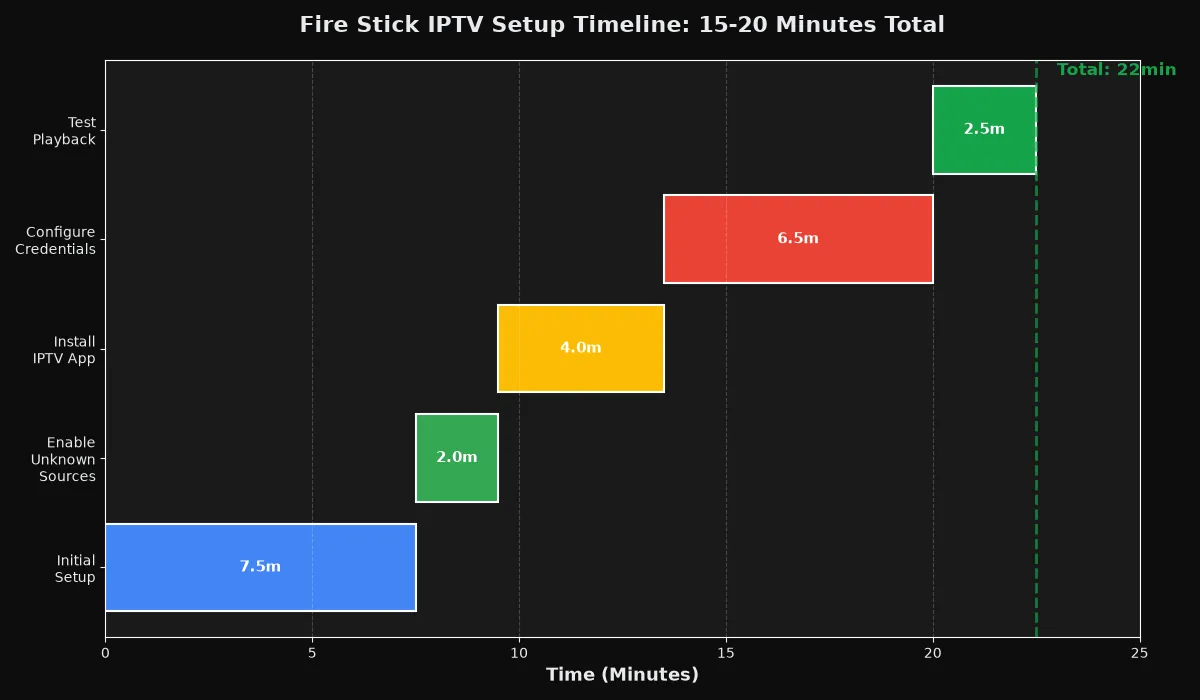
This section walks you through the complete setup from unboxing to streaming your first channel. The entire process takes 10-20 minutes depending on your WiFi speed and how quickly you can locate your IPTV credentials.
Step 1: Initial Fire Stick Setup (5-10 Minutes)
If your Fire Stick is brand new or factory-reset, you’ll need to complete Amazon’s initial setup before installing IPTV apps.
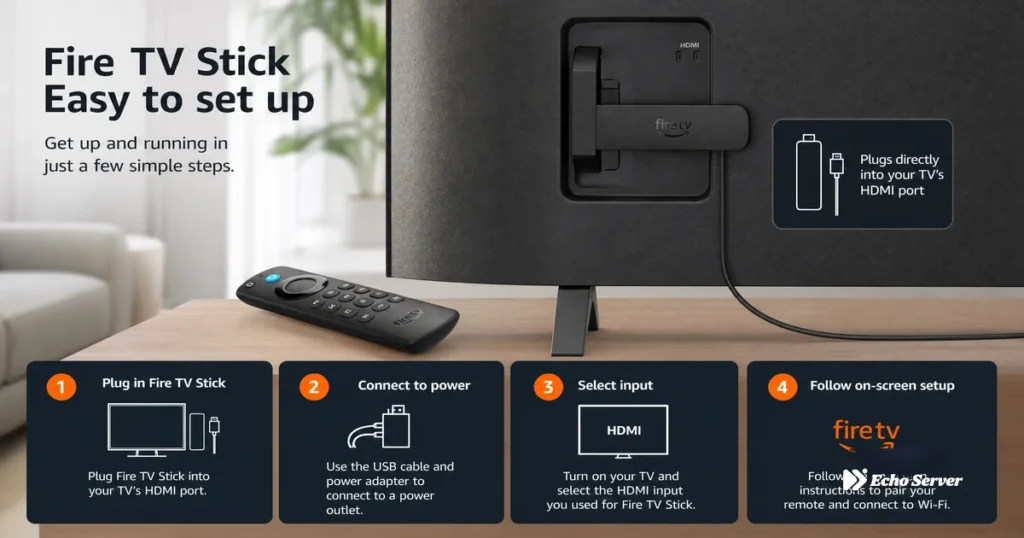
- Connect hardware: Plug the Fire Stick into your TV’s HDMI port and connect the power adapter to a wall outlet (USB power from the TV often doesn’t provide enough current, causing stability issues). Switch your TV input to the corresponding HDMI channel.
- Pair remote: The Fire Stick should automatically detect the remote. If not, hold the Home button for 10 seconds to pair manually.
- Select language: Choose your preferred language from the on-screen menu.
- Connect to WiFi: Select your home WiFi network and enter the password. Tip: Use 5GHz WiFi if available—it’s faster and less congested than 2.4GHz, reducing buffering during IPTV playback.
- Sign in to Amazon account: Enter your Amazon email and password. If you don’t have an account, select “Create a new Amazon account” and follow the prompts.
- Wait for updates: Fire OS will download and install any pending system updates. This takes 3-5 minutes on most connections. Don’t interrupt—updates often include security patches and codec improvements that benefit IPTV streaming.
- Set parental controls (optional): If sharing the device with children, configure a PIN to restrict mature content or app purchases.
Once the home screen appears, you’re ready to enable developer mode and install IPTV apps.
Step 2: Enable “Unknown Sources” for IPTV Apps (2 Minutes)
Most IPTV apps aren’t available in the Amazon Appstore, so you’ll need to allow installation from third-party sources. This is a standard Android feature and is completely safe when downloading apps from trusted developers.
- From the Fire Stick home screen, navigate to Settings (gear icon in the top menu)
- Select My Fire TV (or “Device” on older Fire OS versions)
- Choose Developer Options
- Toggle Install Unknown Apps or Apps from Unknown Sources to ON
- A warning will appear. Select Turn On to confirm
Security Note: Only download APK files from official app websites or trusted repositories. Avoid random download sites that could bundle malware. The apps recommended in this guide (IPTV Smarters Pro, TiViMate, Perfect Player) are all legitimate and widely used by millions of IPTV subscribers globally.
Step 3: Install Your IPTV App (3-5 Minutes)
You have two installation options: direct download from the Amazon Appstore (if available) or sideloading via Downloader. We’ll cover both methods.
Method A: Amazon Appstore (Recommended if Available)
- Press the Home button and navigate to the search icon (magnifying glass)
- Type the app name (e.g., “IPTV Smarters Pro”)
- Select the app from search results and click Download
- Wait for installation to complete (30-60 seconds)
- Click Open to launch the app
Apps Available in Amazon Appstore:
- IPTV Smarters Pro (free, most popular)
- Perfect Player (free)
- VLC Player (free, basic IPTV playback)
Method B: Sideloading via Downloader (For Apps Not in Appstore)
If your preferred app isn’t in the Amazon Appstore (like TiViMate or OTT Navigator), you’ll need to sideload the APK file using the Downloader app.
- Install Downloader from the Amazon Appstore (search “Downloader” in the search bar, select the app by AFTVnews.com, and install)
- Open Downloader and grant storage permissions when prompted
- In the URL field, enter the official APK download link for your IPTV app:
- TiViMate: tivimate.com (navigate to Downloads section)
- IPTV Smarters Pro: whmcssmarters.com/downloads (if not in Appstore)
- OTT Navigator: ott-nav.com (official site)
- Click Go and wait for the APK file to download (10-30 seconds)
- When the download completes, Downloader will prompt you to install. Click Install
- Once installation finishes, click Done (optionally delete the APK file to free up storage)
- The app now appears in your “Apps & Channels” list on the Fire Stick home screen
Pro Tip: Install multiple IPTV apps. Different apps have different strengths—IPTV Smarters Pro has the best EPG integration, TiViMate offers superior interface customization, and Perfect Player works well on older Fire Stick models with limited RAM.
Ready to Stream Premium IPTV?
Echo Best IPTV works seamlessly on Fire Stick with all major apps (Smarters Pro, TiViMate, Perfect Player). Up to 20,000+ channels, 50,000+ movies, 4K content, and 24/7 setup support included. Try it free for 24 hours—no credit card required.
Step 4: Configure Your IPTV Service (5-8 Minutes)
Now that your IPTV app is installed, you need to connect it to your IPTV subscription. The exact steps vary slightly by app, but the general process is the same.
What You’ll Need from Your IPTV Provider
Check the welcome email or customer portal from your IPTV service. You’ll need ONE of the following credential types:
- Xtream API credentials (most common):
- Server URL (e.g., http://example.com:8080)
- Username
- Password
- M3U Playlist URL (single-link method):
- Full M3U URL (e.g., http://example.com/get.php?username=user&password=pass&type=m3u_plus)
- Manual M3U file (less common):
- Download the .m3u file from your provider’s site, upload to cloud storage (Dropbox, Google Drive), and use the direct link
Echo Best IPTV sends Xtream API credentials via email within minutes of signup. Most users prefer Xtream over M3U because it supports EPG (channel guide), VOD (on-demand movies/series), and Catch-up TV (where available).
Configuration Steps (IPTV Smarters Pro Example)
- Open the IPTV Smarters Pro app from your Fire Stick home screen
- On the login screen, select Login with Xtream Codes API (or “Add User” if you’ve used the app before)
- Enter your credentials:
- URL: Your provider’s server URL (without “http://” if the app auto-adds it)
- Username: Your IPTV username
- Password: Your IPTV password
- Click Add User
- Wait 5-15 seconds while the app connects to the server and loads your channel list
- Once loaded, you’ll see categories (Live TV, Movies, Series, Catch-up if applicable)
If you’re using an M3U URL instead:
- Select Load Your Playlist or File/URL
- Paste your M3U URL in the field
- Click Add User
Common Configuration Issues:
- “Invalid Credentials” error: Double-check your username, password, and server URL for typos. Copy-paste from the email to avoid manual entry mistakes.
- “Connection Timeout”: Your provider’s server may be temporarily down, or your ISP may be blocking the port. Try again in 5 minutes, or contact support.
- “Empty Playlist”: Your subscription may not be activated yet. Check your account status or contact your provider.
Step 5: Test Playback & Optimize Settings (2-3 Minutes)
Before settling in for a marathon streaming session, test a few channels to verify everything works and optimize settings for your network.
- Play a test channel: Navigate to Live TV, pick a popular channel (like a news or entertainment channels), and verify it loads within 3-5 seconds and plays smoothly without buffering.
- Test different quality levels: If available in your app settings, test SD, HD, and 4K channels to see what your connection can handle comfortably. Echo Best IPTV includes 4K content across all plans, but you need at least 25 Mbps internet to stream 4K without buffering.
- Enable hardware acceleration: In app settings (usually under Video/Playback), turn on hardware decoding. This offloads video processing to the Fire Stick’s GPU, reducing CPU load and preventing stuttering.
- Adjust buffer size: If you experience buffering, increase the buffer from 0 to 5-10 seconds. This preloads more video data before playback starts.
- Set EPG refresh: If your provider offers an EPG (channel guide), configure automatic EPG updates (daily or every 12 hours) so you always see current programming info.
Best IPTV Apps for Fire Stick (2026)
Choosing the right IPTV app significantly impacts your viewing experience. Here are the top four apps Fire Stick users rely on, ranked by popularity and feature set.
1. IPTV Smarters Pro (Best Overall)
Why it’s #1: IPTV Smarters Pro strikes the perfect balance between features and ease of use. It supports Xtream API and M3U playlists, includes a built-in EPG, handles VOD libraries seamlessly, and works flawlessly with Catch-up TV (on services that offer it, like Echo Best IPTV’s Ultra and Ultimate plans). The interface is intuitive enough for beginners but powerful enough for advanced users who want multiple playlist support and parental controls.
Key Features:
- Free to download and use
- Supports multiple playlists (manage multiple IPTV subscriptions in one app)
- Built-in EPG with custom EPG URL support
- Parental control with PIN lock
- Catch-up TV support (rewind live TV up to 7 days on compatible services)
- VOD section for movies and series with search and favorites
- Available in Amazon Appstore (no sideloading required)
Best For: Most users, especially those new to IPTV or managing multiple services.
2. TiViMate (Best Premium Experience)
Why it’s popular: TiViMate is the gold standard for users who want a cable-like interface with maximum customization. The free version is feature-rich, but the Premium upgrade ($5/year) unlocks unlimited playlists, custom channel logos, and a picture-in-picture mode that’s perfect for viewers watching content simultaneously.
Key Features:
- Sleek, modern interface with grid or list view options
- Advanced EPG with multi-day guide and custom colors
- Channel grouping and custom sorting
- Catch-up TV with timeline scrubbing
- Recording support (save shows to local storage or network drive)
- Picture-in-picture mode (Premium)
- Premium: $5/year for lifetime features
Best For: Power users who want a polished, TV-like experience and don’t mind paying $5 annually.
Note: TiViMate requires sideloading via Downloader—it’s not in the Amazon Appstore.
3. Perfect Player (Best for Older Fire Sticks)
Why it’s reliable: Perfect Player is lightweight and runs smoothly even on first-generation Fire Sticks or Fire TV Stick Lite models with limited RAM. It lacks some of the visual polish of Smarters or TiViMate, but it’s rock-solid stable and highly customizable for users who know their way around IPTV settings.
Key Features:
- Free and open-source
- Extremely low resource usage (works on 1GB RAM devices)
- M3U and Xtream API support
- XMLTV EPG support (manual configuration required)
- Plugin system for advanced features
- Available in Amazon Appstore
Best For: Users with older Fire Stick hardware or those who prefer a no-frills, performance-focused player.
4. OTT Navigator (Best Modern UI)
Why it stands out: OTT Navigator offers the most visually modern interface with Material Design elements, smooth animations, and a mobile-app-like feel. It’s relatively new compared to Smarters and TiViMate, but it’s rapidly gaining users due to its clean design and excellent VOD browsing experience.
Key Features:
- Modern, visually appealing interface
- Excellent VOD library organization with posters and descriptions
- Xtream API and M3U support
- Built-in EPG with multi-view timeline
- Favorites and watch history tracking
- Premium version ($10/year) removes ads and unlocks additional themes
Best For: Users who prioritize aesthetics and want a streaming app that looks and feels premium.
Note: Requires sideloading via Downloader.
5 Performance Optimization Tips for Fire Stick IPTV
Even with a powerful Fire Stick 4K and a fast internet connection, small tweaks can dramatically improve your IPTV streaming experience. Here are five proven optimizations that reduce buffering, improve channel switching speed, and prevent app crashes.
1. Use 5GHz WiFi or Ethernet
2.4GHz WiFi is congested—especially in apartments or dense neighborhoods where dozens of nearby routers compete for the same channels. Switching to 5GHz WiFi reduces interference and provides faster speeds. If buffering persists even on 5GHz, invest in an Amazon Ethernet Adapter ($14.99). Wired connections eliminate WiFi variability entirely, delivering consistent speeds critical for 4K IPTV streams.
2. Clear App Cache Monthly
IPTV apps accumulate cache data (EPG info, thumbnails, playback metadata) that can slow down the Fire Stick over time. Clear cache monthly to keep apps responsive.
- Go to Settings → Applications → Manage Installed Applications
- Select your IPTV app (e.g., IPTV Smarters Pro)
- Choose Clear Cache
- Repeat for all installed IPTV apps
How often: Every 30 days, or immediately if the app starts lagging or crashing.
3. Disable Background Apps & Data Collection
Fire OS runs background processes for Alexa, app updates, and usage analytics that consume CPU and bandwidth. Disable unnecessary services to free up resources for IPTV.
- Go to Settings → Preferences → Privacy Settings
- Turn off Device Usage Data, Collect App Usage Data, and Interest-Based Ads
- Go to Settings → Applications → Appstore
- Turn off Automatic Updates (manually update apps once a week instead)
4. Lower Streaming Quality During Peak Hours
If your ISP throttles speeds during evening peak hours (6 PM – 11 PM), manually lower stream quality in your IPTV app settings from 4K to 1080p or even 720p. Most providers, including Echo Best IPTV, offer adaptive streams or multiple quality options per channel—dropping from 4K to HD uses 70% less bandwidth and eliminates buffering.
5. Keep Fire OS Updated
Amazon regularly releases Fire OS updates with codec improvements, security patches, and performance enhancements. Enable automatic updates or manually check for updates weekly:
- Go to Settings → My Fire TV → About
- Select Check for Updates
- If an update is available, install and restart
Troubleshooting Common Fire Stick IPTV Problems
Even with perfect setup, occasional issues arise. Here are the five most common Fire Stick IPTV problems and their solutions.
1. Channels Buffer or Freeze Frequently
Causes: Slow internet, WiFi interference, server congestion, or ISP throttling.
Solutions:
- Run a speed test (search “speed test” in the Amazon Appstore). You need at least 10 Mbps for HD, 25+ Mbps for 4K.
- Switch from 2.4GHz to 5GHz WiFi in Settings → Network
- Move your Fire Stick closer to the router or use an Ethernet adapter
- Increase buffer size in your IPTV app settings (5-10 seconds)
- Try a different server if your provider offers multiple options (Echo Best IPTV has 25+ servers)
- Use a VPN to bypass ISP throttling (NordVPN, ExpressVPN, Surfshark all work on Fire Stick)
2. “Playlist Cannot Be Loaded” or “Connection Timeout”
Causes: Incorrect credentials, expired subscription, server downtime, or firewall/ISP blocking.
Solutions:
- Double-check your username, password, and server URL—copy-paste from your provider’s email to avoid typos
- Verify your subscription is active (check your account portal or contact support)
- Try accessing the server URL in a web browser—if it times out, the server may be down temporarily
- Contact your IPTV provider’s 24/7 support (Echo Best IPTV offers live support throughout your subscription)
- Enable a VPN if your ISP or network is blocking IPTV traffic
3. No EPG (Channel Guide) Data
Causes: Missing EPG URL, outdated EPG cache, or provider doesn’t include EPG with your plan.
Solutions:
- Check if your IPTV plan includes EPG (most Xtream API services do; basic M3U playlists often don’t)
- In your app settings, verify the EPG URL is configured (auto-populated with Xtream API logins)
- Manually refresh EPG: Go to app settings → EPG → Update EPG
- Wait 5-10 minutes after initial setup—EPG downloads take time on first load
4. App Crashes or Fire Stick Freezes
Causes: Insufficient storage, corrupted cache, outdated Fire OS, or app bugs.
Solutions:
- Clear app cache and data: Settings → Applications → Manage Installed Applications → [Your App] → Clear Cache → Clear Data
- Uninstall and reinstall the IPTV app
- Check Fire OS for updates: Settings → My Fire TV → About → Check for Updates
- Restart Fire Stick: Settings → My Fire TV → Restart
- If freezing persists, factory reset the Fire Stick: Settings → My Fire TV → Reset to Factory Defaults (warning: this erases all data)
5. Remote Not Responding or Losing Connection
Causes: Dead batteries, pairing issue, or Bluetooth interference.
Solutions:
- Replace remote batteries (most Fire Stick remotes use 2× AAA)
- Re-pair remote: Hold Home button for 10 seconds while standing close to the Fire Stick
- Remove Bluetooth interference sources (wireless speakers, baby monitors, microwaves) from near the Fire Stick
- Use the Amazon Fire TV app on your phone as a backup remote (free on iOS/Android)
Experience Premium IPTV with Echo Best
Join 50,000+ satisfied customers streaming with Echo Best IPTV
- ✓ Up to 20,000+ live channels depending on plan
- ✓ 50,000+ movies & 70,000+ series in our library
- ✓ 4K content available across all plans
- ✓ 24/7 customer support throughout your subscription
- ✓ 24-hour trial to test before you buy
Get Started with Echo Best IPTV →
Annual plans from €29.90/year | 24-hour trial available
Frequently Asked Questions (FAQ)
Can I install Fire Stick IPTV without using Downloader?
Yes, if your IPTV app is available in the Amazon Appstore (like IPTV Smarters Pro or Perfect Player). Simply search for the app name in the Fire Stick search bar, download it directly from the Appstore, and install—no sideloading required. However, popular apps like TiViMate and OTT Navigator aren’t in the Appstore, so you’ll need Downloader to sideload their APK files from the official websites.
Which Fire Stick model is best for 4K IPTV streaming?
The Fire TV Stick 4K ($49.99) offers the best value for 4K IPTV. It supports 2160p resolution, handles 4K streams smoothly, and costs just $10 more than the standard HD model. The 4K Max ($54.99) adds WiFi 6 support, which only benefits users with WiFi 6 routers and high device density. Avoid the Fire Stick Lite for 4K—it maxes out at 1080p.
How long does Fire Stick IPTV setup take from start to finish?
Expect 15-20 minutes total: 5-10 minutes for initial Fire Stick setup (WiFi connection, Amazon login, system updates), 2 minutes to enable unknown sources, 3-5 minutes to install your IPTV app, 5-8 minutes to enter credentials and load your playlist, and 2-3 minutes to test playback. If you already have your IPTV credentials ready and your WiFi is fast, the entire process can be completed in under 15 minutes.
Do I need a VPN for Fire Stick IPTV?
A VPN isn’t technically required, but it’s recommended for two reasons: (1) some ISPs throttle or block IPTV traffic, causing buffering and connection timeouts, and (2) a VPN encrypts your streaming activity, protecting your privacy from your ISP and network administrator. Popular VPN options for Fire Stick include NordVPN, ExpressVPN, and Surfshark—all offer native Fire TV apps and 30-day money-back guarantees.
Why does my IPTV buffer even with fast internet?
Buffering despite fast internet usually indicates one of four issues: (1) you’re using 2.4GHz WiFi instead of 5GHz, causing interference and speed drops; (2) your ISP is throttling IPTV traffic during peak hours (6-11 PM)—try a VPN to bypass throttling; (3) your IPTV provider’s server is overloaded or located far from your region—contact support to request a different server; or (4) too many devices are using your network simultaneously, eating up bandwidth. Run a speed test on the Fire Stick itself (not just your phone) to confirm you’re getting the speeds your ISP promises.
Can the Fire Stick run IPTV and other apps at the same time?
Yes, but only one app can be actively displayed on screen at a time. Fire OS keeps background apps in memory, so switching between your IPTV app and Netflix or YouTube is fast. However, background apps consume CPU and RAM, which can slow down IPTV performance on older Fire Stick models. If you experience lag, force-close unused apps: Settings → Applications → Manage Installed Applications → [App] → Force Stop.
How many IPTV subscriptions can I add to one Fire Stick?
Unlimited—there’s no hard limit. Apps like IPTV Smarters Pro and TiViMate support multiple playlists, letting you load subscriptions from different providers (or multiple accounts from the same provider) and switch between them in the app menu.
Does Fire Stick IPTV work outside the USA?
Yes, Fire Stick IPTV works anywhere with internet access. However, channel availability may vary based on your IPTV provider’s licensing and server locations. Echo Best IPTV offers international coverage with channels from countries worldwide, and higher-tier plans include broader global content and multilingual options. Some providers geo-restrict content—if you travel internationally, use a VPN set to your home country to access location-restricted channels.
What happens if my IPTV service goes down mid-stream?
Your stream will stop, and the app will display a connection error. Most IPTV apps automatically attempt to reconnect after a few seconds. If the provider’s server is down (scheduled maintenance or technical issue), wait 5-10 minutes and try again. Reputable providers like Echo Best IPTV offer 24/7 support and run 25+ servers—if one server goes down, support can switch your account to an alternative server within minutes to minimize downtime.

