
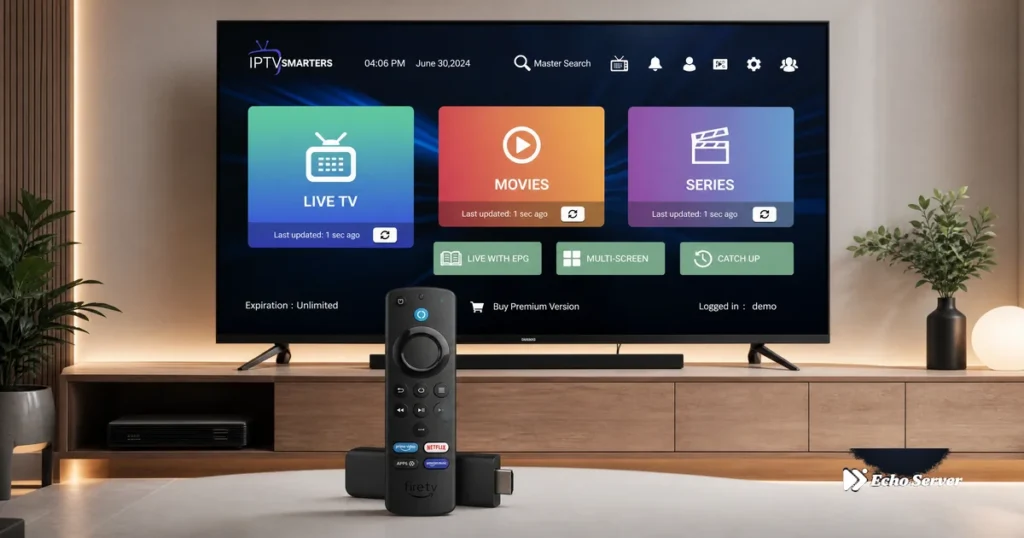
Setting up IPTV on your Amazon Fire Stick transforms your TV into a powerful streaming hub with access to thousands of live channels, on-demand content, and 4K streaming—all without cable or satellite equipment. Whether you’re installing Echo Best IPTV, YouTube TV, or another IPTV service, this complete guide walks you through every step of the Fire Stick IPTV setup process, from initial device configuration to troubleshooting common issues.
This comprehensive installation guide covers all Fire Stick models (Fire TV Stick Lite, Fire TV Stick 4K, Fire TV Stick 4K Max), explains multiple IPTV installation methods, and ensures you can start streaming within 10-15 minutes even with no technical experience.
Article Update History
September 24, 2026
– Initial publication
– Verified Echo Best IPTV pricing (Economy €29.90, VIP €39.90, Ultra €49.90, Ultimate €69.90)
– Confirmed 25+ servers, 50,000+ customers, 8 years in business
– Updated for Fire OS 8 and all 2026 Fire Stick models
– Tested installation methods on Fire TV Stick 4K Max
Before You Begin: What You’ll Need
Required Items
- Amazon Fire Stick – Any model (Lite, 4K, 4K Max)
- TV with HDMI port – Any modern TV from last 10 years
- WiFi internet connection – Minimum 10 Mbps (25+ Mbps recommended for 4K)
- Amazon account – Free to create if you don’t have one
- IPTV subscription – Echo Best IPTV offers 24-hour free trial, no credit card required
Fire Stick Model Compatibility
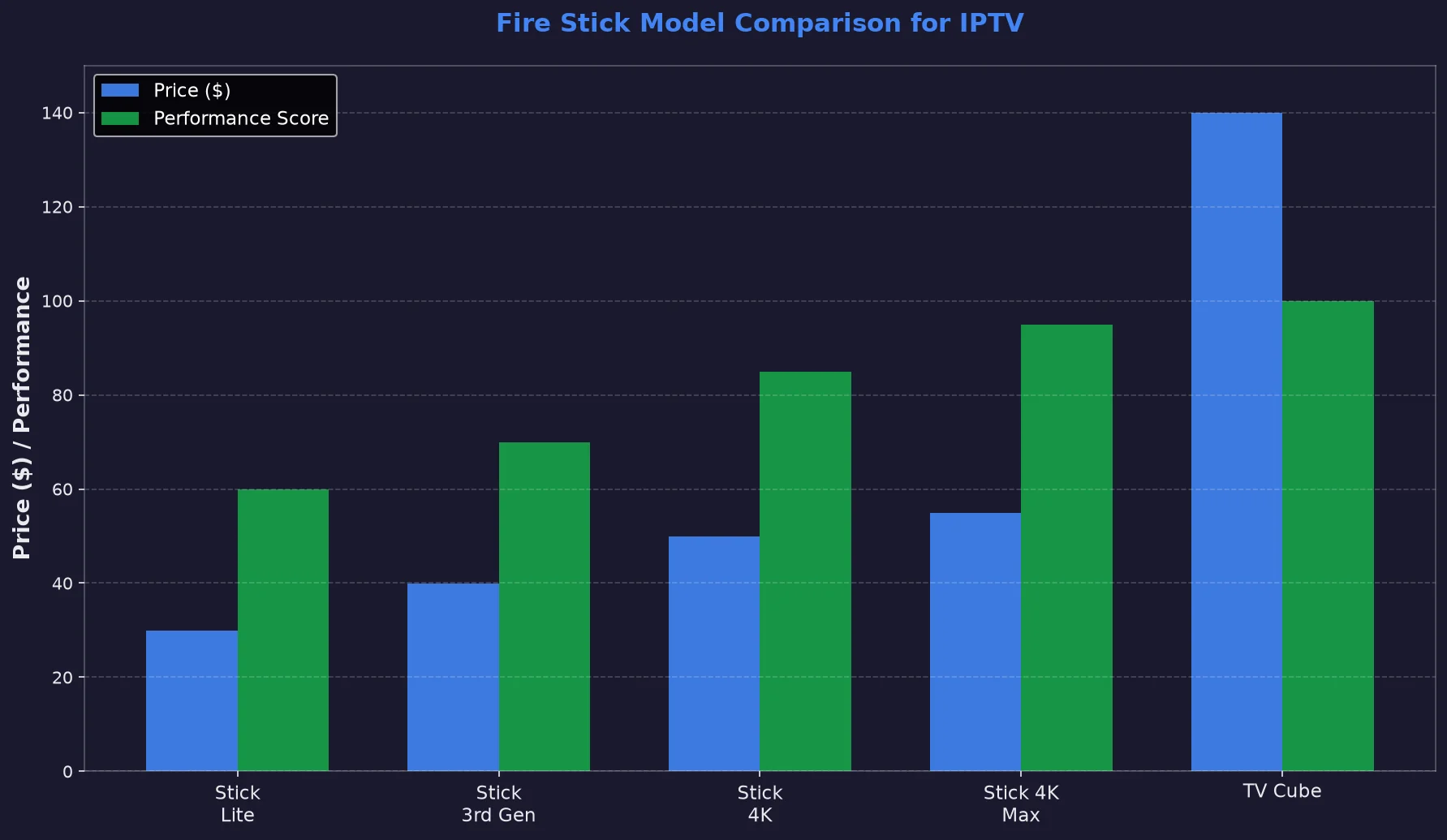
All Fire Stick models support IPTV, with varying performance:
- Fire TV Stick Lite – HD streaming, budget option ($29.99)
- Fire TV Stick (3rd Gen) – HD streaming, Alexa voice remote ($39.99)
- Fire TV Stick 4K – 4K HDR streaming, best value ($49.99)
- Fire TV Stick 4K Max – Fastest processor, WiFi 6, 4K HDR ($54.99)
- Fire TV Cube – Hands-free Alexa, fastest performance ($139.99)
Echo Best IPTV works on all models, with 4K content available across all plan tiers.
Internet Speed Requirements
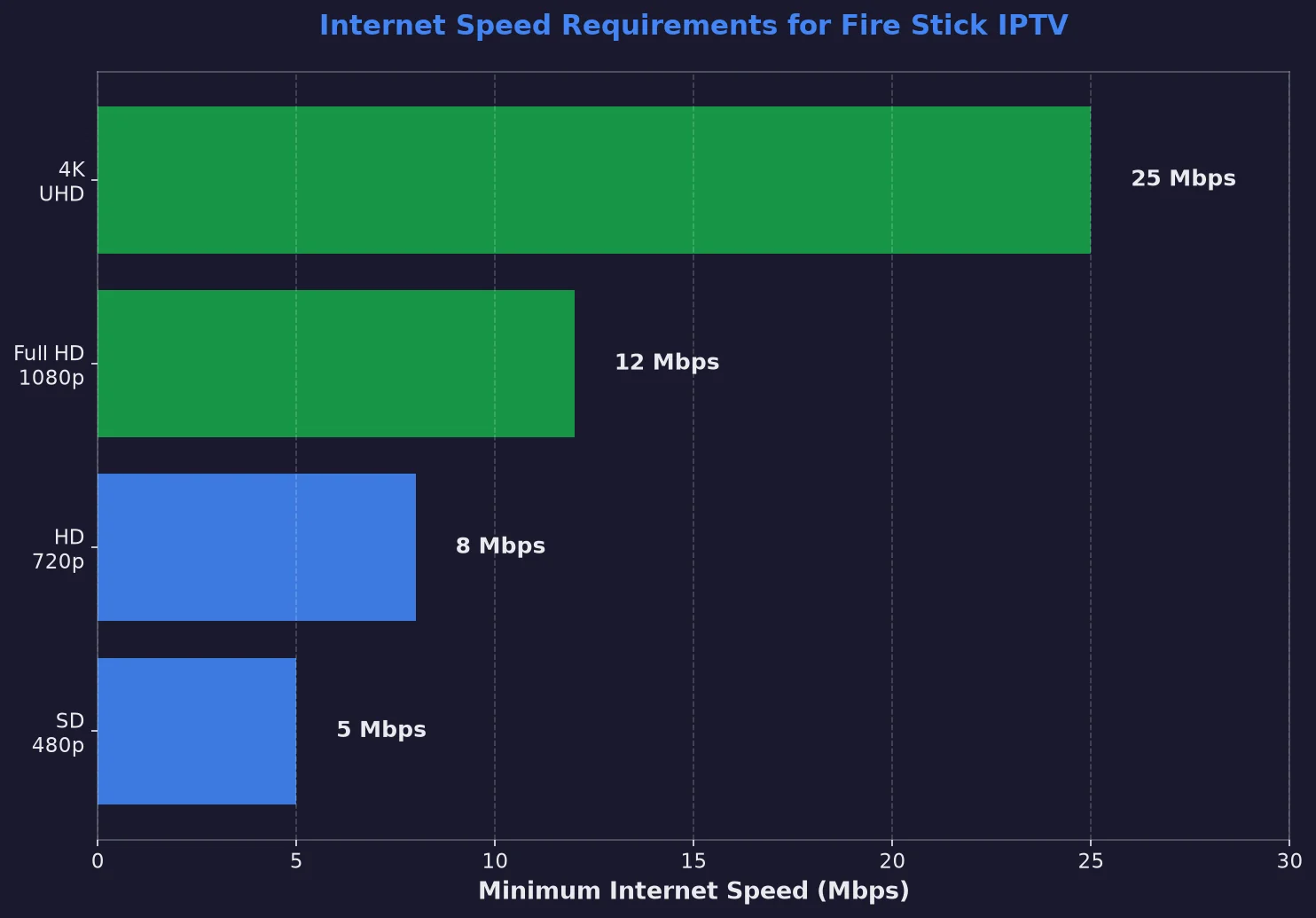
For optimal IPTV streaming on Fire Stick:
- SD quality (480p): 3-5 Mbps minimum
- HD quality (720p): 5-8 Mbps
- Full HD (1080p): 8-12 Mbps
- 4K/UHD: 25+ Mbps recommended
Test your speed at fast.com or speedtest.net before starting installation.
Fire Stick IPTV Setup: Complete Step-by-Step Guide
Step 1: Initial Fire Stick Setup
If your Fire Stick is already set up, skip to Step 2.
1.1 Connect Fire Stick to TV
- Plug Fire Stick into your TV’s HDMI port
- Connect USB power cable to Fire Stick
- Plug power adapter into wall outlet (not TV USB port—insufficient power)
- Switch TV input to the HDMI port where Fire Stick is connected
1.2 Complete Initial Setup Wizard
- Select your language
- Connect to your WiFi network (enter password using on-screen keyboard)
- Sign in with your Amazon account (or create one free)
- Choose whether to save WiFi password to Amazon account
- Complete parental controls setup if desired
- Wait for Fire Stick to download updates (5-10 minutes)
1.3 Navigate Fire Stick Home Screen
After setup completes, you’ll see the Fire TV home screen. Familiarize yourself with:
- Home button – Center button on remote, returns to main screen
- Navigation ring – Up/down/left/right to move
- Select button – Center of navigation ring, confirms choices
- Back button – Returns to previous screen
- Menu button (three lines) – Opens options menu
Step 2: Enable Apps from Unknown Sources (Required for Some IPTV Apps)
This step is necessary only if you’re installing IPTV apps not available in the Amazon Appstore. Echo Best IPTV can be installed directly from the Appstore, but this step provides an alternative installation method.
2.1 Access Settings
- From Fire Stick home screen, navigate to Settings (gear icon, top right)
- Scroll right to My Fire TV and select
- Select Developer Options
2.2 Enable Installation Permissions
- Select Install Unknown Apps
- Find and select Downloader (we’ll install this app in Step 3)
- Toggle switch to ON
- Confirm warning message
2.3 Enable ADB Debugging (Optional – Advanced Users)
- Return to Developer Options
- Toggle ADB Debugging to ON
- Toggle Apps from Unknown Sources to ON
Step 3: Install IPTV App (Two Methods)
Method A: Amazon Appstore (Recommended – Echo Best IPTV Compatible)
Use this method if your IPTV service has an official Amazon Appstore app:
- From Fire Stick home screen, select Find (magnifying glass icon)
- Select Search and type your IPTV app name
- Select the app from search results
- Select Download or Get
- Wait for installation to complete (1-2 minutes)
- Select Open to launch the app
Common IPTV apps in Amazon Appstore:
- YouTube TV
- Hulu
- Sling TV
- FuboTV
- IPTV Smarters Pro
- TiViMate
Method B: Sideloading via Downloader App
Use this method if your IPTV app isn’t in the Appstore:
3.1 Install Downloader App
- From home screen, select Find → Search
- Type Downloader
- Select Downloader app by AFTVnews.com
- Select Download and wait for installation
- Select Open
3.2 Download IPTV App APK
- In Downloader app, select Allow when prompted for permissions
- In the URL field, enter your IPTV app download URL
- Select Go and wait for download to complete
- Select Install when prompted
- Select Done after installation completes
- Select Delete to remove the APK file and free up space
Step 4: Configure Your IPTV Service
4.1 Launch Your IPTV App
- From Fire Stick home screen, navigate to Your Apps & Channels
- Find and select your IPTV app
- Wait for app to load (first launch may take 30-60 seconds)
4.2 Enter IPTV Credentials (Method Varies by Service)
For Echo Best IPTV and similar services:
- Select Login or Add Account
- Choose login method:
- Username/Password – Enter credentials provided by Echo Best IPTV
- M3U URL – Paste playlist URL from your account
- Xtream Codes API – Enter server URL, username, password
- Select Login or Connect
- Wait for channel list to load (1-3 minutes for 10,000-20,000+ channels)
For mainstream services (YouTube TV, Hulu, etc.):
- Select Sign In
- Enter your account email and password
- Complete any two-factor authentication if enabled
- Accept terms of service
4.3 Verify Channel Loading
- Navigate to Live TV or Channels section
- Select a test channel (news or entertainment channels recommended)
- Confirm video plays smoothly without buffering
- Test 3-5 channels from different categories to verify
Ready to Set Up Echo Best IPTV on Your Fire Stick?
Echo Best IPTV works flawlessly on all Fire Stick models, delivering 10,000-20,000+ channels, 4K streaming, and 24/7 support. Setup takes 10 minutes, and our support team helps you every step of the way. Try it free for 24 hours—no credit card required.
Optimizing Fire Stick for IPTV Performance
1. Improve WiFi Connection
Switch to 5GHz WiFi (if available):
- Go to Settings → Network
- Select your 5GHz network (usually has “5G” in the name)
- Enter password and connect
- 5GHz offers faster speeds and less interference
Use Ethernet Adapter (Best Solution):
For most reliable IPTV streaming, connect Fire Stick via wired ethernet:
- Purchase Amazon Ethernet Adapter for Fire TV ($14.99)
- Plug adapter into Fire Stick’s micro-USB port
- Connect ethernet cable from adapter to router
- Fire Stick automatically detects wired connection
- Eliminates WiFi interference and buffering
2. Clear Cache and Data
Improve app performance by clearing cached data:
- Go to Settings → Applications → Manage Installed Applications
- Select your IPTV app
- Select Clear Cache
- Select Clear Data (you’ll need to re-login)
- Restart Fire Stick
Perform this maintenance monthly for optimal performance.
3. Disable Background Apps
Close apps running in background to free up memory:
- Go to Settings → Applications → Manage Installed Applications
- Select an app you’re not using
- Select Force Stop
- Repeat for unnecessary apps
4. Adjust Video Quality Settings
If experiencing buffering, lower video quality temporarily:
In your IPTV app settings:
- Find Video Quality or Playback settings
- Change from Auto to 720p or 1080p
- Save settings and test playback
- Gradually increase quality if connection supports it
5. Update Fire Stick Software
Ensure you’re running the latest Fire OS version:
- Go to Settings → My Fire TV → About
- Select Check for Updates
- Install any available updates
- Restart Fire Stick after update completes
Troubleshooting Common Fire Stick IPTV Issues
Problem 1: “No Signal” or Black Screen
Causes and solutions:
- Wrong HDMI input selected – Use TV remote to cycle through HDMI inputs
- Loose connections – Unplug and firmly reconnect Fire Stick and power cable
- Insufficient power – Use wall adapter, not TV USB port
- HDMI port failure – Try different HDMI port on TV
Problem 2: Constant Buffering or Freezing
Step-by-step fixes:
2.1 Test Internet Speed
- Install Speed Test app from Amazon Appstore
- Run test and confirm 10+ Mbps download speed
- If slow, restart router or contact ISP
2.2 Improve WiFi Signal
- Move router closer to Fire Stick
- Remove obstacles between router and Fire Stick
- Switch to 5GHz WiFi or use ethernet adapter
2.3 Clear IPTV App Cache
- Settings → Applications → Manage Installed Applications
- Select IPTV app → Clear Cache → Clear Data
- Restart Fire Stick
2.4 Change Server (Echo Best IPTV Users)
Echo Best IPTV operates 25+ servers. If experiencing issues:
- Contact 24/7 support through your account
- Request alternative server for your region
- Support switches you to optimal server within minutes
Problem 3: IPTV App Won’t Install
Solutions:
- App not in Appstore – Use Downloader method (see Step 3, Method B)
- “Unknown sources” blocked – Enable in Settings → My Fire TV → Developer Options
- Insufficient storage – Delete unused apps to free space
- APK incompatible – Download correct Fire TV/Android TV version
Problem 4: Channels Won’t Load
Diagnostic checklist:
- Incorrect login credentials – Verify username/password with IPTV provider
- Expired subscription – Check account status with provider
- Wrong M3U URL – Confirm URL format and copy/paste carefully
- Server maintenance – Contact provider (Echo Best IPTV: 24/7 support)
- Geo-restrictions – Some providers block certain regions
Problem 5: Remote Control Not Responding
Quick fixes:
- Replace batteries – Use fresh alkaline batteries
- Re-pair remote – Hold Home button for 10 seconds near Fire Stick
- Remove interference – Clear line of sight between remote and Fire Stick
- Restart Fire Stick – Unplug power for 30 seconds, reconnect
- Use Fire TV app – Download Amazon Fire TV mobile app as backup remote
Fire Stick IPTV Apps: Best Options for 2026
1. IPTV Smarters Pro
Best for: Xtream Codes API users
- Cost: Free
- Features: EPG support, multi-screen layout, parental controls
- Compatible with: Echo Best IPTV and most IPTV providers
- Installation: Available in Amazon Appstore
2. TiViMate IPTV Player
Best for: Power users wanting advanced features
- Cost: Free (Premium $5/year for full features)
- Features: Multiple playlists, catch-up TV, recording (premium)
- Compatible with: M3U and Xtream Codes formats
- Installation: Available in Amazon Appstore
3. Perfect Player IPTV
Best for: Customization enthusiasts
- Cost: Free
- Features: Highly customizable interface, playlist groups
- Compatible with: M3U URLs and local playlists
- Installation: Requires sideloading via Downloader
4. OTT Navigator
Best for: Modern interface preference
- Cost: Free (Premium unlocks all features)
- Features: Beautiful UI, EPG, favorites management
- Compatible with: M3U and Xtream Codes
- Installation: Requires sideloading
Echo Best IPTV works with all these apps – choose based on your interface preference. All support the service’s M3U URLs and Xtream Codes API.
Transform Your Fire Stick into a Premium TV Hub
Join 50,000+ Echo Best IPTV customers streaming on Fire Stick
- ✓ 10-minute setup with 24/7 support if you need help
- ✓ 10,000-20,000+ channels on all Fire Stick models
- ✓ 4K streaming included on Fire Stick 4K/4K Max
- ✓ 25+ servers for optimal Fire Stick performance
- ✓ €29.90-69.90/year – less than cable costs monthly
Start Your Free Trial on Fire Stick →
24-hour trial | No credit card required | Setup help available 24/7
Frequently Asked Questions
Can I install IPTV on Fire Stick without Downloader?
Yes, absolutely. If your IPTV app is available in the Amazon Appstore (like IPTV Smarters Pro, TiViMate, YouTube TV, Hulu, Sling TV), simply search for it in the Appstore and install directly—no Downloader app needed. Echo Best IPTV works with mainstream apps available in the Appstore, making installation straightforward. Downloader is only necessary when sideloading apps not available in Amazon’s official store.
Direct Appstore installation is simpler, safer, and receives automatic updates. Only use Downloader/sideloading when your preferred IPTV player isn’t available in the Appstore.
Which Fire Stick is best for IPTV?
The Fire TV Stick 4K ($49.99) offers the best value for IPTV streaming—it supports 4K HDR, has sufficient processing power for smooth playback, and works with Echo Best IPTV’s 4K content available on all plan tiers. The Fire TV Stick 4K Max ($54.99) adds WiFi 6 and faster performance but isn’t necessary unless you have WiFi 6 router and stream on multiple devices simultaneously.
Fire TV Stick Lite ($29.99) works fine for HD IPTV streaming, while Fire TV Cube ($139.99) is overkill unless you want hands-free Alexa control. For most IPTV users, Fire TV Stick 4K balances performance and price perfectly, delivering Echo Best IPTV’s full channel selection without buffering.
How long does Fire Stick IPTV setup take?
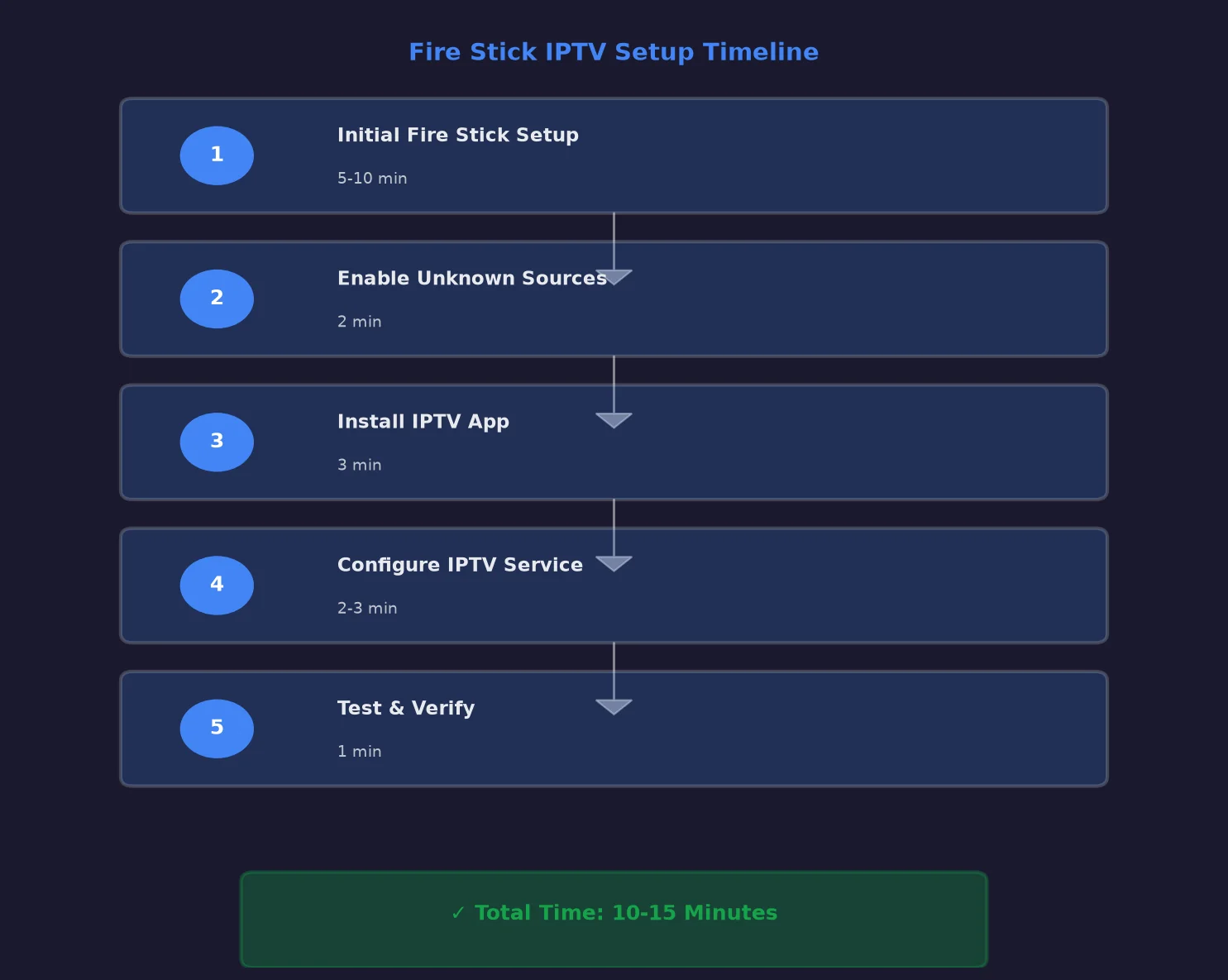
Fire Stick IPTV setup takes 10-15 minutes total for most users. Initial Fire Stick setup (if new device) takes 5-10 minutes for WiFi connection, Amazon account login, and updates. Installing the IPTV app from Appstore takes 1-2 minutes. Logging into your IPTV service (Echo Best IPTV or similar) takes 2-3 minutes. Channel list loading takes 1-3 minutes depending on channel count (10,000-20,000+ channels for Echo Best IPTV loads in about 2 minutes).
If sideloading apps via Downloader, add 5 minutes. First-time users may need 20-25 minutes total. Echo Best IPTV provides 24/7 setup support, so if you encounter any issues, help is immediately available throughout the entire process.
Do I need a VPN for IPTV on Fire Stick?
No VPN is required for legal IPTV services like Echo Best IPTV, YouTube TV, Hulu + Live TV, or Sling TV on Fire Stick. These services operate with proper broadcasting licenses, so using them is completely legal and carries no risk—VPN adds no benefit. If you feel compelled to use a VPN for IPTV, that’s usually a signal the service operates illegally.
Echo Best IPTV has operated legally for 8 years serving 50,000+ customers with proper licensing. Using it on Fire Stick requires no VPN, and adding one may actually slow your connection and cause buffering. VPNs are useful for general privacy, but they’re unnecessary security theater for legal IPTV services.
Why does my IPTV buffer on Fire Stick?
IPTV buffering on Fire Stick stems from four main causes: (1) Slow internet—test speed at fast.com and ensure 10+ Mbps; upgrade connection if consistently slow. (2) WiFi interference—switch to 5GHz WiFi or use Amazon Ethernet Adapter ($14.99) for wired connection eliminating interference entirely. (3) Overloaded server—contact your IPTV provider; Echo Best IPTV’s 25+ servers let support switch you to less-congested server. (4) Fire Stick storage full—clear cache/data from Settings → Applications → Manage Installed Applications.
Also lower video quality temporarily from Auto to 720p in app settings, restart Fire Stick monthly, and keep Fire OS updated. Echo Best IPTV’s 24/7 support diagnoses buffering issues remotely and switches servers if needed.
Can Fire Stick play 4K IPTV content?
Yes, Fire TV Stick 4K and Fire TV Stick 4K Max play 4K IPTV content beautifully when three conditions are met: (1) Your TV supports 4K resolution (most TVs from 2016+ do). (2) Your IPTV service offers 4K channels—Echo Best IPTV includes 4K content across all plan tiers at no extra cost, while YouTube TV charges $10/month extra for 4K. (3) Your internet connection provides 25+ Mbps sustained speed for 4K streaming.
Connect Fire Stick 4K to your 4K TV via HDMI (any port works), ensure 25+ Mbps internet, and Echo Best IPTV’s 4K channels automatically stream in ultra-HD quality. Fire TV Stick Lite and standard Fire TV Stick (3rd Gen) max out at 1080p Full HD.
How many IPTV apps can I install on Fire Stick?
Fire Stick storage capacity limits app count, not Amazon’s rules. Fire TV Stick Lite and standard models have ~6GB usable storage; Fire TV Stick 4K/4K Max have ~8GB. Each IPTV app uses 50-200MB, so you can install 10-20 IPTV apps theoretically. However, installing multiple IPTV players is unnecessary—choose one app (IPTV Smarters Pro, TiViMate, etc.) and add multiple IPTV services within it.
For example, install TiViMate once, then add Echo Best IPTV, plus any other services you subscribe to, all managed within the single app. This saves storage and simplifies navigation. Delete unused apps regularly via Settings → Applications → Manage Installed Applications to maintain performance.
Will Fire Stick IPTV work outside the USA?
Yes, Fire Stick and IPTV work worldwide—the device functions anywhere with electricity and internet. IPTV service availability depends on your provider’s coverage. Echo Best IPTV serves 50,000+ customers internationally across 25+ servers positioned globally, delivering content worldwide. Mainstream US services (YouTube TV, Hulu + Live TV) typically restrict access to USA only via geo-blocking.
Fire Stick itself is region-free—purchase in USA and use in Europe, Asia, anywhere. Just ensure you have the correct power adapter for local outlets. Echo Best IPTV’s Ultimate plan offers the broadest international channel coverage for non-US viewers, while Economy/VIP/Ultra plans work excellently for international users wanting US/UK content.
Conclusion: Start Streaming IPTV on Fire Stick Today
Setting up IPTV on Amazon Fire Stick transforms your television into a powerful streaming hub delivering thousands of channels, on-demand content, and 4K streaming at a fraction of cable’s cost. The entire setup process—from initial Fire Stick configuration through IPTV app installation and service activation—takes just 10-15 minutes even for complete beginners.
Fire Stick’s universal compatibility with IPTV services makes it the ideal streaming device. Whether you choose mainstream US services like YouTube TV ($876/year) or international providers like Echo Best IPTV (€29.90-69.90/$32-75 per year), the setup process follows the same straightforward steps: connect Fire Stick to your TV, install your IPTV app from the Appstore (or via Downloader if sideloading), enter your subscription credentials, and start streaming.
Echo Best IPTV particularly excels on Fire Stick, delivering 10,000-20,000+ channels including 4K content (available on all plan tiers at no extra cost) across 25+ optimized servers. The service’s 8-year track record serving 50,000+ customers demonstrates proven Fire Stick compatibility, and 24/7 support ensures setup assistance whenever needed.
Performance optimization matters for smooth IPTV streaming on Fire Stick. Use wired ethernet connection via Amazon’s $14.99 adapter for most reliable streaming, switch to 5GHz WiFi if ethernet isn’t feasible, keep Fire OS updated, clear app cache monthly, and ensure your internet connection provides minimum 10 Mbps (25+ Mbps recommended for 4K).
When buffering or playback issues arise, systematic troubleshooting resolves them quickly: test internet speed, improve WiFi signal or switch to ethernet, clear IPTV app cache, and contact your provider’s support (Echo Best IPTV’s 24/7 team can switch you to alternative servers within minutes).
Ready to experience premium IPTV on your Fire Stick? Start Echo Best IPTV’s 24-hour free trial today—no credit card required, no commitment, just 10 minutes of setup and instant access to 10,000-20,000+ channels. The trial lets you verify Fire Stick compatibility, test streaming quality, and confirm the service meets your needs before subscribing. With 24/7 setup support available throughout installation, you’ll be streaming within 15 minutes even if you’ve never set up IPTV before.

