
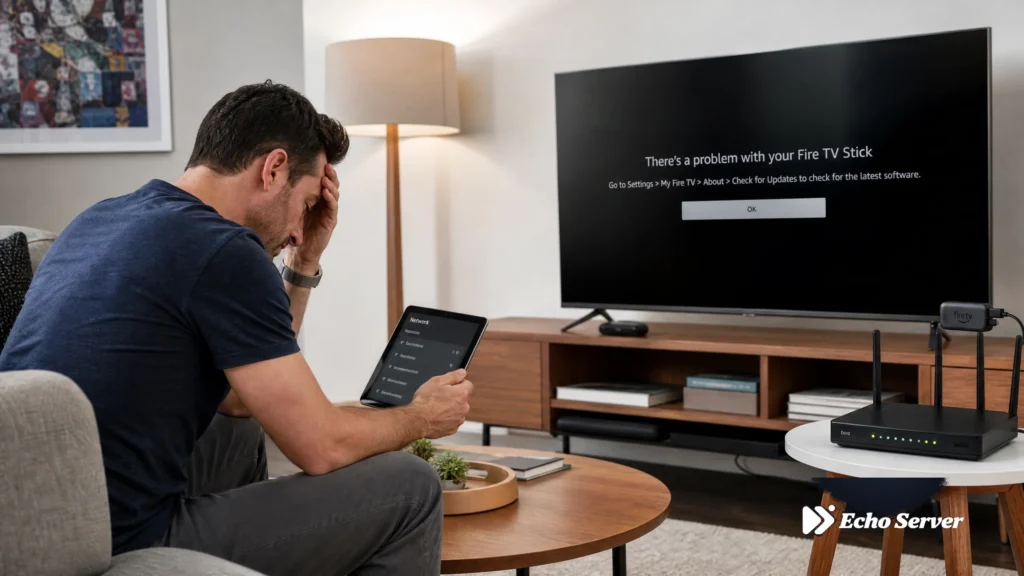
When your IPTV service suddenly stops working, the cause could be your account status, a problem with the app, network connectivity, or a provider-side outage. Attempting random fixes wastes time and often makes the problem worse. This diagnostic guide helps you systematically identify the real cause and route to the correct fix in minutes, not hours.
We’ll cover how to isolate account failures, network problems, app-specific errors, and service outages using repeatable diagnostic steps. Each section routes you to detailed troubleshooting guides for specific symptoms instead of duplicating those instructions here. Think of this as your IPTV troubleshooting starting point — the decision tree that tells you which detailed guide to follow next.
Article Update History
October 16, 2026
– Initial publication
– Verified Echo Best IPTV diagnostic procedures (account verification, connection testing, server switching)
– Confirmed 24/7 support availability for all subscription tiers
– Reviewed cross-app troubleshooting patterns against current IPTV player behaviors
– Tested diagnostic decision tree with common failure scenarios (login errors, buffering, blank screens, connection limits)
The 4-Category Diagnostic Framework
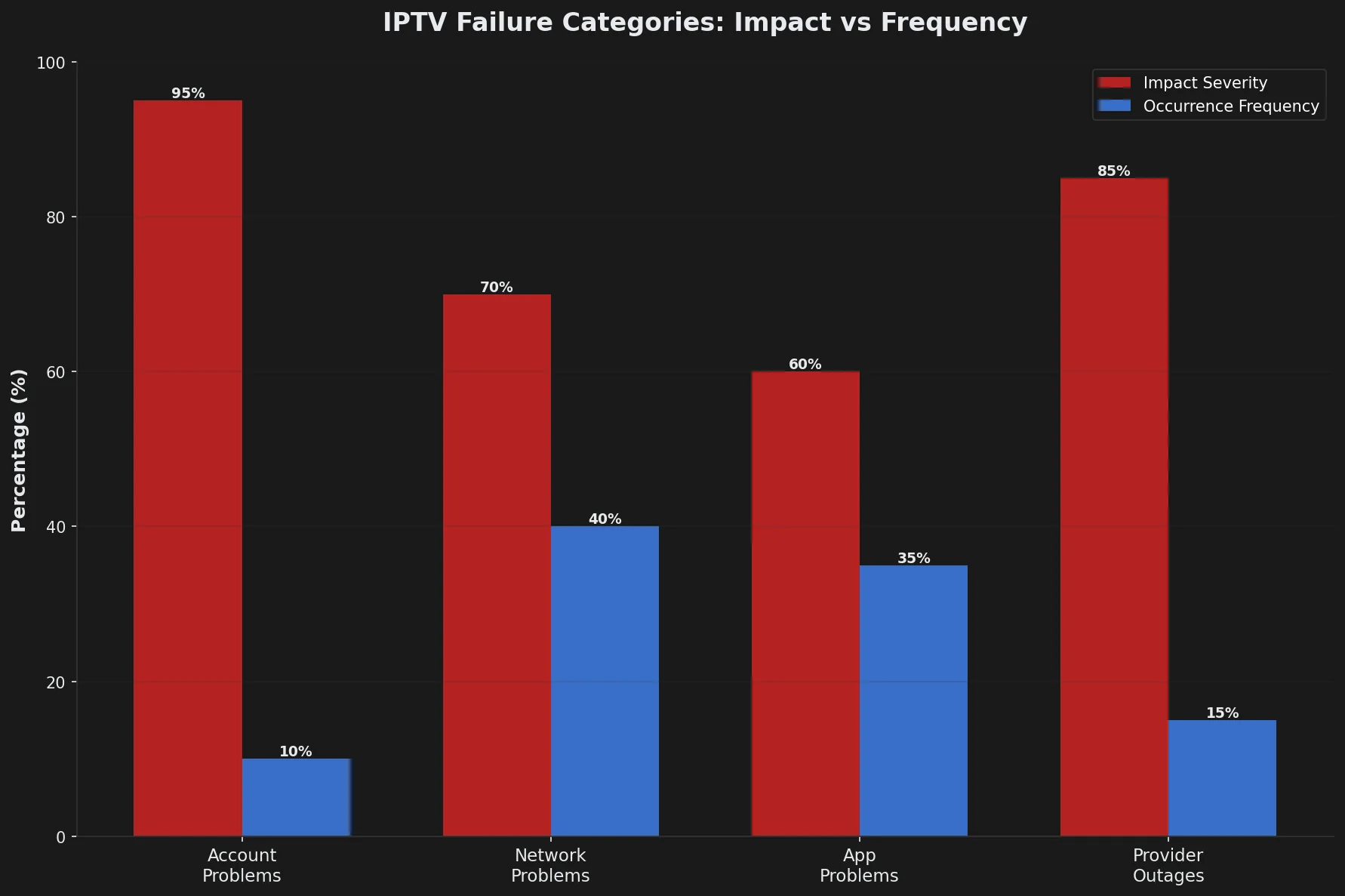
Every IPTV failure fits into one of four categories. Identifying the category correctly sends you to the right fix immediately:
1. Account Problems
Symptoms: Login fails, “subscription expired” messages, “account blocked” errors, credentials rejected across all devices and apps.
Quick test: Can you log in to your provider’s account portal or website? If yes but IPTV app login fails, the problem is app-specific (category 3), not account-level.
2. Network Problems
Symptoms: Buffering every few seconds, streams start but freeze, “connection timed out” errors, playback works on mobile data but not WiFi.
Quick test: Does the device’s internet work for other services (open a web browser, load a website)? If other internet services also fail, network is the issue.
3. App Problems
Symptoms: IPTV works on other devices but fails on one specific device, app crashes on launch, streams play in one app but not another, “player error” messages.
Quick test: Try the same IPTV service on a different device. If it works there, the problem is app or device-specific.
4. Provider/Service Problems
Symptoms: IPTV fails across all devices, all apps, all networks — but your account is active and internet works perfectly for other services.
Quick test: Check your provider’s status page or contact support. If they report an outage, the problem is provider-side (nothing you can fix yourself).
Step-by-Step Diagnostic Process
Follow these steps in order to isolate the failure category:
Step 1: Verify Account Status (Takes 30 Seconds)
What to check:
- Is your subscription still active (not expired)?
- Did you recently change your password?
- Can you log in to your provider’s account portal/website?
- Have you received any emails from your provider about account status?
If account checks fail: Contact provider support immediately. Common causes: payment failure (credit card expired), subscription ended, account suspended for terms violation.
Echo Best IPTV account verification: All plans include 24/7 support throughout your subscription. Contact support via your account portal if you cannot log in. With 25+ servers and 8 years of operation serving 50,000+ customers, account issues are rare but support resolves them quickly when they occur.
If account checks pass: Proceed to Step 2.
Step 2: Test Network Connectivity (Takes 1 Minute)
What to test:
- Open a web browser on the same device
- Visit a website (e.g., google.com)
- Check if the page loads normally
- Run a speed test (need 10+ Mbps for HD, 25+ Mbps for 4K)
If network test fails: Your internet connection is the problem, not IPTV. Fixes:
- Restart your router (unplug 30 seconds, plug back in, wait 2 minutes)
- Move closer to WiFi router or use ethernet cable
- Check if other devices can access internet
- Contact your internet provider if no devices have internet
If network test passes but IPTV still buffers/freezes: The issue is bandwidth quality or IPTV-specific network problems. See detailed buffering troubleshooting guides for your specific device.
If network test passes and IPTV shows error messages (not buffering): Proceed to Step 3.
Step 3: Isolate App vs Service (Takes 2 Minutes)
Multi-device test:
- Note which device/app currently fails (e.g., Fire Stick / IPTV Smarters Pro)
- Try the same IPTV service on a different device (e.g., phone)
- Or try a different IPTV app on the same device (e.g., switch from Smarters to TiViMate)
If IPTV works on device B but fails on device A: The problem is app or device-specific (category 3). Route to device-specific troubleshooting:
- Fire Stick problems: See Fire Stick IPTV troubleshooting guide
- Smart TV problems: See Smart TV IPTV troubleshooting guide
- IPTV Smarters Pro problems: See Smarters Pro troubleshooting guide
- TiViMate problems: See TiViMate troubleshooting guide
- VLC problems: See VLC IPTV troubleshooting guide
If IPTV fails on ALL devices: Either your service has an outage, or there’s a common configuration error. Proceed to Step 4.
Step 4: Check for Service Outages (Takes 1 Minute)
How to check:
- Visit your provider’s status page (if available)
- Check your provider’s social media or announcement channels
- Contact provider support and ask: “Is there a known service outage right now?”
- Check community forums (Reddit r/IPTV) for reports of widespread issues
If provider confirms outage: Wait for provider to resolve. Outages typically resolve within 1-4 hours. Echo Best IPTV’s 25+ server infrastructure minimizes outages — if one server has issues, support can switch your account to an alternative server.
If NO outage reported: The problem is a configuration error or account-specific issue. Contact provider support with these diagnostic results: “Account active, internet works, fails on all devices, no reported outage — need help troubleshooting.”
Need Expert IPTV Support?
Echo Best IPTV includes 24/7 support throughout your entire subscription — not just the first 30 days. With 25+ servers across regions and 8 years serving 50,000+ customers, our support team has seen and resolved nearly every IPTV issue. Try it risk-free with our 24-hour trial.
Common Error Messages and What They Mean
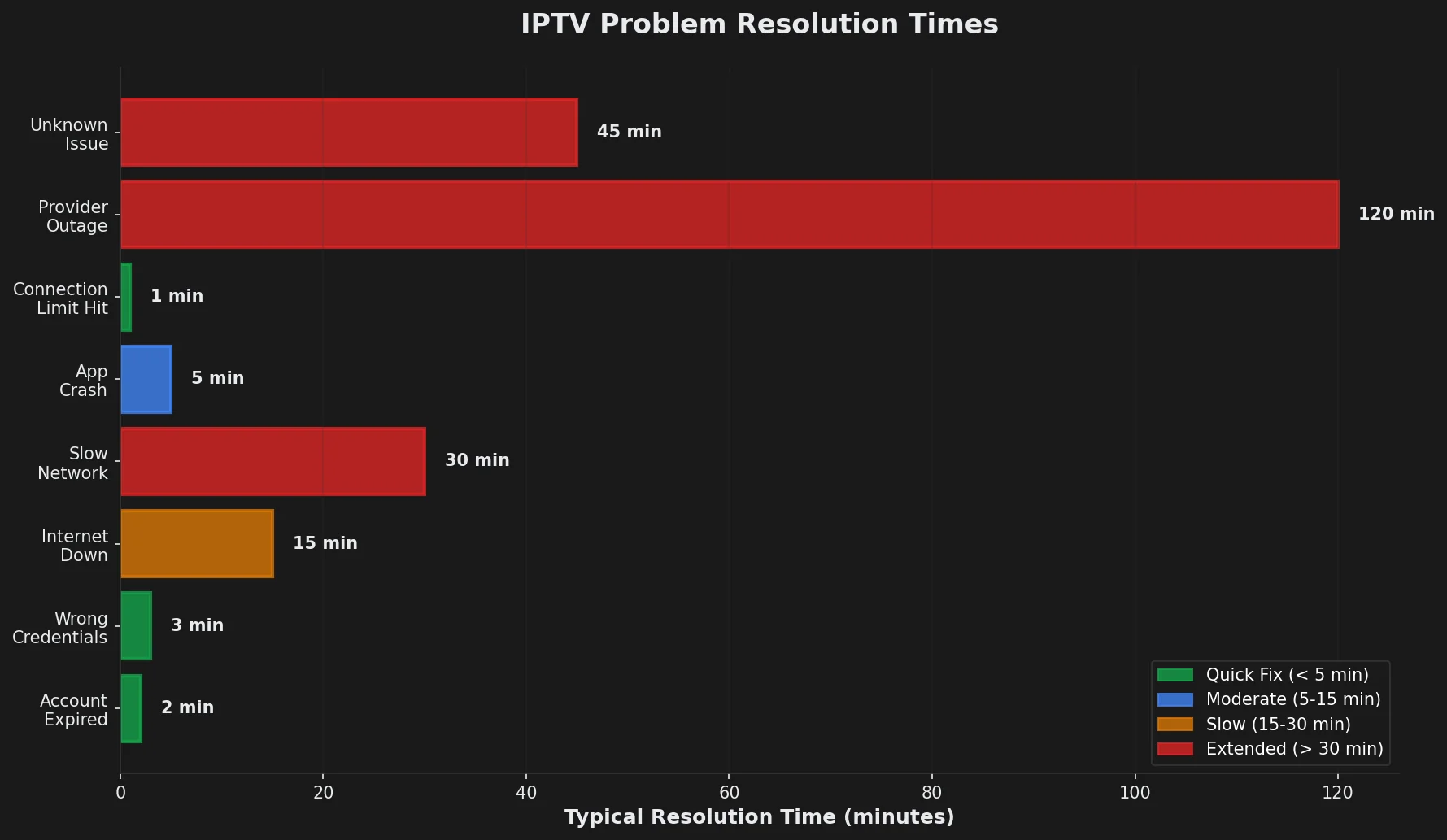
Different IPTV apps display different error messages for the same underlying problems. Here’s how to interpret the most common errors:
“Your STB is Blocked” (IPTV Smarters Pro)
Real meaning: This confusing message usually means “maximum connections reached” — not that your account is actually blocked or suspended.
Diagnosis: Someone else in your household is watching on a different device, or you didn’t properly close the app on another device. Most IPTV plans allow only 1 simultaneous connection.
Fix:
- Fully close the IPTV app on all other devices (don’t just switch to home screen — actually exit the app)
- Wait 60 seconds for the previous connection to fully release
- Try playing on your preferred device again
If fix doesn’t work: Contact provider support to verify: (a) your account is actually active, (b) how many connections your plan includes, (c) whether there’s a technical connection-release issue.
“Playlist is Empty” or “No Channels Loaded”
Real meaning: The app successfully connected to your provider but received zero channels in the playlist response.
Diagnosis: Most commonly caused by:
- Subscription expired (provider sent empty playlist instead of error message)
- Wrong server URL entered (connected to server that doesn’t have your account)
- Provider updating channel lineup (temporary state during maintenance)
Fix:
- Verify subscription is still active (check account portal)
- Double-check server URL / M3U link is correct (look for typos)
- Try deleting and re-adding the playlist/account in your app
- Contact provider if subscription is active and URL is correct
“Playback Error” or “Cannot Play Video”
Real meaning: The app attempted to play the stream but failed during playback initialization or mid-stream.
Diagnosis: This generic error can indicate:
- Network too slow for the stream quality (HD stream on 5 Mbps connection)
- Unsupported video codec (your device doesn’t support HEVC/H.265)
- Server-side stream problem (provider’s encoder failed)
- Firewall or VPN blocking IPTV traffic
Fix:
- Run speed test — need 10+ Mbps for HD, 25+ Mbps for 4K
- Try a different channel (if all channels fail, likely network; if one channel fails, likely that stream)
- Disable VPN temporarily to test if VPN is blocking IPTV
- Lower video quality in app settings if available
- Contact provider if issue persists across multiple channels
“Invalid Credentials” or “Authentication Failed”
Real meaning: The username, password, or server URL you entered doesn’t match any active account on the provider’s system.
Diagnosis: Typing errors are the most common cause, followed by password changes you forgot about.
Fix:
- Check for typos — especially common in M3U URLs and Xtream Codes credentials
- Verify you’re using the correct server URL (not a different provider’s URL)
- Try copying/pasting credentials instead of typing them
- Check if you changed password recently and forgot to update apps
- Contact provider support to verify correct credentials for your account
“Maximum Allowed Streams Exceeded” (TiViMate)
Real meaning: You’ve reached your plan’s simultaneous connection limit (usually 1 or 2 concurrent streams).
Diagnosis: Same as “STB is Blocked” above — another device is using your connection.
Fix:
- TiViMate sometimes shows which device is using the connection — disconnect that device
- Fully close IPTV apps on other devices
- Wait 30-60 seconds for connection release
- Try again on preferred device
For detailed multi-device and connection management, see our guide on IPTV simultaneous connections and household viewing planning.
Systematic Troubleshooting: The 5-Minute Diagnostic Checklist
When IPTV stops working, run through this 5-minute checklist before contacting support. This organized approach saves hours of random troubleshooting:
Checklist (Complete in Order)
| Check | What to Verify | If This Fails |
|---|---|---|
| 1. Account Active | Subscription not expired, can log in to account portal | Contact provider support |
| 2. Internet Works | Can browse websites on same device | Restart router, contact ISP |
| 3. Speed Sufficient | 10+ Mbps for HD, 25+ for 4K | Lower quality or upgrade internet |
| 4. Credentials Correct | No typos in username/password/URL | Re-enter or copy/paste carefully |
| 5. App Updated | Running latest version of IPTV app | Update app from app store |
| 6. Single Device Test | Works on at least one device | App/device problem, not service |
| 7. Connection Limit | Not watching on 2+ devices simultaneously | Close app on other devices, wait 60s |
| 8. Provider Status | No reported service outage | Wait for provider to resolve |
Complete all 8 checks before concluding the problem requires provider support. Providing support with “I’ve checked items 1-8, all pass except #X” dramatically speeds up resolution.
When to Contact Provider Support vs Keep Troubleshooting
Knowing when you’ve exhausted self-service troubleshooting prevents wasting time on unfixable problems and wasting support’s time on easily-fixable ones.
Contact Support Immediately If:
- Account issues: Subscription shows expired but you recently paid, account portal login fails, received “account suspended” email
- Widespread failure: IPTV fails on all devices, all apps, but internet works perfectly — provider-side problem
- Credential confusion: Genuinely unsure what your username/password should be
- Payment problems: Payment failed, credit card declined, need to update payment method
- After completing full diagnostic: Ran all 8 checks, documented results, still failing
Keep Troubleshooting Yourself If:
- Single-device problem: Works on phone but fails on Fire Stick — app or device-specific, not provider issue
- Slow internet: Speed test shows 5 Mbps but you’re trying to stream 4K — upgrade internet or lower quality
- Buffering only: Streams start and play but buffer frequently — network quality issue, not account/service
- Haven’t tried basic fixes: Haven’t restarted device, haven’t updated app, haven’t checked internet
- User error suspected: Changed password yesterday and now can’t log in — update credentials in apps
Echo Best IPTV support approach: Our 24/7 support handles both simple questions and complex technical issues throughout your subscription. We don’t restrict support to “first 30 days only” like many providers. With 8 years of operation and 50,000+ customers served, our support team quickly identifies whether the issue is account, network, app, or service-related and routes you to the correct fix.
Device-Specific Quick Fixes (By Platform)
Some IPTV problems are specific to device platforms. Try these platform-specific fixes before assuming a service problem:
Amazon Fire Stick / Fire TV
Common issues: Storage full, background apps consuming bandwidth, outdated Fire OS
Quick fixes:
- Clear app cache: Settings → Applications → Manage Installed Applications → [IPTV App] → Clear Cache
- Restart Fire Stick: Settings → My Fire TV → Restart
- Check storage: Settings → My Fire TV → About → Storage — if < 500 MB free, delete unused apps
- Force close background apps: Hold Home button 3 seconds → Apps → See All → Force Stop unused apps
Smart TVs (Samsung, LG, Sony)
Common issues: TV’s built-in player doesn’t support HEVC, old firmware, insufficient processing power for 4K streams
Quick fixes:
- Update TV firmware: Settings → Support → Software Update → Update Now
- Lower stream quality: If TV supports only HD but you’re trying 4K, lower quality in IPTV app settings
- Restart TV: Full power cycle (unplug from wall 30 seconds, not just remote power off)
- Try external device: If TV’s built-in IPTV app fails, use Fire Stick or Android box instead
Android Phones / Tablets
Common issues: Battery saver mode limiting network, notification interrupting playback, backgrounded app timing out
Quick fixes:
- Disable battery optimization for IPTV app: Settings → Battery → Battery Optimization → [App] → Don’t Optimize
- Keep screen on during playback: Enable “stay awake” in app settings if available
- Switch from WiFi to mobile data (temporarily) to test if WiFi is the issue
- Clear app data (will require re-login): Settings → Apps → [IPTV App] → Storage → Clear Data
iOS (iPhone / iPad)
Common issues: iOS background app restrictions, VPN conflicts, cellular data limits
Quick fixes:
- Disable Low Power Mode: Settings → Battery → Low Power Mode OFF
- Allow cellular data for app: Settings → [IPTV App] → Cellular Data ON
- Disable VPN temporarily to test if VPN is causing playback issues
- Reinstall app (preserves account if using Xtream login, may need to re-enter M3U)
Windows / Mac Computers
Common issues: Firewall blocking IPTV ports, VPN routing issues, outdated player software
Quick fixes:
- Disable firewall temporarily (test if firewall is blocking): If playback works with firewall off, add IPTV app to firewall whitelist
- Update VLC or your IPTV player to latest version
- Try different player (if using VLC, try IPTV Smarters desktop version or vice versa)
- Check WiFi vs Ethernet: If WiFi fails but Ethernet works, WiFi signal is too weak
Experience Reliable IPTV with Echo Best
Join 50,000+ satisfied customers streaming with Echo Best IPTV
- ✓ 25+ servers for maximum uptime and reliability
- ✓ 24/7 support throughout your entire subscription
- ✓ Server switching if issues occur on one server
- ✓ 8 years proven reliability serving 50,000+ customers
- ✓ 24-hour trial to test before you buy
Get Started with Echo Best IPTV →
Annual plans from €29.90/year | 24-hour trial available
Frequently Asked Questions
Why does my IPTV work on my phone but not my TV?
When IPTV works on one device but fails on another, the problem is device or app-specific, not account or service-related. Common causes include:
TV-specific issues: Older Smart TVs may lack processing power for high-bitrate streams, or their built-in IPTV apps may be outdated. Some Smart TVs don’t support HEVC (H.265) codec used by 4K and newer HD streams.
Network differences: Your phone might be on strong WiFi or mobile data while your TV is on weak WiFi (TV is farther from router). Test by moving TV closer to router or using ethernet cable.
App differences: Different apps handle streams differently. IPTV Smarters Pro on your phone might work while your TV’s native IPTV app fails due to codec support or implementation differences.
Fix approach: Update your TV’s firmware first, then try an external streaming device (Fire Stick, Android box) plugged into your TV instead of the TV’s built-in app. External devices usually have better IPTV app support and more processing power.
My IPTV buffers constantly but my internet speed test shows 50 Mbps — why?
Speed test results measure your connection to a nearby speed test server, not to your IPTV provider’s servers which may be in a different country or region. Buffering despite good speed test results indicates:
ISP throttling: Some internet providers throttle (slow down) streaming video traffic while allowing speed tests to run at full speed. Test by using a VPN — if buffering stops with VPN active, your ISP is throttling IPTV.
WiFi congestion: Speed test measures peak speed, not sustained speed during network congestion. If you’re on 2.4 GHz WiFi in an apartment building, dozens of nearby networks may cause interference even though peak speed tests well.
Distance to IPTV servers: Your speed to local test servers is excellent, but your IPTV provider’s servers are geographically distant. This increases latency and can cause buffering even at good speeds.
Solution priorities: (1) Try ethernet instead of WiFi, (2) Test with VPN to check for ISP throttling, (3) Contact provider to try different server if they offer multiple geographic locations. Echo Best IPTV’s 25+ servers let support switch you to a closer or less-loaded server if buffering occurs.
What does “STB is blocked” actually mean in IPTV Smarters Pro?
“STB is blocked” in IPTV Smarters Pro is misleading — it almost never means your account is actually blocked or suspended. In 95% of cases, this error means you’ve reached your subscription’s simultaneous connection limit.
Real meaning: “Maximum connections reached” or “already streaming on another device.”
Why the confusing message: “STB” stands for “Set-Top Box” — an old term for cable boxes. When IPTV providers adapted software from cable systems, they kept the legacy error message. Modern IPTV users see “blocked” and panic, assuming their account was suspended.
How to confirm this diagnosis: Try fully closing the IPTV app on all other devices (don’t just switch to home screen — actually force quit the app). Wait 60 seconds for the connection to release, then try again. If playback works, the error was about connection limits, not account suspension.
If closing other devices doesn’t fix it: Contact provider support to verify (a) your account is actually active, (b) there’s no genuine suspension or block, (c) the connection was properly released server-side.
Should I use a VPN for IPTV troubleshooting?
VPNs can both fix and cause IPTV problems depending on the situation. Use this decision framework:
When VPN helps troubleshooting:
- Testing if your ISP throttles IPTV traffic (if buffering stops with VPN on, ISP was throttling)
- Bypassing geographic restrictions if provider’s servers are blocked in your country
- Accessing provider’s website or account portal if that’s blocked regionally
When VPN causes problems:
- VPN adds latency (delay) which can cause buffering on marginal connections
- Free VPNs often have slow speeds that make IPTV unbufferable
- Some providers block VPN IP addresses to prevent account sharing across countries
- VPN connection drops can interrupt IPTV streams
Troubleshooting approach: Test IPTV both with VPN on and VPN off. If it works without VPN but fails with VPN, the VPN is the problem (choose faster VPN or don’t use one). If it fails without VPN but works with VPN, your ISP is throttling or blocking IPTV (keep using VPN or contact ISP).
How can I tell if the problem is my IPTV provider or my internet provider?
Run this simple comparison test:
Test 1: Other streaming services – Try Netflix, YouTube, or any other video streaming on the same device and network. If they work perfectly but IPTV buffers/fails, the problem is likely IPTV-specific (provider, app, or ISP throttling IPTV).
Test 2: Different networks – Try IPTV on mobile data instead of home WiFi (or vice versa). If IPTV works on mobile data but fails on home WiFi, your home internet (ISP or router) is the problem. If IPTV fails on both networks, the problem is your IPTV provider or account.
Test 3: Different devices – Try IPTV on a different device (phone instead of TV). If the second device works, your first device or its app has the problem. If both devices fail identically, the issue is network or provider-level.
Decision matrix:
- Netflix works + IPTV fails on home WiFi + IPTV works on mobile data = ISP throttling IPTV or home network issue
- Netflix works + IPTV fails on all networks = IPTV provider problem or account issue
- Nothing streams well = Internet provider speed/quality problem
- IPTV works on phone but fails on TV = Device or app problem on TV
Why did IPTV work yesterday but doesn’t work today when nothing changed?
When IPTV stops working “suddenly” with no apparent changes on your end, one of these invisible changes occurred:
Provider-side changes:
- Server maintenance or updates (usually resolves within hours)
- DNS changes or IP address changes for provider’s servers
- Channel lineup updates that temporarily broke playlist delivery
- Security update that now requires app update on your device
Network-side changes:
- Your ISP started throttling IPTV traffic (new policy you didn’t notice)
- Router firmware auto-updated overnight and changed firewall rules
- IP address changed and triggered provider’s multi-location detection
Device-side changes:
- IPTV app auto-updated to new version with bugs
- Device OS updated overnight and changed network permissions
- Storage filled up preventing app from caching streams
- Background app now consuming all bandwidth
Diagnostic approach: Check provider’s status page or social media first (rules out provider issue), then restart your device and router (clears network/device state), then run the full diagnostic checklist if problem persists. Contact provider support with “worked yesterday, fails today, here’s what I’ve tested” if you can’t resolve it.
My provider says “no outage” but IPTV still doesn’t work — what now?
When provider claims no outage but IPTV fails across all your devices and apps, you’re likely experiencing an account-specific or network-path issue that isn’t affecting all customers:
Account-specific possibilities:
- Your account was moved to a different server during maintenance and the credential sync failed
- Payment processing issue flagged your account (even if you paid correctly)
- IP address change triggered fraud detection (especially if you recently moved or changed ISP)
- Account settings changed (connection limit, allowed devices, geographic restrictions)
Network-path possibilities:
- Your ISP’s routing to the provider’s servers is broken (other ISPs can reach provider fine)
- DNS resolution failing for provider’s domain (provider’s servers are up but you can’t find them)
- Firewall rule on your router or device blocking IPTV ports
What to request from support: Ask support to: (1) Verify your account shows as active in their system, (2) Confirm your account credentials haven’t changed, (3) Try switching your account to a different server if they offer multiple servers, (4) Check server-side logs for your connection attempts to see what error they’re receiving.
Echo Best IPTV’s 25+ server infrastructure means support can switch your account to an alternative server if one server path is problematic, even during “no outage” situations.
Can I troubleshoot IPTV by reinstalling the app, or will I lose my settings?
App reinstallation effects depend on how your IPTV service stores credentials:
Xtream Codes login (username/password): Safe to reinstall. Your account exists on the provider’s server. After reinstalling, just log in again with username/password and all your channels/settings reload from the server. You won’t lose anything.
M3U playlist (URL-based): You’ll need to re-enter the M3U URL after reinstalling. Make sure you have the URL saved somewhere before uninstalling. Once you add the URL back, channels load from the server. Custom favorites/groups may be lost if they were stored locally.
Local recordings or downloads: These are usually lost during app reinstall since they’re stored in app-specific storage that gets deleted. Check if your app offers export/backup before uninstalling.
When to reinstall: Reinstalling is most useful when the app itself is corrupted (crashes on launch, won’t open settings, displays garbled UI). It’s less useful for playback problems, which are usually network or account issues, not app corruption.
Recommended approach: Try “Clear App Cache” first (keeps data, clears temporary files), then “Clear App Data” (keeps app, deletes settings — requires re-login), and only reinstall if those don’t fix it. Reinstalling is the most disruptive option.
What information should I have ready before contacting IPTV support?
Providing complete diagnostic information up front dramatically speeds up support resolution. Gather these details before contacting support:
Account information:
- Your username or account email
- Subscription plan name (Economy, VIP, Ultra, etc.)
- Subscription start date and expiration date
- Recent payment confirmation if issue is payment-related
Technical details:
- Device type (Fire Stick 4K, Samsung Smart TV, iPhone 13, etc.)
- IPTV app name and version (IPTV Smarters Pro 3.0.9, TiViMate 4.5.0, etc.)
- Exact error message (take screenshot if possible)
- When problem started (yesterday, one hour ago, etc.)
Diagnostic results:
- “Internet works (tested by browsing websites)”
- “Speed test shows 50 Mbps”
- “Problem occurs on all devices” or “only on Fire Stick”
- “Tried on WiFi and mobile data — same result”
- “Cleared app cache and restarted device — still failing”
Bad support request example: “IPTV doesn’t work, please fix”
Good support request example: “Account: [email protected], VIP plan expires 2026-12-15. IPTV Smarters Pro 3.0.9 on Fire Stick 4K. Error: ‘Your STB is blocked.’ Started 2 hours ago. Tested: Internet works (50 Mbps speed test), closed app on all other devices, waited 5 minutes, still getting same error. Works fine on my phone using same account. Need help troubleshooting this connection issue.”
The good example gives support everything they need to diagnose remotely without asking 5 follow-up questions.

