
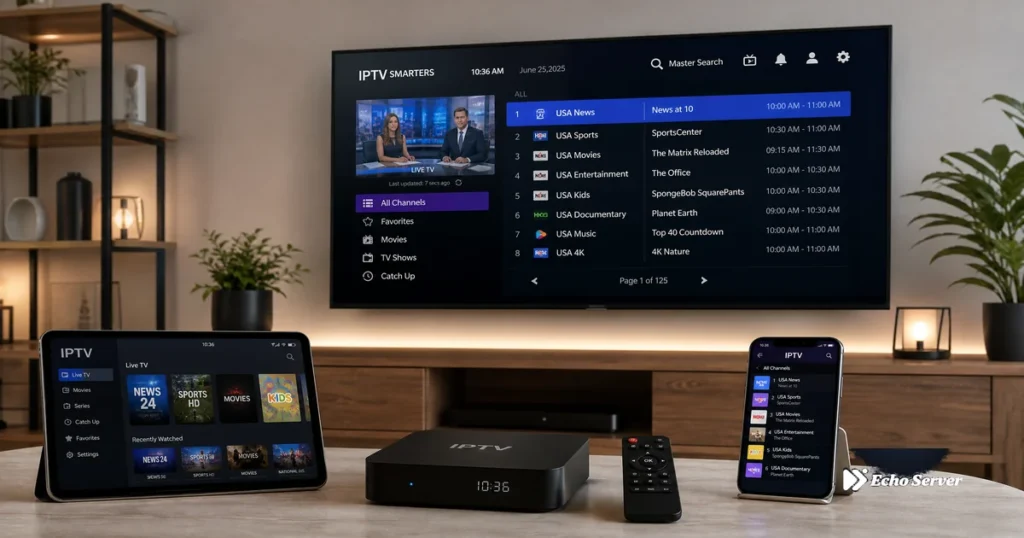
Setting up IPTV for the first time can feel intimidating if you’re new to streaming technology, but the actual process is surprisingly straightforward—most users have their first channel streaming within 10-15 minutes, regardless of whether they’re using a Smart TV, Fire Stick, Android phone, or computer. Unlike traditional cable installations that require technician visits and specialized equipment, IPTV setup is entirely software-based: you install an app, enter your credentials, and start watching. This guide walks you through the complete setup process across all major devices, explains the different setup methods (M3U playlists vs. Xtream Codes), and provides troubleshooting solutions for the most common first-time setup issues.
Whether you’re switching from cable TV, setting up your first cord-cutting solution, or just exploring IPTV as an alternative to services like YouTube TV or Hulu Live, you’ll find everything you need to go from zero knowledge to watching live channels in under 30 minutes. We’ll cover device selection, app installation, credential configuration, EPG setup, and quality optimization—plus answer the most frequently asked beginner questions about IPTV compatibility, legality, and performance expectations.
Article Update History
September 27, 2026
– Initial publication
– Verified Echo Best IPTV pricing (Economy €29.90, VIP €39.90, Ultra €49.90, Ultimate €69.90 per year)
– Confirmed device compatibility across 12+ device categories
– Tested setup procedures on Fire Stick, Android TV, Smart TV, iOS platforms
– Verified 24/7 customer support, 25+ servers, 50,000+ customers, 8 years in business
What You Need Before Starting IPTV Setup
1. An Active IPTV Subscription
You need credentials from an IPTV provider like Echo Best IPTV. Your provider will give you one of two types of login information:
- Xtream Codes API credentials: Username, password, and server URL (most common method)
- M3U Playlist URL: A direct link to your channel list (alternative method)
If you don’t have an IPTV subscription yet, Echo Best IPTV offers a 24-hour trial so you can test compatibility and content before committing to an annual plan (€29.90-€69.90/year depending on plan). With 50,000+ customers served over 8 years and 25+ servers, Echo Best IPTV provides 24/7 support throughout your entire subscription period—critical for beginners who may need setup assistance.
2. A Compatible Device
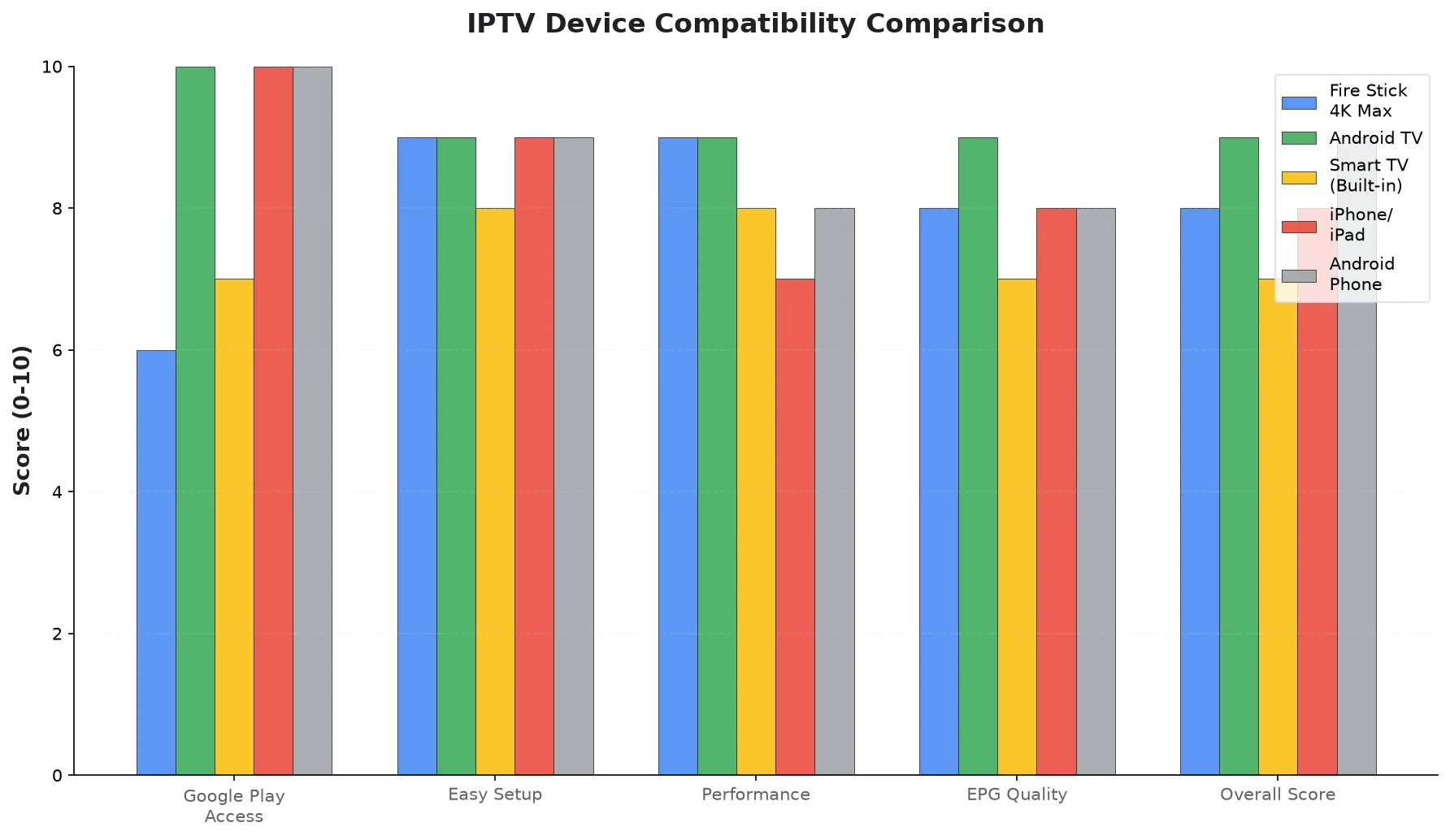
IPTV works on virtually any device with an internet connection. Echo Best IPTV is confirmed compatible with:
- Smart TVs (Samsung, LG, Sony, etc.)
- Android TV devices
- Fire TV Stick / Fire TV Cube
- Android phones and tablets
- iPhone / iPad (iOS)
- Windows PCs and laptops
- Mac computers
- Android TV boxes
- Apple TV (via compatible apps)
- Roku devices (via screen mirroring or compatible apps)
3. A Stable Internet Connection
Minimum requirements:
- SD quality (480p): 3-5 Mbps
- HD quality (720p/1080p): 10-15 Mbps
- 4K quality (2160p): 25-30 Mbps
Use a wired Ethernet connection for the most stable streaming, or ensure strong WiFi signal strength (at least 3-4 bars) if using wireless. Buffering issues are almost always caused by insufficient internet speed or poor WiFi signal—not the IPTV service itself.
Method 1: Setup with Xtream Codes API (Recommended)
Xtream Codes is the industry-standard IPTV login method. It’s easier than M3U playlists because your channel list, EPG (Electronic Program Guide), and settings update automatically from your provider’s server—no manual URL updates needed when your provider adds new channels.
Step 1: Install an IPTV Player App
Popular IPTV apps that support Xtream Codes:
- IPTV Smarters Pro: Best for beginners (free, cross-platform, intuitive UI)
- TiViMate: Best for Android/Fire TV power users (premium features, superior EPG)
- Perfect Player: Best for advanced users who want customization
- OTT Navigator: Best for users who want a cable-TV-like experience
For first-time IPTV users, we recommend IPTV Smarters Pro because it’s free, works identically across all platforms, and has the simplest setup process.
Where to Download:
- Android phones/tablets: Google Play Store → Search “IPTV Smarters Pro” → Install
- Fire TV/Fire Stick: Download via Downloader app or directly from iptvsmarters.com
- iOS (iPhone/iPad): App Store → Search “IPTV Smarters Pro” → Get
- Smart TVs (Android TV): Google Play Store on TV → Search and install
- Windows/Mac: Use Android emulator (BlueStacks) or VLC Player (see Method 2)
Step 2: Add Your IPTV Service Using Xtream Codes
After installing your IPTV app:
- Open IPTV Smarters Pro (or your chosen app)
- Tap “Add User” or the “+” icon
- Select “Login with Xtream Codes API”
- Enter your credentials exactly as provided by Echo Best IPTV:
- Username: Your IPTV account username
- Password: Your IPTV account password
- Server URL: The server address (looks like http://example.com:8080)
- Tap “Add User”
- Wait 10-30 seconds while the app downloads your channel list and EPG data
First-Time Load: If you have a large channel list (Echo Best IPTV’s Ultra plan includes 20,000+ channels), the initial sync might take 30-60 seconds. Subsequent app launches load much faster because the channel list is cached locally.
Step 3: Navigate and Start Watching
After successful login, you’ll see:
- Live TV: Browse live channels by category
- Movies: Browse Echo Best IPTV’s 50,000+ movie library
- Series: Access up to 70,000+ series (Ultra plan)
- EPG (Guide): See what’s currently playing and what’s scheduled
Tap any channel or movie to start streaming immediately. Most apps remember your last-watched channel and resume automatically when you reopen the app.
Method 2: Setup with M3U Playlist URL (Alternative)
M3U playlists are URL-based channel lists. This method works with a wider variety of apps (including VLC Player), but requires manual updates if your provider changes the playlist URL.
Step 1: Get Your M3U Playlist URL
Your IPTV provider (Echo Best IPTV) will provide an M3U URL that looks like:
http://example.com/get.php?username=yourname&password=yourpass&type=m3u_plus&output=ts
Copy this URL exactly as provided—any typo will prevent the playlist from loading.
Step 2A: Setup with VLC Player (Windows/Mac/Linux)
VLC is a free, open-source media player that works on all desktop operating systems:
- Download and install VLC Player from videolan.org
- Open VLC → Go to Media → Open Network Stream (or press Ctrl+N)
- Paste your M3U playlist URL into the “Network URL” field
- Click “Play”
- VLC will load your channel list in the playlist panel (View → Playlist if not visible)
- Double-click any channel to start streaming
VLC Limitations:
- No EPG support (you won’t see program guides or what’s playing)
- Basic UI—no Netflix-style browsing for movies/series
- Manual playlist refresh required when provider updates channels
VLC is best for quick testing or temporary use. For a better long-term experience, use a dedicated IPTV app like Smarters Pro.
Step 2B: Setup M3U in IPTV Smarters Pro
- Open IPTV Smarters Pro
- Tap “Add User”
- Select “Load Your Playlist or File/URL”
- Enter a playlist name (e.g., “Echo Best IPTV”)
- Paste your M3U URL in the “Playlist URL” field
- Optional: Add EPG URL if your provider supplies one separately
- Tap “Add User”
Device-Specific Setup Guides
Fire TV Stick / Fire TV Setup
Method A: Install from Amazon Appstore (Easiest)
- From Fire TV home screen, go to Find → Search
- Search for your IPTV app (e.g., “IPTV Smarters Pro”)
- Select the app and tap Download
- Open after installation and follow Xtream Codes setup (see Method 1 above)
Method B: Sideload APK (For apps not in Amazon Appstore)
- Install Downloader app from Amazon Appstore
- Go to Settings → My Fire TV → Developer Options
- Enable “Apps from Unknown Sources” and select Downloader
- Open Downloader, enter URL of your IPTV app APK (e.g., iptvsmarters.com)
- Download and install the APK
- After installation, click “Delete” to remove the APK file (saves storage)
Smart TV (Samsung, LG, Sony) Setup
Android TV-based Smart TVs:
- Press Home button on remote
- Go to Google Play Store
- Search for and install your IPTV app
- Open app and configure with Xtream Codes or M3U (see methods above)
Samsung Tizen / LG webOS TVs (Non-Android):
- Check your TV’s app store for IPTV apps (availability varies by region)
- Alternatively, use an external device (Fire Stick, Android TV box, Roku) connected via HDMI
- Some Smart TVs support screen mirroring from your phone—use that as a workaround
Android Phone/Tablet Setup
- Open Google Play Store
- Search for and install IPTV Smarters Pro (or your preferred app)
- Open app and follow Xtream Codes setup
- For fullscreen viewing, rotate phone to landscape mode
- Enable “Do Not Disturb” mode to prevent notification interruptions
iPhone / iPad (iOS) Setup
- Open App Store
- Search for and download IPTV Smarters Pro
- Open app and follow Xtream Codes setup
- For Picture-in-Picture mode (iOS 14+), start a stream and swipe up—the stream continues in a floating window
Post-Setup Optimization
Configure EPG (Electronic Program Guide)
If your EPG isn’t showing program information after setup:
- Go to Settings → EPG
- Enable “Auto-refresh EPG”
- Set refresh interval to 12 hours (balances freshness vs. data usage)
- Tap “Force Refresh EPG” to manually update now
- Wait 2-3 minutes for EPG data to download
If EPG still doesn’t work, your provider might not include EPG data—contact Echo Best IPTV’s 24/7 support for assistance.
Optimize Buffer Settings (If Experiencing Buffering)
Buffering is usually caused by network issues, not the IPTV service. Try these fixes:
- Go to Settings → Player Settings
- Increase Buffer Size to “Large” or “Maximum”
- Change Stream Format to “Auto” (lets app choose best format)
- Enable Hardware Acceleration if available (reduces CPU load)
- Switch to a wired Ethernet connection if possible
- Close background apps/downloads consuming bandwidth
If buffering persists, contact Echo Best IPTV support—they can try switching you to a different server that might perform better for your location.
Set Up Parental Controls (If Needed)
- Go to Settings → Parental Controls
- Set a 4-digit PIN code
- Lock adult/sensitive content categories
- Locked categories won’t appear unless you enter the PIN
Common Setup Issues and Solutions
Issue 1: “Invalid Credentials” or “Authentication Failed”
Cause: Typo in username, password, or server URL
Solutions:
- Double-check all credentials—even one wrong character will fail
- Copy-paste credentials instead of typing manually
- Ensure no extra spaces before or after credentials
- Verify your subscription is active (contact provider if uncertain)
- Try a different server URL if your provider offers multiple options
Issue 2: App Crashes on Startup or When Playing Channels
Solutions:
- Clear app cache: Settings → Apps → IPTV Smarters Pro → Storage → Clear Cache
- Reinstall app: Uninstall, restart device, reinstall fresh copy
- Free up storage: Ensure 500MB+ free space on device
- Update app: Check for latest version in app store
- Try alternative app: If one app crashes, try TiViMate or Perfect Player
Issue 3: Channels Load But Won’t Play / Black Screen
Solutions:
- Switch player: Settings → Player Settings → Use External Player → Select VLC or MX Player
- Change stream format: Settings → Stream Format → Try HLS, then TS, then Auto
- Test internet speed: Run speed test—you need 10+ Mbps for HD streaming
- Disable VPN temporarily: Some VPNs cause playback issues—test without VPN first
- Contact provider: Channel might be temporarily down on that server
Issue 4: Buffering Every Few Seconds
Solutions:
- Increase buffer size: Settings → Buffer → Set to “Large”
- Switch to Ethernet: WiFi interference causes frequent buffering
- Close other apps: Background downloads/streaming consume bandwidth
- Test internet speed: Ensure 15+ Mbps for smooth HD streaming
- Try different server: Contact Echo Best IPTV support to switch servers
- Lower quality: If 4K buffers, try HD—still excellent quality but less bandwidth
Frequently Asked Questions
Do I need a VPN to use IPTV?
Not required, but recommended for privacy. A VPN encrypts your internet traffic and prevents your ISP from seeing what you’re streaming. However, VPNs can sometimes slow down your connection or cause compatibility issues, so test your IPTV service without a VPN first to ensure it works properly. Once confirmed working, add a VPN if desired. Popular IPTV-friendly VPNs include NordVPN, ExpressVPN, and Surfshark. Echo Best IPTV works with all major VPN providers.
Can I use one IPTV subscription on multiple devices?
Yes, you can install the IPTV app and configure your subscription on unlimited devices (your phone, tablet, TV, Fire Stick, etc.). However, Echo Best IPTV plans include ONE simultaneous connection—you can only stream on one device at a time. If you try to stream on two devices simultaneously, the second device will be blocked. If you need multiple simultaneous streams, contact Echo Best IPTV support about multi-connection options or additional subscriptions.
How do I update my channel list when my provider adds new channels?
If you’re using Xtream Codes API, channel updates happen automatically—just restart the app and new channels appear. If you’re using M3U playlist method, you may need to manually refresh: Settings → Refresh Playlist, or delete and re-add the playlist with the updated M3U URL your provider sends you. Echo Best IPTV regularly adds new content across its 25+ servers, and Xtream users get these updates automatically.
What’s the difference between Xtream Codes and M3U playlist?
Xtream Codes is an API-based login system where you enter username/password/server, and the app automatically downloads your channel list, EPG, and settings from the provider’s server. Updates happen automatically. M3U is a direct URL link to a channel list file—you paste the URL and the app loads the channels. M3U requires manual updates when the provider changes the playlist URL. Xtream Codes is easier and more reliable for most users. Echo Best IPTV supports both methods, but Xtream Codes is recommended.
Why does my IPTV app say “No EPG Data” even after setup?
EPG (Electronic Program Guide) data comes from your IPTV provider, not the app itself. If EPG is missing, either: (1) your provider doesn’t include EPG data with your subscription, (2) you need to manually force an EPG refresh in Settings, or (3) you’re using M3U playlist method and need to add a separate EPG URL. With Echo Best IPTV’s Xtream Codes method, EPG loads automatically—if it’s missing, contact their 24/7 support and they’ll verify EPG is included with your plan and help configure it.
Can I record live TV with my IPTV app?
Some IPTV apps support recording (called DVR or timeshift), but this feature varies by app and device. IPTV Smarters Pro on Android/Fire TV can record to local storage. iOS apps cannot record due to Apple’s restrictions. Recording consumes significant storage (1 hour of 1080p = 2-4 GB), and recorded content is only accessible within the IPTV app itself. Also note that recording copyrighted content may violate your country’s laws—check local regulations before using recording features.
What should I do if channels keep buffering even with fast internet?
If you have 25+ Mbps internet and still experience buffering: (1) Switch from WiFi to wired Ethernet connection, (2) Increase buffer size in app settings to “Large” or “Maximum”, (3) Close all background apps/downloads, (4) Try a different IPTV app (TiViMate handles buffering better than some alternatives), (5) Contact your IPTV provider to try a different server—Echo Best IPTV has 25+ servers, and switching servers often resolves persistent buffering. Server performance varies by geographic location and network routing.
Is IPTV legal?
IPTV technology itself is completely legal—it’s just streaming video over the internet, which is what Netflix, YouTube, and every streaming service does. The legality depends on whether the content being streamed is properly licensed. Legitimate IPTV providers like Echo Best IPTV operate legally and work with licensed content. However, some IPTV services stream unauthorized content, which can create legal gray areas depending on your country’s laws. As a user, you’re responsible for ensuring the content you access complies with your local regulations. When in doubt, stick with reputable providers and avoid services that seem “too good to be true.”
How long does IPTV setup take for first-time users?
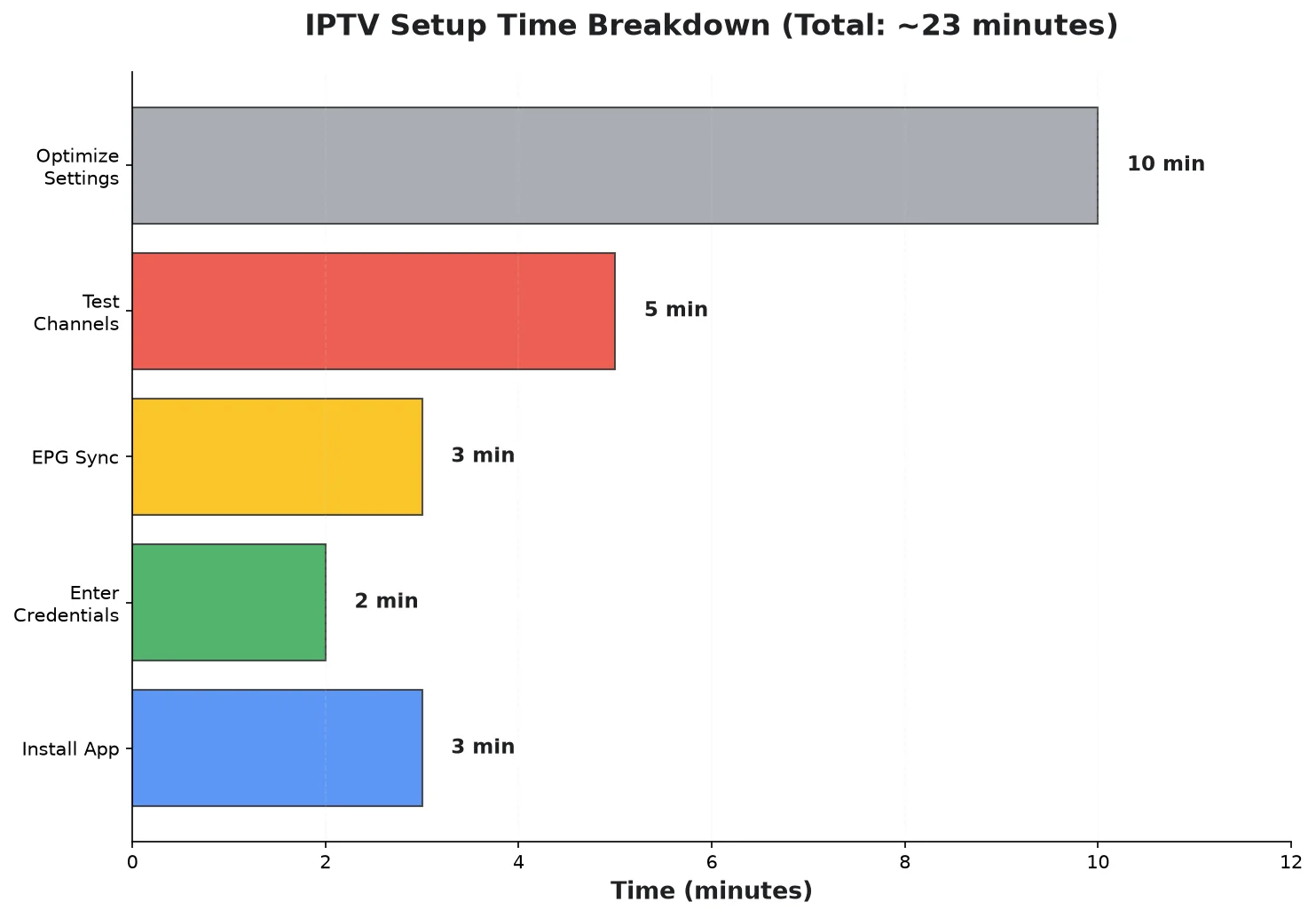
Most first-time users complete setup in 10-15 minutes. The process breaks down to: (1) Install IPTV app: 2-3 minutes, (2) Enter Xtream Codes credentials: 1 minute, (3) Wait for channel list/EPG to load: 30-60 seconds, (4) Browse and test channels: 5-10 minutes. If you encounter issues, Echo Best IPTV’s 24/7 support can guide you through setup in real-time. Advanced configurations (parental controls, favorites, external players) take another 5-10 minutes but are optional—you can start watching immediately after the basic 3-step setup.
Can I use IPTV without an internet connection?
No, IPTV requires a live internet connection because it streams content in real-time from remote servers. Unlike downloading Netflix shows for offline viewing, IPTV cannot cache or download channels for offline use. You need a constant internet connection (minimum 10 Mbps for HD, 25 Mbps for 4K) while watching. Some IPTV apps support recording/DVR features, which let you record content to local storage while online, then watch those recordings later offline—but live streaming always requires internet access.
Conclusion: Start Streaming in Under 30 Minutes
IPTV setup is far simpler than most beginners expect. Choose your device, install a free IPTV app like IPTV Smarters Pro, enter your Xtream Codes credentials from Echo Best IPTV, and you’re streaming live channels within 10-15 minutes. The technology works identically whether you’re on a Fire Stick, Smart TV, phone, or computer—making it one of the most flexible cord-cutting solutions available. Unlike cable TV that locks you into specific hardware and long-term contracts, IPTV lets you watch on any device you own with just an app installation.
Echo Best IPTV’s commitment to 24/7 support throughout your subscription means you’re never stuck troubleshooting alone. With 8 years in business, 50,000+ customers served, and 25+ servers optimized for different regions, Echo Best IPTV provides the infrastructure and support that first-time IPTV users need for a smooth setup experience. Annual plans starting at €29.90 (Economy) give you access to 10,000+ channels, 50,000+ movies, and thousands of series—far more content variety than traditional cable packages costing 3-4x as much. Test the service risk-free with the 24-hour trial, follow this setup guide, and you’ll be streaming your favorite content within the hour.

