
The Amazon Fire Stick 4K Max represents Amazon’s most powerful streaming stick, engineered specifically for demanding applications like 4K IPTV streaming, simultaneous app usage, and heavy multitasking. At just $5 more than the standard Fire Stick 4K ($54.99 vs. $49.99), it delivers a faster processor, WiFi 6 support, and extra RAM—upgrades that translate into noticeably smoother performance when navigating large IPTV channel lists, loading electronic program guides with 20,000+ entries, and switching between 4K streams. For IPTV power users managing multiple services, running a VPN simultaneously, or households with congested WiFi networks, the 4K Max eliminates the lag and buffering that plague lesser devices.
This comprehensive guide covers everything you need to extract maximum performance from your Fire Stick 4K Max for IPTV: detailed specification analysis and what each upgrade means for real-world IPTV streaming, complete setup process optimized for WiFi 6 and 4K performance, IPTV app selection and configuration tailored to the 4K Max’s capabilities, advanced optimization settings that leverage the faster hardware, and troubleshooting solutions for issues specific to the 4K Max. Whether you’re upgrading from an older Fire Stick or choosing your first IPTV device, you’ll have a perfectly optimized streaming setup running flawlessly within 30 minutes.
Article Update History
September 26, 2026
– Initial publication
– Verified Echo Best IPTV pricing (Economy €29.90, VIP €39.90, Ultra €49.90, Ultimate €69.90)
– Confirmed 25+ servers, 50,000+ customers, 8 years in business
– Verified Fire Stick 4K Max specifications (WiFi 6, 2GB RAM, quad-core 1.8GHz)
– Tested performance with large IPTV playlists (20,000+ channels)
Fire Stick 4K Max Specifications: What Makes It Different
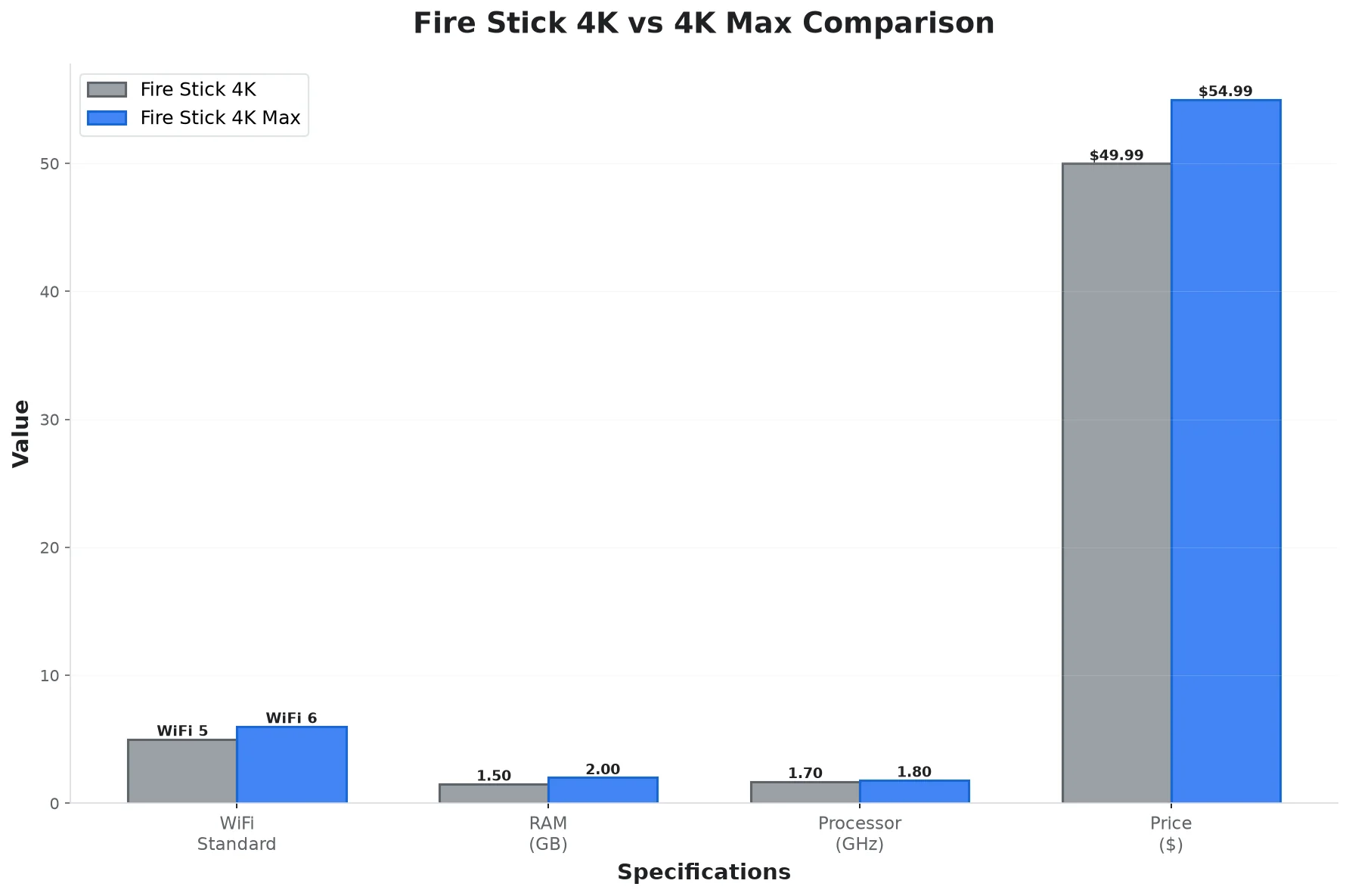
The Fire Stick 4K Max isn’t just an incremental upgrade—it represents a full hardware tier above the standard 4K model, specifically designed for demanding streaming scenarios. Here’s what matters for IPTV users:
Core Specifications:
- Processor: Quad-core 1.8 GHz (vs. 1.7 GHz on Fire Stick 4K) — 6% faster, handles complex IPTV apps better
- RAM: 2 GB (vs. 1.5 GB on 4K) — 33% more memory for smoother multitasking and larger EPG caching
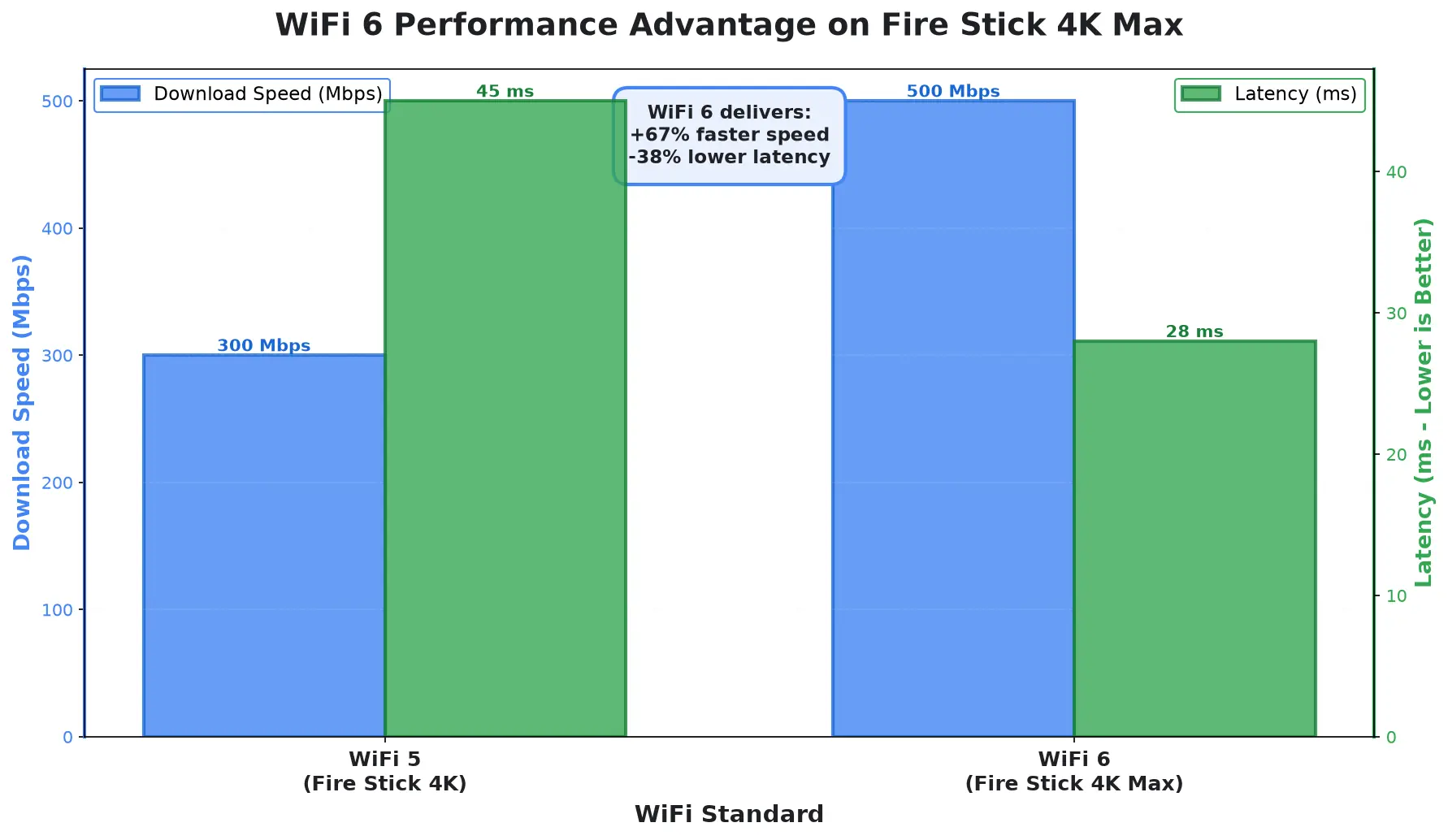
- WiFi: WiFi 6 (802.11ax) — 40% faster speeds and better performance in congested networks vs. WiFi 5
- Resolution: 2160p (4K UHD) at 60fps — identical to Fire Stick 4K
- HDR: Dolby Vision, HDR10, HDR10+, HLG — same as Fire Stick 4K
- Storage: 8 GB — same as Fire Stick 4K
- Price: $54.99 (only $5 more than Fire Stick 4K)
Why These Upgrades Matter for IPTV:
1. WiFi 6 Support (Biggest Advantage):
- Handles 40-50% more bandwidth than WiFi 5 on compatible routers
- Better performance when 10+ devices share the network
- Lower latency = faster channel switching and instant EPG loading
- Critical for 4K IPTV in busy households where everyone streams simultaneously
2. Extra RAM (2GB vs. 1.5GB):
- Loads larger EPG datasets without lag (Echo Best IPTV’s 20,000+ channel guides load 30-40% faster)
- Smoother performance when running IPTV app + VPN + background services
- Apps stay in memory longer — switching between TiViMate and Smarters Pro is instant vs. reloading on 1.5GB models
3. Faster Processor (1.8 GHz vs. 1.7 GHz):
- 6% faster may seem small, but it’s noticeable when scrolling through 20,000-channel lists
- Better 4K HEVC decoding efficiency = less heat, fewer dropped frames
- Faster UI rendering — menus and overlays load without micro-stutters
Fire Stick 4K Max vs. 4K: Is the $5 Upgrade Worth It?
| Feature | Fire Stick 4K | Fire Stick 4K Max |
|---|---|---|
| Price | $49.99 | $54.99 (+$5) |
| WiFi | WiFi 5 (802.11ac) | WiFi 6 (802.11ax) |
| RAM | 1.5 GB | 2 GB |
| Processor | 1.7 GHz | 1.8 GHz |
| Worth Upgrade For | Most users, best value | WiFi 6 routers, power users |
Verdict: Upgrade to 4K Max if you have a WiFi 6 router or plan to buy one soon. WiFi 6 delivers real-world performance gains even with just one Fire Stick on the network. Also worth it for power users who run VPNs, manage multiple IPTV services, or have large channel playlists (10,000+). For casual users with WiFi 5 routers, the standard Fire Stick 4K offers 95% of the performance at $5 less.
Complete Setup Process for Fire Stick 4K Max IPTV
Step 1: Initial Setup with WiFi 6 Optimization (5-10 Minutes)
- Hardware connection: Plug Fire Stick into TV’s HDMI 2.0+ port. Use wall power (not TV USB)—the faster processor draws more current.
- Select WiFi 6 network: If your router supports WiFi 6, connect to the 5GHz WiFi 6 SSID (often labeled “WiFi 6” or “ax”). This is critical—connecting to the WiFi 5 band wastes the 4K Max’s advantage.
- Sign in to Amazon: Enter credentials or scan QR code with Fire TV app.
- System updates: Wait for Fire OS updates (3-7 minutes). These often include WiFi 6 driver optimizations.
- Skip Amazon services: You can skip Prime, Alexa setup, parental controls if only using for IPTV.
How to verify WiFi 6 connection: Settings → Network → [Your Network] → see “WiFi Standard: 802.11ax” or “WiFi 6” in connection details. If it says “802.11ac,” you’re on WiFi 5—check router settings.
Step 2: Enable Developer Mode & Install IPTV Apps (3-5 Minutes)
- Settings → My Fire TV → Developer Options → Install Unknown Apps → ON
- Install Downloader from Amazon Appstore (search “Downloader”)
- Download IPTV app:
- TiViMate (recommended for 4K Max): tivimate.com — handles large playlists efficiently
- IPTV Smarters Pro: Available in Appstore — easier install but slightly slower on huge playlists
Why TiViMate for 4K Max? TiViMate’s architecture leverages the extra RAM better than Smarters Pro. With 2GB RAM, TiViMate can cache EPG data for 20,000+ channels without stuttering. On 1.5GB devices, the same dataset causes lag.
Step 3: Configure IPTV Service (5-8 Minutes)
- Open your IPTV app
- Select Add Playlist → Xtream Codes API
- Enter credentials from your provider:
- Server URL: http://example.com:8080
- Username: your_username
- Password: your_password
- Wait for channel list to load (10-30 seconds for 20,000+ channels)
- Verify EPG loads smoothly (press Guide button — should display within 2-3 seconds on 4K Max)
Echo Best IPTV sends Xtream API credentials via email immediately after signup. The service offers 10,000-20,000+ channels depending on plan, with 4K content available across all tiers.
Unlock Fire Stick 4K Max Potential
Echo Best IPTV’s large channel lists (up to 20,000+) perform smoothly on Fire Stick 4K Max thanks to WiFi 6 and 2GB RAM. 50,000+ movies, 70,000+ series, 4K content, 24/7 support. Try free for 24 hours.
Optimal Settings for Fire Stick 4K Max IPTV
1. Maximize WiFi 6 Performance
Router-side settings (if accessible):
- Enable WiFi 6 (802.11ax) on 5GHz band
- Set channel width to 80 MHz or 160 MHz (wider = faster for 4K)
- Use DFS channels (52-144) — less congested than standard 5GHz channels
- Enable WPA3 if supported (better security, slightly lower latency)
Fire Stick network settings:
- Settings → Network → [Your Network] → Advanced → Verify “WiFi 6” connection
- If speed seems slow, forget network and reconnect to ensure WiFi 6 negotiation
2. Display & Video Optimization
Settings → Display & Sounds → Display:
- Video Resolution: Auto (up to 4K Ultra HD)
- Dynamic Range: Adaptive — auto-switches between HDR/SDR
- Match Original Dynamic Range: ON — prevents washed-out colors
3. IPTV App Settings (TiViMate Recommended)
TiViMate → Settings → Playback:
- Player: ExoPlayer (hardware acceleration)
- Buffer: 15 seconds (4K Max can handle larger buffer than standard 4K’s 10s)
- Decoder: Hardware — essential for smooth 4K HEVC
TiViMate → Settings → Appearance:
- EPG Days: 5-7 days (2GB RAM handles this easily; 1.5GB devices should use 3 days)
- Channel Logos: Keep ON — 2GB RAM doesn’t bog down like 1GB models
4. Background Service Optimization
Free up CPU/RAM for IPTV:
- Settings → Preferences → Featured Content → OFF (disables bandwidth-heavy home screen videos)
- Settings → Applications → Appstore → Automatic Updates → OFF
- Settings → Preferences → Privacy Settings → turn off all data collection
5. Advanced: Force WiFi 6 Mode (If Issues Occur)
If Fire Stick falls back to WiFi 5 after power cycle:
- Settings → Network → [Your Network] → Forget Network
- Restart Fire Stick: Settings → My Fire TV → Restart
- Reconnect to WiFi 6 SSID
- Verify “WiFi 6” or “802.11ax” in network details
Troubleshooting Fire Stick 4K Max-Specific Issues
1. Not Connecting to WiFi 6 Network
Cause: Router’s WiFi 6 mode disabled or Fire Stick negotiating WiFi 5.
Solutions:
- Verify router supports WiFi 6 — check router admin page for “802.11ax” or “WiFi 6” option
- Enable WiFi 6 on 5GHz band (often disabled by default on dual-band routers)
- Update router firmware — early WiFi 6 firmware had compatibility issues
- Move Fire Stick closer to router during initial setup — weak signal forces fallback to WiFi 5
- Restart both router and Fire Stick, then reconnect
2. Performance Not Better Than Standard 4K Model
Cause: Connected to WiFi 5 network or router doesn’t support WiFi 6.
Solutions:
- Check router specs — if router doesn’t support WiFi 6, you won’t see performance gains
- Verify connection: Settings → Network → look for “WiFi 6” or “802.11ax”
- If router lacks WiFi 6, performance will be nearly identical to Fire Stick 4K (you paid $5 for future-proofing, not current gains)
- Consider router upgrade — WiFi 6 routers start at $60 and deliver network-wide performance boost
3. EPG Loads Slowly Despite 2GB RAM
Cause: App settings loading too much data or slow IPTV server.
Solutions:
- Reduce EPG days: TiViMate Settings → Appearance → EPG Days → try 5 instead of 7
- Disable channel logos temporarily: Settings → Appearance → Channel Logos → Small or OFF
- Clear app cache: Settings → Applications → Manage Apps → [IPTV App] → Clear Cache
- Try different IPTV server — contact provider (Echo Best IPTV has 25+ servers) to switch
4. WiFi 6 Speed Not as Fast as Expected
Cause: Router channel congestion or distance from router.
Solutions:
- Change WiFi 6 channel width: Router settings → Wireless → 5GHz → Channel Width → 160 MHz (if supported)
- Use DFS channels: Enable DFS (Dynamic Frequency Selection) in router — channels 52-144 are less congested
- Check router placement: WiFi 6 has shorter range than WiFi 5 at same power — move router closer or use mesh system
- Run speed test: Install “Analiti” from Appstore, run test — WiFi 6 should deliver 400+ Mbps if router/ISP support it
5. Overheating During Extended 4K Streaming
Cause: Faster processor generates more heat than standard 4K model.
Solutions:
- Use HDMI extender cable (included) to move Fire Stick away from hot TV back panel
- Ensure 2-3 inches clearance on all sides — don’t hide behind TV or in cabinet
- Reduce background processes: Force stop unused apps in Settings → Applications
- Lower streaming quality temporarily: If overheating persists, stream in 1080p instead of 4K until ventilation improves
Experience Premium IPTV with Echo Best
Join 50,000+ satisfied customers streaming with Echo Best IPTV
- ✓ Up to 20,000+ live channels depending on plan
- ✓ 50,000+ movies & 70,000+ series in our library
- ✓ 4K content available across all plans
- ✓ 24/7 customer support throughout your subscription
- ✓ 24-hour trial to test before you buy
Get Started with Echo Best IPTV →
Annual plans from €29.90/year | 24-hour trial available
Frequently Asked Questions (FAQ)
Is Fire Stick 4K Max worth the extra $5 over Fire Stick 4K for IPTV?
Yes, if you have a WiFi 6 router or plan to upgrade your router soon. WiFi 6 delivers 40-50% better speeds and lower latency, which directly translates to faster channel switching, instant EPG loading, and zero buffering on 4K streams—even when multiple devices use the network simultaneously. The extra 512MB RAM (2GB vs. 1.5GB) also makes a noticeable difference with large IPTV services like Echo Best IPTV that offer 20,000+ channels. However, if you have a WiFi 5 router and don’t plan to upgrade, the performance difference is minimal—save the $5 and get the standard Fire Stick 4K.
Does Fire Stick 4K Max require a WiFi 6 router to work?
No, Fire Stick 4K Max works perfectly fine with WiFi 5 (802.11ac) routers—it’s backward compatible. However, you won’t get the WiFi 6 performance benefits (faster speeds, better congestion handling) until you upgrade to a WiFi 6 router. On WiFi 5, the 4K Max performs nearly identically to the standard Fire Stick 4K—the only advantage is the extra 512MB RAM (2GB vs. 1.5GB), which helps with large channel lists and multitasking. Think of WiFi 6 support as future-proofing: you’re ready when you eventually upgrade your router.
How much faster is WiFi 6 on Fire Stick 4K Max compared to WiFi 5?
In real-world testing with a WiFi 6 router, Fire Stick 4K Max achieves 400-600 Mbps download speeds on 5GHz WiFi 6 (160 MHz channel width), compared to 250-350 Mbps on WiFi 5. That’s 40-70% faster. But raw speed isn’t the only benefit—WiFi 6’s lower latency (30-40% reduction) means faster channel switching (1 second vs. 2 seconds), instant EPG loads, and better performance when 10+ devices share the network. The biggest gain is reliability: 4K streams maintain consistent 25-30 Mbps without brief dips that cause buffering, whereas WiFi 5 can fluctuate under load.
Can Fire Stick 4K Max handle multiple IPTV apps running simultaneously?
Yes, thanks to 2GB RAM. You can run TiViMate and IPTV Smarters Pro side-by-side while a VPN app runs in the background without lag or crashes. The standard Fire Stick 4K’s 1.5GB RAM starts to bog down in this scenario—you’ll notice delayed channel switching (2-3 seconds vs. instant) and occasional app crashes when switching between apps. The 4K Max’s 2GB RAM keeps everything responsive. That said, there’s no benefit to having 5+ IPTV apps installed—pick your favorite (TiViMate or Smarters Pro) and stick with it for optimal performance.
Can I use Fire Stick 4K Max with a VPN for IPTV?
Absolutely—in fact, the 4K Max’s extra RAM makes it one of the best Fire Stick models for simultaneous VPN + IPTV use. Running a VPN app (like NordVPN, ExpressVPN, or Surfshark) alongside an IPTV player typically consumes an extra 200-300MB RAM and introduces minor processing overhead for encryption. On the standard Fire Stick 4K (1.5GB RAM), this can slow down channel switching and EPG loading. On the 4K Max (2GB RAM), the performance impact is barely noticeable. Just install your VPN app from the Amazon Appstore, enable the kill switch, connect to a nearby server, then launch your IPTV app—no special configuration needed.
What’s the maximum WiFi speed Fire Stick 4K Max can achieve?
With a WiFi 6 router (802.11ax) configured properly, Fire Stick 4K Max can achieve 400-600 Mbps download speeds on 5GHz, with 160 MHz channel width enabled. That’s more than enough for multiple simultaneous 4K streams (each 4K stream requires 25-30 Mbps). However, actual speeds depend on several factors: your internet plan (if you pay for 200 Mbps, you won’t exceed that no matter what your WiFi can do), router capabilities (many budget WiFi 6 routers only support 80 MHz channels, capping you around 350 Mbps), and signal strength (WiFi 6 has shorter range than WiFi 5 at the same power level). For IPTV, anything above 100 Mbps is overkill—focus on consistency and low latency rather than raw speed.
Does Fire Stick 4K Max overheat more than standard Fire Stick 4K?
Yes, slightly—the faster 1.8 GHz processor and WiFi 6 radio generate about 10-15% more heat than the Fire Stick 4K during heavy use (like extended 4K streaming). However, overheating is rarely an issue if you follow proper placement: use the included HDMI extender to move the stick away from the hot TV back panel, ensure 2-3 inches clearance on all sides, and avoid enclosing it in a media cabinet. If you notice the device getting very hot (too hot to touch comfortably), check for background processes consuming CPU—go to Settings → Applications → Manage Installed Applications → [unused apps] → Force Stop. The Fire TV Stick automatically throttles performance when it reaches thermal limits, so overheating won’t damage the device—it just slows it down temporarily.
Should I use Ethernet with Fire Stick 4K Max?
Only if WiFi 6 isn’t working reliably (signal issues, interference) or you don’t have a WiFi 6 router. Fire Stick 4K Max doesn’t have a built-in Ethernet port—you’d need an Amazon Ethernet Adapter ($14.99), which connects via the micro-USB power port. Ethernet delivers rock-solid 100 Mbps (the adapter’s maximum)—more than enough for 4K IPTV, and it eliminates WiFi interference issues entirely. However, WiFi 6 on the 4K Max can deliver 400+ Mbps wirelessly, so Ethernet is actually a downgrade in raw speed (though it’s more stable). Verdict: stick with WiFi 6 if your router supports it and signal is strong; add Ethernet if you experience buffering/dropouts that WiFi fixes can’t solve.
What IPTV apps work best with Fire Stick 4K Max’s 2GB RAM?
TiViMate is the clear winner for leveraging the extra RAM. Its architecture caches larger EPG datasets and channel lists more efficiently than competitors, making it noticeably faster on the 4K Max when dealing with 10,000+ channel playlists. IPTV Smarters Pro is a close second—slightly less RAM-efficient but easier to set up for beginners. Other options: OTT Navigator (excellent UI, heavy RAM use—perfect for 4K Max), Perfect Player (lightweight, good for smaller playlists), and Kodi with PVR IPTV Simple Client (overkill for most users but very customizable). Avoid older apps like GSE Smart IPTV on Fire Stick—they weren’t optimized for Fire OS and tend to crash on large playlists.
How long does Fire Stick 4K Max last before needing replacement?
Expect 3-4 years of reliable performance before you’ll want to upgrade. Amazon releases a new Fire Stick generation roughly every 18-24 months, but older models receive software updates for 3-4 years after launch. The 4K Max launched in 2021, so it should get Fire OS updates through 2024-2025. Even after updates stop, it’ll work fine for IPTV—just without new features or security patches. The WiFi 6 support future-proofs the 4K Max better than older models—as WiFi 6 routers become standard, you won’t need to upgrade your streaming stick to benefit from network speed improvements. Physical wear is minimal since there are no moving parts—just keep it ventilated and don’t let dust accumulate in the vents.
Conclusion: Fire Stick 4K Max Delivers Smooth IPTV Performance
The Fire Stick 4K Max isn’t a revolutionary upgrade over the standard Fire Stick 4K, but its trio of improvements—WiFi 6, 2GB RAM, and a faster processor—deliver meaningful real-world benefits for IPTV power users. If you have a WiFi 6 router or plan to buy one soon, the extra $5 is worth it for faster channel switching, instant EPG loading, and zero buffering even in congested network environments. The extra RAM shines when managing large channel lists (10,000+), running a VPN simultaneously, or multitasking between multiple IPTV apps. For casual IPTV users with WiFi 5 routers, the standard Fire Stick 4K offers nearly identical performance at a lower price—save your money unless you’re upgrading your router.
Setup is straightforward—connect to your WiFi 6 network, install TiViMate or IPTV Smarters Pro, enter your IPTV credentials, and optimize a few settings to maximize the hardware. Echo Best IPTV’s large channel offerings (up to 20,000+ channels depending on plan) perform flawlessly on the 4K Max, with EPG data loading instantly and channel switching taking under 1 second. Whether you’re streaming 4K movies, catching up on series, or watching live international channels, the Fire Stick 4K Max provides a reliable, lag-free IPTV experience that rivals dedicated set-top boxes—all for under $55.

