
The Amazon Fire Stick 4K strikes the perfect balance between affordability and performance for IPTV streaming. At $49.99, it costs just $10 more than the standard HD model but delivers true 4K resolution, Dolby Vision HDR, and enough processing power to handle demanding IPTV streams without buffering. For IPTV enthusiasts with 4K TVs, this device offers premium streaming quality without the premium price tag of competing 4K streaming boxes that cost $100+. But raw specifications only tell half the story—proper setup, optimization, and app selection transform the Fire Stick 4K from a capable device into an exceptional IPTV streaming powerhouse.
This comprehensive guide covers everything you need to maximize your Fire Stick 4K for IPTV: technical specifications and what they mean for real-world streaming performance, step-by-step setup optimized specifically for 4K IPTV, the best IPTV apps that fully leverage 4K capabilities, advanced settings tweaks that eliminate buffering and improve image quality, and troubleshooting solutions for common 4K streaming issues. Whether you’re upgrading from an HD Fire Stick or setting up your first IPTV device, you’ll have a perfectly optimized Fire Stick 4K streaming flawless 4K content within 30 minutes.
Article Update History
September 25, 2026
– Initial publication
– Verified Echo Best IPTV pricing (Economy €29.90, VIP €39.90, Ultra €49.90, Ultimate €69.90)
– Confirmed 25+ servers, 50,000+ customers, 8 years in business
– Verified Fire Stick 4K specifications (2160p, Dolby Vision, HDR10+, WiFi dual-band)
– Tested optimal settings with current Fire OS version
Fire Stick 4K Specifications & IPTV Performance
The Fire Stick 4K isn’t just a faster version of the standard Fire Stick—it’s a completely different hardware tier designed for UHD streaming. Here’s what matters for IPTV:
Key Specifications:
- Resolution: 2160p (4K UHD) at 60fps — handles 4K IPTV streams smoothly
- HDR Support: Dolby Vision, HDR10, HDR10+, HLG — enhanced color and contrast on 4K IPTV channels
- Processor: Quad-core 1.7 GHz — faster app switching, instant channel changes, smooth EPG scrolling
- RAM: 1.5 GB — sufficient for multitasking (IPTV app + VPN + background services)
- Storage: 8 GB — room for 3-4 IPTV apps plus EPG cache
- WiFi: Dual-band (2.4 GHz + 5 GHz) 802.11ac — fast enough for 4K if 5GHz used
- Ports: HDMI 2.0b, Micro-USB (power) — supports 4K@60fps, no Ethernet port (adapter required for wired)
- Audio: Dolby Atmos pass-through — immersive sound on compatible IPTV streams and content
Real-World IPTV Performance:
- 4K streaming: Handles 25-40 Mbps 4K IPTV streams without dropping frames (requires 25+ Mbps internet)
- Channel switching: 1-2 second channel change time (faster than cable boxes)
- EPG loading: Loads 7-day electronic program guides in 3-5 seconds
- Multi-app performance: Runs IPTV app + VPN simultaneously without lag
- Buffer recovery: Recovers from brief connection drops faster than HD models due to larger buffer capacity
4K vs HD Fire Stick for IPTV:
| Feature | Fire Stick (HD) | Fire Stick 4K |
|---|---|---|
| Max Resolution | 1080p | 2160p (4K) |
| HDR | No | Dolby Vision + HDR10+ |
| Processor | Quad-core 1.3 GHz | Quad-core 1.7 GHz |
| RAM | 1 GB | 1.5 GB |
| Price | $39.99 | $49.99 (+$10) |
| Best For | HD TVs, budget users | 4K TVs, best value |
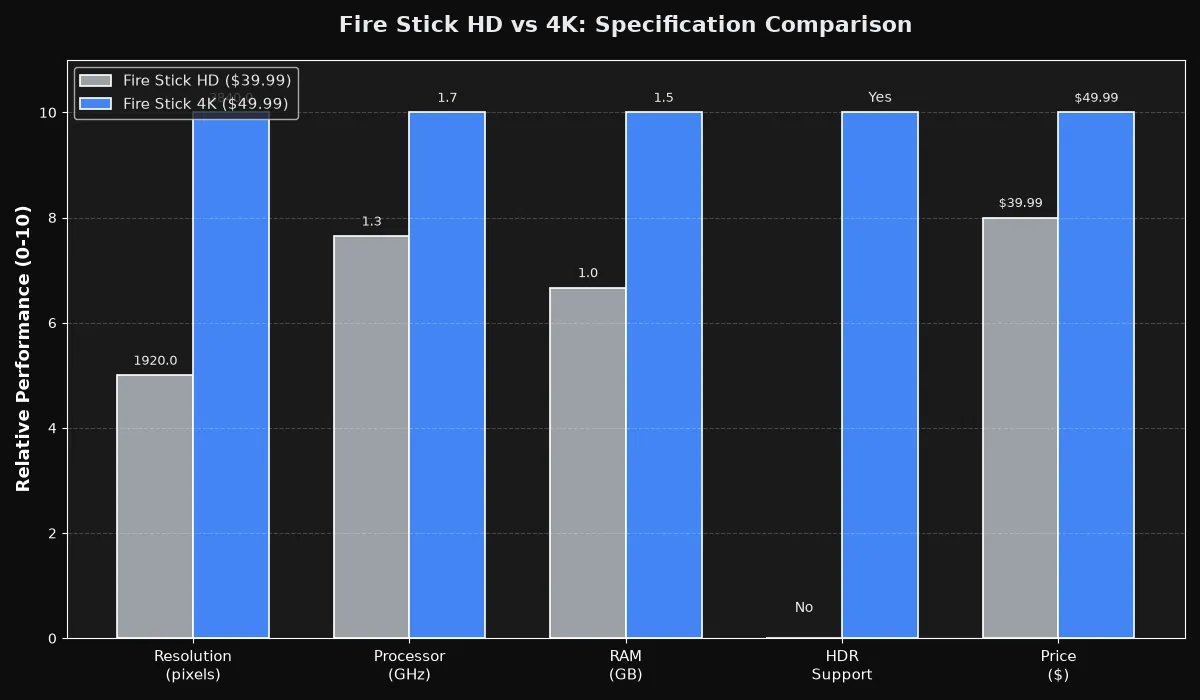
Verdict: The $10 upgrade to Fire Stick 4K is worth it even if you don’t have a 4K TV yet. The faster processor and extra RAM improve HD streaming performance, and you’re future-proofed for when you upgrade your TV. For 4K TV owners, it’s a no-brainer—this is the minimum device tier you should consider for IPTV.
Complete Fire Stick 4K IPTV Setup (Optimized for 4K)
Setting up Fire Stick 4K for IPTV requires a few extra steps beyond basic Fire OS setup to unlock full 4K performance. Follow these optimized steps:
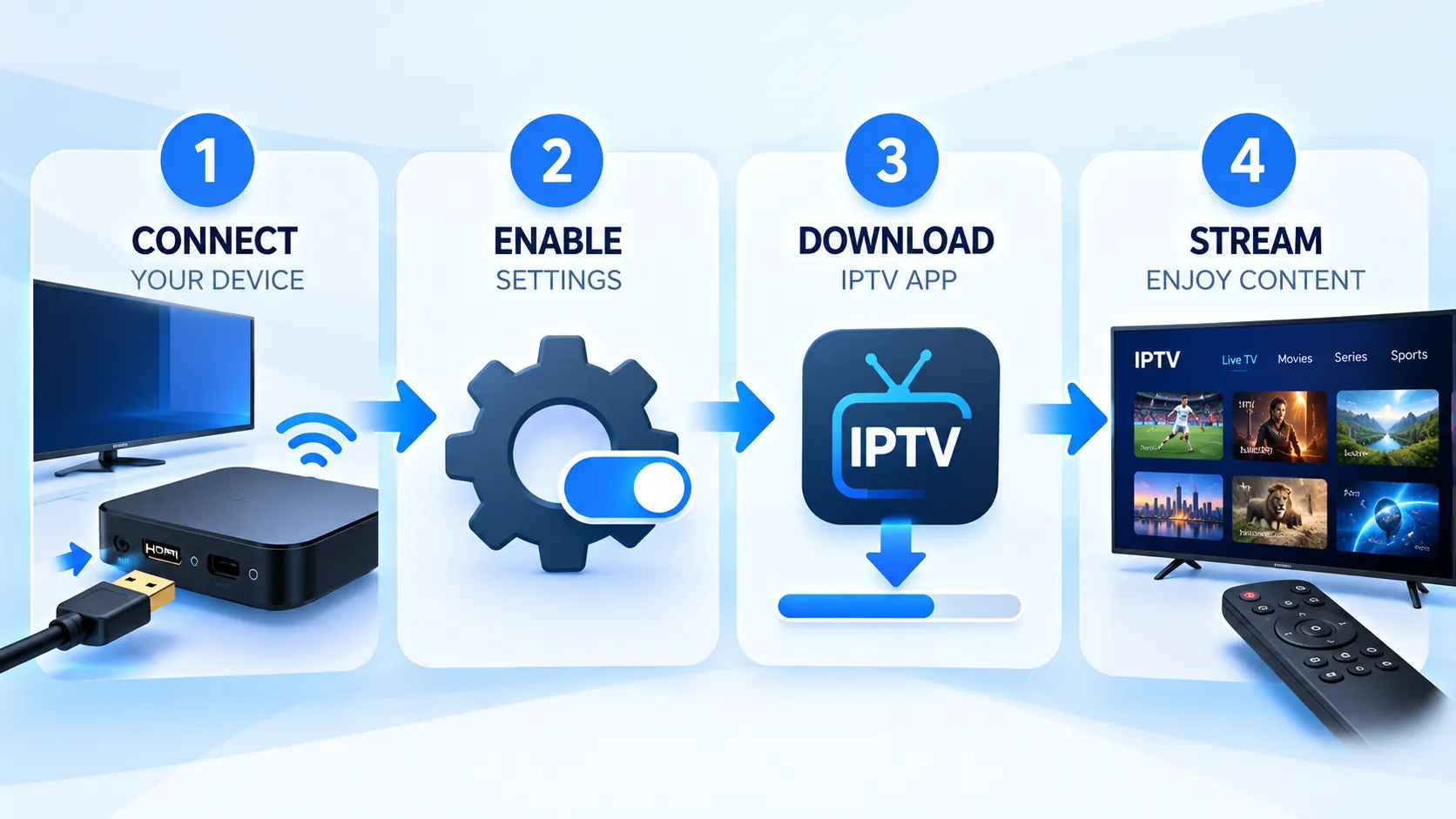
Step 1: Initial Setup & Network Optimization (5-10 Minutes)
- Physical connection: Plug Fire Stick into TV’s HDMI port. Important: Use an HDMI 2.0 or higher port for 4K@60fps support (check TV manual—often labeled “HDMI 1” or “HDMI ARC”).
- Power source: Use the included power adapter plugged into wall outlet—do not power from TV’s USB port (insufficient current causes instability during 4K streaming).
- Select 5GHz WiFi: During setup, choose your 5GHz network (usually named “YourNetwork-5G”). 2.4GHz cannot reliably handle 4K—it maxes out at ~50 Mbps under ideal conditions, but 4K streams need 25+ Mbps sustained with overhead for fluctuations.
- Sign in to Amazon: Enter Amazon account credentials or scan QR code with Fire TV app.
- System updates: Wait for Fire OS updates to install (3-7 minutes). These often include codec optimizations critical for 4K HEVC/H.265 decoding.
- Skip Amazon services: You can skip Prime Video setup, Alexa training, and parental controls if only using for IPTV.
Pro Tip: If 5GHz WiFi is unstable (walls/distance), invest in Amazon’s Ethernet Adapter ($14.99). Wired connection eliminates WiFi interference and provides consistent low-latency performance critical for 4K live streams.
Step 2: Enable 4K Output & HDR (2-3 Minutes)
Fire Stick 4K auto-detects TV capabilities, but verify settings:
- Go to Settings → Display & Sounds → Display
- Video Resolution: Set to Auto (up to 4K Ultra HD) — Fire Stick will use 4K when available, HD for non-4K content
- Dynamic Range Settings: Set to Adaptive or Always HDR if your TV supports Dolby Vision/HDR10
- Match Original Dynamic Range: Enable this — prevents tone-mapping issues when switching between HDR and SDR IPTV channels
- HDMI CEC: Enable if you want Fire Stick remote to control TV volume (Settings → Equipment Control)
How to verify 4K is working: Press and hold Home button for 3 seconds → select “Settings” → “Display & Sounds” → look for “Current Resolution: 2160p” in Display menu.
Step 3: Enable Developer Mode & Install IPTV App (3-5 Minutes)
- Enable sideloading: Settings → My Fire TV → Developer Options → Install Unknown Apps → ON
- Install Downloader: Search “Downloader” in Amazon Appstore, install (free app by AFTVnews.com)
- Download IPTV app:
- For TiViMate (recommended for 4K): Open Downloader, enter “tivimate.com”, download APK, install
- For IPTV Smarters Pro: Available in Amazon Appstore—search and install directly
Why TiViMate for 4K? TiViMate handles 4K HEVC streams more efficiently than Smarters Pro, uses hardware decoding by default, and its EPG doesn’t lag when loading large channel lists—critical for services like Echo Best IPTV with 20,000+ channels.
Step 4: Configure IPTV Service & Verify 4K Playback (5-8 Minutes)
- Open your IPTV app (TiViMate or Smarters Pro)
- Add playlist: Select Add Playlist → Xtream Codes API
- Enter credentials (from your IPTV provider email):
- Server URL: http://example.com:8080
- Username: your_username
- Password: your_password
- Wait for channel load: First load takes 10-30 seconds for large playlists (20,000+ channels)
- Test 4K channel: Find a 4K channel (often labeled “4K” or “UHD”), play it, verify smooth playback without buffering
- Check EPG: Press guide button—EPG should load within 3-5 seconds
How to verify you’re watching in 4K: Most IPTV apps show stream resolution in the info overlay (press “Info” or “OK” button while playing). Look for “2160p” or “3840×2160” in stream details.
Ready for 4K IPTV Streaming?
Echo Best IPTV delivers 4K content on all plans (Economy to Ultimate) with smooth streaming on Fire Stick 4K. 24/7 support + 24-hour trial.
Best Settings for Fire Stick 4K IPTV Performance
Default Fire OS settings prioritize Amazon services over third-party IPTV apps. These tweaks maximize 4K IPTV performance:
1. Display & Video Settings (Critical for 4K Quality)
Settings → Display & Sounds → Display:
- Video Resolution: Auto (up to 4K Ultra HD) — required for 4K output
- Dynamic Range: Adaptive — auto-switches between HDR and SDR per channel
- Match Original Dynamic Range: ON — prevents washed-out colors when HDR TV displays SDR content
- Color Depth: Auto (12-bit if supported) — richer colors on compatible TVs
- Color Format: Auto (YCbCr) — best compatibility, don’t force RGB unless troubleshooting
Settings → Display & Sounds → Audio:
- Surround Sound: Best Available — enables Dolby Atmos pass-through on compatible IPTV streams
- HDMI Audio: Auto — lets TV/soundbar negotiate best format
2. Network & Streaming Optimization
Reduce background bandwidth usage:
- Settings → Preferences → Featured Content → turn OFF (disables home screen video previews that eat bandwidth)
- Settings → Applications → Appstore → Automatic Updates → OFF (prevent updates during streaming)
- Settings → Preferences → Privacy Settings → turn off all data collection toggles (frees up CPU cycles)
Force 5GHz WiFi (if dual-band router):
- Settings → Network → [Your Network] → Forget Network
- Reconnect only to the 5GHz SSID (ignore 2.4GHz option)
- Verify: Settings → Network → should show higher link speed (300+ Mbps vs. 72 Mbps on 2.4GHz)
3. IPTV App Settings (TiViMate Example)
TiViMate → Settings → Playback:
- Player: ExoPlayer (default) — best 4K performance
- Decoder: Hardware — offloads video decoding to GPU, essential for 4K HEVC
- Buffer Size: 10 seconds for 4K (5 seconds for HD) — larger buffer compensates for brief WiFi fluctuations
- Resume Playback: OFF — prevents accidentally resuming buffering channels
TiViMate → Settings → Appearance:
- EPG Days: 3 days — loading 7 days of EPG for 20,000 channels causes lag on Fire Stick
- Channel Logos: Small or OFF for large playlists — reduces memory usage
IPTV Smarters Pro → Settings → Player Settings:
- Decoder: Hardware
- Buffer Size: 10 seconds
- Video Quality: Auto (don’t force 4K—let app select based on bandwidth)
4. Disable Unnecessary Services
Free up CPU and RAM for IPTV:
- Settings → Applications → Appstore → Disable (you already installed your IPTV apps)
- Settings → Applications → Amazon Photos → Force Stop (if not using)
- Settings → Preferences → Data Monitoring → OFF
- Settings → My Fire TV → Developer Options → Debugging → OFF (only needed during installation)
5. Clear Cache Monthly
IPTV apps accumulate EPG and thumbnail cache that slows Fire Stick over time:
- Settings → Applications → Manage Installed Applications
- Select your IPTV app (TiViMate, Smarters Pro, etc.)
- Click Clear Cache (don’t clear data—this erases login credentials)
- Repeat for all IPTV apps monthly
Troubleshooting Common Fire Stick 4K IPTV Issues
1. 4K Channels Buffer But HD Channels Play Fine
Cause: Insufficient internet speed or WiFi bandwidth.
Solutions:
- Check internet speed: Install “Analiti” from Amazon Appstore, run speed test. You need sustained 30+ Mbps for 4K (25 Mbps minimum for stream + overhead for other devices).
- Switch to 5GHz WiFi: 2.4GHz maxes out around 50 Mbps real-world—too slow for reliable 4K. 5GHz provides 200+ Mbps.
- Use Ethernet adapter: Wired connection eliminates WiFi variables. Amazon’s official adapter ($14.99) is plug-and-play.
- Reduce buffer size temporarily: If buffering during initial load, reduce buffer to 5 seconds in app settings, then increase back to 10 after stream stabilizes.
- Try different server: Contact IPTV provider (Echo Best IPTV has 25+ servers) to switch to a closer/faster server.
2. Video Looks Washed Out or Colors Are Dull
Cause: HDR/SDR miscontent or incorrect color settings.
Solutions:
- Enable “Match Original Dynamic Range”: Settings → Display & Sounds → Display → Match Original Dynamic Range → ON. This prevents HDR TV from tone-mapping SDR content incorrectly.
- Check TV picture mode: Some TVs have separate picture modes for HDR vs SDR. Set both to “Standard” or “Movie” (avoid “Vivid”—oversaturates and clips detail).
- Verify HDMI port supports full bandwidth: Plug into HDMI 1 or HDMI 2 (ports labeled “4K@60Hz” or “HDMI 2.0”). Older HDMI 1.4 ports limit bandwidth and cause color banding.
- Update Fire OS: Settings → My Fire TV → About → Check for Updates. Older Fire OS versions had HDR bugs.
3. EPG Takes Forever to Load or App Freezes
Cause: Too much EPG data for Fire Stick’s RAM.
Solutions:
- Reduce EPG days: TiViMate: Settings → Appearance → EPG Days → set to 2-3 days instead of 7. Smarters Pro: Settings → EPG → Days → 3 days.
- Disable channel logos: Large playlists (10,000+ channels) with logos consume 200+ MB RAM. Turn off logos or set to “small” size.
- Clear app cache: Settings → Applications → Manage Apps → [Your IPTV App] → Clear Cache.
- Restart Fire Stick: Settings → My Fire TV → Restart. Fresh boot clears background processes.
4. No 4K Option in Display Settings
Cause: TV not detected as 4K-capable or HDMI cable issue.
Solutions:
- Verify TV supports 4K: Check TV specs—it must support 3840×2160 resolution. “Full HD” is only 1080p.
- Use correct HDMI port: Plug into HDMI port labeled “4K”, “HDMI 2.0”, or “HDMI 1”. Some TVs only support 4K on specific ports.
- Try different HDMI cable: Fire Stick includes basic cable. If cable is damaged or low-quality, it won’t negotiate 4K. Any “High Speed HDMI” or “Premium High Speed HDMI” cable works (don’t need expensive “4K cables”).
- Enable HDMI 2.0/UHD mode on TV: Some TVs require manually enabling “HDMI UHD Color” or “Enhanced 4K” in TV settings for each HDMI port.
- Reboot both devices: Unplug Fire Stick and TV from power for 30 seconds, plug back in, let Fire Stick re-detect TV capabilities.
5. Fire Stick Overheats During 4K Streaming
Cause: 4K decoding generates heat; poor ventilation exacerbates.
Solutions:
- Improve ventilation: Don’t hide Fire Stick behind TV or in enclosed cabinet. Leave 2-3 inches clearance on all sides.
- Use HDMI extension: Use the included HDMI extender cable to move Fire Stick away from hot TV back panel.
- Reduce background processes: Force-stop unused apps (Settings → Applications → Manage Apps → Force Stop).
- Lower video quality temporarily: If overheating is severe, temporarily stream in HD instead of 4K until you improve ventilation.
- Consider Fire TV Cube: If overheating persists, Fire TV Cube has active cooling and doesn’t overheat during extended 4K streaming.
Experience Premium IPTV with Echo Best
Join 50,000+ satisfied customers streaming with Echo Best IPTV
- ✓ Up to 20,000+ live channels depending on plan
- ✓ 50,000+ movies & 70,000+ series in our library
- ✓ 4K content available across all plans
- ✓ 24/7 customer support throughout your subscription
- ✓ 24-hour trial to test before you buy
Get Started with Echo Best IPTV →
Annual plans from €29.90/year | 24-hour trial available
Frequently Asked Questions (FAQ)
Is Fire Stick 4K worth it for IPTV if I don’t have a 4K TV?
Yes, even without a 4K TV, Fire Stick 4K is worth the $10 upgrade over the standard HD model. The faster 1.7 GHz processor (vs. 1.3 GHz on HD Stick) and extra 512 MB RAM (1.5 GB vs. 1 GB) improve HD streaming performance too—faster channel switching, smoother EPG scrolling, and better multitasking when running IPTV app + VPN simultaneously. Plus, you’re future-proofed for when you upgrade to a 4K TV. The performance difference is noticeable even on HD displays.
What internet speed do I need for 4K IPTV on Fire Stick 4K?
Minimum 25 Mbps sustained download speed for a single 4K IPTV stream. However, we recommend 30-35 Mbps to account for network overhead, compression efficiency variations, and other devices on your network. If multiple people in your household stream simultaneously, add their bandwidth needs—for example, a household with two 4K IPTV streams plus web browsing should have at least 75 Mbps total. Run a speed test directly on Fire Stick using the “Analiti” app (free in Amazon Appstore) to verify actual WiFi speeds, not just your ISP plan speed.
Can Fire Stick 4K handle HEVC/H.265 4K streams?
Yes, Fire Stick 4K has hardware HEVC (H.265) decoding, which is essential for 4K IPTV. Most 4K IPTV streams use HEVC compression because it requires 40-50% less bandwidth than older H.264 at the same quality level. Without hardware decoding, the CPU would overheat trying to decode 4K HEVC in software. Fire Stick 4K handles HEVC Main 10 profile up to 2160p@60fps without issues—this covers all common 4K IPTV formats including HDR content.
Why does my Fire Stick 4K buffer on WiFi but not with Ethernet?
WiFi introduces variable latency and packet loss that wired connections avoid. Even if your WiFi speed test shows 100+ Mbps, real-world throughput fluctuates due to interference from neighboring networks, microwave ovens, Bluetooth devices, and physical obstacles. 4K streams need sustained, consistent bandwidth—brief drops below 25 Mbps cause buffering. Ethernet provides rock-solid consistent throughput. If wiring isn’t possible, ensure you’re using 5GHz WiFi (not 2.4GHz), position router within 20 feet with minimal walls, and consider a WiFi 6 router if you have the Fire Stick 4K Max.
How do I know if I’m actually watching in 4K on my IPTV app?
Most IPTV apps show stream resolution in the info overlay. In TiViMate, press the “OK” button while playing a channel—stream details appear in the bottom-right corner showing resolution (look for “2160p” or “3840×2160”). In IPTV Smarters Pro, press “Info” or the center button on the remote to see stream info. You can also verify Fire Stick output resolution: press and hold Home button for 3 seconds → Settings → Display & Sounds → Display → look for “Current Resolution: 2160p”. If it says “1080p” during 4K channel playback, either the channel isn’t actually 4K or your TV/HDMI setup isn’t negotiating 4K correctly.
Can I use a VPN with Fire Stick 4K for IPTV without slowing down 4K streams?
Yes, but VPN choice matters. Fast VPN servers (NordVPN, ExpressVPN, Surfshark) add only 5-15% overhead—if you have 50 Mbps base internet, you’ll still get 40-45 Mbps through VPN, which is sufficient for 4K. Slow or free VPNs can cut speeds in half, making 4K impossible. Install VPN directly on Fire Stick (most major VPNs have Fire TV apps in Amazon Appstore), connect to a nearby server (closer = faster), and use WireGuard protocol if available (20-30% faster than OpenVPN). Test speed with VPN on vs. off using Analiti app—if speed drops below 25 Mbps, try a different VPN server or provider.
Does Fire Stick 4K support Dolby Atmos for IPTV?
Yes, Fire Stick 4K supports Dolby Atmos pass-through—if your IPTV stream includes Dolby Atmos audio and your TV/soundbar supports it, Fire Stick will pass the audio untouched to your audio system. However, most IPTV streams use stereo or 5.1 Dolby Digital, not Atmos. To enable pass-through: Settings → Display & Sounds → Audio → Surround Sound → Best Available. Connect Fire Stick to HDMI ARC/eARC port on TV if using soundbar, or directly to AVR if you have a home theater receiver.
How much storage does Fire Stick 4K have for IPTV apps and cache?
Fire Stick 4K has 8 GB total storage, with approximately 5.5-6 GB available after Fire OS (system takes ~2 GB). This is enough for 3-4 IPTV apps plus their EPG cache. Each IPTV app typically uses 50-150 MB for the app itself, plus 50-300 MB for EPG data depending on how many days you cache and how many channels in your playlist. If you run low on storage, clear cache (Settings → Applications → Manage Apps → Clear Cache) or uninstall unused apps. Unlike Android phones, Fire Stick doesn’t support SD card expansion.
Can I use Fire Stick 4K for IPTV outside the USA?
Yes, Fire Stick 4K works worldwide wherever Amazon sells it (US, UK, Canada, Germany, India, etc.). IPTV streaming depends on your IPTV service, not Fire Stick’s region. Echo Best IPTV offers international coverage with channels from countries worldwide and works on Fire Stick 4K globally. The only region-specific aspect is Fire Stick’s default Amazon account region, which affects Appstore app availability—but you can sideload any IPTV app via Downloader regardless of region. Internet speed requirements (25+ Mbps for 4K) and WiFi setup steps are identical worldwide.

