
Firestick buffering is often blamed on the internet connection, but the device itself is a bigger part of the story than most troubleshooting guides admit. Fire TV Sticks are cheap streaming dongles built with tight hardware limits — as little as 1 GB of RAM and 8 GB of internal storage on older Basic models, and 8–16 GB on current 4K and 4K Max sticks (Source: Amazon Fire TV — Wikipedia hardware table). Those numbers matter, because a Firestick that’s out of storage, has three apps updating in the background, and is running an IPTV player with a default buffer setting will stutter on the same network that streams cleanly to a smart TV or a phone right next to it.
This guide focuses on the fixes that are specific to a Firestick — not generic “restart your router” advice, and not the same tips repeated in every listicle. For a broader look at IPTV buffering causes across devices, see our premium IPTV explainer; for Firestick provider choices in particular, see our guide on IPTV providers for Firestick.
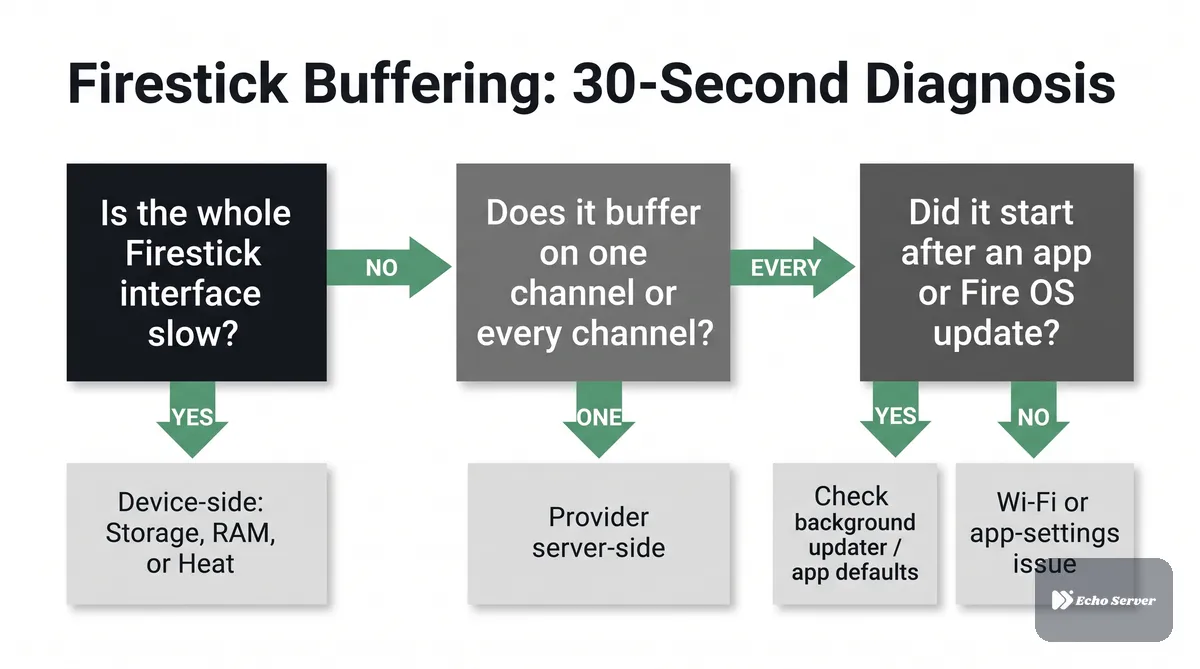
Before Any Fix: 30-Second Firestick Diagnosis
Answer three quick questions. They point at the right section faster than trying every fix in order.
Is the whole Firestick feeling slow — even the Home screen and settings menus?
Yes → the problem is almost certainly device-side (storage, RAM, or heat), not your network. Start with Causes 1, 2, and 5.
No, the interface is snappy and only playback buffers → it’s an app or network problem. Start with Causes 3 and 4.
Does it buffer on one specific channel or every channel?
One channel → provider/server-side for that feed. Not your Firestick.
Everything → your Firestick, its app, or your network.
Did it start after the last Fire OS or app update?
Yes → check Causes 2 and 4 first — a background updater or a fresh app version with new default settings is a common trigger.
Keep those answers in mind as you work through the causes below.
Cause 1: Storage Is Full or Nearly Full
This is the single most Firestick-specific cause on the list, and it’s the one most guides skip.
Fire TV Sticks are built on flash storage — physically the same class of chip as a small USB drive. Older Basic sticks ship with 8 GB total, and current 4K sticks ship with 8 GB or 16 GB (Source: Amazon Fire TV specifications table on Wikipedia). Fire OS itself, plus system apps, occupy a meaningful chunk of that before you install anything. Once free space is running very low — a few hundred megabytes or less — the whole device tends to slow down: menus lag, apps take longer to open, and streaming apps that need to write to a cache while playing back a stream can start stuttering that looks exactly like network buffering.
What to check:
– Settings → My Fire TV → About → Storage shows exactly how much space is free. If it’s under 500 MB, that’s your problem before it’s anything else.
– Uninstall apps you don’t use — every installed app also carries an update cache. Games and large sideloaded apps are the biggest culprits.
– Clear the cache for your IPTV app (Settings → Applications → Manage Installed Applications → [your app] → Clear cache) — do this before clearing data, because clearing data wipes your login and any settings.
A Firestick with less than a few hundred megabytes free is running a completely different device than one with 3 GB free, even though the specs on the box are identical.
Cause 2: Too Many Apps Running in the Background
The other side of the RAM constraint. Fire TV Sticks have between 1 GB and 2 GB of RAM depending on the model (Source: Amazon Fire TV hardware table on Wikipedia), and modern streaming apps are memory-hungry. If you’ve been using the device for a few hours — bouncing between Prime Video, YouTube, a game, and your IPTV app — the RAM is under real pressure and the OS may be evicting your player’s decoder buffer to make room for something else.
The fix is boring and it works:
- Force-stop other apps you aren’t using before starting a long viewing session (Settings → Applications → Manage Installed Applications → [app] → Force stop).
- Restart the Firestick if it’s been running for days. A full reboot clears every background process and returns the device to a clean state — this is the single most reliable fix for a Firestick that “was fine yesterday and started buffering today” with no other change.
- Disable data monitoring and other background features you don’t need (Settings → Preferences), because those run continuously even when nothing is on screen.
If your Firestick’s interface is noticeably faster right after a reboot, that lag was RAM pressure — and the same pressure was what was interrupting your stream.
Cause 3: Wi-Fi (and the Ethernet-Adapter Option Most People Skip)
Firestick Wi-Fi radios are physically small and packaged inside a plastic stick that plugs directly into a TV — often behind the TV, blocked by the panel itself, and several rooms away from the router. That’s a worse-case Wi-Fi environment on paper, and it shows up in real usage.
What to try, in order:
- Switch to the 5 GHz band if your router offers one. 2.4 GHz has longer range but is more crowded and more prone to interference from other devices — 5 GHz is faster and cleaner over shorter distances, which is usually what a Firestick behind a TV actually needs.
- Reposition the Firestick using the HDMI extender cable Amazon ships in the box. Moving the stick a few inches out from behind the TV, so the Wi-Fi radio isn’t shielded by the panel and speaker enclosure, is a real signal improvement — not a myth.
- Consider the Ethernet adapter. Amazon sells (and third parties make) a small adapter that plugs into the Firestick’s micro-USB power port and provides a wired Ethernet connection. On a Firestick that buffers over Wi-Fi in a specific room, a wired connection often eliminates the problem entirely. It doesn’t fix a device-side problem (Causes 1 and 2), but it eliminates Wi-Fi as a variable.
Speed alone isn’t the whole story. Streaming is also sensitive to jitter (variation in delay between packets) and packet loss, both of which can cause buffering on a connection that tests “fast enough” on paper (Source: IETF RFC 4594 on differentiated services and streaming traffic, MDN: Jitter). Wi-Fi is typically noisier on both axes than Ethernet, which is why a wired connection can rescue a stream even when the Wi-Fi speed test looks fine.
Cause 4: Your IPTV App’s Own Settings
Different IPTV apps on Firestick handle playback very differently, and their default settings are usually a compromise across many devices — not tuned for your specific Firestick and your specific network.
Two settings are worth looking at directly:
- Buffer size. Most IPTV players expose a buffer setting somewhere in playback preferences. A larger buffer smooths out short network hiccups at the cost of slightly slower channel changes; a smaller one channel-flips faster but is less forgiving. If you’re seeing brief, repeated buffering, try increasing the buffer. If channel changes feel sluggish and playback is otherwise fine, try decreasing it.
- Hardware vs. software decoding. Most players let you pick which decoder path they use. Hardware decoding is faster and cooler, but not every codec is supported by every Fire OS version; software decoding is a slower fallback that sometimes stumbles on higher-bitrate 1080p or 4K streams on lower-end Firesticks. If one option is stuttering, try the other before assuming the stream itself is broken.
A general TiviMate walkthrough (settings, updates, common troubleshooting steps) is covered in our dedicated TiviMate Pro guide, which is worth a read if that’s the app you’re using.
DNS is a smaller but real factor — a slow or overloaded DNS resolver adds delay before a stream even starts loading. Switching to a public resolver like Google Public DNS or Cloudflare’s 1.1.1.1 is a low-risk test (Source: Google Public DNS setup guide, Cloudflare 1.1.1.1). It won’t fix a device-side problem, but it’s fast to try.
Cause 5: The Firestick Is Overheating
Fire TV Sticks run hotter than most people realize. They’re pulling power through USB, packed inside a plastic case, and often tucked into the poorly-ventilated space behind a TV panel that’s also throwing off its own heat. During long viewing sessions, especially on 4K sticks decoding high-bitrate streams, the SoC can hit its thermal limit and throttle — reducing performance to keep temperature under control.
Signs it’s a heat issue rather than something else:
– Buffering gets worse the longer you watch — a clean first hour, worsening playback after two or three
– The Firestick’s plastic casing is noticeably hot to the touch when you unplug it
– Restarting the device (which lets it cool while it reboots) makes the problem disappear temporarily
The fixes are physical: use the HDMI extender so the stick isn’t wedged directly against a hot TV panel, don’t tuck it into a fully enclosed cabinet, and give it airflow. A small USB fan aimed at the back of the TV is a real solution some users adopt, not a joke — but repositioning with the extender is enough for most cases.
Cause 6: When It’s Not Your Firestick
If the device interface is snappy, storage is fine, restarting doesn’t help, a wired connection doesn’t help, and it’s happening on one specific channel or during a big live event — the problem isn’t your Firestick. It’s either the provider’s server load (common during title fights, playoff games, or a season premiere) or a temporary issue with that specific feed.
That’s not a fixable-on-your-end situation. What it is worth doing:
– Confirm the same channel buffers on a different device on the same network — if it does, it’s the source
– Try again outside peak evening hours — server load usually eases overnight
– Check whether other subscribers to the same service are reporting it at the same time
If your own Firestick and network test clean and the pattern points here consistently, the constraint is on the provider’s side.
Frequently Asked Questions
Will a new, faster Firestick fix buffering?
Only if a device-side cause is the real problem. A Fire TV Stick 4K Max has more RAM, more storage, and a faster processor than an older Basic stick, so it handles high-bitrate streams and multi-app pressure meaningfully better — but if the buffering is coming from Wi-Fi, provider server load, or an app-settings issue, the same problems follow you to the new stick. Diagnose first, upgrade after.
Is a VPN making it worse?
A VPN adds an extra network hop and encryption overhead, which can add latency or reduce speed enough to trigger buffering that wasn’t there before. It can also help in some cases if a specific ISP is throttling streaming traffic. The effect depends heavily on your ISP, VPN provider, and server location — try disabling the VPN to check whether it’s a factor before assuming anything else.
Why does my Firestick buffer on one app and not another?
Almost always an app-settings or decoder issue rather than a network one — see Cause 4. Different apps use different playback engines and different buffer defaults, and one can stutter on a stream another handles cleanly.
No IPTV service is immune to every cause on this list — Firestick hardware limits, Wi-Fi conditions, and peak-hour server load affect any provider. If you’ve worked through the causes above and your setup is clean, and you’re evaluating whether your current service holds up on Firestick specifically, take a look at Echo Best IPTV and judge it against the diagnostic steps here rather than a marketing page.

